For creators
Integrations: build a paid-call funnel — pay, book, WhatsApp reminders with the Zoom link
Integrations is the one page where your academy connects to the tools around it — WhatsApp, Razorpay, Stripe, cal.com, Calendly, Google, Zoom, Zapier. Connected, they can run a whole funnel for you: someone pays for a call, gets nudged on WhatsApp until they book, and gets the Zoom link and reminders before the call — with nothing for you to do.
Last updated Nov 24, 2026
How the funnel flows
- Pay — on your Prolaud checkout (a 1-on-1 call product), your own Razorpay page, or Stripe. The buyer becomes a contact with their WhatsApp number.
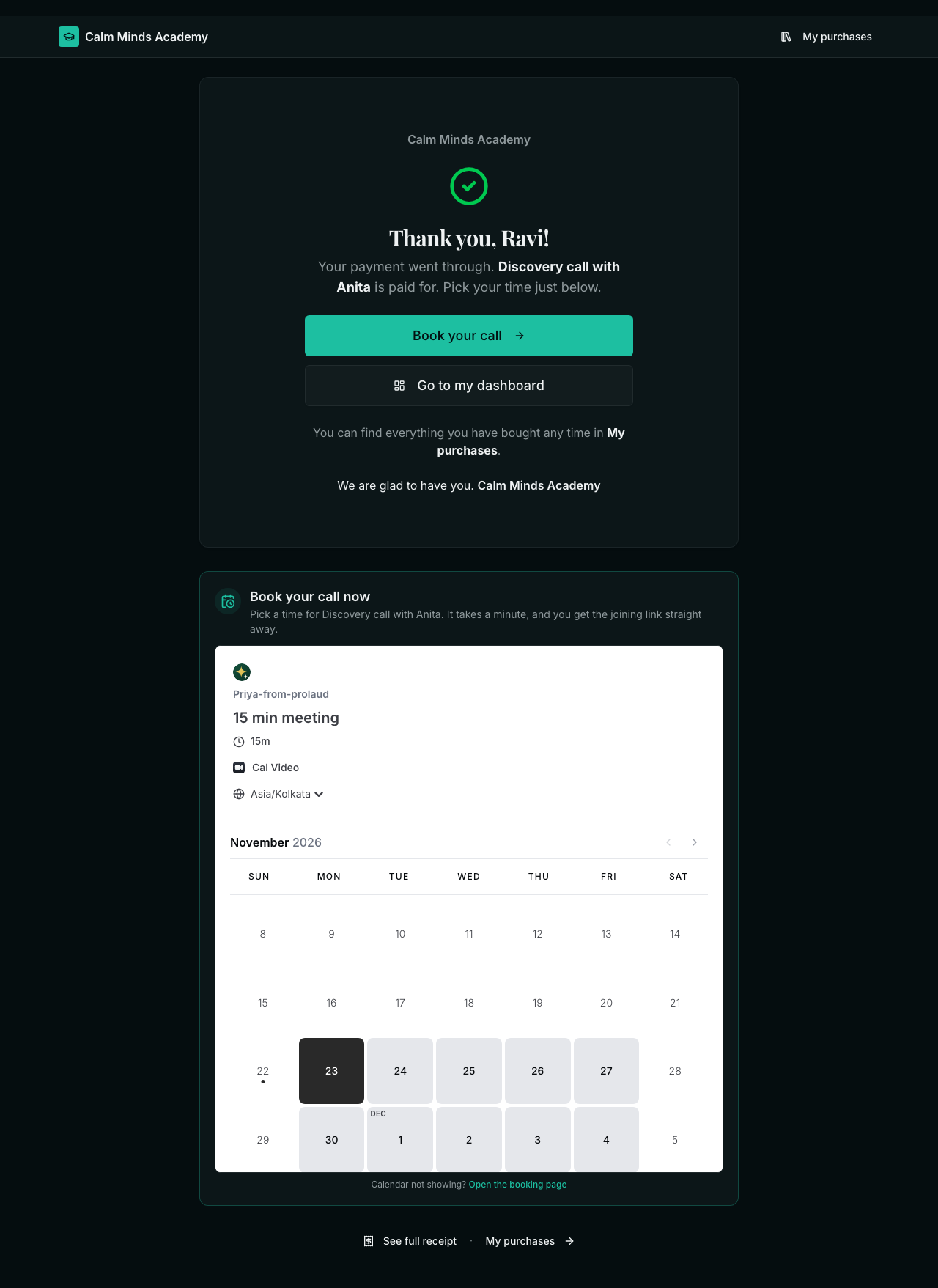
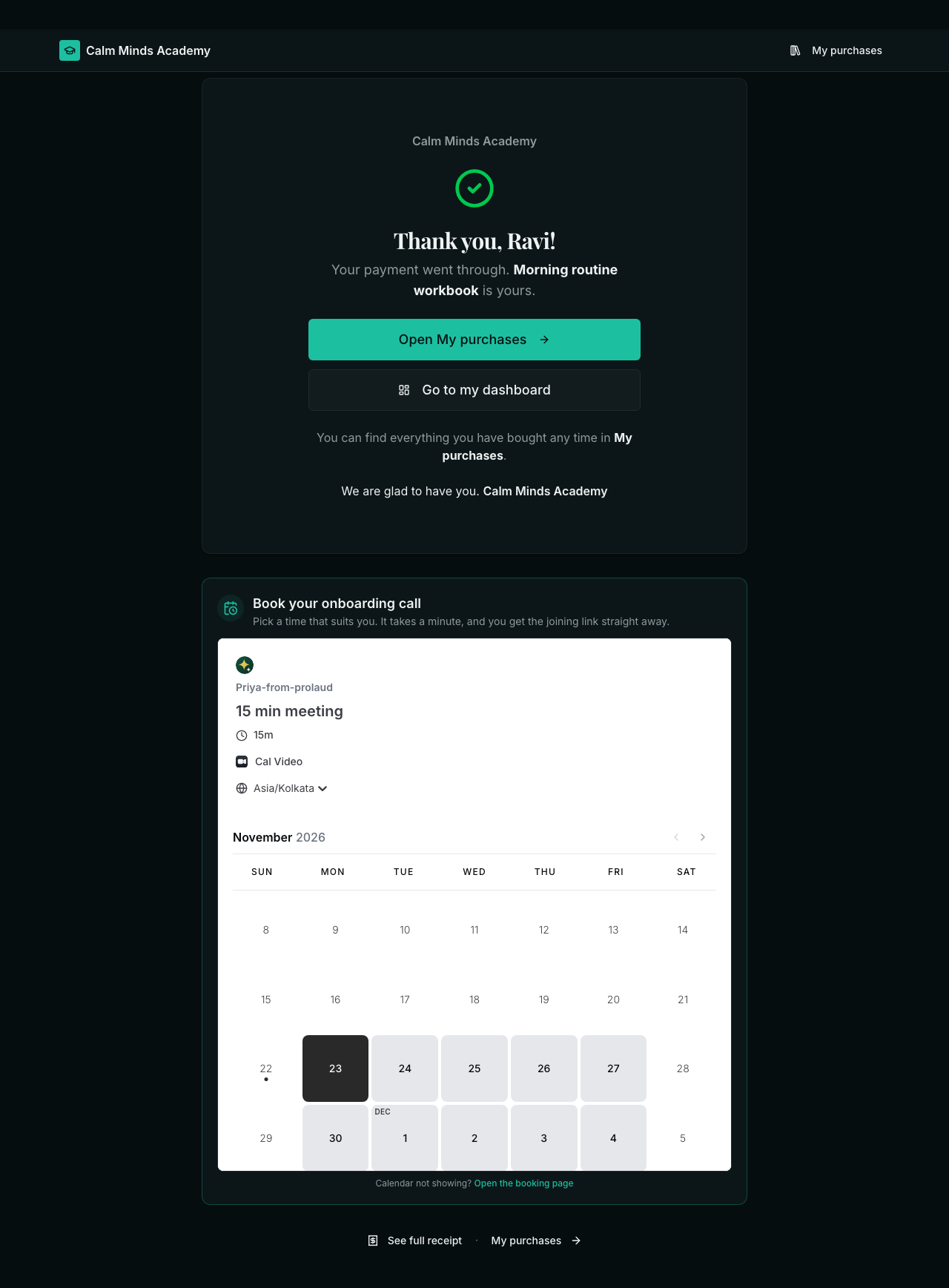
- Book right away — the thank-you page shows your cal.com calendar, their name and email already filled in.
- Tag — anyone who hasn't booked yet is tagged call-not-booked.
- Nudge — WhatsApp with your cal.com link at 8 min, 30 min and 2 h, until they book.
- Booked — cal.com tells Prolaud: the tag becomes call-booked and the nudges stop at once.
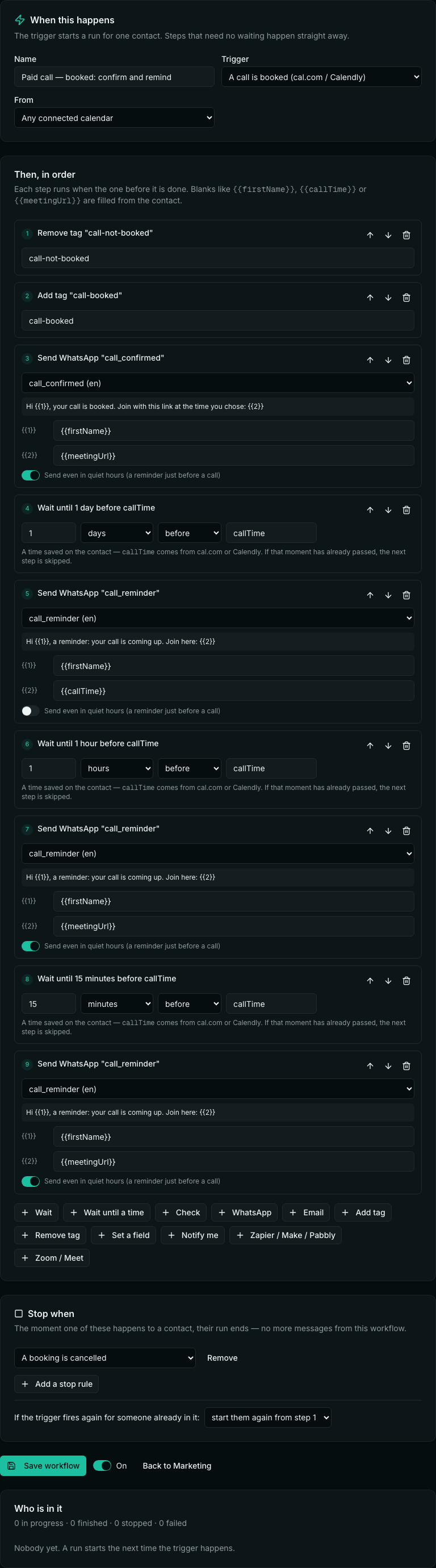
- Confirm — WhatsApp with the call time and the Zoom link, straight away.
- Remind — 1 day, 1 hour and 15 minutes before the call, with the Zoom link.
- Change — a reschedule moves the reminders to the new time; a cancel ends them.
Set it up in this order — one step per screen. It takes about 20 minutes, most of it waiting for Meta to approve your WhatsApp templates.
Step 1: Open Integrations
In the sidebar, under Workspace, open Integrations. Every tool has a card that says whether it's connected and when it last sent something. Click a card to connect it.
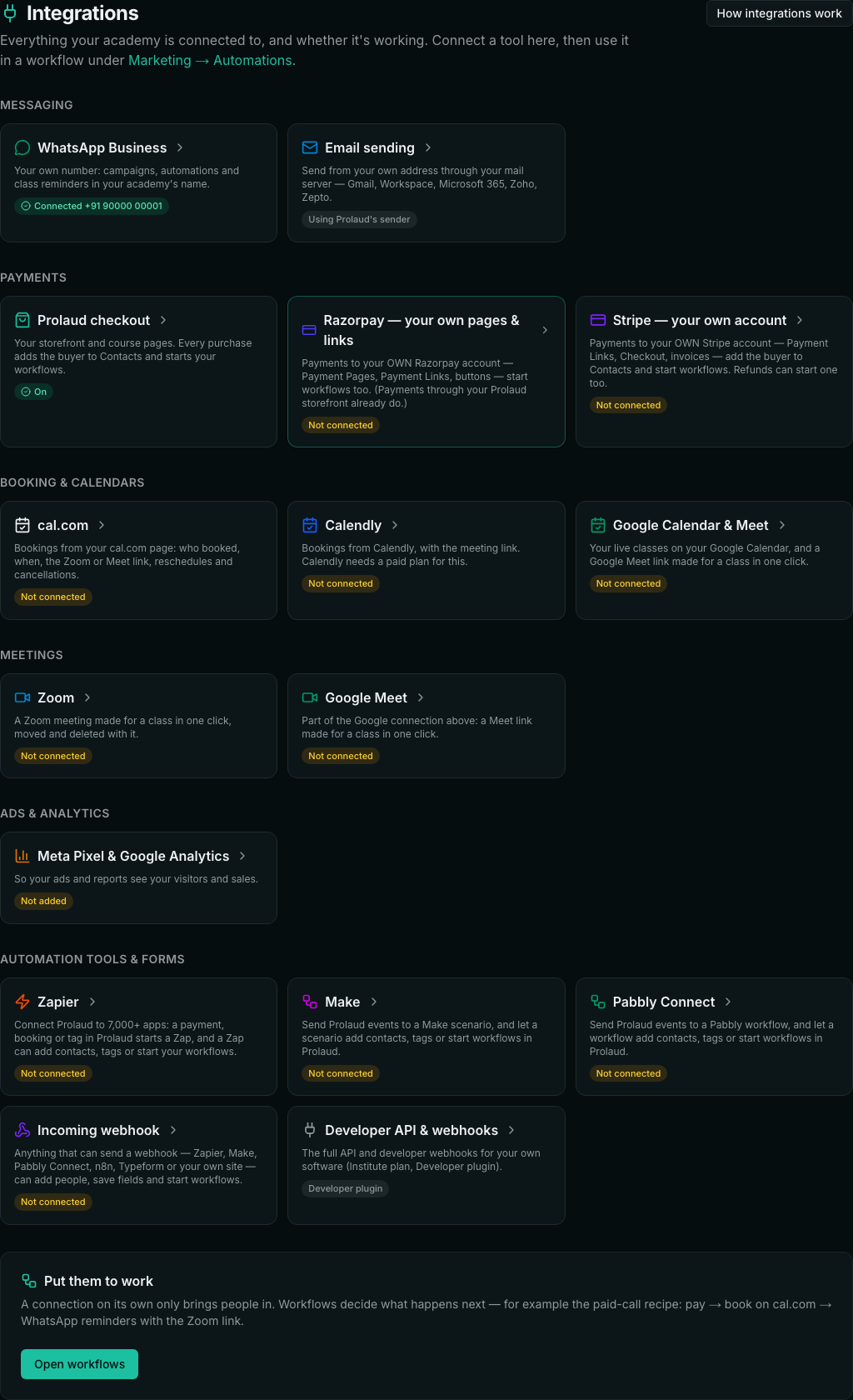
Step 2: Connect WhatsApp, with approved templates
Click WhatsApp Business and connect your own number (phone number ID, WhatsApp Business Account ID and token from Meta). Then, in Sales & Marketing → WhatsApp campaigns, get three templates approved by Meta — the booking nudge, the confirmation and the reminder — each with a blank for the first name and one for the link. Prolaud fills the blanks for each person.
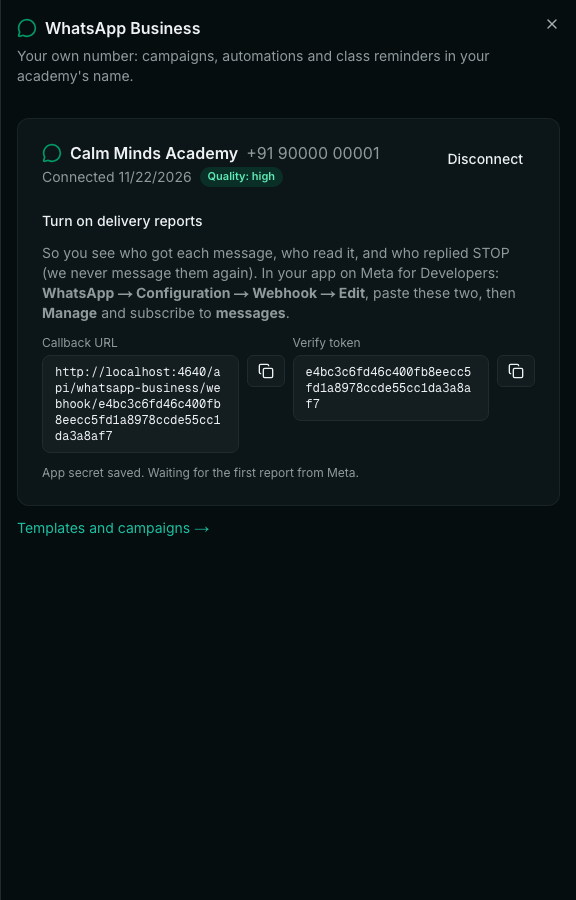
Step 3: Sell the call
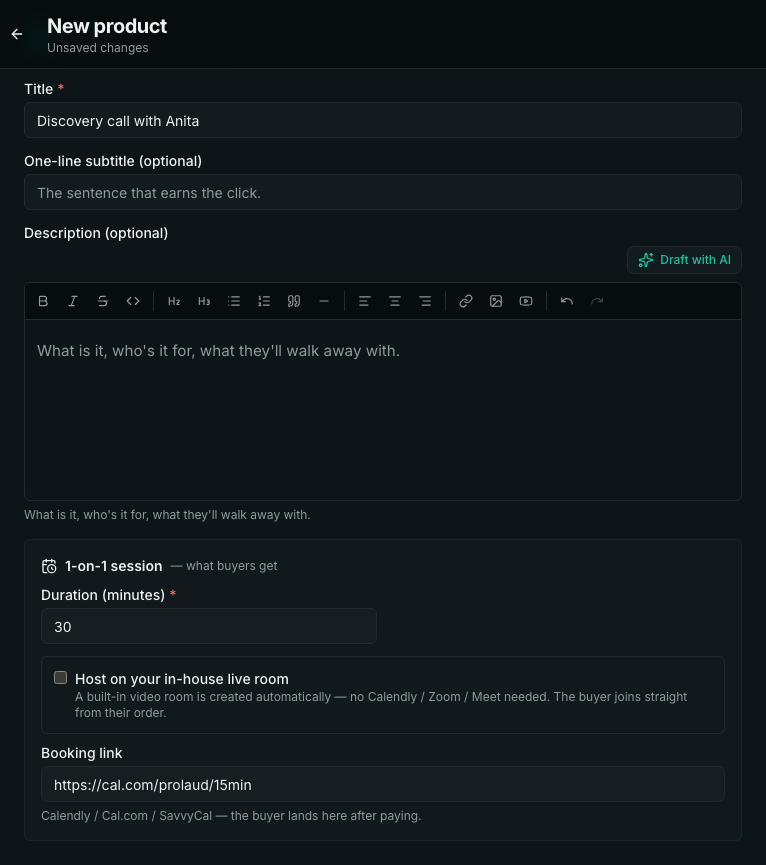
- Open Storefront → New product and choose 1-on-1 session.
- Give it a title ("Discovery call with Anita") and a price.
- Leave Host on your in-house live room off, and paste your cal.com link into Booking link — for example https://cal.com/anita-rao/discovery-call.
- Press Publish, then Copy checkout link and put it behind the Pay button of your ad's landing page (GoHighLevel, your website, anywhere).
Already taking payment on your own Razorpay page or on Stripe? That works too — connect it in the next step and those payments start the funnel the same way.
Step 4: Connect where people pay (if not only on Prolaud)
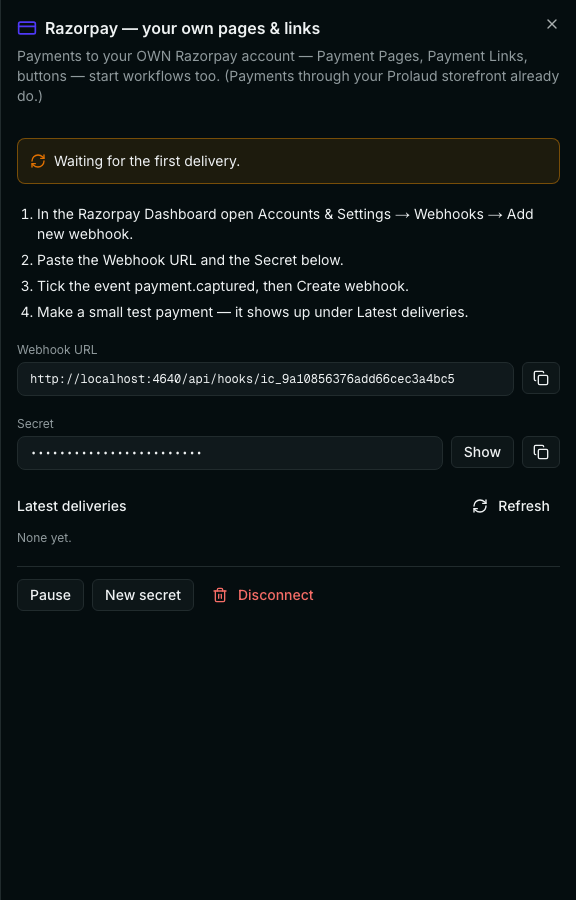
Payments on your Prolaud checkout need nothing more — every purchase already starts workflows. For your own Razorpay page or link, or Stripe:
- Razorpay: click the card → Create my address. In the Razorpay Dashboard → Accounts & Settings → Webhooks → Add new webhook, paste the Webhook URL and the Secret, tick payment.captured, and save.
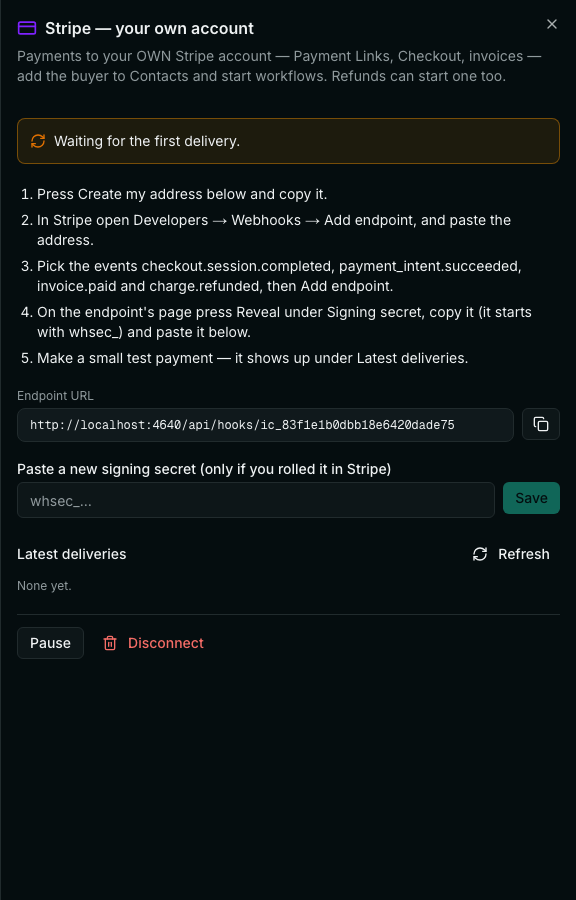
- Stripe: click the card → Create my address. In Stripe → Developers → Webhooks → Add endpoint, paste the address and pick checkout.session.completed, payment_intent.succeeded, invoice.paid and charge.refunded. Copy the endpoint's Signing secret (whsec_…) back into Prolaud and press Save.
Step 5: Connect cal.com
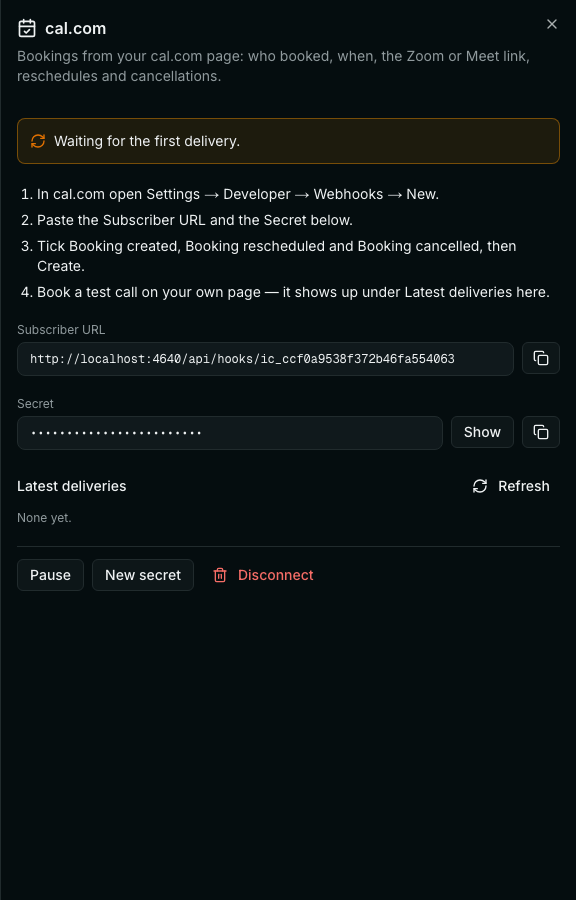
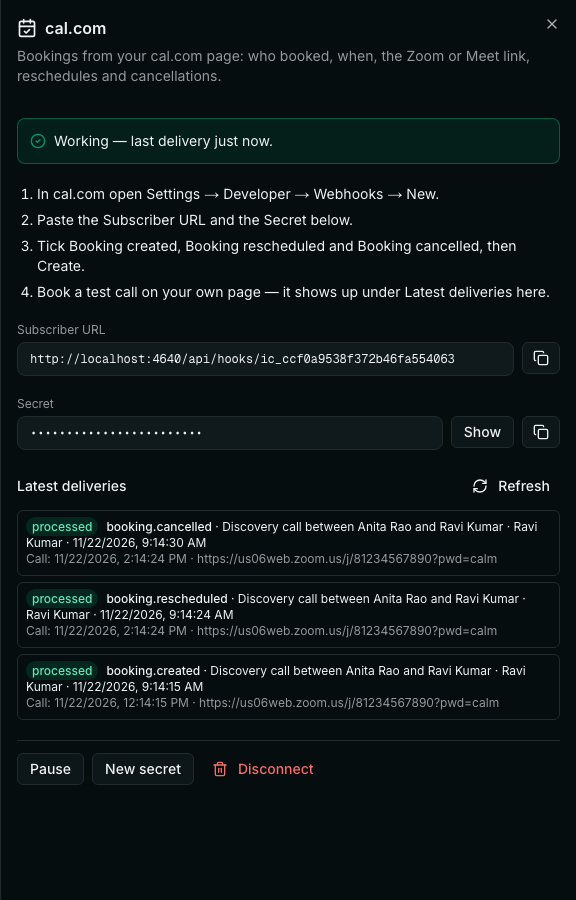
Click cal.com → Create my address. In cal.com → Settings → Developer → Webhooks → New, paste the Subscriber URL and the Secret, tick Booking created, Booking rescheduled and Booking cancelled, and save. Book a test call on your own page — it appears under Latest deliveries.
Step 6: Switch on the paid-call recipe
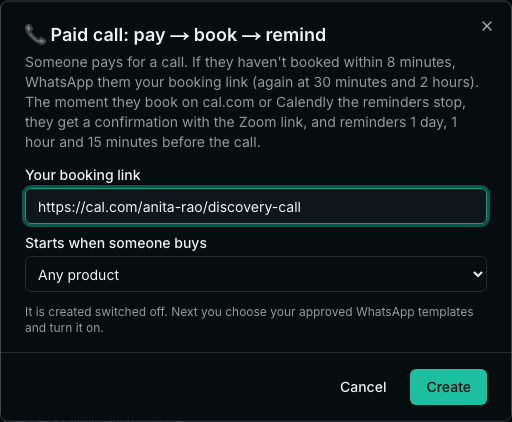
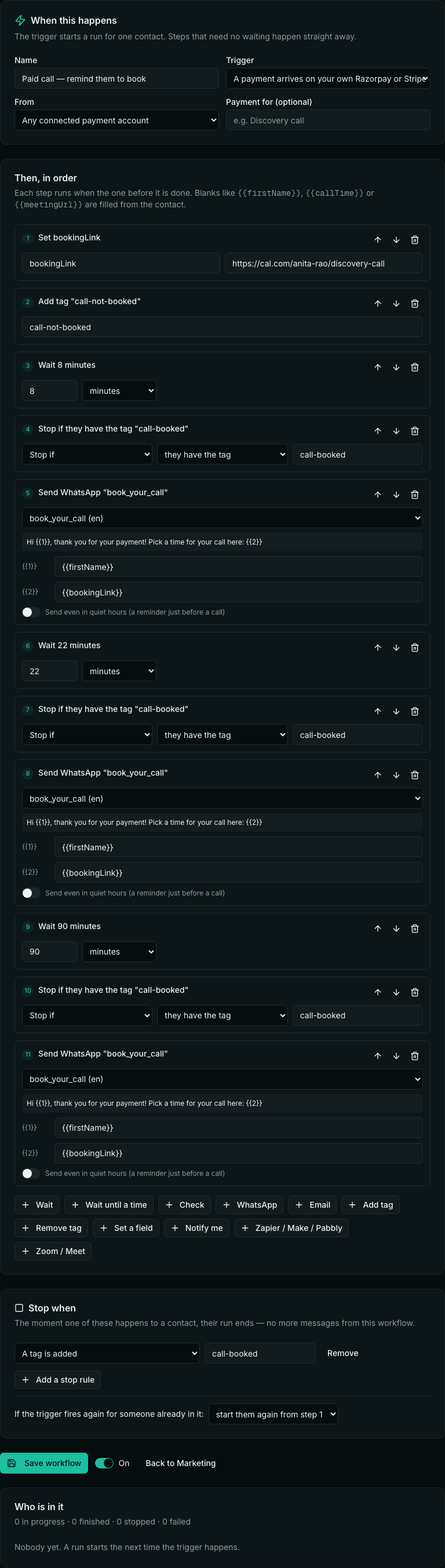
Open Marketing → Automations and choose Paid call: pay → book → remind. Paste your cal.com link, pick what starts it (your call product, any product, or a payment on your own Razorpay or Stripe), and press Create. Two workflows are made, switched off: *remind them to book* and *booked: confirm and remind*. In each, pick your approved WhatsApp templates — the nudge in the first, the confirmation and reminder in the second — then switch them On and save.
Step 7: The buyer books right after paying
After paying on your Prolaud checkout, the buyer lands on a thank-you page that says Book your call — with your cal.com calendar right on the page, their name and email already filled in. Most people pick a time there and then. The receipt keeps a Book your session link for anyone who comes back later.

Step 8: What the buyer receives on WhatsApp
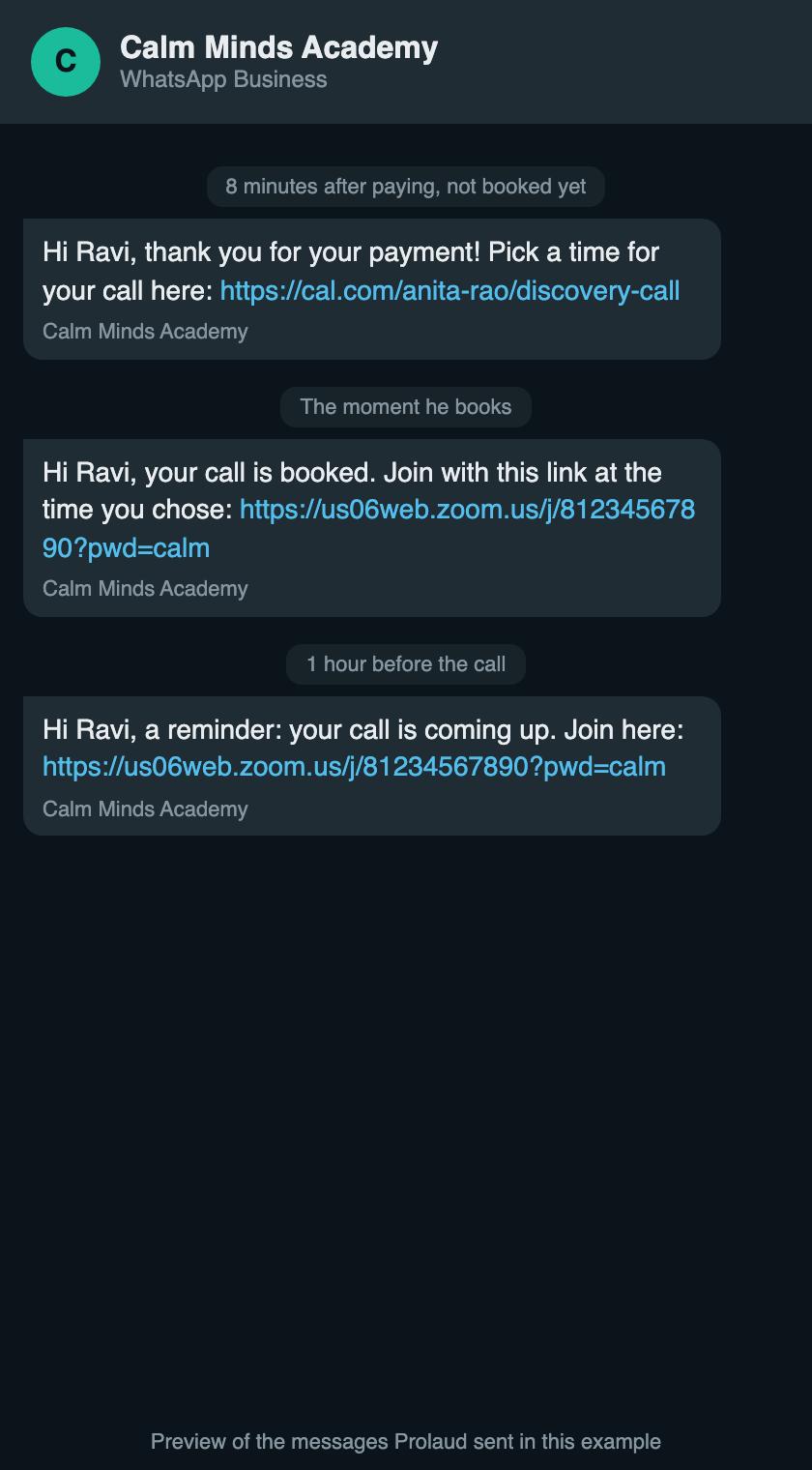
The words are your approved templates; Prolaud fills the blanks — first name, booking link, call time, Zoom link — for each person:
- 8 minutes after paying, if not booked: the nudge with your booking link — again at 30 minutes and 2 hours.
- The moment they book: the confirmation with the Zoom link.
- 1 day, 1 hour and 15 minutes before the call: the reminder with the same Zoom link.
Step 9: Watch it work
- The cal.com card says Connected · last delivery …; open it for every booking that arrived, with its time and Zoom link.
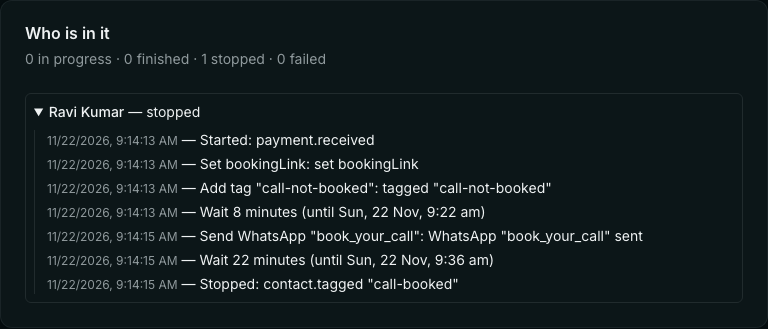
- In the workflow, Who is in it lists each person and where they are.
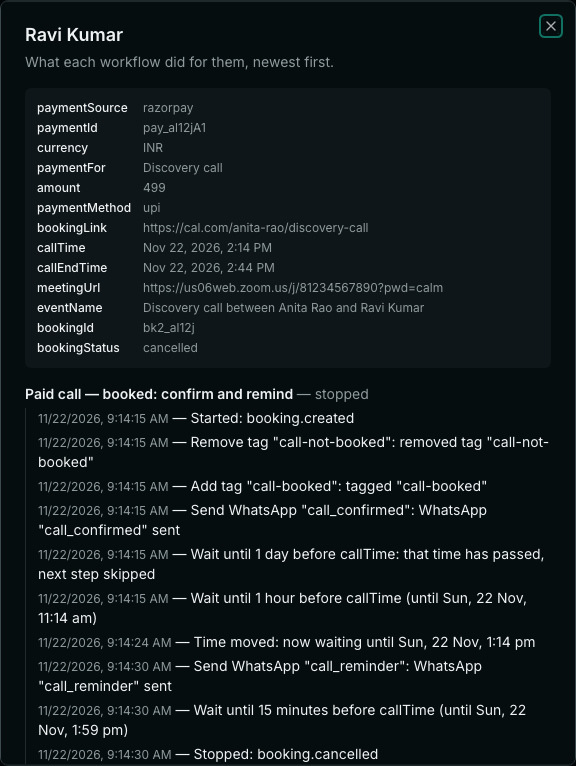
- Open a contact's Timeline to see every step: paid → reminded → booked → confirmed → rescheduled or cancelled.
The meeting link: Zoom or Google Meet
For the paid call — connect Zoom or Google Meet inside cal.com. In cal.com, add Zoom or Google Meet as the event's location. Each booking then carries its own meeting link, and Prolaud sends it to the buyer as `{{meetingUrl}}` in the confirmation and reminders. Nothing to set up in Prolaud for this.
For your live classes and group calls — connect Google or Zoom in Prolaud. Either in Integrations (Google Calendar & Meet, Zoom), or straight from the class: when you schedule one, Where the class happens offers the Prolaud room, Google Meet or Zoom. Choose Google Meet or Zoom — if it isn't connected yet, Connect opens the sign-in in a new tab, your half-filled class stays as it is, and the link is made the moment you come back. It moves with the class if you reschedule and goes if you cancel.
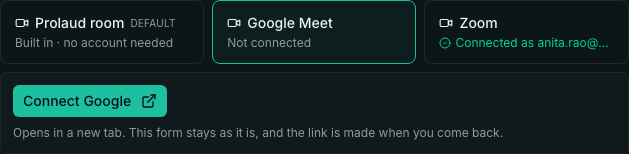
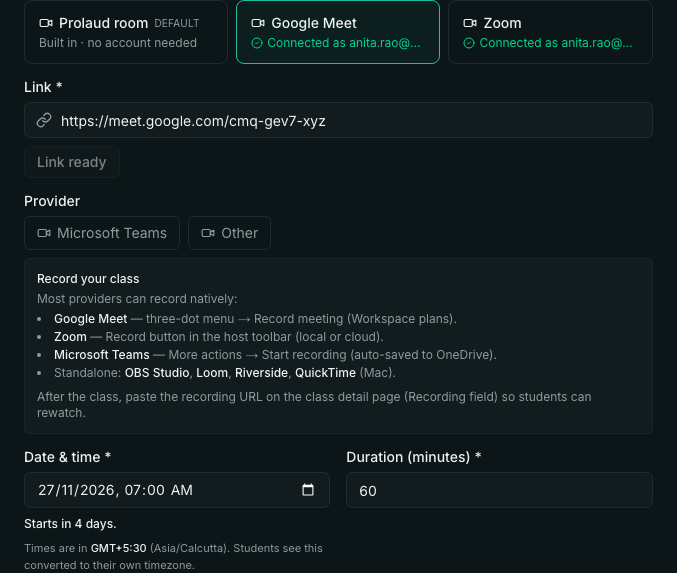
Google and Zoom connect through Prolaud's own Google and Zoom apps — already set up on prolaud.com, so you only sign in.
Book a call after any purchase, not only a call
Selling a course, a membership or a download and want buyers to book an onboarding or welcome call? Add your booking link under After they buy: book a call in the product editor (or a course's Pricing tab). The thank-you page then shows the calendar under the course or purchases button. See Book a call after purchase.
If something isn't working
- The card says a delivery was refused — the secret in the tool doesn't match. Copy the secret from the card again (or, for Stripe, paste Stripe's signing secret again) and save it in the tool.
- No WhatsApp went out — check the template is Approved by Meta and chosen in each WhatsApp step; the step's line in the person's timeline says why it was skipped.
- "No phone" in the timeline — the buyer gave no number. Ask for the WhatsApp number on your payment page (Razorpay and Stripe both have a phone field).
- They booked, but the tag didn't change and the nudges continued — they booked with a different email (or phone) from the one they paid with, so Prolaud couldn't tell it was them. Ask them to book with the same email, or open the contact and swap the tag by hand (remove *call-not-booked*, add *call-booked*). Also check the first workflow's Stop when says *tag call-booked added*.
- The calendar doesn't show on the thank-you page — some cal.com or Calendly accounts refuse to be shown inside other sites. The buyer still sees Open the booking page under the frame, which opens your calendar in a new tab.
- No Zoom link in the messages — Zoom (or Google Meet) isn't set as the location of the event in cal.com, so bookings arrive without a link. Add it in cal.com; new bookings carry it.
- Nothing arrives from cal.com — check the three booking events are ticked in cal.com's webhook, and the card isn't Paused.
Rather use Zapier, Make or Pabbly?
On the Studio plan and up, the same funnel can run through Zapier, Make or Pabbly Connect: Integrations → Zapier (or Make, Pabbly) gives you an API key and a list of events — a payment, a booking, a tag, a new contact — that Prolaud sends the moment they happen. Your Zap can then update a Google Sheet, post in Slack, or tag the person back in Prolaud. Payments, cal.com and WhatsApp still connect directly; the tools are for everything else.
- Connect your WhatsApp Business number
- Payments on your own Razorpay pages and links
- Connect your own Stripe
- Connect cal.com
- Connect Calendly
- Google Calendar & Meet
- Zoom meetings for your classes
- Book a call after purchase (any product or course)
- Incoming webhook: Zapier, Make, Pabbly, n8n
- Send email from your own address
- Meta Pixel and Google Analytics
- Workflows: steps, waits, stop-when and the timeline
- Paid call funnel: pay → book → WhatsApp reminders
- Can buyers book the call on the page right after paying?
- Yes. A 1-on-1 session sold with a cal.com or Calendly link shows that calendar on the thank-you page, with the buyer's name and email filled in. Most book there and then.
- Can Prolaud send WhatsApp reminders until someone books a call?
- Yes. The paid-call recipe sends your booking link on WhatsApp at 8 minutes, 30 minutes and 2 hours after payment, and stops the moment cal.com or Calendly tells Prolaud they booked.
- Why didn't the reminders stop when someone booked?
- They booked with a different email or phone from the one they paid with. Ask them to use the same email, or swap the tag on their contact by hand.
- Do I need Zapier to connect Razorpay, Stripe or cal.com?
- No. Razorpay, Stripe, cal.com and Calendly connect directly in Integrations. Zapier, Make or Pabbly are only for other tools.
- Where does the Zoom link in the messages come from?
- From the booking: when Zoom or Google Meet is the location of your cal.com or Calendly event, each booking carries its link, and Prolaud puts it in your confirmation and reminders.
- Can Prolaud make Zoom or Google Meet links for my live classes?
- Yes. Connect Google or Zoom in Integrations, or from the class itself under Where the class happens. The link is made for the class, moves when you reschedule, and goes when you cancel.
- What happens if someone reschedules or cancels?
- A reschedule moves the reminders to the new time; a cancel stops them. Both arrive from cal.com automatically.
- Is it safe to paste the secret into Razorpay, Stripe or cal.com?
- Yes — it lets Prolaud check every delivery really came from your account. Anything without the right signature is refused. Make a new secret from the card if one ever leaks.
- What if the same payment or booking arrives twice?
- It is acted on once. Tools retry deliveries, and Prolaud recognises a repeat.
- Who can see Integrations?
- The academy's admins. Teachers can still make a Zoom or Meet link for a class they schedule, once an admin has connected the account.
Related