For creators
Google Calendar & Meet: your classes on your calendar, Meet links made for you
Connect your Google account once. Your live classes appear on your Google Calendar — and move or disappear when the class does — and when you schedule a class on Google Meet, Prolaud makes the Meet link for you. Class reminders carry it.
Last updated Nov 24, 2026
In short: Integrations → Google Calendar & Meet → Connect Google → allow Prolaud to add events to your calendar. Then schedule a class with Google Meet and press Make the Google Meet link for me.
Connect Google
- Open Integrations and click Google Calendar & Meet. Press Connect Google.
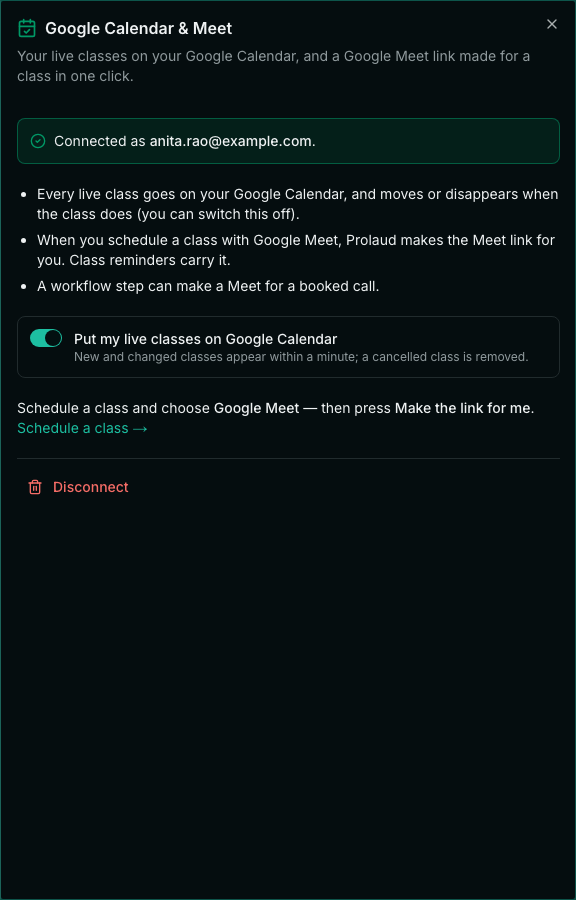
- Sign in to Google and allow Prolaud to add and change events on your calendar. You come back to Integrations with Connected as your Google account.
- Put my live classes on Google Calendar is on. Switch it off if you only want Meet links.
Make a Meet link for a class
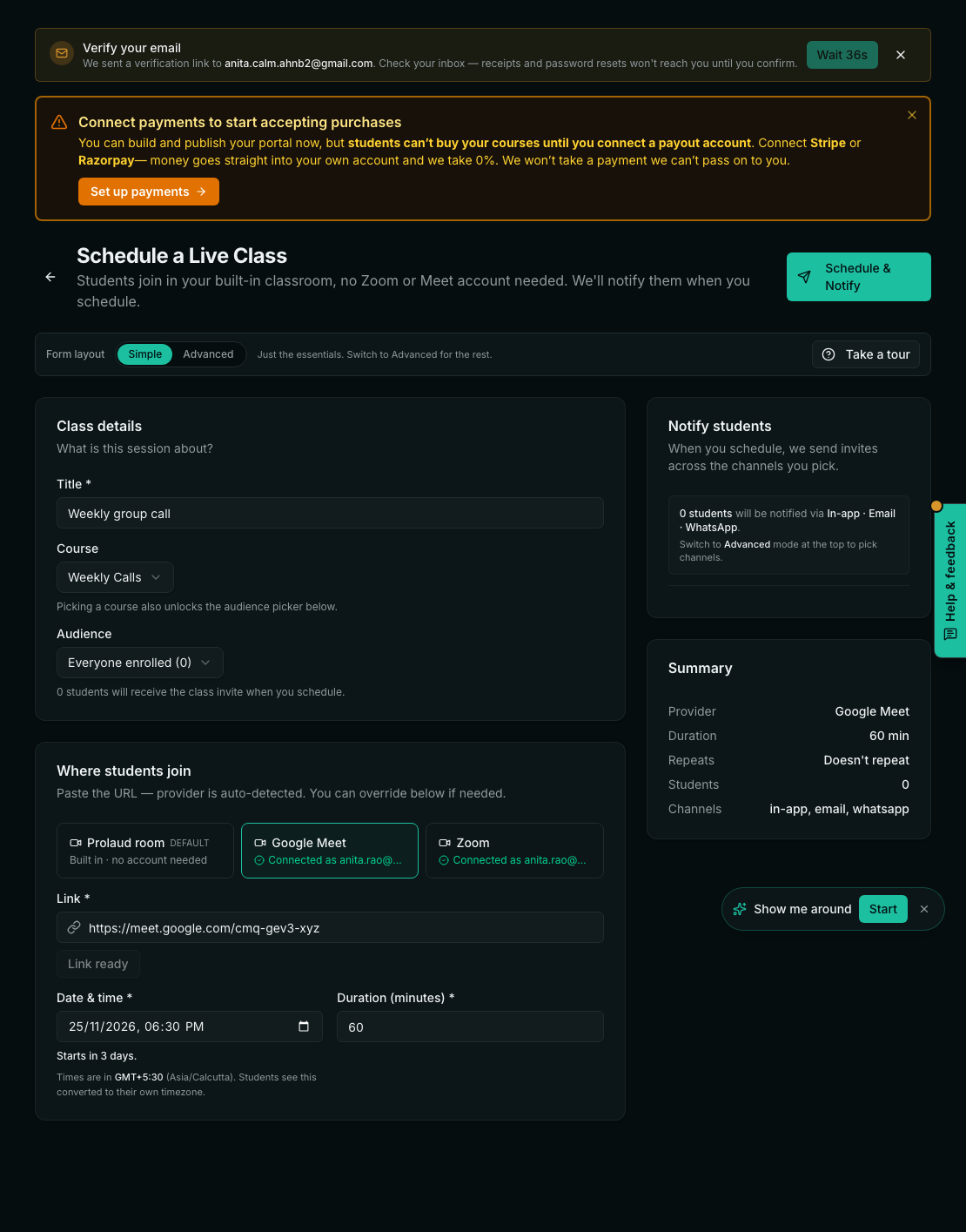
- In Live Classes → Schedule a class, switch to Advanced, pick the course, and choose Google Meet.
- Set the date and time, then press Make the Google Meet link for me. The link fills in.
- Press Schedule & Notify. The invitation and every reminder carry the Meet link.
When the class changes
- Reschedule it, or change its title or length: the calendar event moves within a minute, keeping its Meet link.
- Cancel or delete it: the event is removed.
- A weekly series shares one Meet link, as it shares one join link.
- Does Prolaud invite my students on Google Calendar?
- No. Prolaud tells your students itself (invitation and reminders); the Google event is for your own calendar.
- Which calendar do classes go on?
- The main calendar of the Google account you connected.
- What happens if I disconnect?
- Prolaud signs out of your Google account. Events and Meet links already made stay; new classes don't get them.
- The card says to connect again.
- Google stopped Prolaud's access (you removed it, or changed your password). Press Connect again.
Related