For creators
Book a call after purchase: your calendar on the thank-you page, for any product or course
Want everyone who buys a course, a membership or a download to book an onboarding or welcome call? Add your booking link once, and the thank-you page shows your calendar right under the course button — with the buyer's name and email already filled in.
Last updated Nov 24, 2026
In short: open the product (or the course's Pricing tab), paste your cal.com or Calendly link under After they buy: book a call, give it a heading if you like, and save. That's all.
On a product (course, membership, download, community, webinar, bundle…)
- Open Storefront and the product (or make a new one).
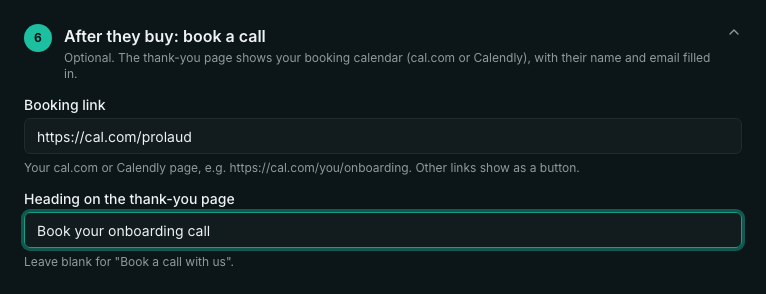
- Open the section After they buy: book a call.
- Paste your booking link into Booking link — for example https://cal.com/you/onboarding.
- Optional: type a Heading on the thank-you page, such as "Book your onboarding call". Left blank, it says "Book a call with us".
- Press Update (or Publish).
On a course
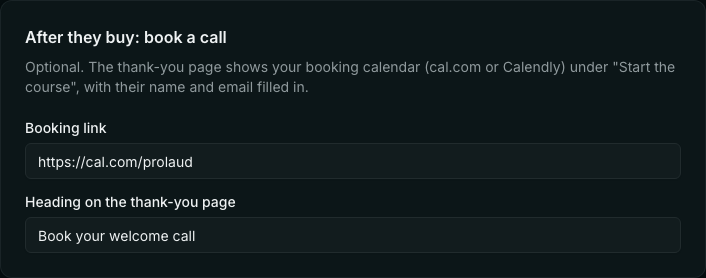
- Open the course and go to the Pricing tab.
- Under After they buy: book a call, paste your booking link and, if you like, a heading.
- It saves by itself; on a published course, press Publish changes.
A course sold through a Storefront product uses the product's link if it has one, otherwise the course's.
What the buyer sees
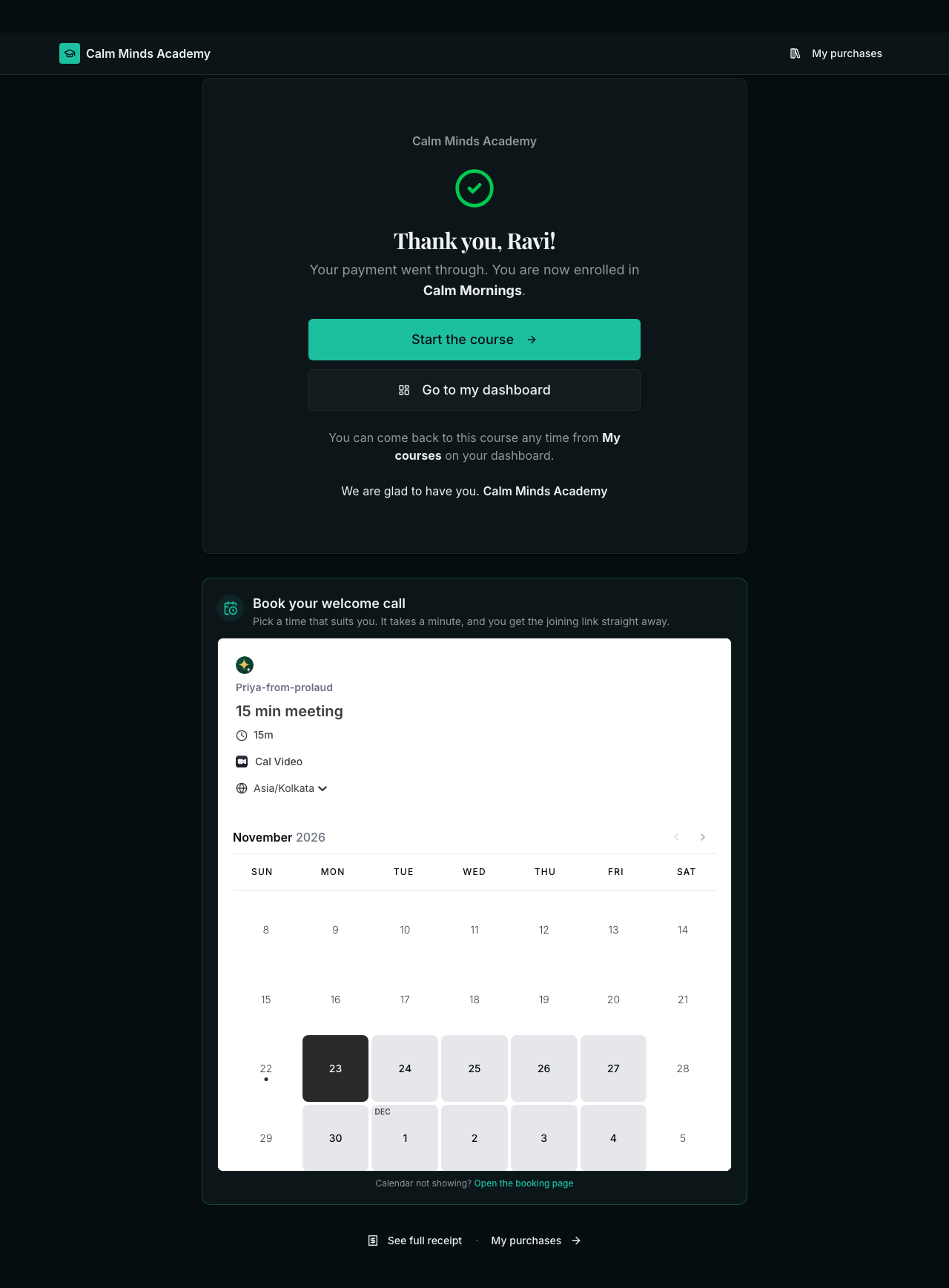
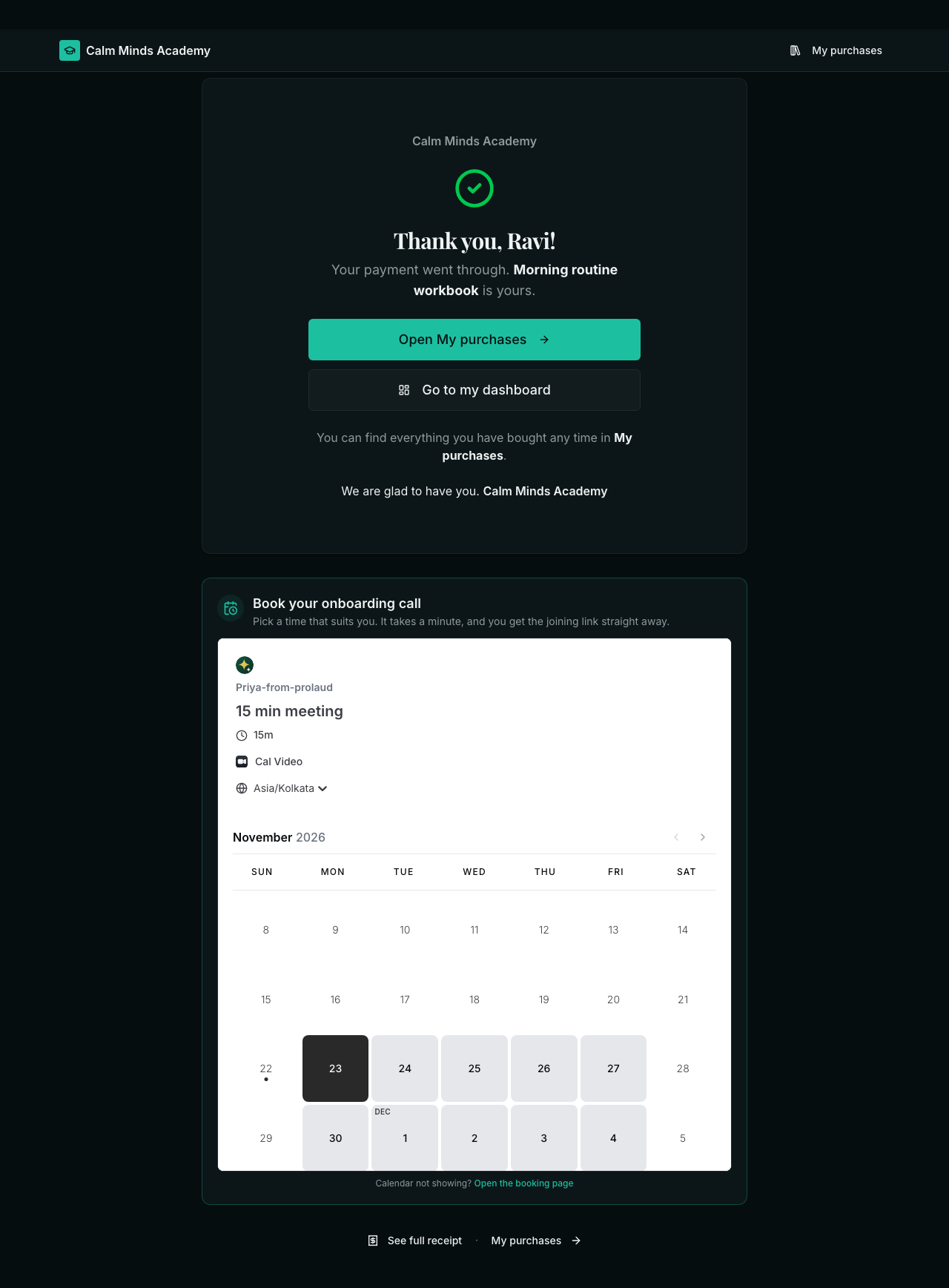
Right after paying, the thank-you page keeps its main button first — Start the course, Open the community or Open My purchases — and below it shows your heading with the booking calendar. Their name and email are already filled in, so booking takes a minute.
Which booking links work?
- cal.com (including team pages) and Calendly show inside the page.
- Any other https link shows as a Book your call button that opens it in a new tab.
- If your cal.com or Calendly account refuses to be shown inside other sites, the buyer sees Open the booking page under the frame.
- Can I show a booking calendar after someone buys a course?
- Yes. Paste your cal.com or Calendly link in the course's Pricing tab under After they buy: book a call, or on the Storefront product that sells it. The thank-you page shows the calendar under Start the course.
- Is the buyer's name and email filled in?
- Yes, from their order. Booking with that email also lets Prolaud match the booking to the same contact if cal.com or Calendly is connected in Integrations.
- Can I change the heading?
- Yes, up to 80 characters, for example "Book your onboarding call". Left blank it says "Book a call with us".
- Does it work for memberships and downloads?
- Yes, for every product kind. A 1-on-1 session uses its own booking link instead.
- How do I remove it?
- Clear the Booking link and save. The thank-you page goes back to just the main button.
Related