For creators
Content security: exactly what is protected, and where
A straight answer to the question every serious course business asks: how safe is my material here? We do not use Widevine or FairPlay DRM, and we will not pretend otherwise. What we do have is per-student watermarking, signed expiring delivery, copy and print controls, PDFs rendered so there is no text to copy, and a device limit that stops password sharing — all of it OFF until you switch it on, which takes about thirty seconds. Here is the whole picture, including the parts we cannot do.
Last updated Aug 21, 2026
If you sell recorded courses, your material is your inventory. So the question is fair and it deserves a precise answer rather than the word “secure” repeated. This page states exactly which protections exist, which surfaces they apply to, which devices they cover, and where the limits are.
The short version
We do not implement hard DRM. There is no Widevine, no FairPlay and no PlayReady at any security level, so if a license-based DRM chain is a hard requirement for you, we are not your platform and you should look at one built around it. We would rather lose the evaluation here than in your demo.
What we do instead is make copies traceable and casual copying inconvenient: every protected view is stamped with the individual student’s identity, files are served through short-lived links tied to your academy, PDFs are delivered as images with no text layer, and one account cannot be shared across an unlimited number of devices.
How to turn it on
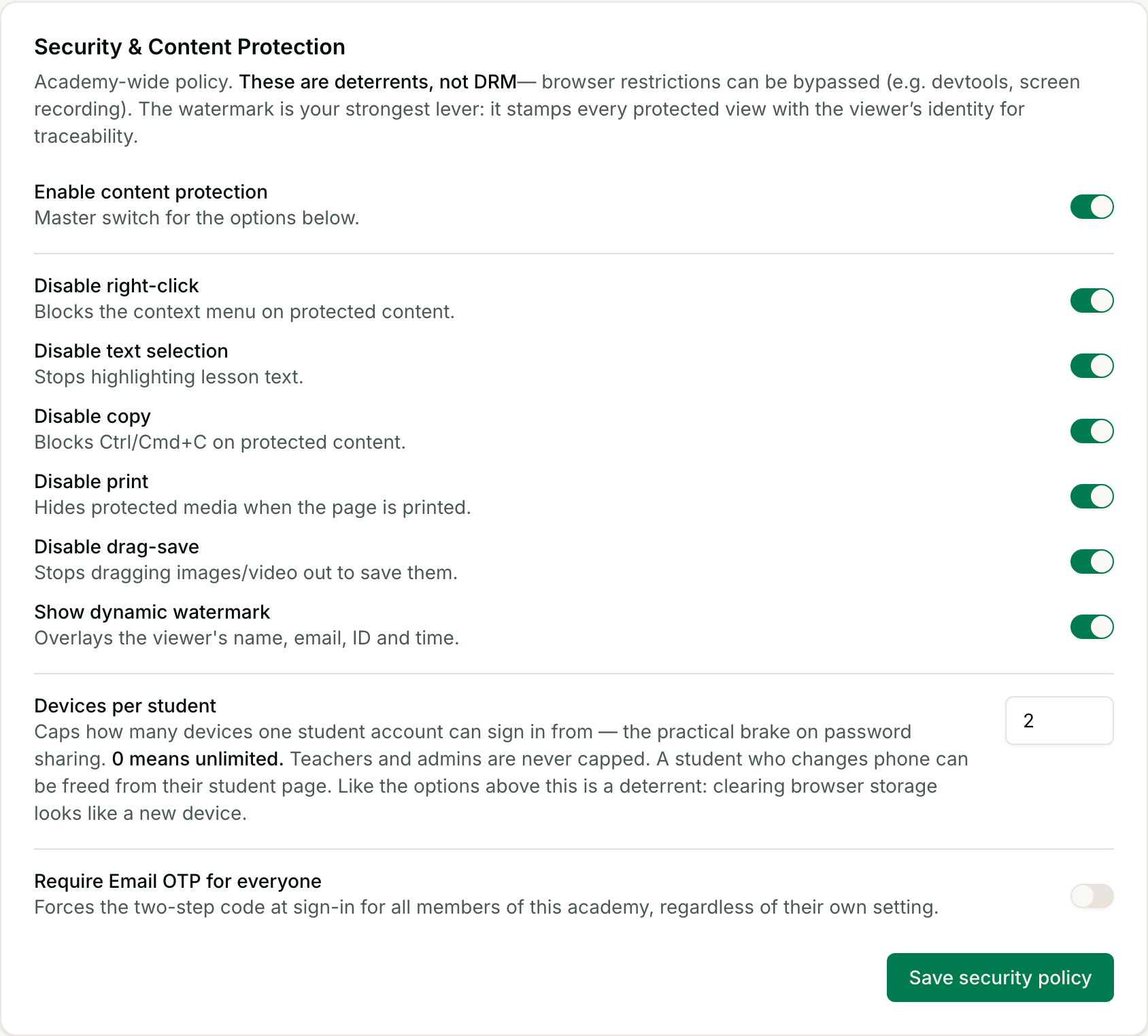
Content protection is off by default and is a single academy-wide policy. Open Settings → Security & Content Protection, switch on “Enable content protection”, then choose which controls you want. Save, and it applies to your students on their next page load.
- Disable right-click — blocks the context menu on protected content.
- Disable text selection — stops highlighting lesson text.
- Disable copy — blocks Ctrl/Cmd+C on protected content.
- Disable print — hides protected media when the page is printed.
- Disable drag-save — stops dragging an image or video out to save it.
- Show dynamic watermark — overlays the viewer’s name, email, user ID and the current time.
- Devices per student — a number; 0 means unlimited.
Video
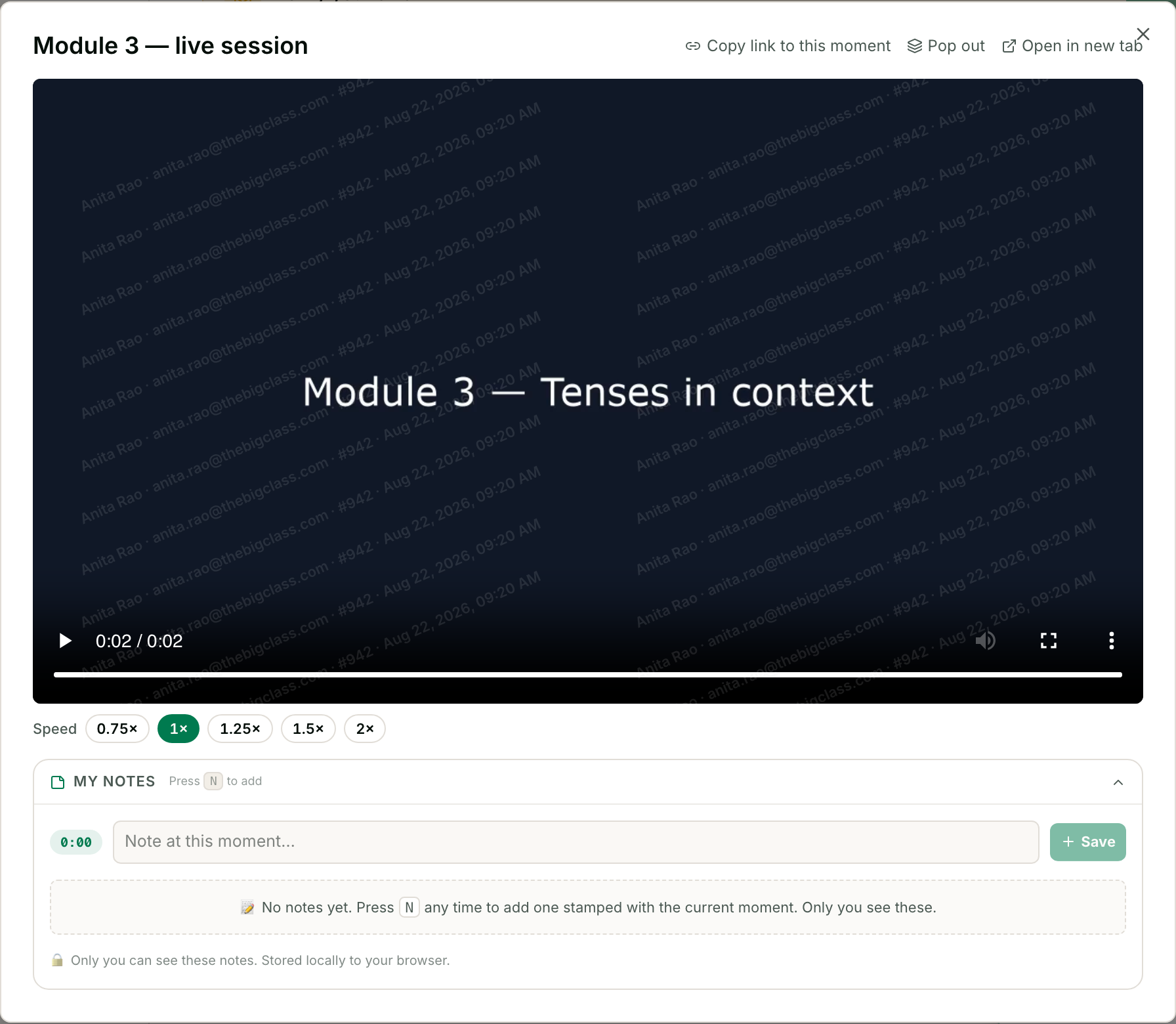
Course video and class recordings are held in private storage and are never served from a fixed public address. When an authorized student opens a lesson, the platform mints a short-lived signed link — valid for six hours — for that view alone. Copying the address out of the page yields a link that stops working the same day, and minting a new one requires a valid login belonging to your academy.
That authorization happens on our servers before anything is signed. A logged-in user from a different academy asking for your video, your PDF or your class recording is refused outright. Recordings are resolved back to the class that produced them and checked against the workspace that ran it, so cohort-only access is enforced at the file, not just hidden in the interface.
Video is not downloadable for offline viewing, and there is no encrypted offline container — there is no app to hold one. The browser download affordances we control are removed when protection is on.
How to add a protected video
There is no separate “protected upload” — everything you upload to a lesson is served this way once the policy is on. The steps are just the normal ones:
- Dashboard → Courses, open the course, and click Edit.
- Go to the Curriculum tab and expand the module (or click Add Lesson for a new one).
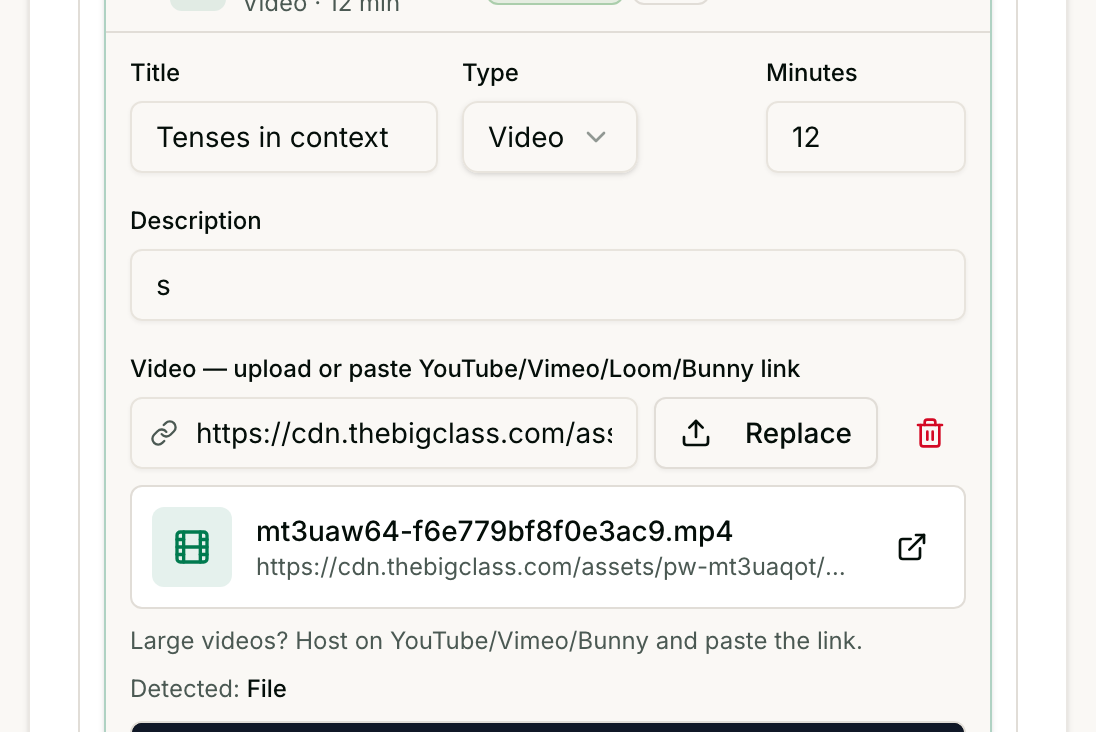
- Click the lesson to open it, and set Type to Video.
- Upload your file in the “Video — upload or paste …” field.
- Click Publish changes.
PDFs and presentations
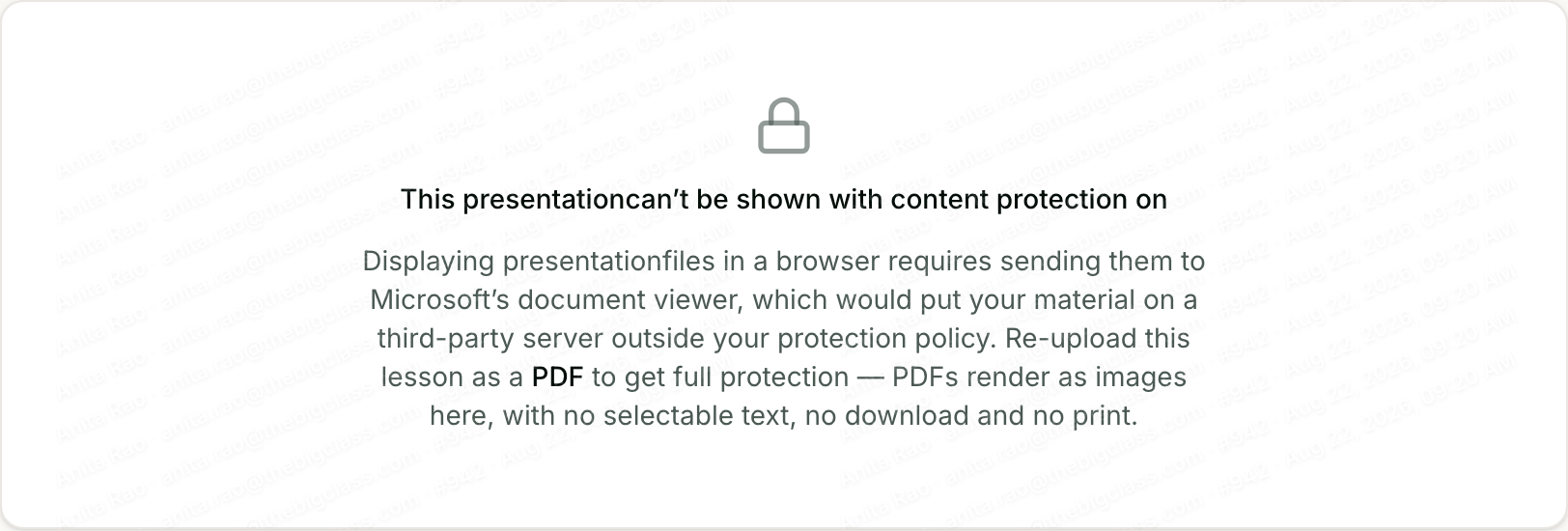
This is where most platforms answer loosely, so here is the mechanism. Normally a PDF lesson is handed to the browser’s own PDF viewer inside a frame. That viewer is a separate document: no website’s copy rules apply inside it, and it carries its own download and print buttons. Answering “can I stop students copying text out of my PDFs?” with yes therefore requires not shipping them a PDF document at all.
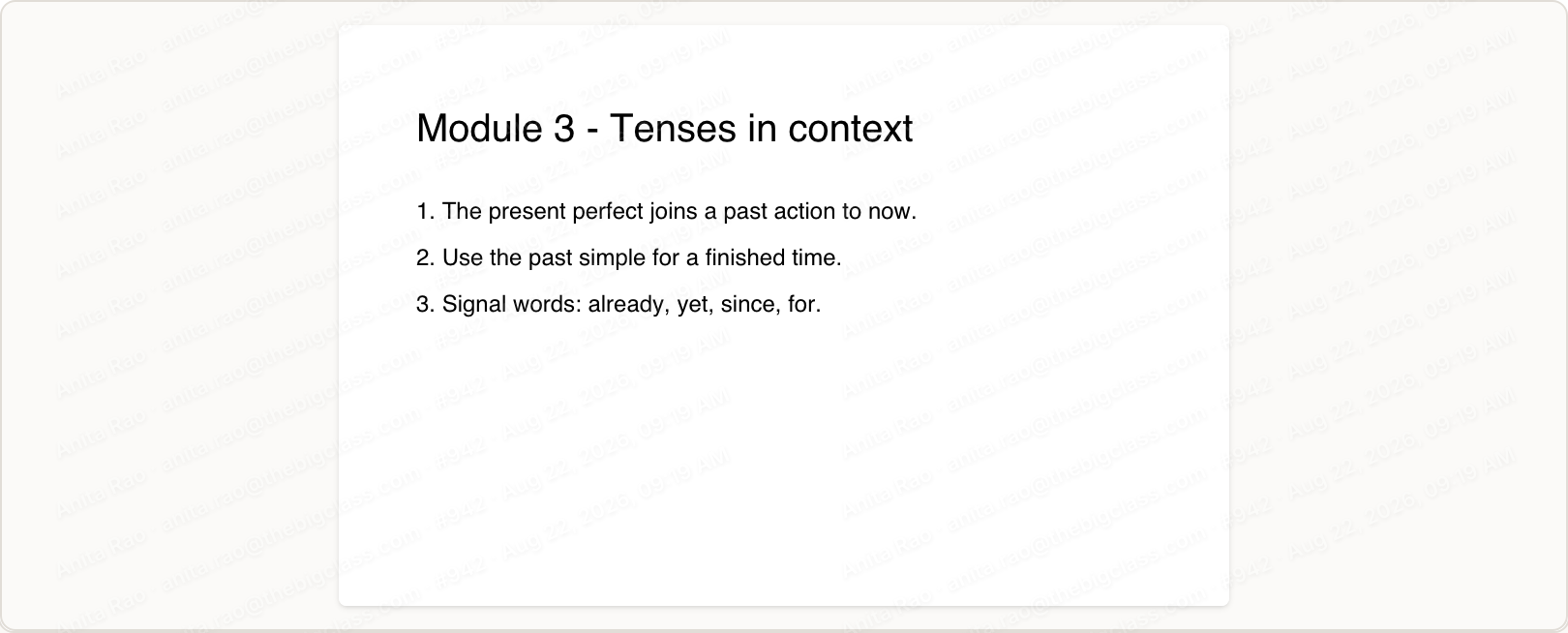
With protection on, we render your pages as images. There is no text layer, so there is nothing to select, copy, or extract with Ctrl+A; there is no viewer toolbar, so no download and no print button; and the per-student watermark sits over the top. PDFs are the strongest-protected material on the platform.
How to add a protected PDF — and what to do with a deck
- Dashboard → Courses → Edit → Curriculum, and open (or add) the lesson.
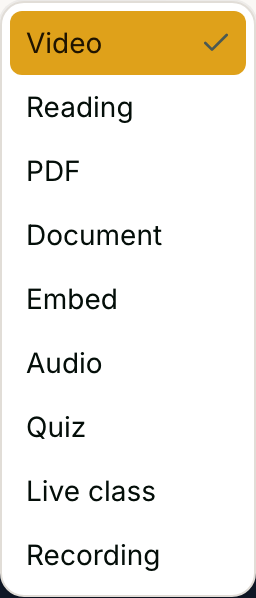
- Set Type to PDF. The list also offers Document, which covers .docx/.pptx/.xlsx — see the warning above for why those cannot be protected.
- Upload the PDF and click Publish changes.
- For a PowerPoint or Keynote deck: export it to PDF first (File → Export → PDF, or Save as → PDF) and upload that. Same slides, and the full protection above.
Attachments
Worksheets and handouts attached to a lesson follow the same policy as the lesson itself. It would be a poor protection story that locked the video and left the workbook on a download button, so with protection on the download and “open in new tab” actions disappear from attachments too, previews carry the same watermark, and attachment PDFs render through the same image-based viewer.


How to attach a worksheet to a lesson
- Open the lesson in Courses → Edit → Curriculum, as above.
- Scroll to Attachments & Resources inside the lesson.
- Click Upload file (or paste a Drive/S3 link and click Add).
- Click Publish changes.
There is a per-attachment “Downloadable” marker for cases where you positively want a file to be saved — a template a student is meant to fill in, say. It only ever loosens things WITHIN the policy: with content protection on, the download action is hidden regardless of that marker. The policy always wins.
Dynamic student watermarks
Available, and the most useful lever we have. The viewer’s name, email, user ID and a live timestamp are tiled faintly across protected content. The identity comes from the signed server session rather than anything the browser can edit, so a student cannot rename themselves before recording their screen. A leaked screen capture therefore carries the identity of whoever leaked it and the time they did it.
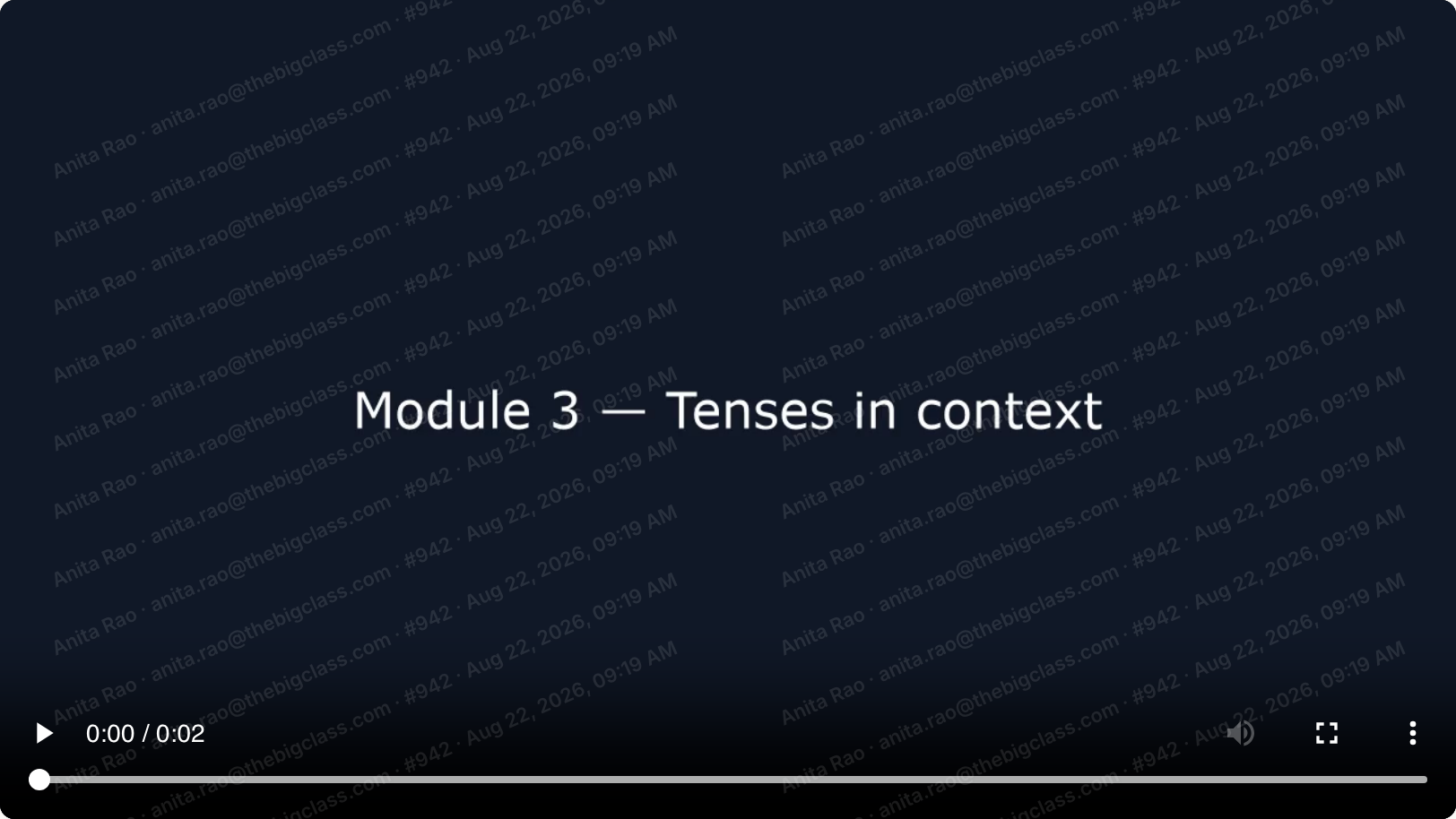
That changes the economics of sharing more than any lock does. A student who knows their own name is burned into every frame behaves differently from one who does not.
How to turn the watermark on
- Go to Settings → Security & Content Protection.
- Switch on “Enable content protection” if it is off — it is the master switch for everything below it.
- Switch on “Show dynamic watermark”.
- Click Save security policy.
- It applies to your students on their next page load. There is nothing to re-upload and no per-course setting — it is one policy for the whole academy.

Device limits and account sharing
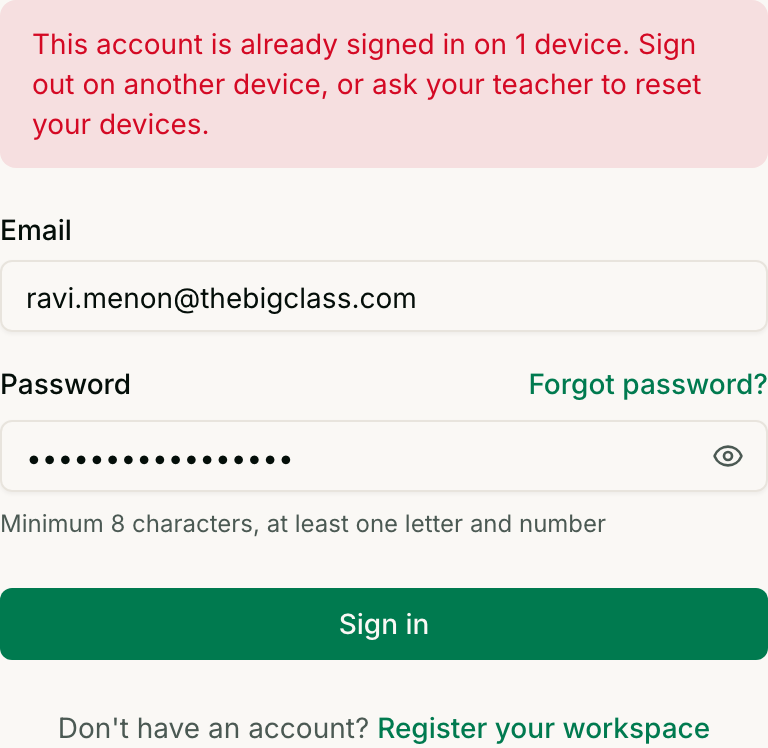
Set a maximum number of devices per student in Settings. A student signing in from a device beyond that limit is refused with a clear message telling them to sign out elsewhere or ask their teacher. You can reset a student’s devices from your dashboard when they genuinely change phone. Teachers and admins are never capped, and the default is unlimited until you set a number.
The limit also applies to sessions that are already open, not only to new sign-ins. If you set a limit of two after a student has been signing in from five places, the surplus sessions stop working rather than quietly continuing until they happen to log out.
How to set the limit — and how to free a student
- Settings → Security & Content Protection → Devices per student. Type a number and click Save security policy. 0 means unlimited, which is the default.
- To free a student who has changed phone or lost one: Students → the ⋯ menu on their row → Reset devices. Their slots are cleared and they can sign in on a new device immediately.
- You do not need to lower the cap or delete anyone to do it, and nothing else about their account changes.
What we cannot do
Every platform has this list. Most do not publish it.
- Screenshots and screen recording are not blocked, on any platform. On desktop browsers — Mac and Windows alike — this is not technically possible at all; any vendor claiming it is describing an app, not a browser. On Android and iOS it requires a native app, which we do not ship.
- Developer tools defeat the copy, right-click and selection controls. They are friction for the 95% who would never open a console, not a wall.
- Encrypted offline downloads do not exist here, because there is no app to decrypt them.
- Hard DRM — Widevine, FairPlay, PlayReady — is not implemented at any level.
The practical way to read that list: for live small-group teaching, the un-copyable part of your offer is you — the sessions, the feedback, the community. Heavy DRM protects recorded assets while adding friction for honest students. It is worth deciding which half of your revenue actually needs a fortress before you let DRM decide your platform.
Desktop, MacBook, Android and iOS
We are one responsive web application, so protection is identical everywhere: identical signed delivery, identical watermarking, identical PDF rendering, and an identical inability to block screen capture. Rather than ask you to take that on trust, here is the same course on a phone.
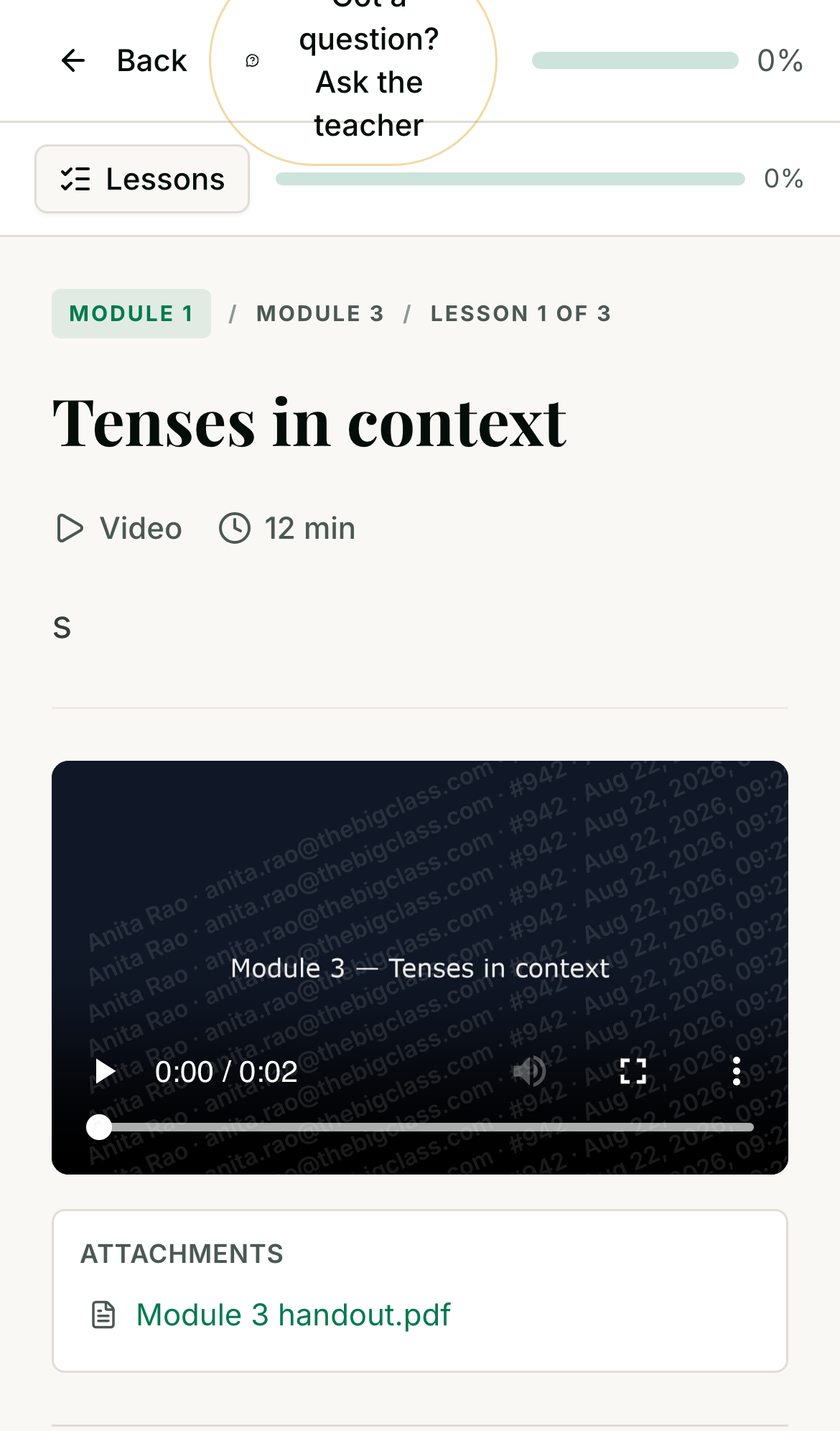
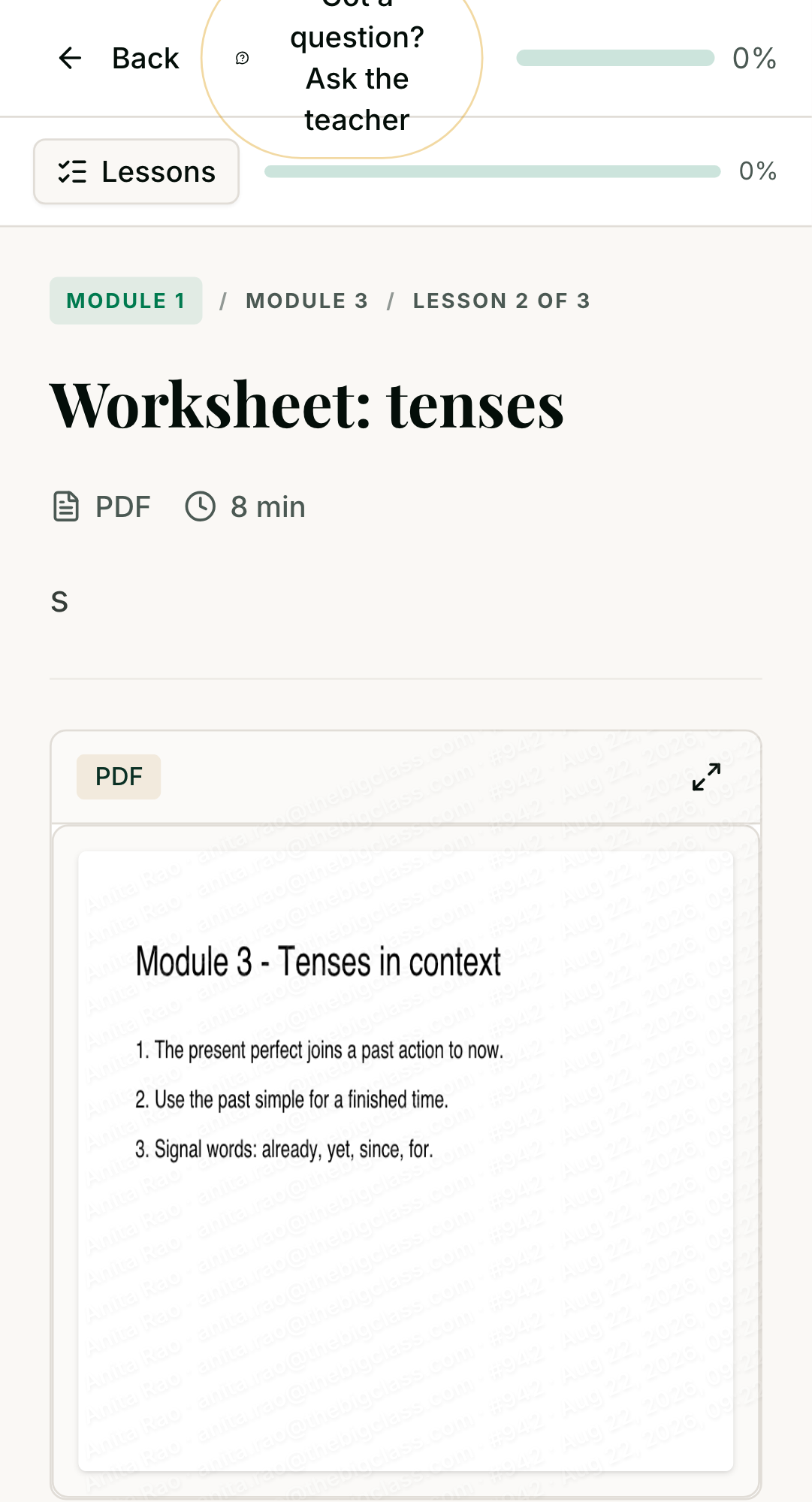
There is nothing to install and no second protection tier to buy. There is no “better protection in the mobile app”, because there is no separate mobile app — your academy is an installable web app students can add to their home screen. If a native app in the Play Store and App Store is a hard requirement, weigh that honestly; it is a real gap and platforms built around it exist.
Common questions
- What DRM technology do you use for videos — is it Widevine or FairPlay, and which level?
- Neither, at any level. We do not implement Widevine, FairPlay or PlayReady. Video is protected by access control instead: private storage, short-lived signed links issued per authorized viewer, and a per-student watermark. If license-based DRM is a hard requirement, choose a platform built around it.
- Are live-class recordings protected too?
- Yes, by the same mechanism as course video — private storage, signed expiring playback, and the per-student watermark in the player. They are also resolved back to the class that produced them and released only to members of the academy that ran it. They are not DRM-packaged.
- Can students download videos? If offline downloads are allowed, are they still encrypted?
- No. Course video is not downloadable for offline viewing, and there is no offline mode, so there is no encrypted offline container to speak of. With protection on, the download actions we control are removed from PDFs, documents and attachments as well.
- Are screenshots and screen recording blocked on Android, iOS and MacBook or Windows browsers?
- No, on any of them. In a desktop browser this is not technically possible; on mobile it requires a native app, which we do not ship. The watermark is our answer to this: a capture still happens, but it carries the identity of whoever made it.
- Can I prevent students copying and pasting text from PDFs or other course content?
- Yes. Lesson text obeys the copy, selection and right-click controls, and PDFs are rendered as images with no text layer at all, so there is literally nothing to select or copy. Developer tools can still defeat the controls on ordinary page text.
- Can I prevent downloading and printing of PDFs?
- Yes. With protection on we do not hand your PDF to the browser's built-in viewer, so its download and print buttons never appear, and our own download action is hidden. Printing the page is blocked for protected media.
- Are dynamic student-specific watermarks available?
- Yes. The viewer's name, email, user ID and a live timestamp are tiled across protected content, taken from the signed server session rather than anything the browser can edit.
- Can I restrict the number of devices per student and prevent account sharing?
- Yes. Set a per-student device limit in Settings; students beyond it are refused sign-in and told what to do, and you can reset a student's devices when they change phone. It applies to already-open sessions too. A student who clears their browser storage looks like a new device, so treat it as a strong deterrent rather than an unforgeable lock.
- Is the same protection available in desktop browsers, or only in a mobile app?
- The same, everywhere. We are a single responsive web application, so there is no protection tier that exists only on mobile — and no native mobile app either.
- Can I retrieve my original uploaded video files if I leave?
- Yes, and the absence of DRM helps here. We store your uploads exactly as you gave them to us, with no encrypted container to unwrap. Your dashboard lists every file we hold with its size and date and exports that inventory as a spreadsheet, so you can reconcile it and pull the originals down.
What to check on a demo
If you are comparing platforms, these are the questions that separate a real answer from a brochure. Ask every vendor on your list, ours included:
- Show me a screen recording of a protected lesson. Does the captured file carry the student’s identity, or is it clean?
- Open a protected PDF and press Ctrl+A, then Ctrl+C. Does anything land on the clipboard?
- Copy the video URL out of the page, paste it into a private window, and see whether it plays.
- Sign in as the same student on a third device and see what happens.
- Ask what happens to your original files on the day you leave, and who has to be involved.
Related