For creators
Sell several levels to the same student: free course, paid courses, membership and live cohorts
A student on Prolaud has one account, matched by email. Everything they enroll in or buy is added to that account: each course keeps its own progress, each community appears under Communities, and you see all of it on one student profile. This guide shows how to build a ladder of products on top of that — a free course, several paid courses sharing one community, a monthly membership, an advanced programme and live cohorts — and what happens to access when someone pays, renews, cancels or is refunded.
Last updated Oct 7, 2026
How the levels map onto Prolaud
Every level is a course, or a membership product, with a community attached. You choose which community comes with which course, and several courses can share one.
- Free entry product — a course priced at 0. Students enroll with one click and it stays in their account for good.
- Several paid courses with one shared community — one course per product, each sold on its own. Create one community and choose it on every one of those courses.
- Monthly membership — a Membership product in the Storefront, billed every 30, 90, 180 or 365 days, listing the products it includes. Add a Paid community product to the list to give members their own space.
- Advanced programme — a course with its own community.
- Live cohort — a course for that cohort, its live classes scheduled on the course, and its own community. Run two cohorts as two courses.
Set it up
- Create the communities first: Communities → New community. One for each group that should talk to each other — for example one for all your entry-level courses, one for the advanced programme, one per cohort.
- Create each course and publish it. Give the free one a price of 0.
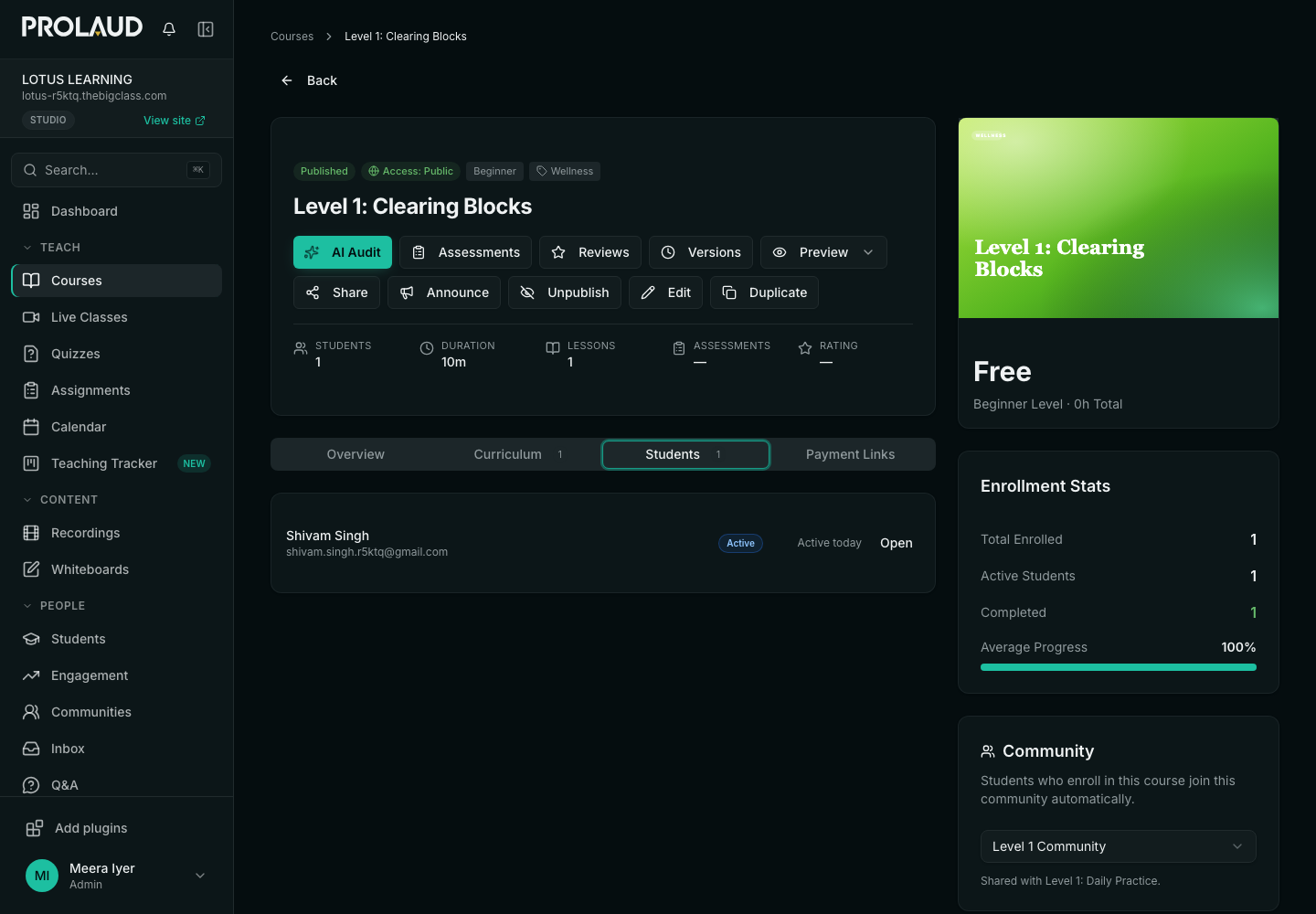
- Open a course from Courses. In the right-hand column, find the Community card and choose the community that comes with it. Do the same on every course that shares that community.
- For a cohort, schedule its live classes from Live Classes with that course selected, and switch on Only these students can join.
- For a membership, add the Storefront from Add plugins, then add a product in Storefront and pick Membership. Choose the billing interval and the products it includes.
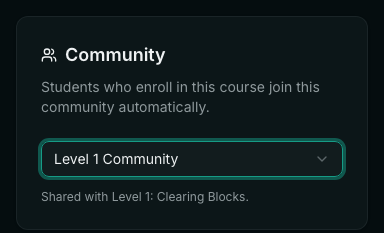
Choosing a community on a course that already has students brings those students in straight away. You can also link from the other side: a community's own settings can name a course. Both links count.
What happens when a student enrolls
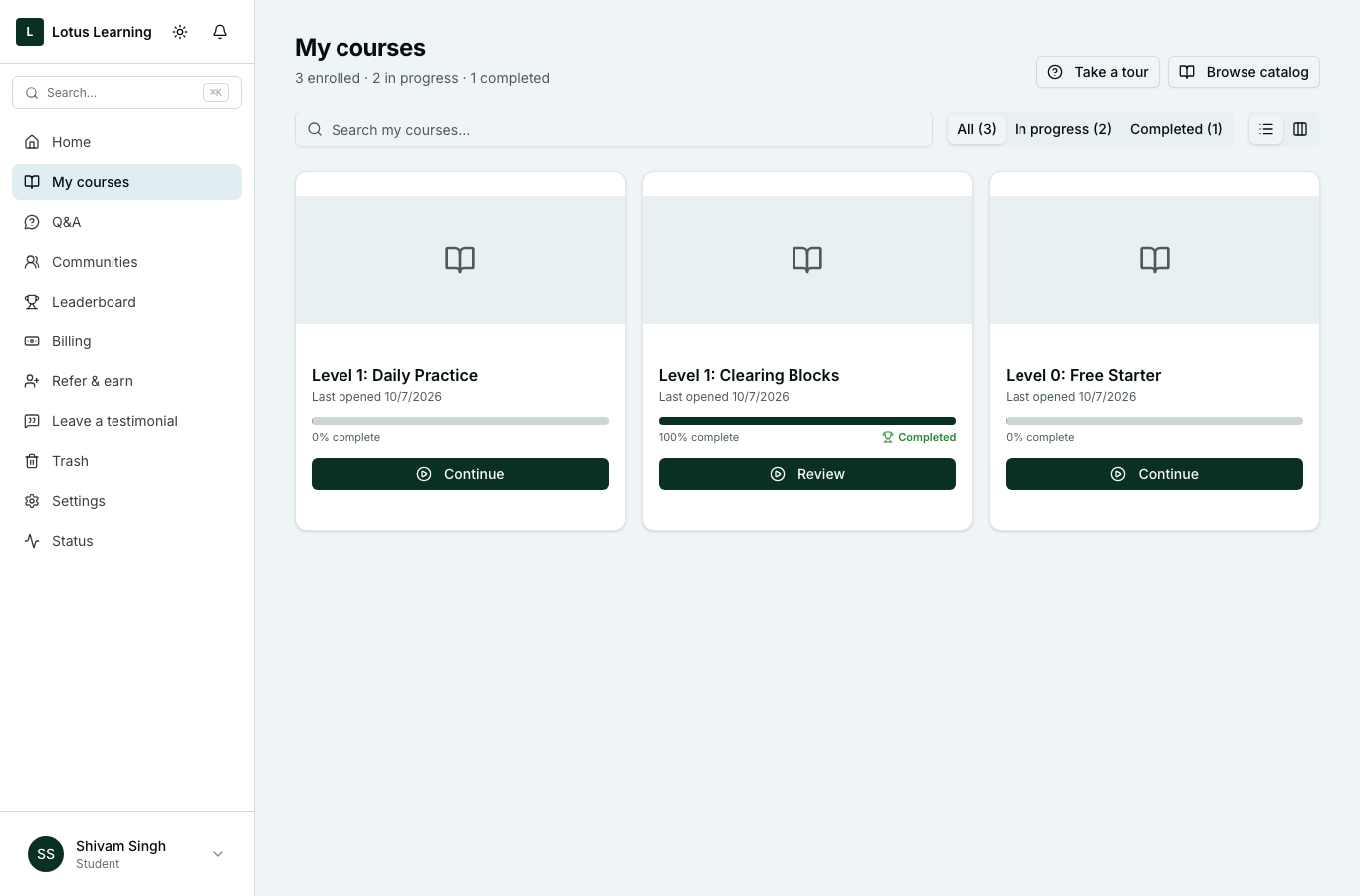
- The course appears under My courses in their account and the lessons open at once.
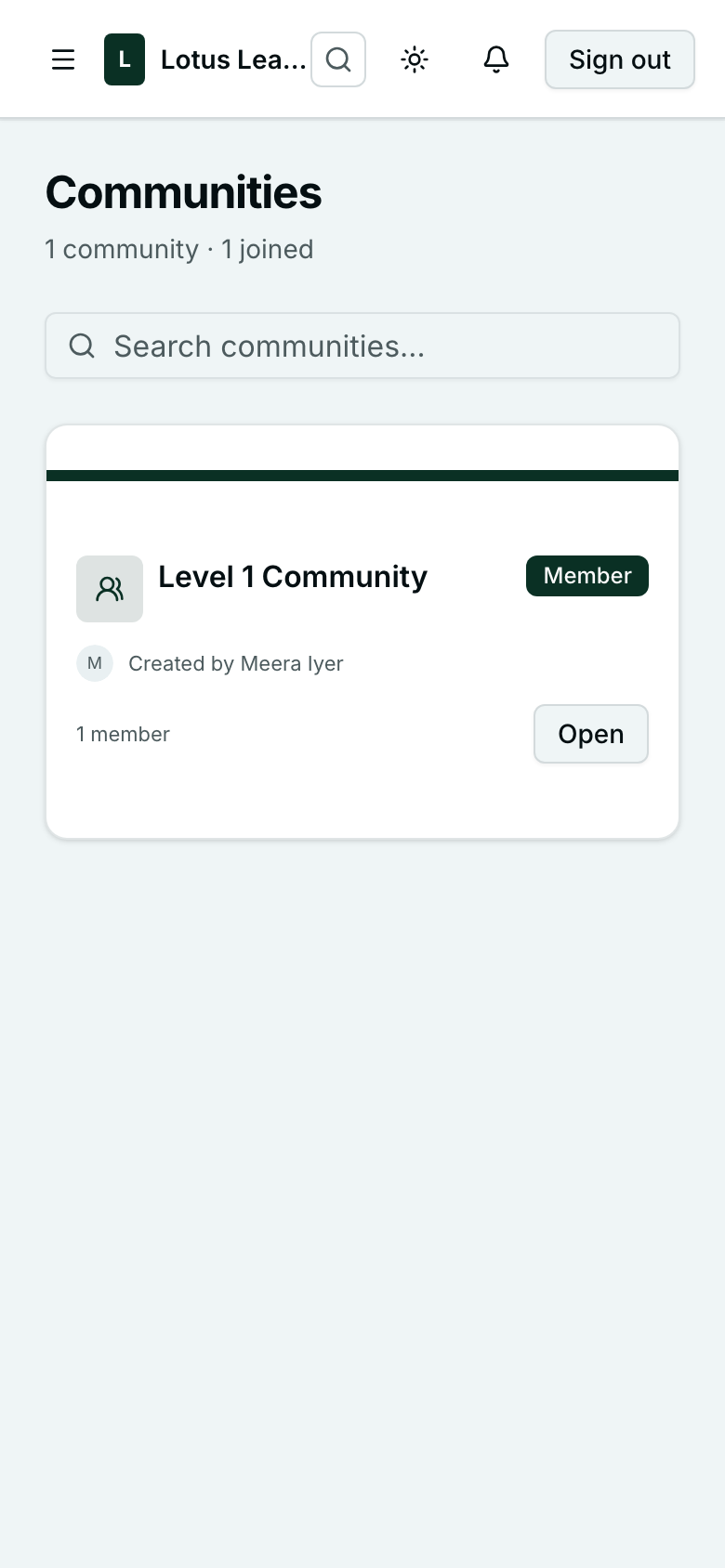
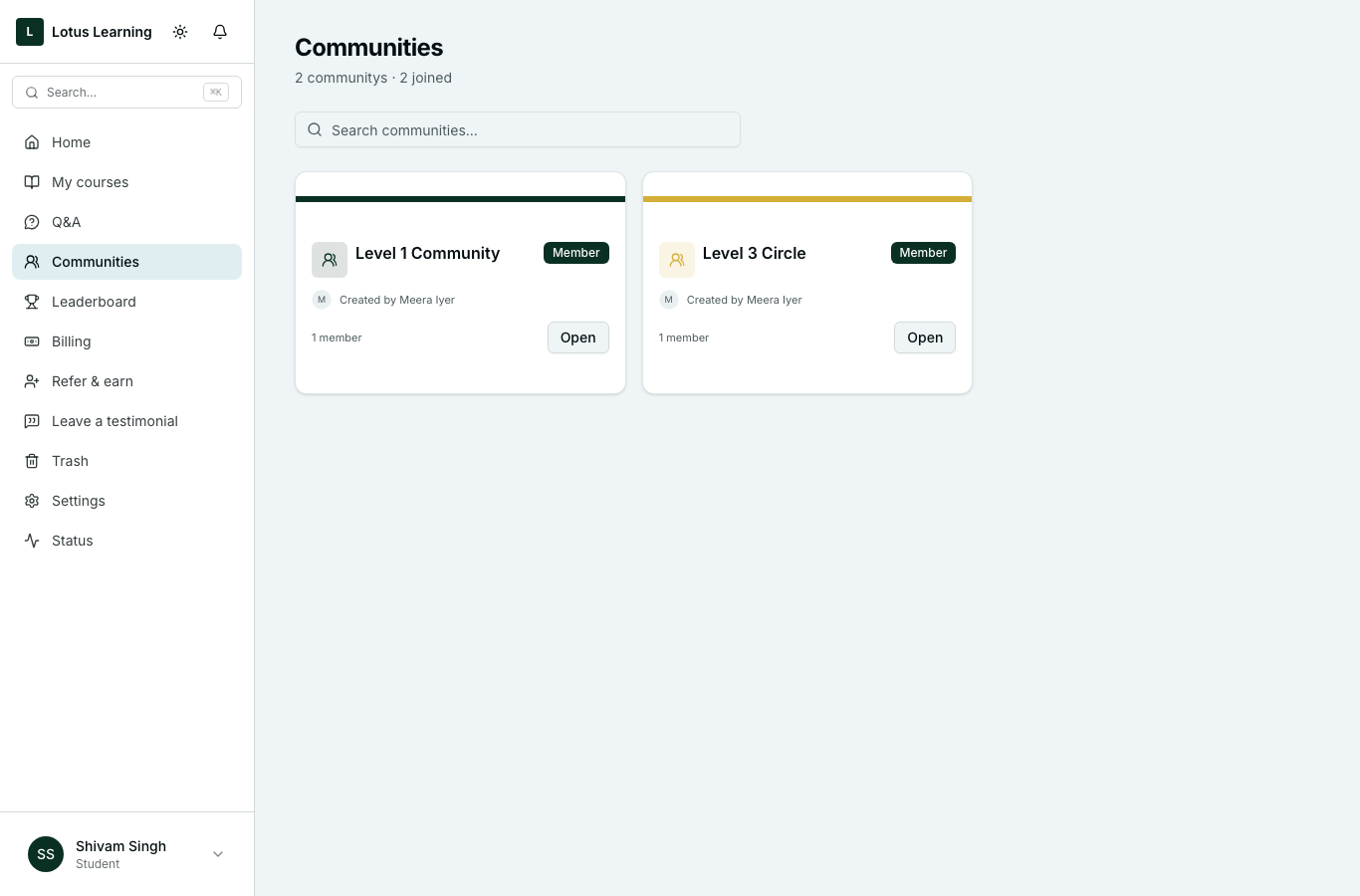
- They become a member of the course's community automatically. It appears under Communities with no join step, however they came to be enrolled: a free enrollment, a purchase, or you adding them from Students.
- A second course that shares the community adds the course, not a second community.
- Nothing they already had is touched. The free course, earlier purchases and their progress all stay.
One account on every device
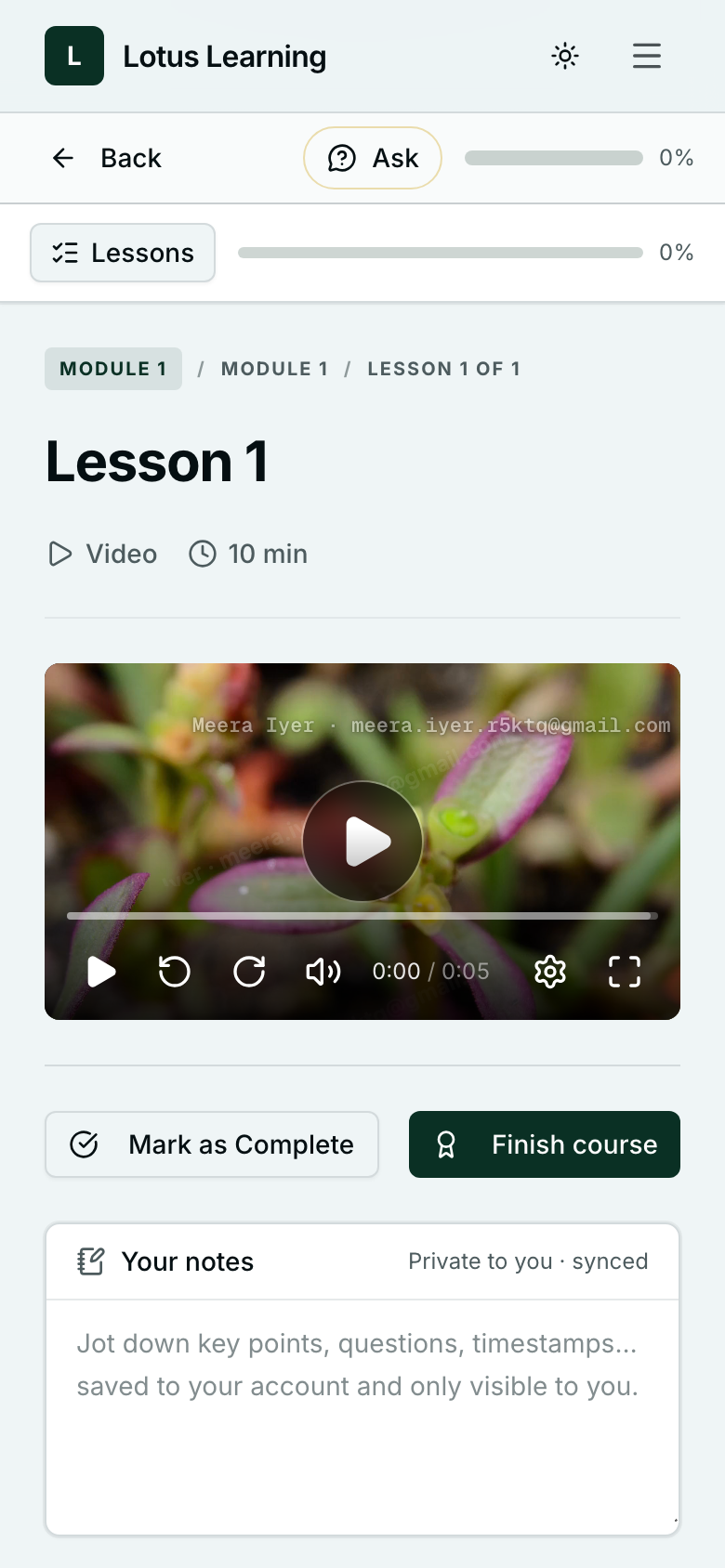
A student who enrolls on their phone and later signs in on a laptop finds the same courses with the same progress. There is one enrollment per student per course, whichever device they use, and progress only moves forward — a browser that has not caught up yet cannot set it back.
What you see for one student
Open Students and click a name. The profile brings together the courses they are enrolled in with progress on each, the communities they belong to, how many posts, comments and reactions they have made, their quiz results and certificates. The Invoices tab lists what they have paid for, and the Activity tab puts everything in one timeline, newest first.
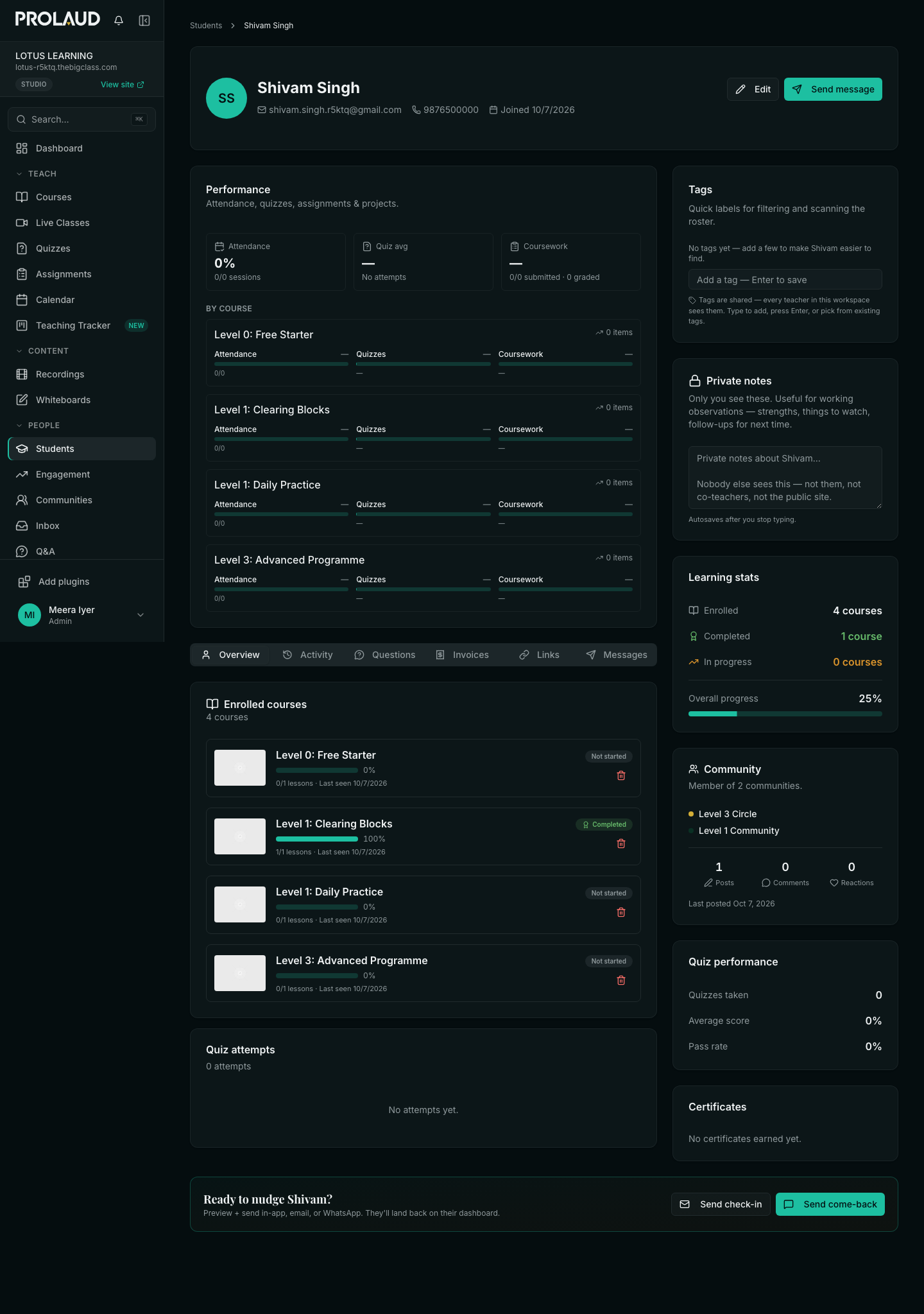
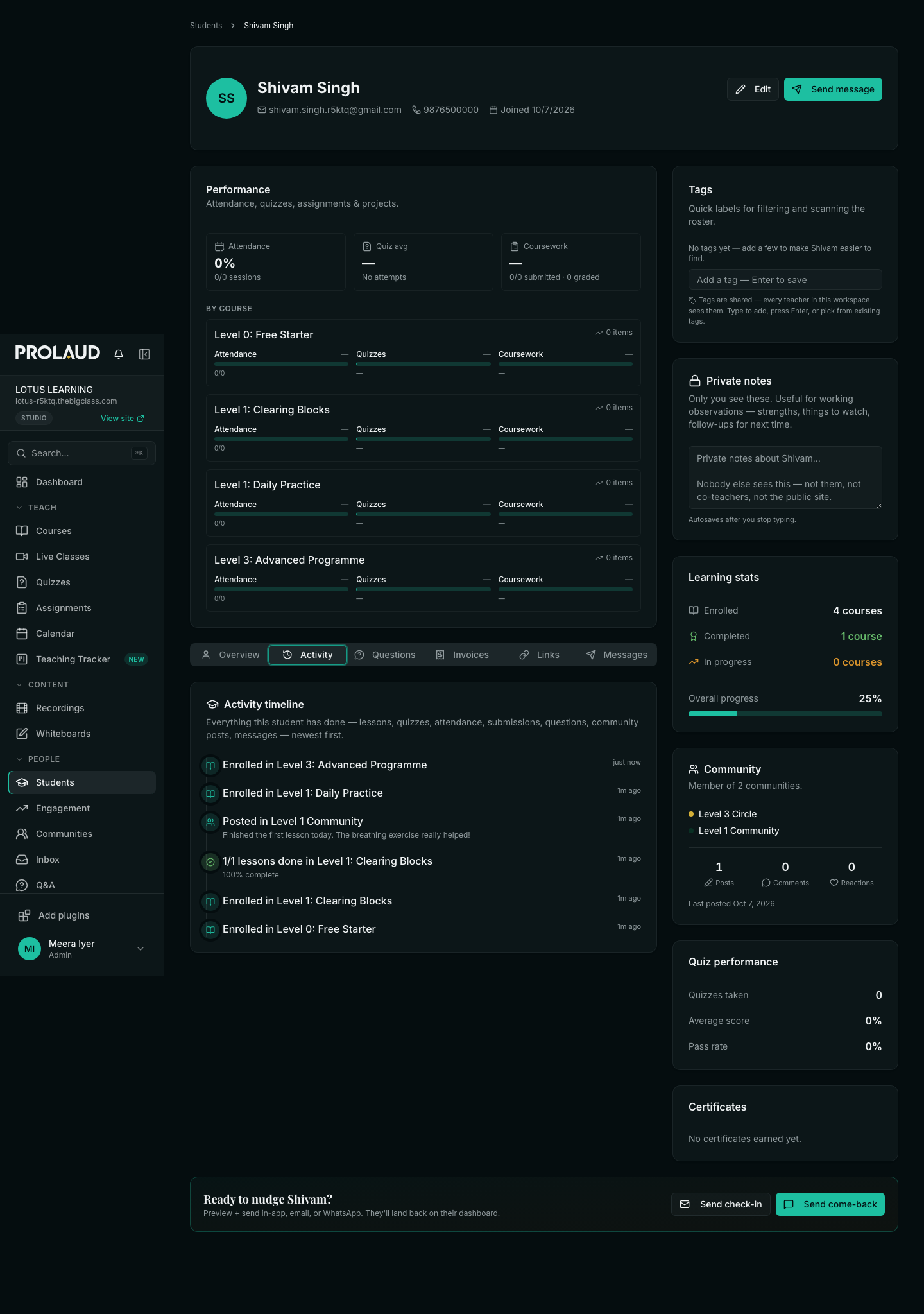
- Students counts people. Enrollments counts places on courses. One student in four courses is 1 student and 4 enrollments, and each course lists that student once.
- A post or a comment counts as activity. A student who is busy in the community is not listed as gone quiet on the Engagement page just because they have not opened a lesson.
- Live attendance on the profile covers classes the student joined while signed in. The full record, with minutes present, is under Live Classes → Attendance.
Payments and what they do to access
- New purchase — the student is enrolled when the payment is confirmed, not before. Money goes to your own Stripe or Razorpay account.
- Existing student — they sign in and buy. The course is added to the same account. Buying a course they already own is refused at checkout.
- Failed payment — nothing is granted. They can try again.
- Payment plan — the first installment opens the course. If a later one is more than 3 days overdue the course pauses, and it reopens the moment it is paid. Reminders go out by email and WhatsApp, and the student can pay the next installment from their library on any device.
- Membership — the included courses and community last exactly as long as the membership is paid. A renewal extends all of them. After a cancellation they run to the end of the period already paid for, with 3 days' grace for a late renewal, and then close. The student's progress is kept, so it is there if they rejoin.
- Refund — a full refund of a course purchase ends access the next time the student opens a page, and takes them off the course's student list. A partial refund of a course purchase keeps access. Storefront orders follow the rules in Refund an order.
- Upgrade — there is no automatic credit for an earlier purchase. Give the student a coupon, or send a payment link at the reduced price.
Live cohorts
- Reminder — by email, WhatsApp and in the app, 3 hours, 1 hour and 15 minutes before the class. The email has a Join button and an add-to-calendar link.
- Join — the student taps the link and the class opens in their browser, on a phone as well. There is nothing to install.
- Attendance — minutes present are recorded for each student under Live Classes → Attendance, with CSV and PDF export.
- Recording — it appears under My recordings for students enrolled in that course.
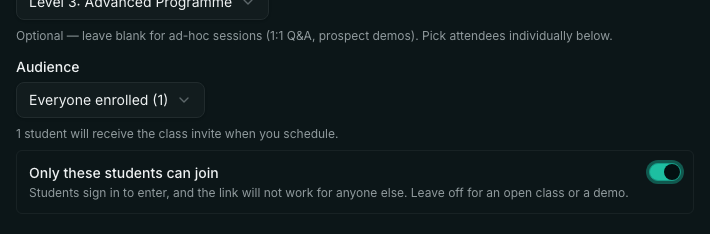
- Reminders go to the class's audience: the students you picked, or everyone in the course when you picked none.
- A class is open to anyone with the link unless Only these students can join is on. With it on, students sign in to enter. Leave it off for an open class or a demo.
- Zoom, Google Meet and Teams work by pasting a meeting link. Attendance and recordings are only kept for classes run in Prolaud's own classroom.
Inviting people into a community directly
A community can also be joined by invite link, without a course. In the community's settings choose Invite link — anyone with the link can join, copy the link and send it. The student signs in, sees the community's name and joins with one click. Rotate code makes every link you sent before stop working, and a member you removed cannot use an old link to come back.
When two people work in the dashboard at once
You on a laptop and a phone, or you and a co-teacher, can both have the dashboard open. A save never deletes something the other session created, and it never replaces a course, quiz, class, community or storefront product that was changed after your page loaded. When that happens you see a notice — "changed somewhere else since this page loaded" — with a Reload button. Reload, and make your change again on the newer version.
Before you publish
If a course has a lesson with nothing in it — no video, no file, no text — Publish stops and names the lessons. Fill them in, or choose Publish anyway. It is worth opening Preview as a student once before a launch as well.
What Prolaud does not do
- An affiliate program of your own — no partner links, commissions or payout reports. A coupon code per partner is the nearest substitute.
- Automatic messages on inactivity or lesson completion. The Engagement page shows who has gone quiet and you send the nudge. Automations run on a purchase or on a tag, one step each.
- WhatsApp from your own number, or email from your own domain. Both are sent from Prolaud's.
- A customer's GSTIN on invoices, or IGST for a buyer in another state. Tax invoices cover course purchases and show CGST and SGST.
- A native app in the app stores. With the Branded app plugin, students can add your academy to their home screen.
- Does a student need a new account for each course?
- No. One email is one account. Every course, membership and community is added to it, and you see them all on one student profile.
- Can several courses share one community?
- Yes. Open each course, find the Community card and choose the same community. Students of any of those courses become members of it automatically.
- Do I have to add students to the community myself?
- No. Enrolling in the course makes them a member, whether they enrolled for free, paid, or you added them. You can still add or remove people by hand, and a removal sticks.
- What happens to a member's access when they cancel?
- They keep the included courses and the community until the end of the period they paid for, then both close. Their progress is kept in case they rejoin.
- Does a refund remove access?
- A full refund of a course purchase does, on the student's next page load. A partial refund of a course purchase does not.
- Can I stop a live class link being forwarded?
- Switch on Only these students can join when you schedule the class. Students then sign in to enter, and the link does not work for anyone outside the class's audience.
- Join students into a course's community — The Community card in detail.
- Memberships — Recurring billing and what a tier can include.
- Payment plans — Let students pay a course in installments.
- Refunds
- Schedule a live class
- Live class attendance
- Engagement: who is active, who has gone quiet
- Set up GST for invoices (India)
- Why can't my student see a course?
Related