For creators
Why can't my student see a course?
A course appears in a student's My courses in exactly two ways: the student enrolls in it (or buys it), or you enroll them from Students → their profile → Enrolled courses. If it still isn't there, the student usually hasn't signed in yet, or is signed in with a different email from the one on their profile.
Last updated Sep 29, 2026
The two ways a course reaches a student
- The student enrolls or buys it — from the course page on your academy site. Free courses enroll at once; paid courses go through checkout.
- You enroll them — from your dashboard, for anyone who paid you outside Prolaud, got a scholarship, or should simply have access.
Either way, the course then appears under My courses in the student's account, and the course page shows Continue Learning instead of Enroll Now. A payment link you send is the first route: the student pays through the link and is enrolled automatically.
Option 1: the student enrolls or buys the course
- The student opens the course from your academy's catalog and clicks See full curriculum & enroll, then Enroll Now.
- If they aren't signed in, Prolaud asks them to create an account (or sign in) first. For a paid course they carry straight on to checkout; for a free course they come back to the course page and click Enroll Now again.
- Paid course: they pay with the Pay … & enroll button — by card on Stripe, or by UPI, card or net banking on Razorpay (India). With a 100%-off coupon the button reads Enroll for free. Free course: enrollment is instant.
- After a payment, the page shows Verifying your payment… for a few seconds, then You're enrolled!
- The course is now under My courses, and its course page shows Continue Learning.
Option 2: you enroll the student from your dashboard
- In your dashboard, go to Students and click the student's name to open their profile.
- Find the Enrolled courses card and open the Pick a course to enroll the student in… dropdown.
- Choose the course and click Enroll. A confirmation pops up — "Enrolled in" followed by the course name — and the course is now listed on their profile.
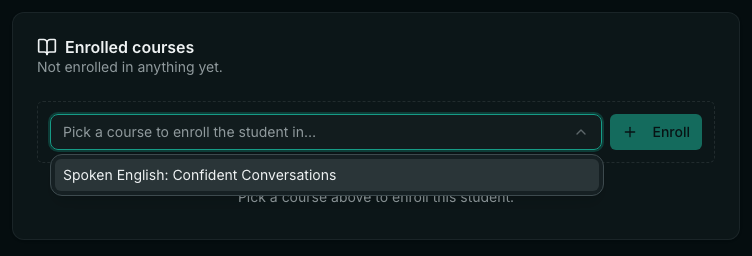
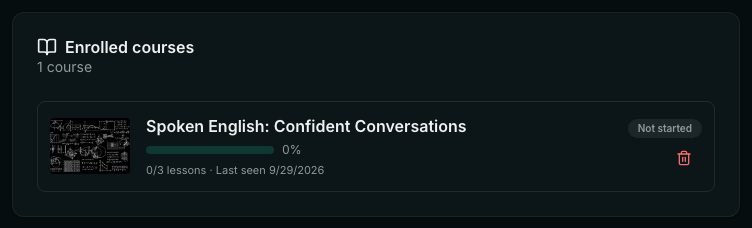
Enrolling a group at once: on the Students page, tick the students, click Enroll in course, and pick the course. This list also includes draft courses (marked Draft), so you can enroll a cohort before launch.
What the student sees
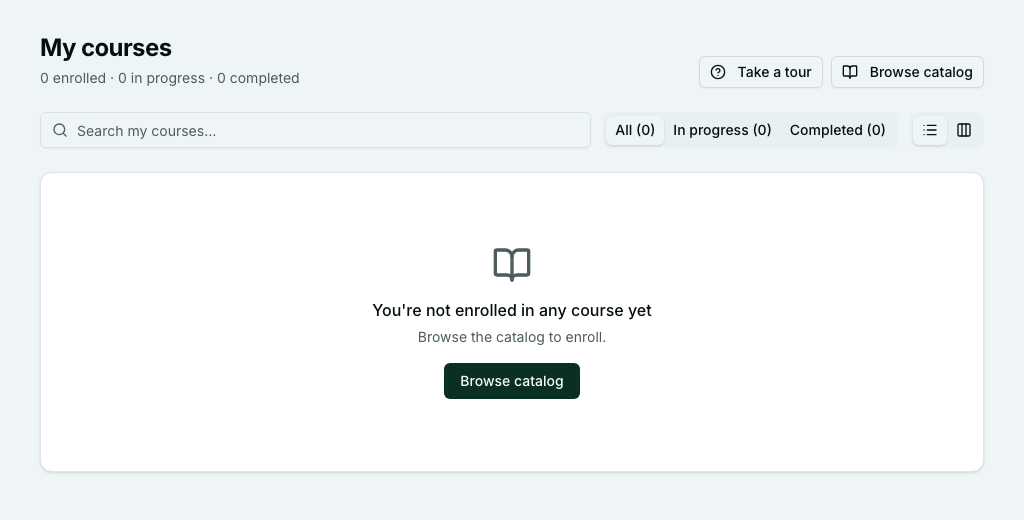
The student opens My courses from their account. The line under the heading counts their courses — for example "1 enrolled · 1 in progress · 0 completed" — and each course has a Continue button.
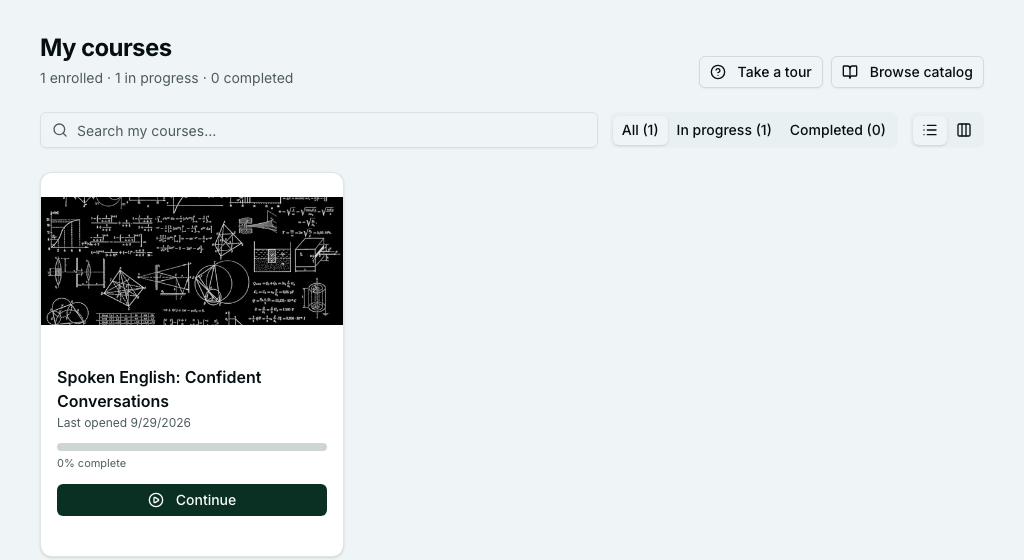
Check it from your side
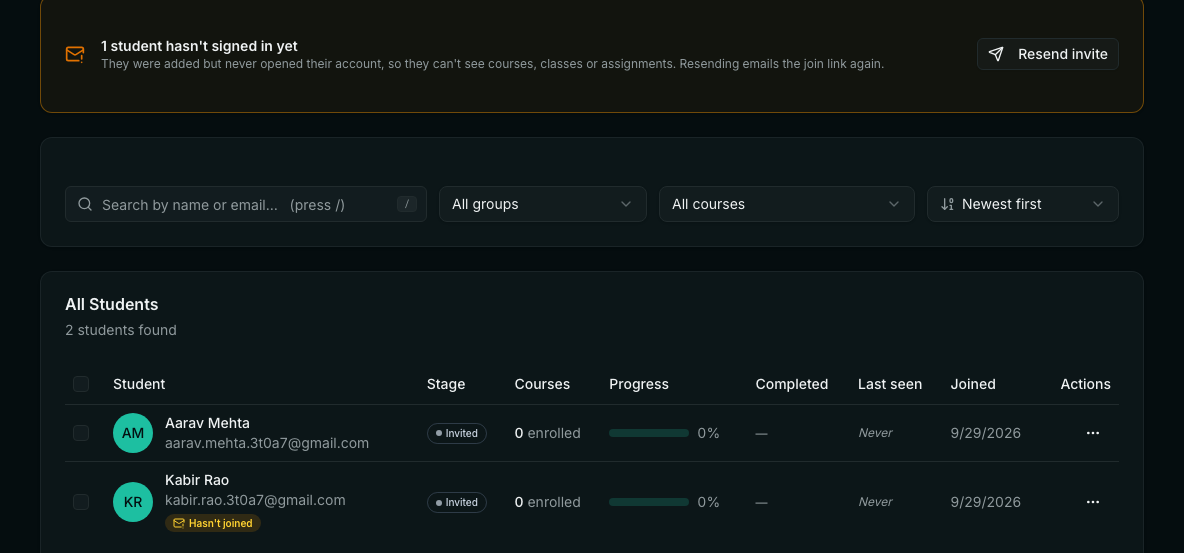
On Students, the Courses column shows how many courses each person is enrolled in ("1 enrolled"). Click a student to see exactly which ones under Enrolled courses. If a course is listed there, the enrollment is done — anything still wrong is on the student's side, below.
Still not showing? Check these, in order
Work down this list — the first two cover almost every case.
The student hasn't signed in yet
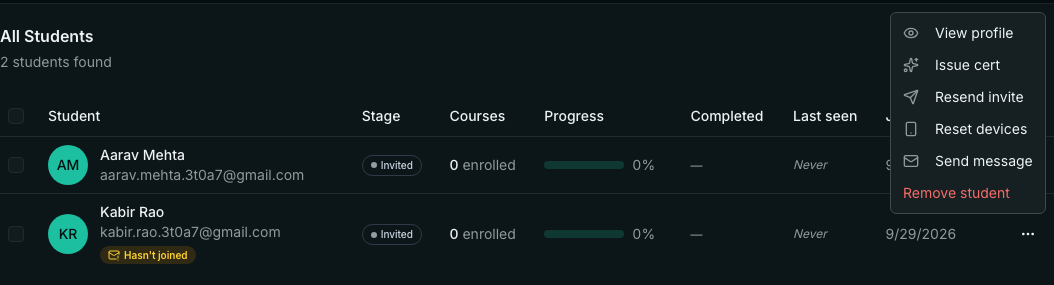
The most common cause. A student you add from your dashboard gets an invite, but sees no courses, classes or assignments until they open it and sign in. On the Students page they have a Hasn't joined tag under their name, and a banner counts how many haven't signed in yet.
Open the ⋯ menu on their row and click Resend invite, then ask them to sign in with that link. The banner's button resends to everyone who hasn't joined, in one go.
They're signed in with a different email
Access follows the email on the student's profile. If they created a second account with another address, that account is empty. Compare the email on their profile with the one they sign in with, and ask them to use the one on their profile.
Their page hasn't refreshed
If My courses was already open when you enrolled them, a refresh brings the course in.
The course isn't in your Enroll dropdown
The dropdown on a student's profile only lists published courses, and hides courses they're already in. Publish the course first — or use Enroll in course on the Students page, which includes drafts.
It's a paid course and payments aren't set up
Until you connect payments for your academy, a student who tries to pay sees: "This academy hasn't finished setting up payments yet, so purchases are paused." Connect your payment account, or enroll them yourself — free courses and courses you assign don't need payments.
A student paid, but the course never arrived: check your webhook
Prolaud enrolls a paying student when your payment processor tells us the payment went through, and it tells us through a webhook on your own account. If that webhook is missing, deleted or failing, the student is charged but never enrolled: they see "Payment received" and a note that the course will appear shortly, and it doesn't. On Stripe the webhook is created for you when you connect — on Payouts, the Stripe card should read Webhook verified. On Razorpay with your own API keys (India), check it's set up and working:
- In your dashboard, go to Payouts and click Manage Razorpay — keys · webhook · bank.
- Find the Razorpay webhook block. Its label should read Set up. "Not set up" or "Add it in Razorpay" means payments can't enroll anyone yet.
- Click Set up webhook automatically (it reads Repair webhook if one is already saved). Prolaud adds the webhook to your Razorpay account and removes any old ones.
- Prefer to do it yourself? Click Add it by hand instead and follow the steps: in Razorpay, go to Settings → Webhooks → Add New Webhook, paste the URL and secret shown, tick the listed events, and delete any older Prolaud or thebigclass.com webhooks there.
- In Razorpay → Settings → Webhooks, make sure the Prolaud webhook is listed and enabled.
Once it's fixed, new payments enroll students automatically. For anyone who already paid while it was broken, enroll them yourself from their profile (Option 2 above) — don't charge them again.
They can see the course but not the lessons
That's drip or ordered modules working as set up. A module on a schedule shows Unlocks on a date; with Unlock modules in order on, the next module shows Complete the previous module to unlock. Change either in the course editor if that isn't what you want.
You're testing in your own browser
If you sign in as a test student in the browser where you're signed in as the owner, the two sessions interfere — the student sign-in replaces yours. Use a private or incognito window (or another browser) for the student account.
In short
A student can access a course once they enroll in or buy it, or once you enroll them from Students → the student → Enrolled courses → Enroll. Then it's under My courses (after a refresh, if the page was open). If it isn't, make sure the student has signed in at least once — with the email on their profile.
- Does a student have to pay for a course I enroll them in?
- No. A course you enroll them in from their profile is theirs straight away, free, whatever its price. Payments don't need to be set up for it.
- Can I enroll several students at once?
- Yes. On the Students page, tick the students, click Enroll in course and pick the course. That list includes draft courses too.
- What happens to their progress if I unenrol a student?
- It's removed. Unenrolling asks you to confirm, because the student's progress on that course is lost.
- If I move a course back to draft, do enrolled students lose it?
- No. Students who are already enrolled keep it in My courses; a draft only stops new people from finding and enrolling in it.
- A student paid but the course isn't there. What now?
- Ask them to check My courses again after a few minutes — access is granted once your payment processor confirms the payment, which is usually a few seconds. If it's still missing, check they're signed in with the email they paid with, then check the webhook on Payouts: the Stripe card should read Webhook verified, or, on Razorpay, the webhook block under Manage Razorpay should read Set up. If it doesn't, payments can't enroll anyone. Fix it, then enroll the students who already paid from their profile.
- How student onboarding works — Adding students and what their invite does.
- The Students tab & lifecycle stages
- Moving your students and courses to Prolaud — Bulk import and enrollment.
- Sell a course: auto-grant access on purchase
- Send a payment link to one student
- Public, unlisted, password and private courses
- Drip course content on a schedule
- Preview a course as a visitor or student
- How students sign in
- How payouts work — Connecting Stripe or Razorpay.
Related