For creators
How to run a coaching membership: levels, weekly calls, recordings and transcripts
Prolaud runs a paid coaching membership in one place: membership levels billed every month, a weekly group call for each level, recordings and transcripts you can download, lessons that open week by week, and one-on-one sessions. This guide sets each part up in order, shows what a member sees, and says plainly what is not available. It also covers moving a membership here from TagMango or another platform.
Last updated Oct 20, 2026
In short: a coaching membership on Prolaud is a Membership product that lists the courses a level includes and charges your members on a schedule you choose. Each level gets its own weekly live call by scheduling the call on one of that level's courses and limiting it to those members. Calls held in Prolaud's classroom can be recorded, downloaded as MP4 video and, on the Studio plan, turned into captions and a downloadable transcript. Modules can open a set number of days after a member joins. Members pay into your own Razorpay or Stripe account, and Prolaud takes 0% of each sale. Your member list moves from another platform as a CSV file; recordings, progress and subscriptions do not move by themselves.
Coaching membership: the short answers
- Recordings: yes, you can download them. A class held in Prolaud's own classroom is saved as one MP4 video.
- Transcripts: yes, on the Studio plan and above. You get captions on the recording and the full text, and you can download both.
- Membership levels: each level is a Membership product that lists the courses it includes and bills every month, quarter, half-year or year.
- One-on-one coaching: a 1-on-1 session product, with a private room or your own booking link.
- Zoom: paste the Zoom recording link on a class, or upload the file as a video lesson.
- Drip: yes, on Pro and above. A module opens a number of days after a member joins, or on a date.
- A year of weekly recordings in one course: yes. A course has no limit on lessons; you upload each week's recording as a video lesson.
- Moving from TagMango or another platform: your member list comes across from a spreadsheet. Recordings, progress and subscriptions do not come across by themselves.
- Commission: none. You pay a flat plan fee, and your payment processor's own fee; Prolaud takes 0% of your sales.
1. Connect payments: the Razorpay Key ID and Key Secret
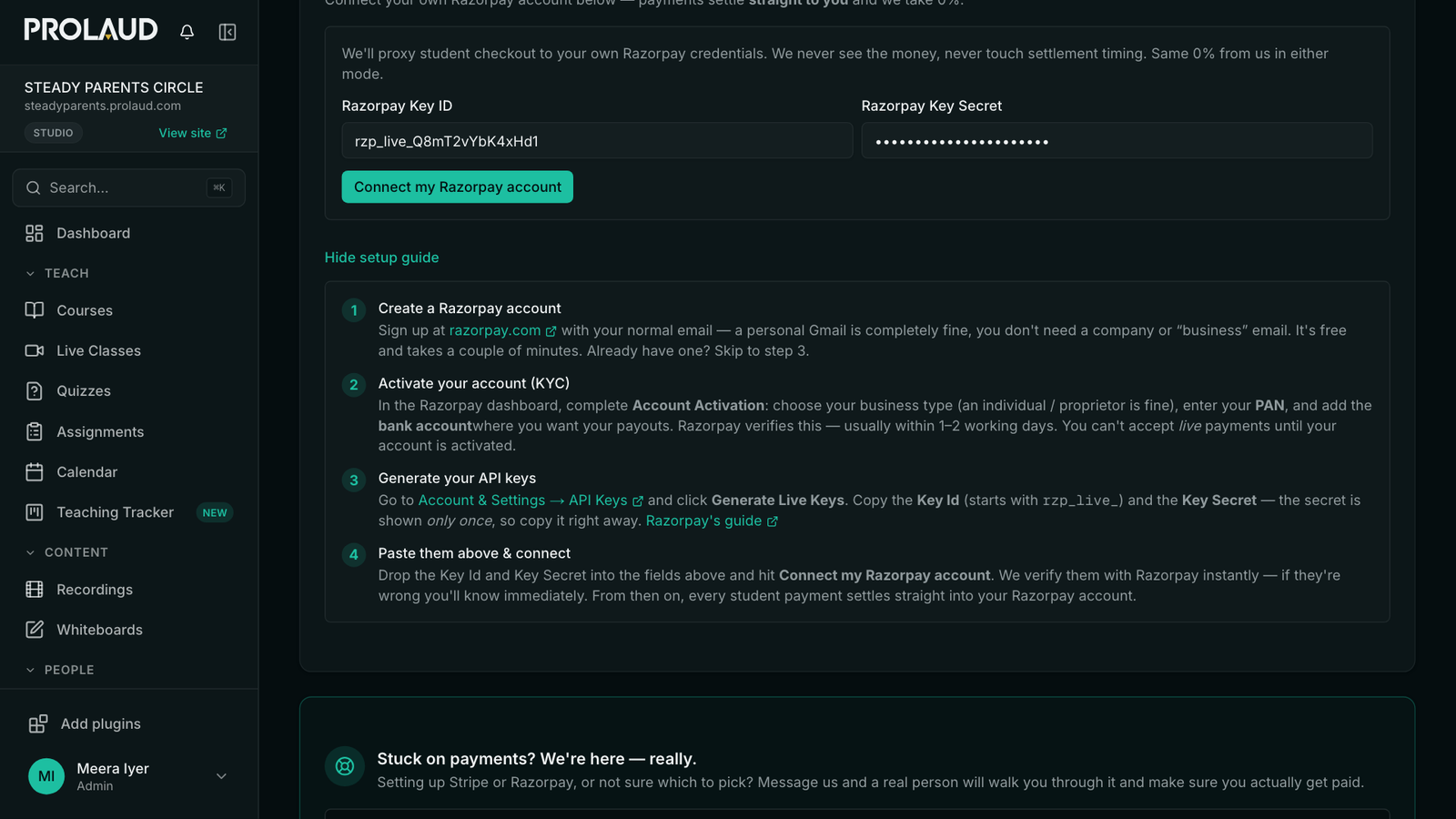
A membership in rupees is charged on your own Razorpay account, and Prolaud needs two things from Razorpay to start one: your Key ID and your Key Secret. Do this before you build the levels, so the first member who clicks Subscribe can pay.
- Open Payouts and find Connect Razorpay.
- If you see a Connect with Razorpay button, click Advanced: connect with your own API keys instead, underneath it. The one-click connection cannot take recurring payments.
- Paste your Razorpay Key ID and Razorpay Key Secret, and press Connect my Razorpay account. The keys are checked with Razorpay straight away.
- Look at the Razorpay webhook box that appears. It should say Set up. If it does not, press Set up webhook automatically. Members are given access when Razorpay tells Prolaud a payment went through, so this step is not optional.
2. How to set up membership levels
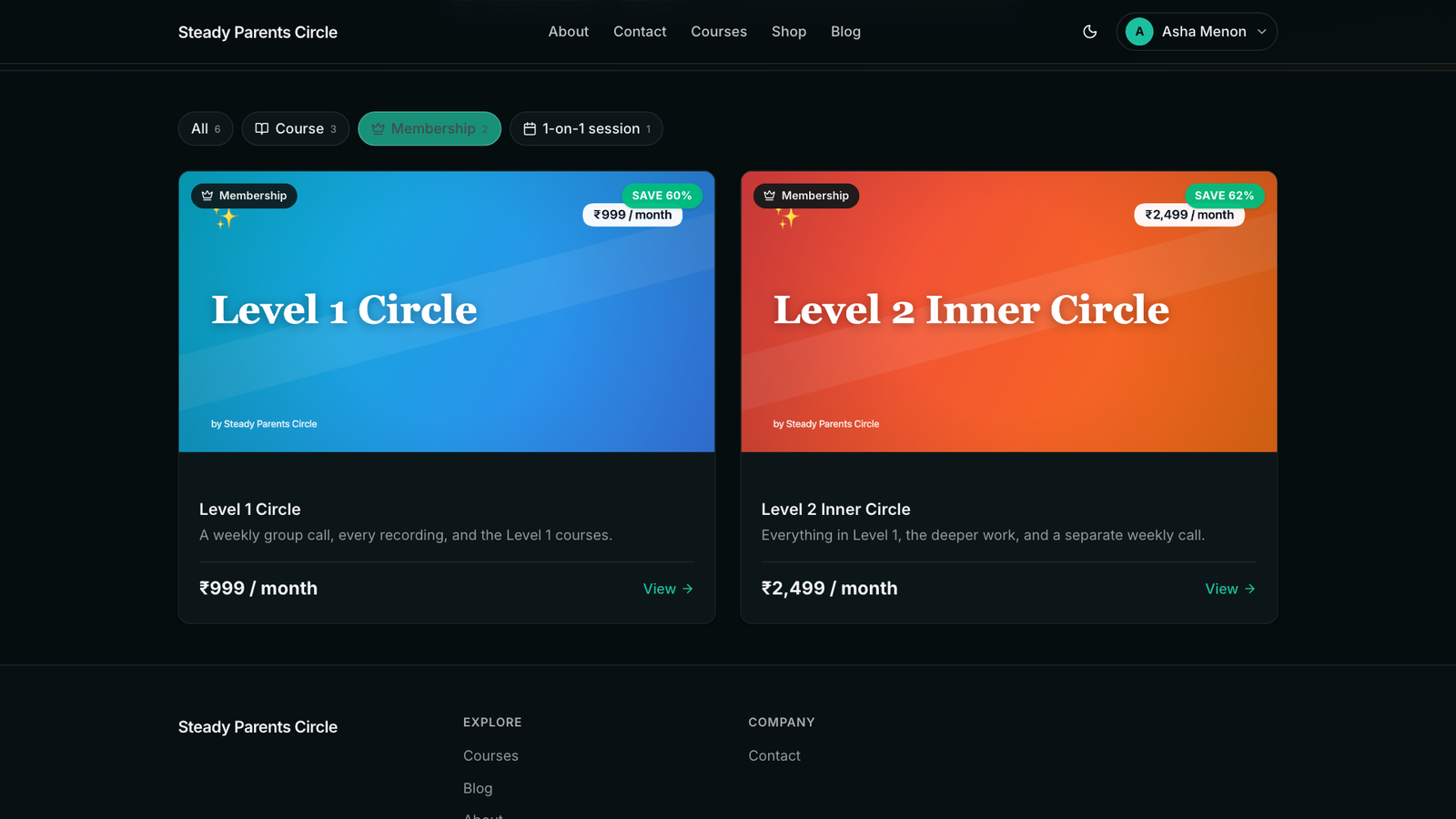
A level is a Membership product in your Storefront. It lists the products a member gets, and bills them on a schedule. So the order is: courses first, then a product for each course, then the membership.
- Create and publish the courses for each level.
- Open Add plugins and add Storefront. It is free on every plan.
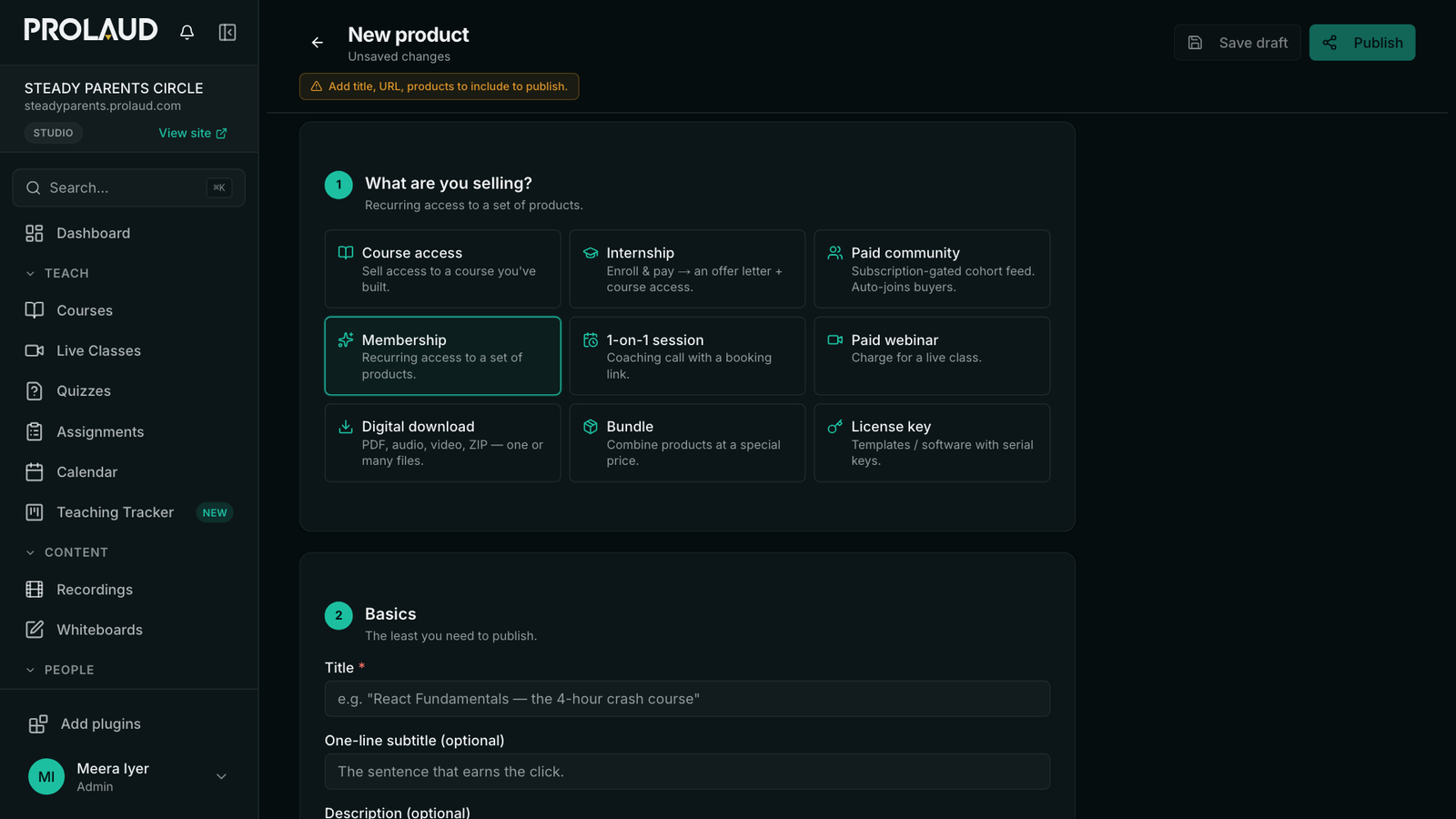
- In Storefront press New product, choose Course access, pick the course, set a price and publish. Do this once for each course.
- Press New product again and choose Membership.
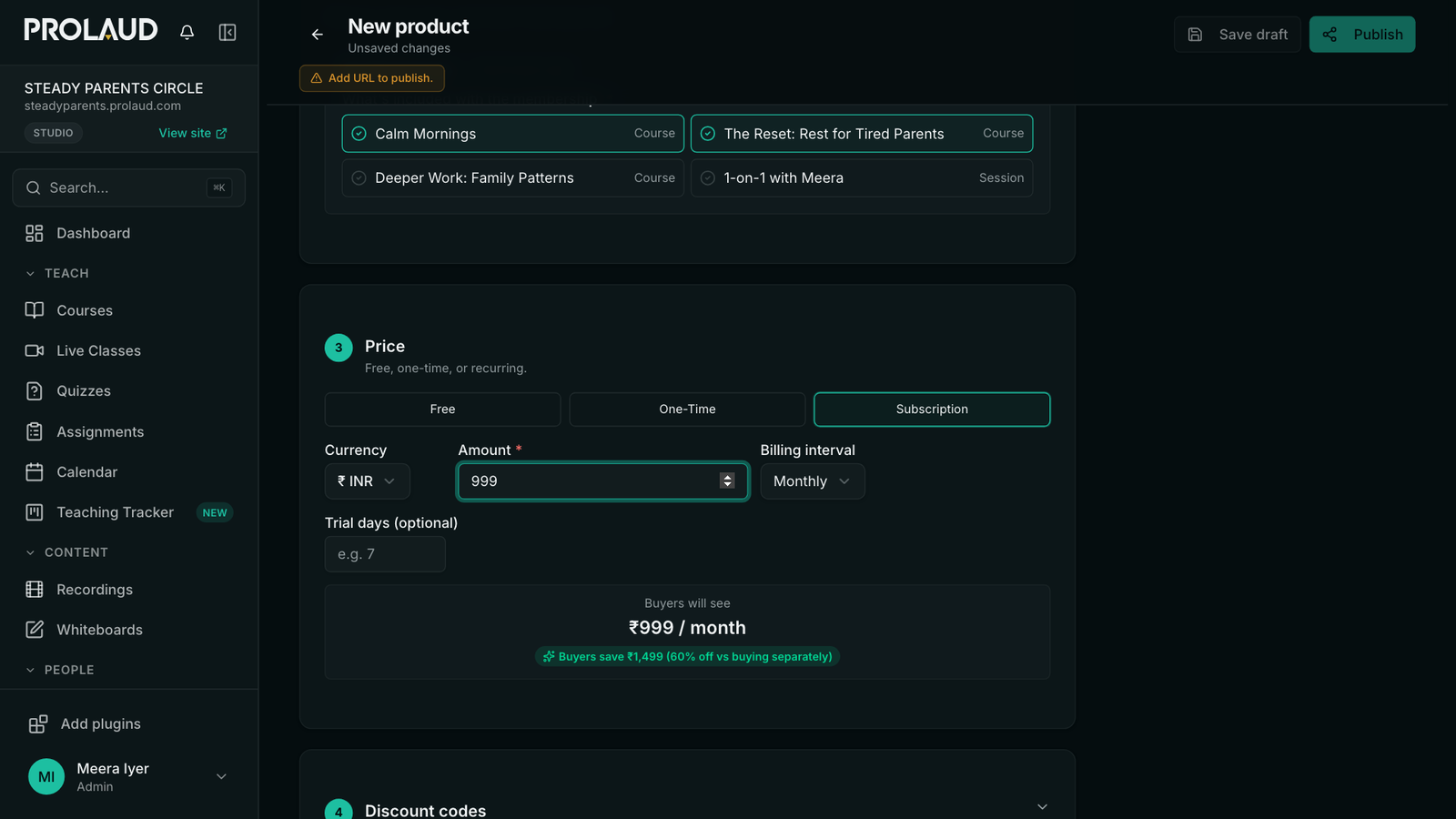
- Under What's included with the membership, tick the products for this level.
- Under Price choose Subscription, enter the amount, and pick the billing interval: monthly, every 3 months, every 6 months or yearly.
- Publish. Repeat for the next level, ticking that level's products.
To keep a course for members only, open it and publish it with Membership only as the way students get in. Then it is locked to anyone who does not hold a membership that includes it.
- Not available: an "everything in this level" setting. When you add a course to a level, create its product and tick it in the membership too.
- A higher level does not include a lower one by itself. Tick the lower level's products in the higher membership as well.
- When a member cancels, access stays until the end of the period they paid for. When a renewal fails there are 3 days of grace, then access pauses until the payment goes through.
- Not available: an automatic credit when a member moves up a level. Give them a coupon, or send a payment link at the reduced price.
- Storefront products get a simple receipt, not a GST invoice.
3. How to sell one-on-one coaching
- In Storefront press New product and choose 1-on-1 session.
- Set the length of a session.
- Tick Host on your in-house live room to have Prolaud create a private room the buyer joins from their order. Or leave it off and paste your booking link, such as Calendly.
- Set the price and publish.
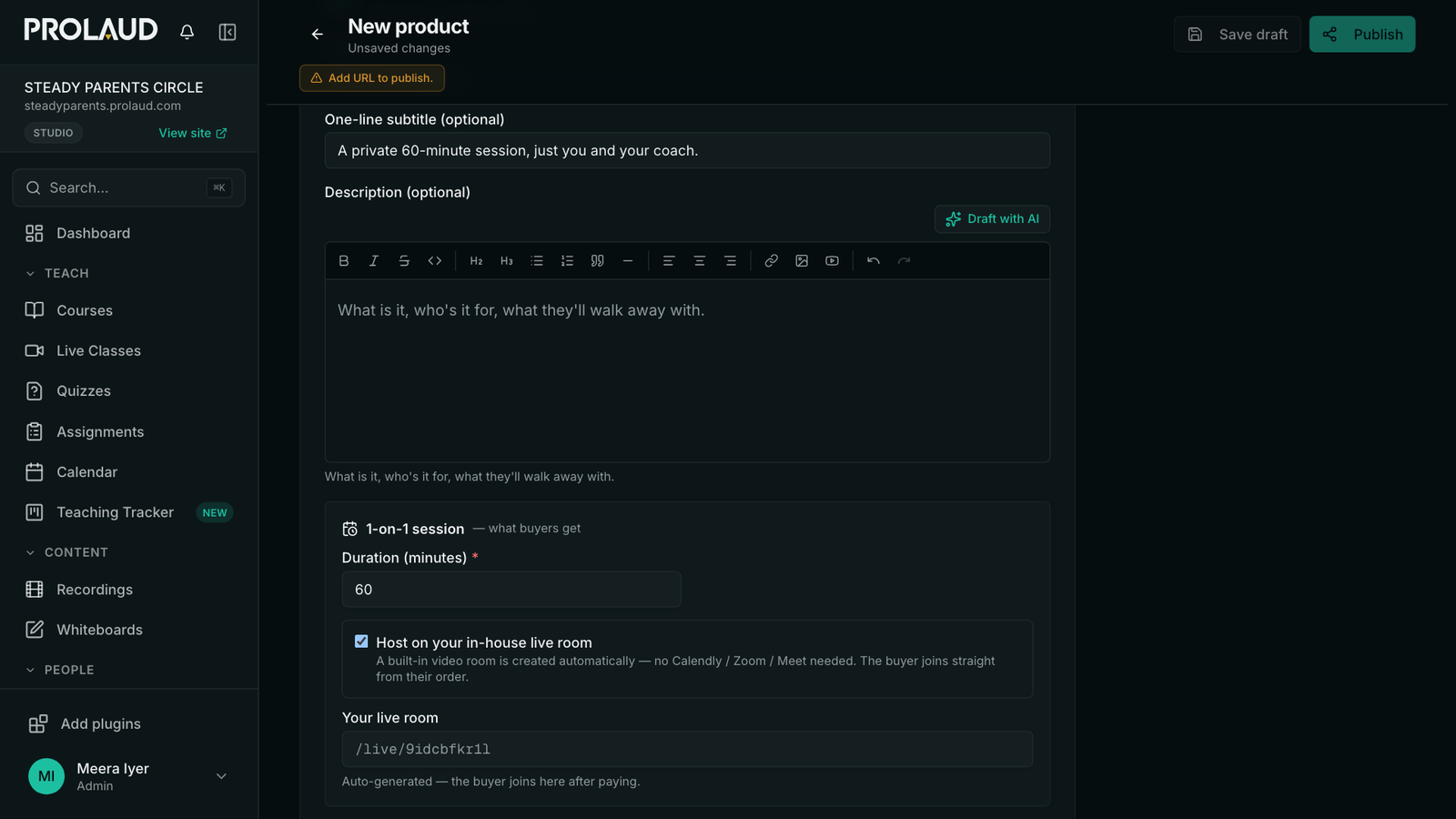
For a private call you want to record and transcribe, schedule it as a class instead: in Live Classes press schedule, leave Course empty, and pick the one member under Audience. It is then recorded and transcribed like any other class.
4. How to run a weekly group call for each level
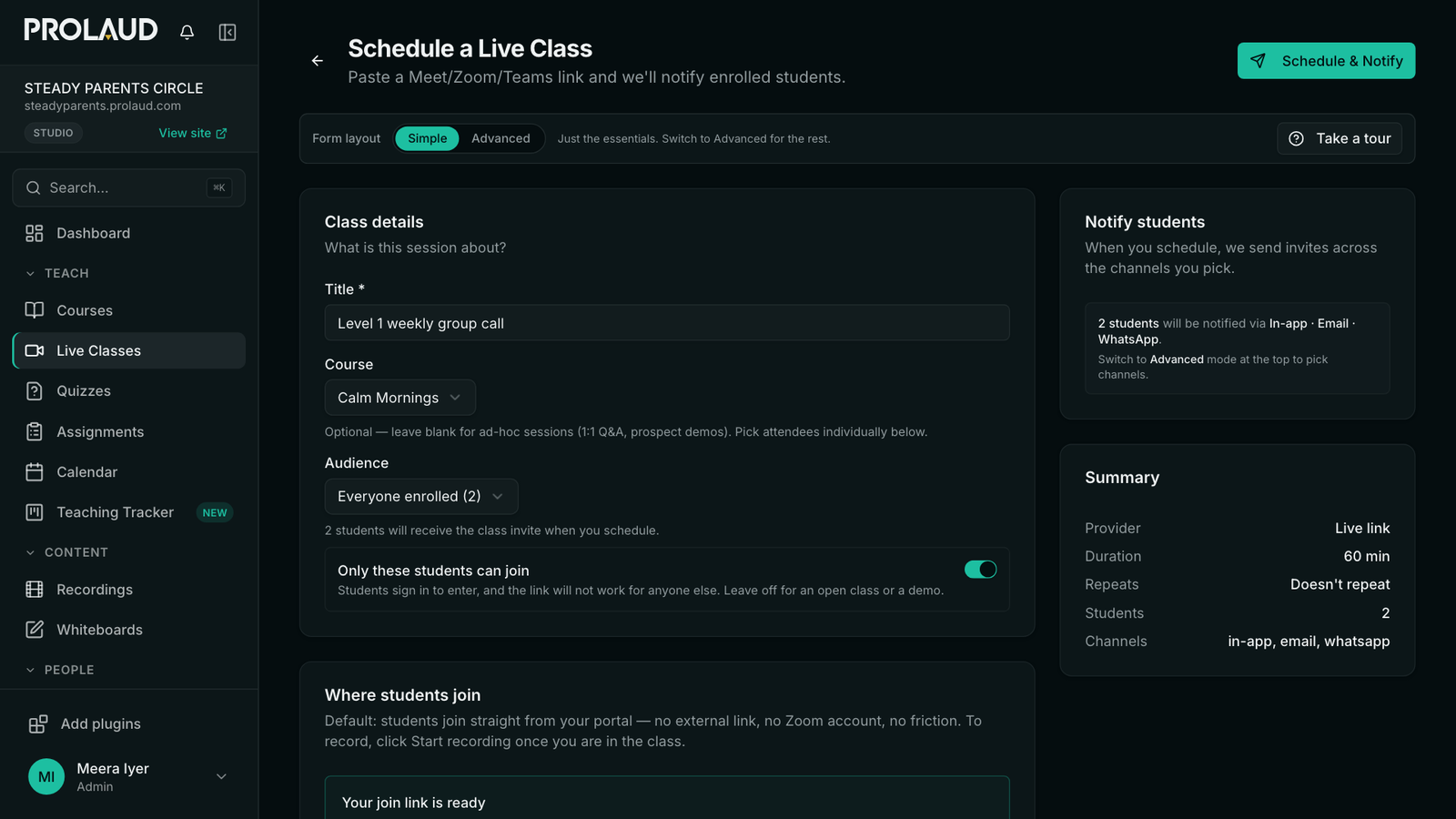
- Open Live Classes and schedule a class.
- Under Course choose a course that belongs to that level. Everyone who holds the course is the audience.
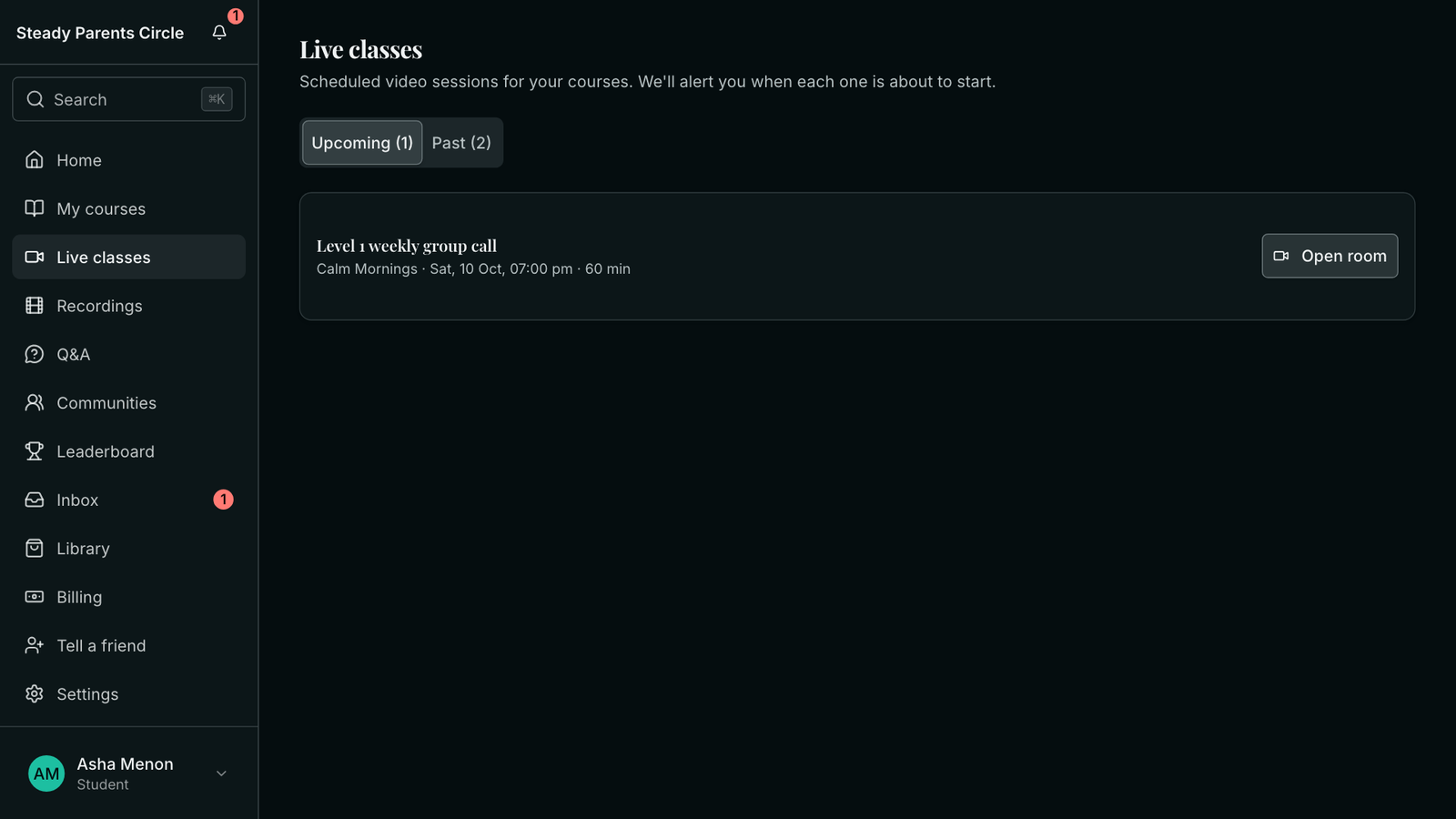
- Switch on Only these students can join. Members then sign in to enter, and the link does not work for anyone else.
- For a call every week, switch the form to Advanced and set it to repeat. Every class in the series shares one join link.
5. How to record a call and download the recording
- During the call, press Start recording and confirm. Everyone in the room is shown that recording has started. Recording does not start by itself.
- Press Stop recording, or end the class. The recording appears on your Recordings page within a few minutes.
- On Recordings, press Details on the row, then Download. The class is saved to your computer as an MP4 video.
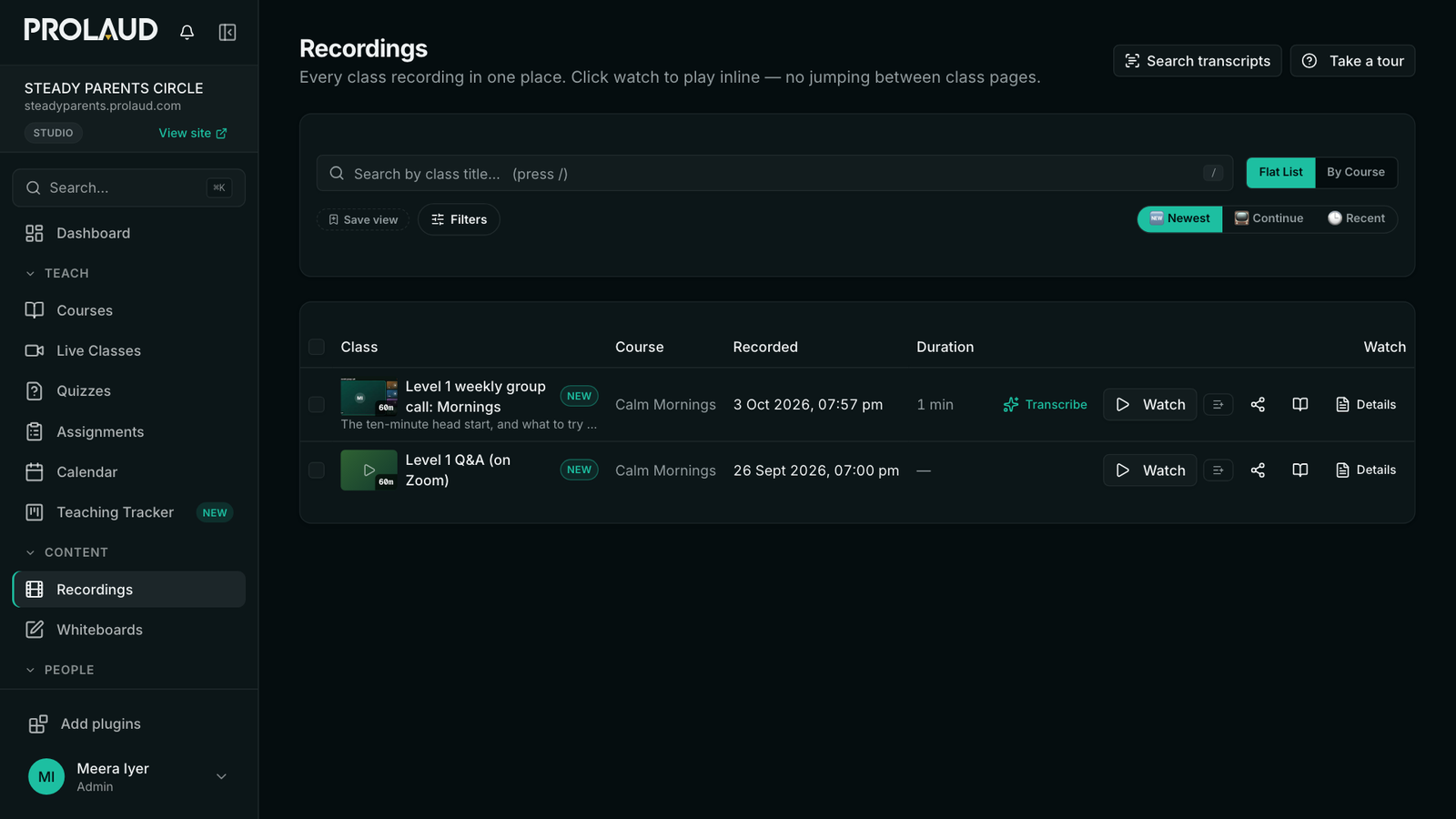
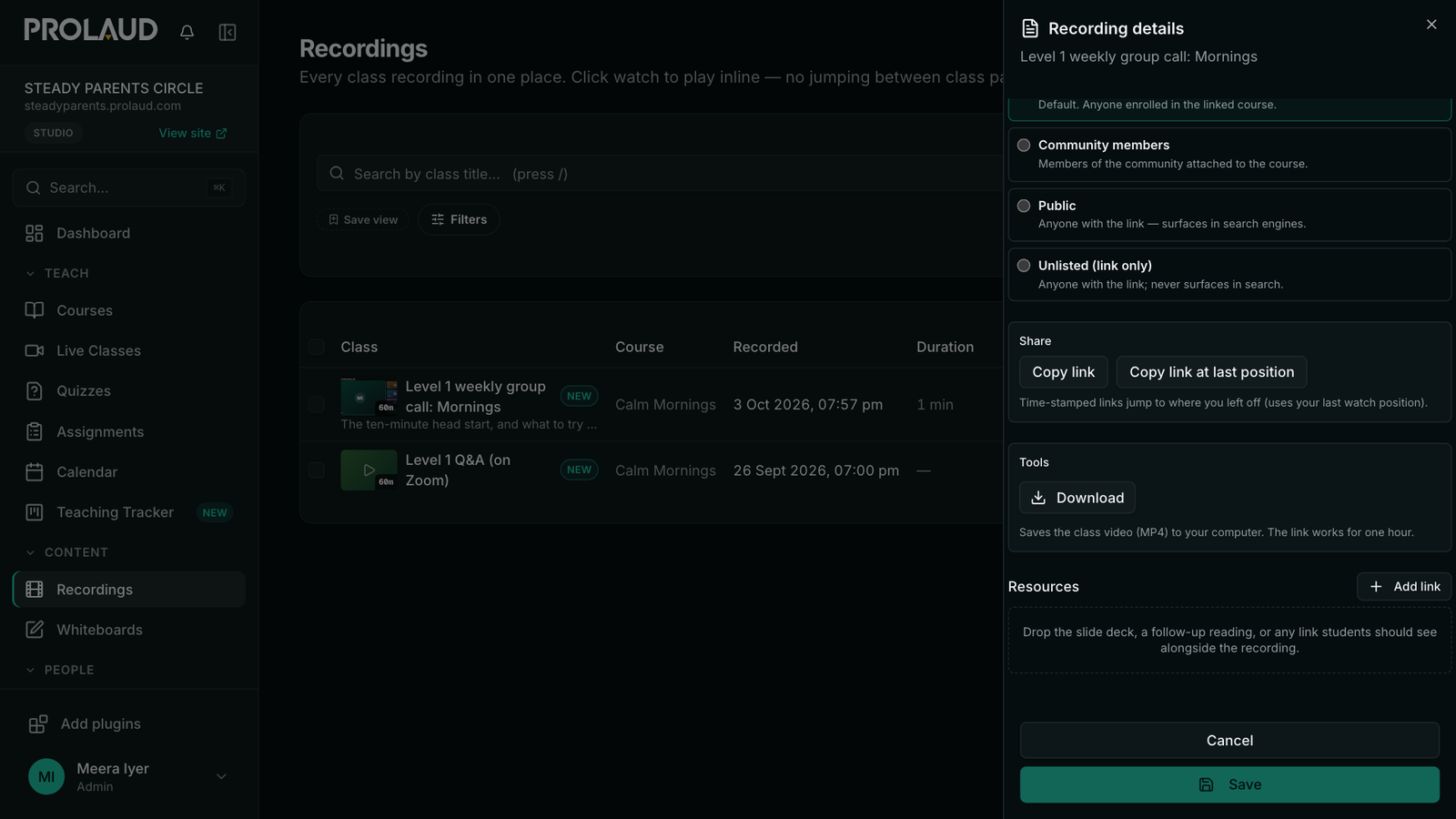
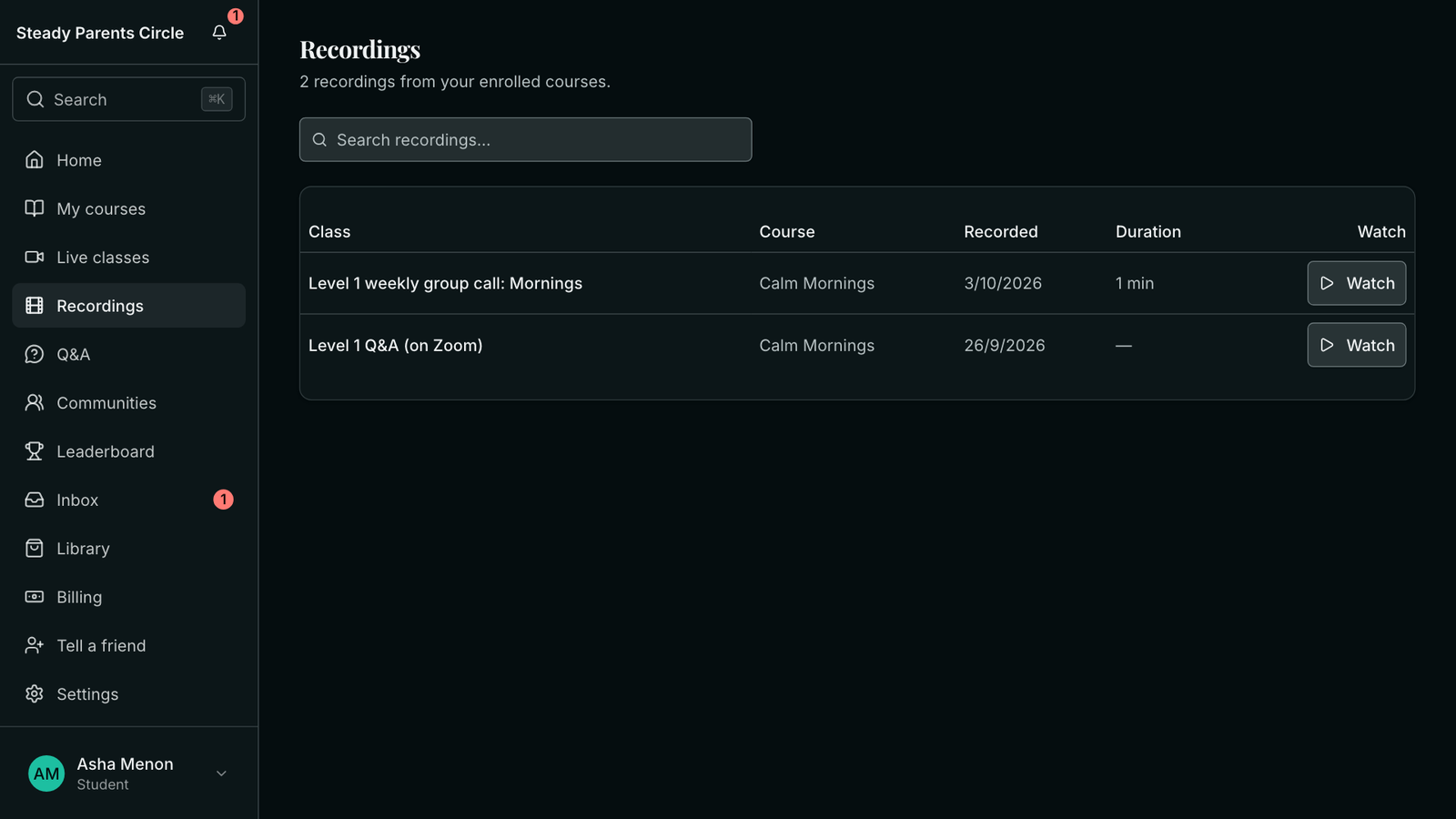
Members watch recordings from their own Recordings page. They cannot download them.
6. How to get a transcript of a coaching call
On the Studio plan and above, any recording made in Prolaud's classroom can be turned into captions and a full transcript.
- On Recordings, press Transcribe on the row. You can keep working; a long call takes several minutes.
- When the row says Captions + transcript ready, press Watch. The captions play on the video, and the full text is under Transcript.
- Press Download transcript (.txt) for the plain text, or Download captions (.vtt) for the timed version. The same two buttons are under Details.
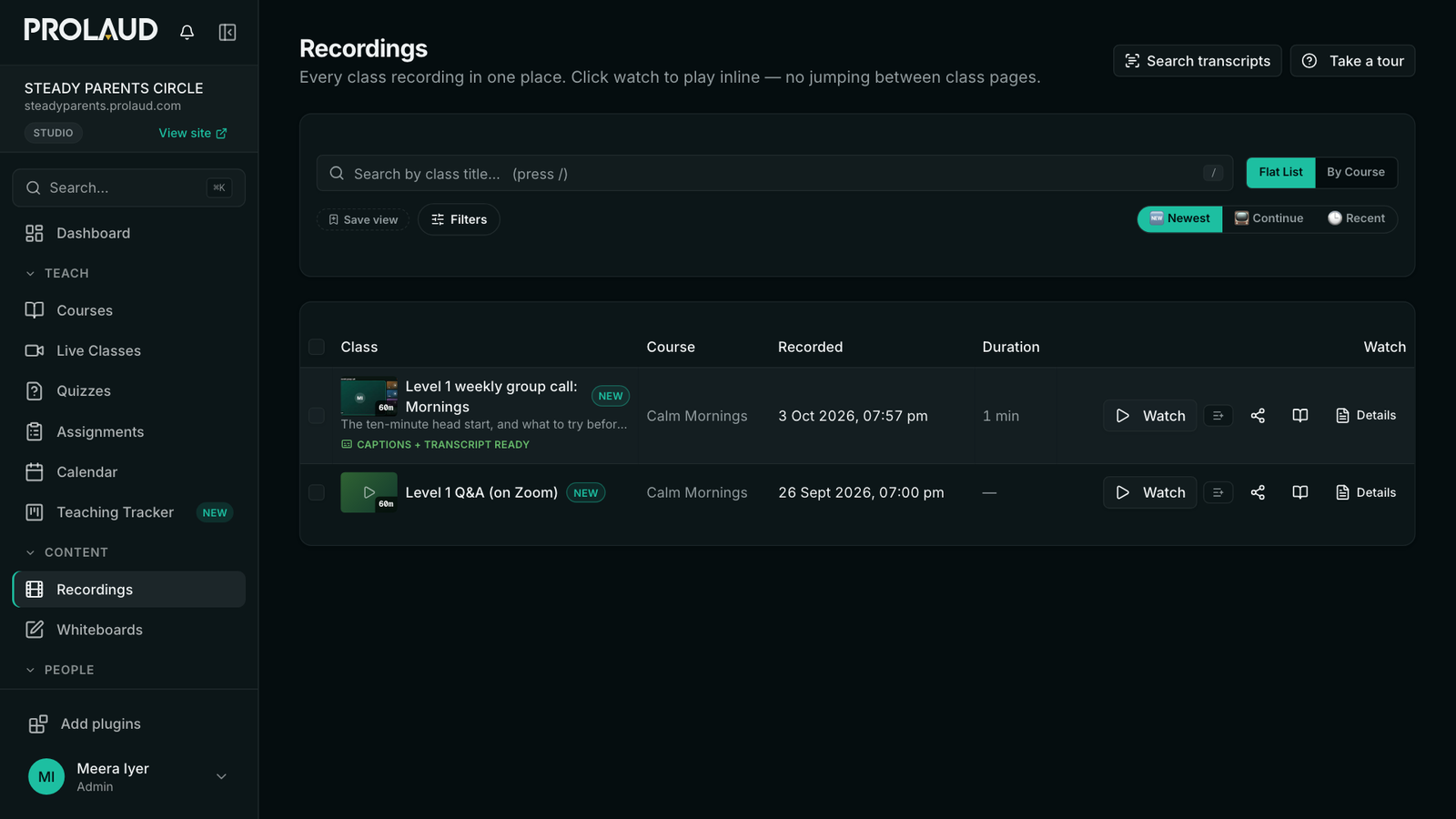
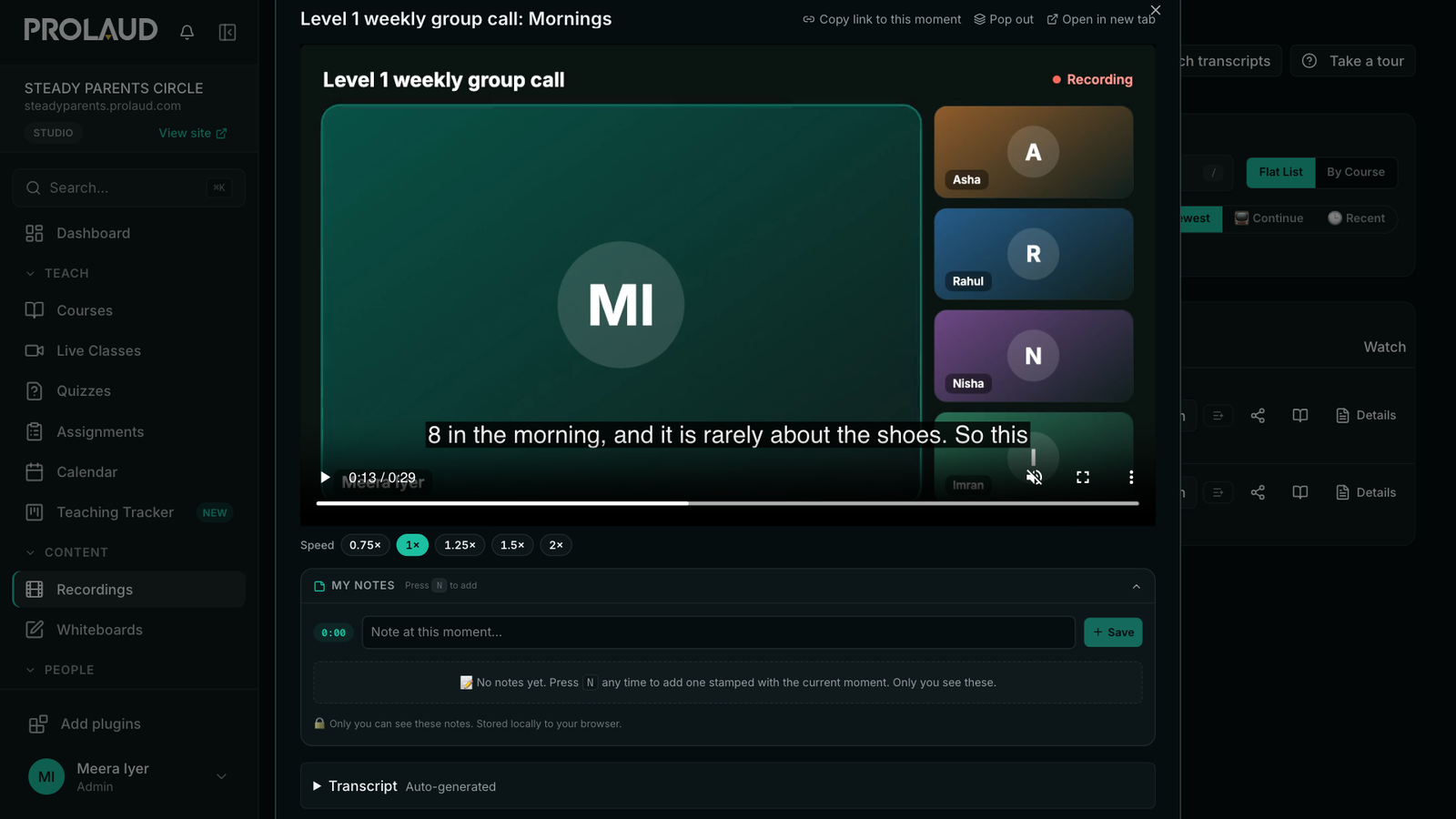
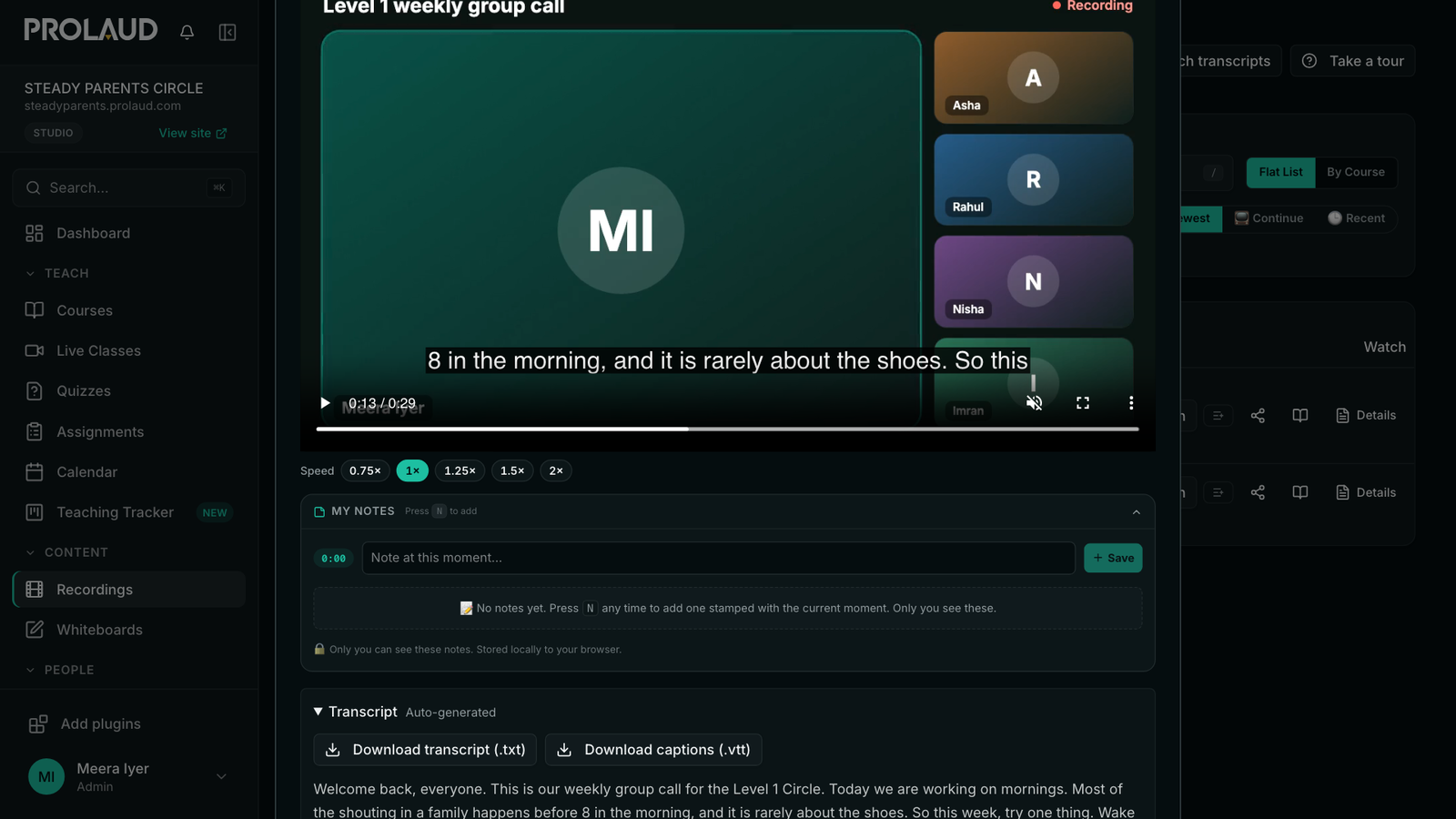
Search transcripts, at the top of Recordings, finds a phrase across every transcribed call and takes you to that moment.
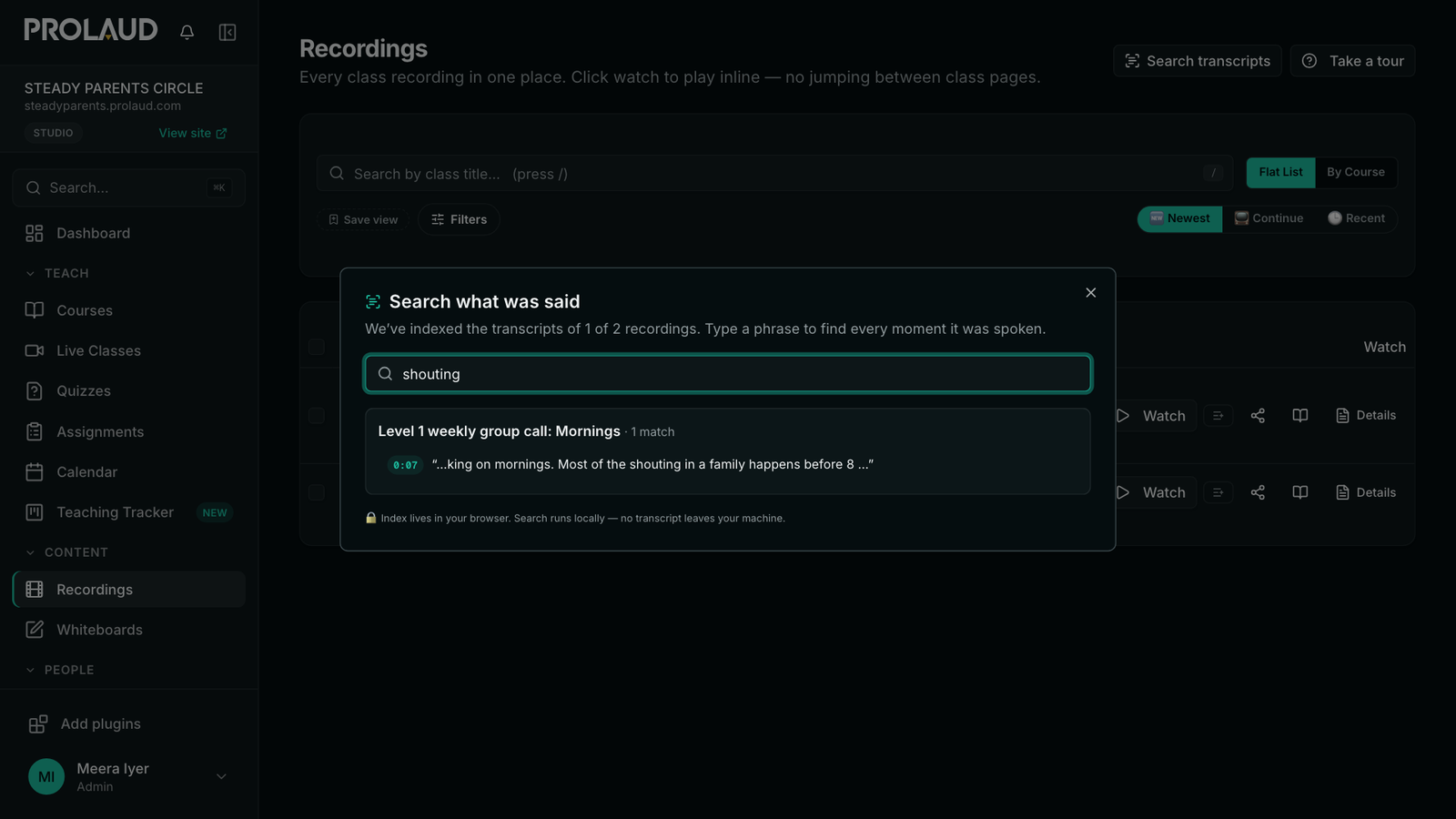
- A transcript is made by a speech-to-text service, so expect small mistakes, mostly with names and unusual words.
- Only recordings made in Prolaud's classroom can be transcribed. A pasted Zoom or YouTube link cannot.
- Members see the captions and the text while they watch. The download buttons are yours only.
7. How to add Zoom recordings
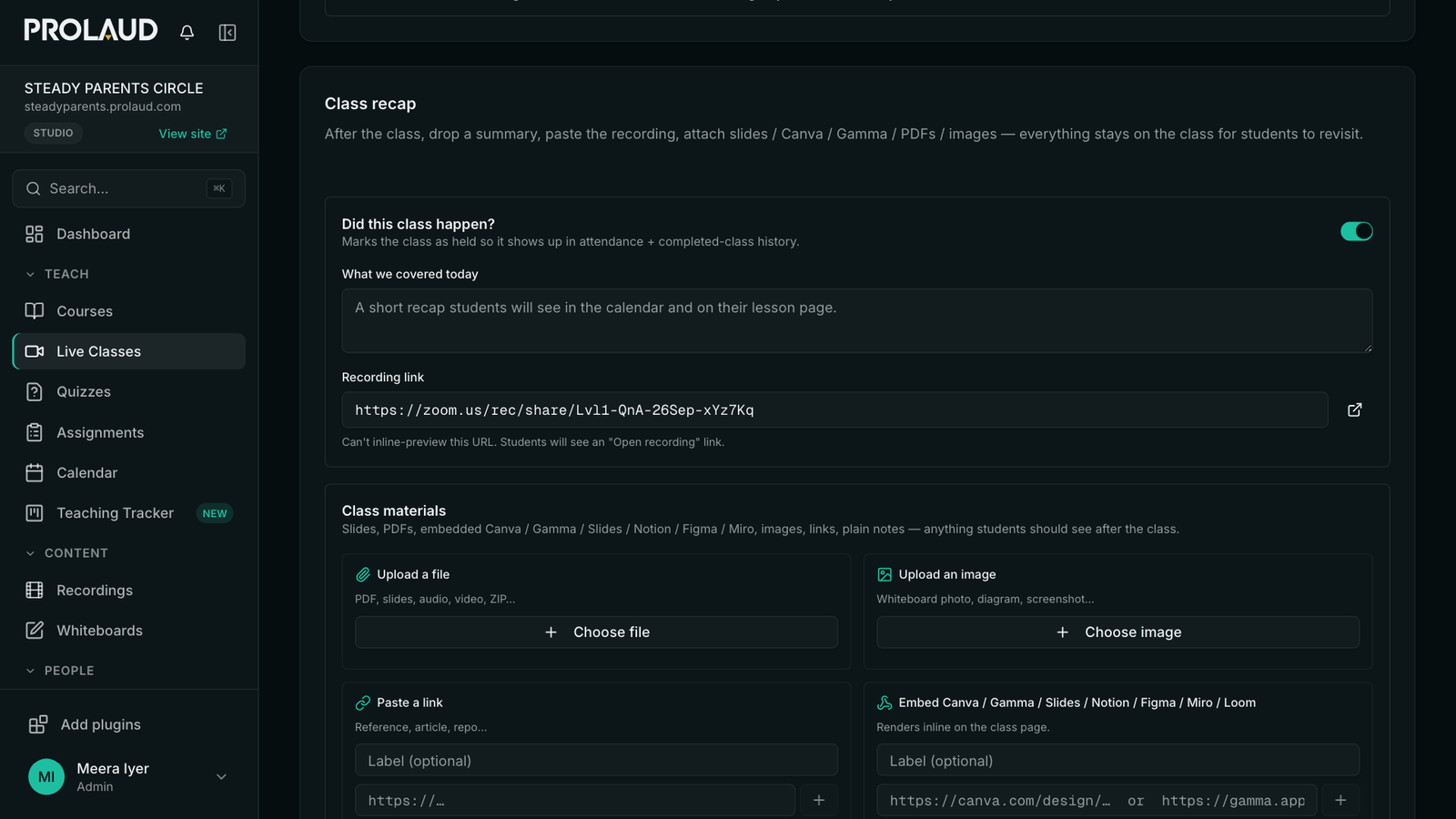
You can keep using Zoom. Paste the Zoom meeting link when you schedule the class, and members join from your academy as usual. Prolaud does not record a Zoom call or take attendance for it, so the recording is added by you afterwards, in one of two ways.
- On the class: open the class, scroll to Class recap, and paste the Zoom recording's share link into Recording link. It is saved as you leave the field, and members are told the recording is up.
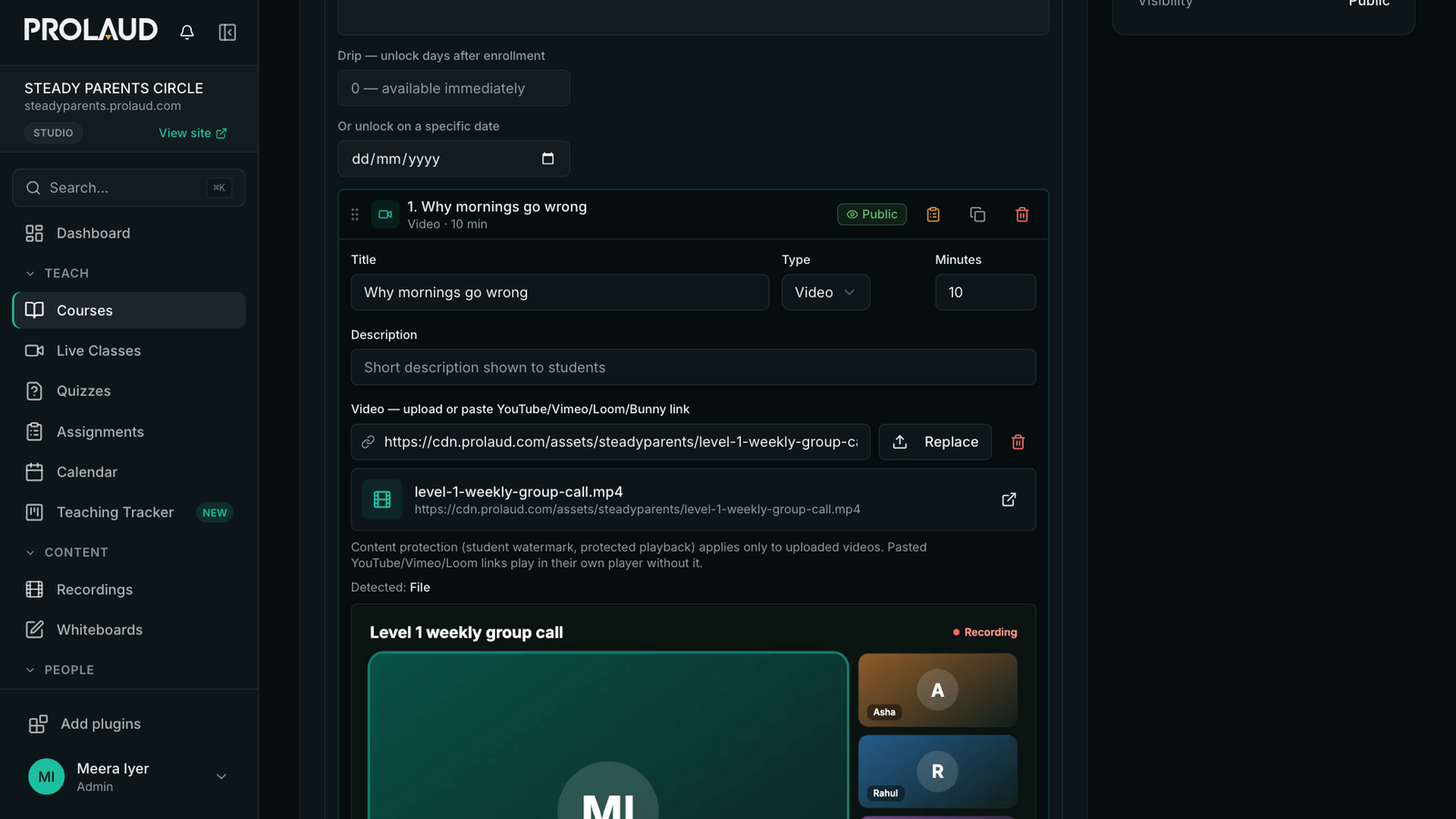
- In a course: add a lesson of type Video and upload the file you downloaded from Zoom. Files can be up to 2 GB on Pro, and up to 10 GB on Studio and during the free trial.
8. How to drip lessons week by week
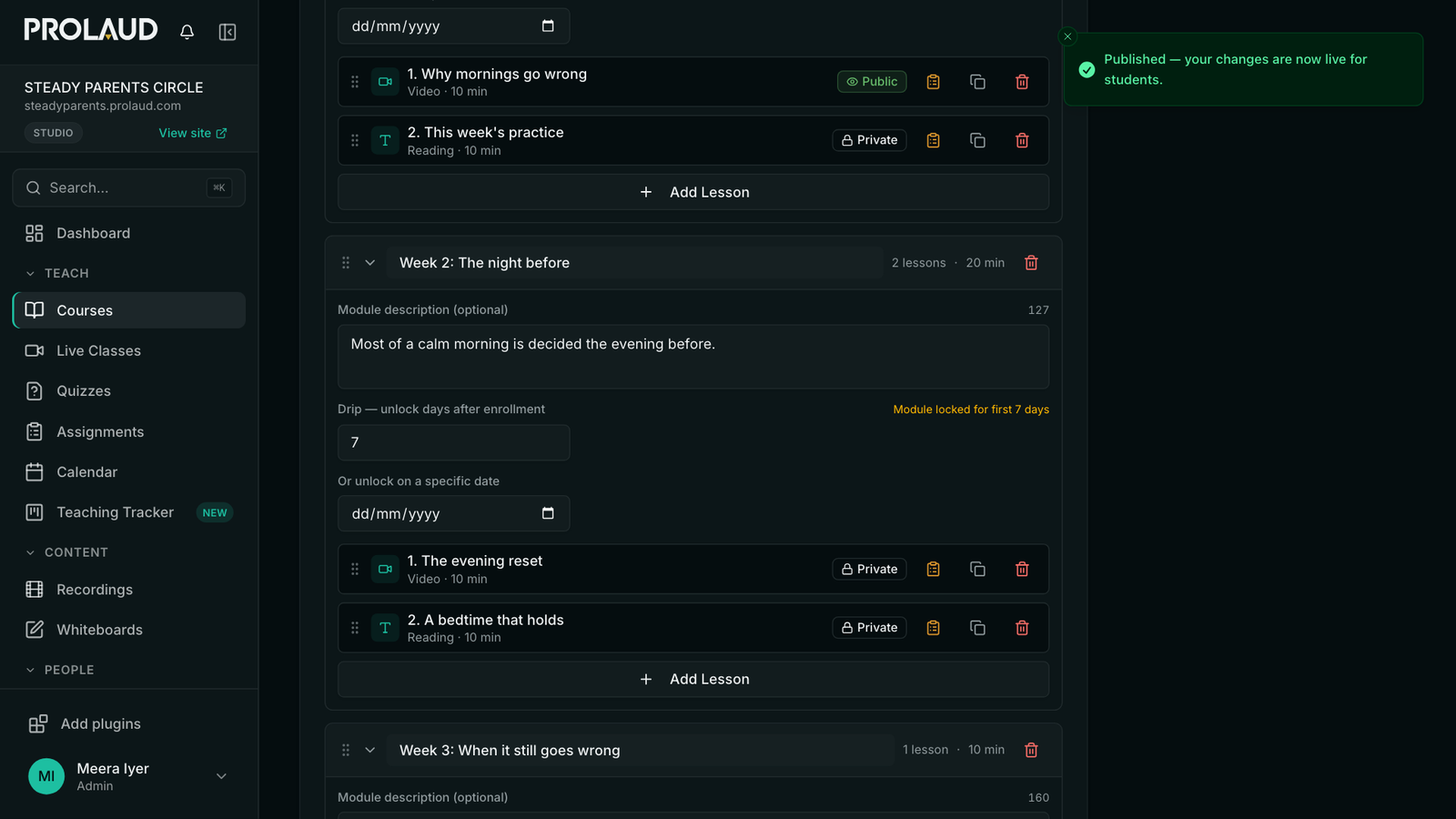
Drip is set on a module, not on a single lesson, and is included from the Pro plan.
- Open the course, press Edit, and go to Curriculum.
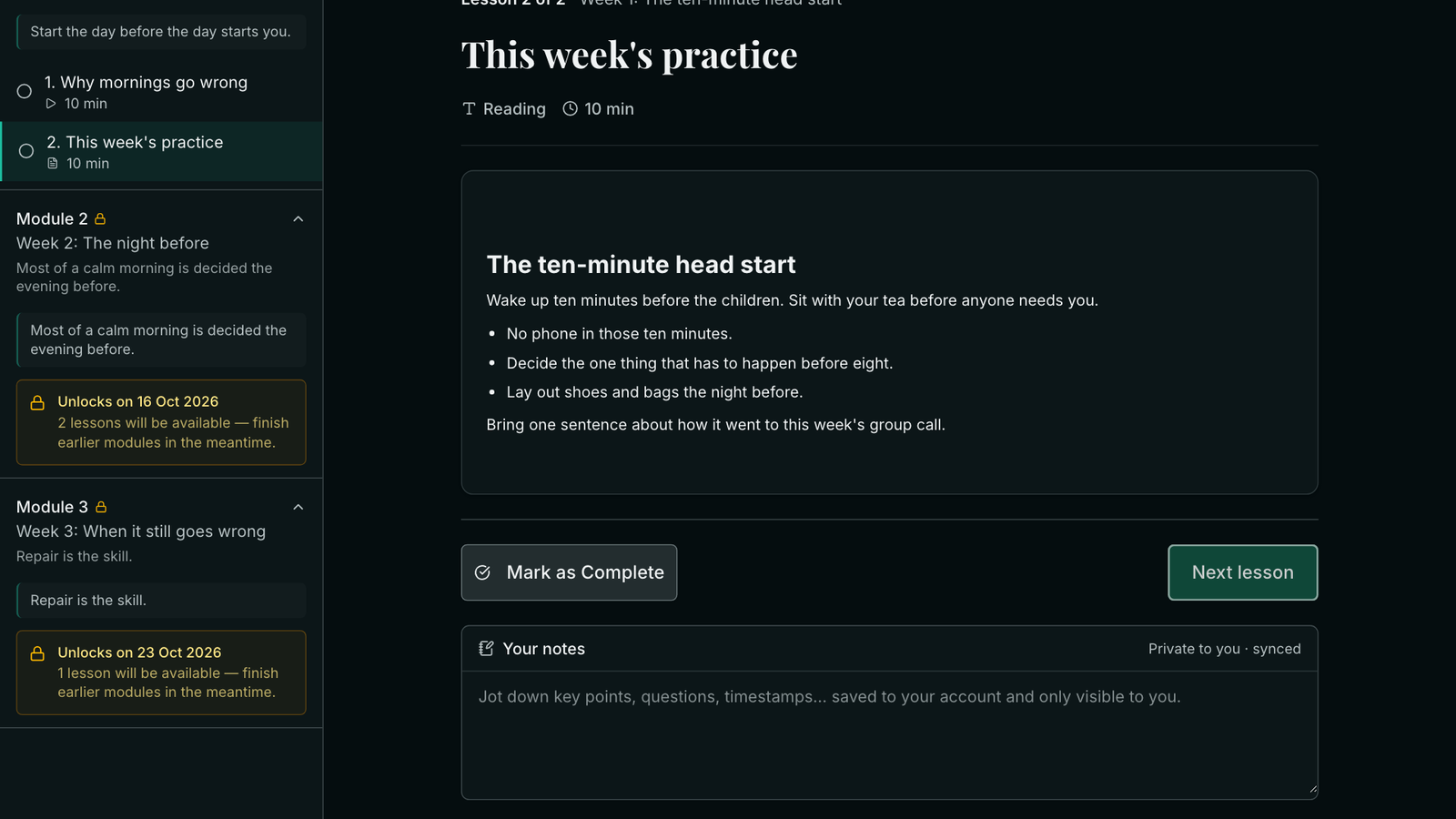
- On the module, enter a number under Drip — unlock days after enrollment. 7 opens it a week after each member joins.
- Or choose a date under Or unlock on a specific date, to open it for everyone on the same day. If you set both, the later one applies.
- Press Publish changes.
9. One course that holds every week's recording
Many coaches keep one course per year, for example Weekly Inner Circle Calls 2026, and add each week's call to it, so a member who joins in June can watch everything since January. A course has no limit on the number of lessons, so 52 recordings in one course works.
- Create the course once, and add it to the level's membership so members can open it.
- After each call, download the recording: Recordings → Details → Download.
- In the course, add a lesson of type Video and upload that file. Name it with the date or the theme of the call.
- Press Publish changes. Members see the new lesson straight away.
- This is a step you do each week. A recording is not added to a course automatically.
- One file can be up to 2 GB on Pro and 10 GB on Studio. Total storage is 100 GB on Pro and 1 TB on Studio.
- A long call recorded in high quality can be more than 1 GB, so a year of weekly calls may need Studio. Check the size of a typical recording before you choose.
10. Moving a coaching membership from TagMango
TagMango is an India-built platform for workshops, courses and paid communities, and many coaches start there. What you built on it has a direct place on Prolaud: a workshop or weekly call is a class in Live Classes, a course is a course, a paid membership is a Membership product, and your community is a community attached to a course or a level. The same steps apply if you are moving from Graphy, Kajabi or any other platform.
There is no importer for TagMango or any other platform, and nothing moves by itself. What you can bring is your member list, and your content by uploading it again.
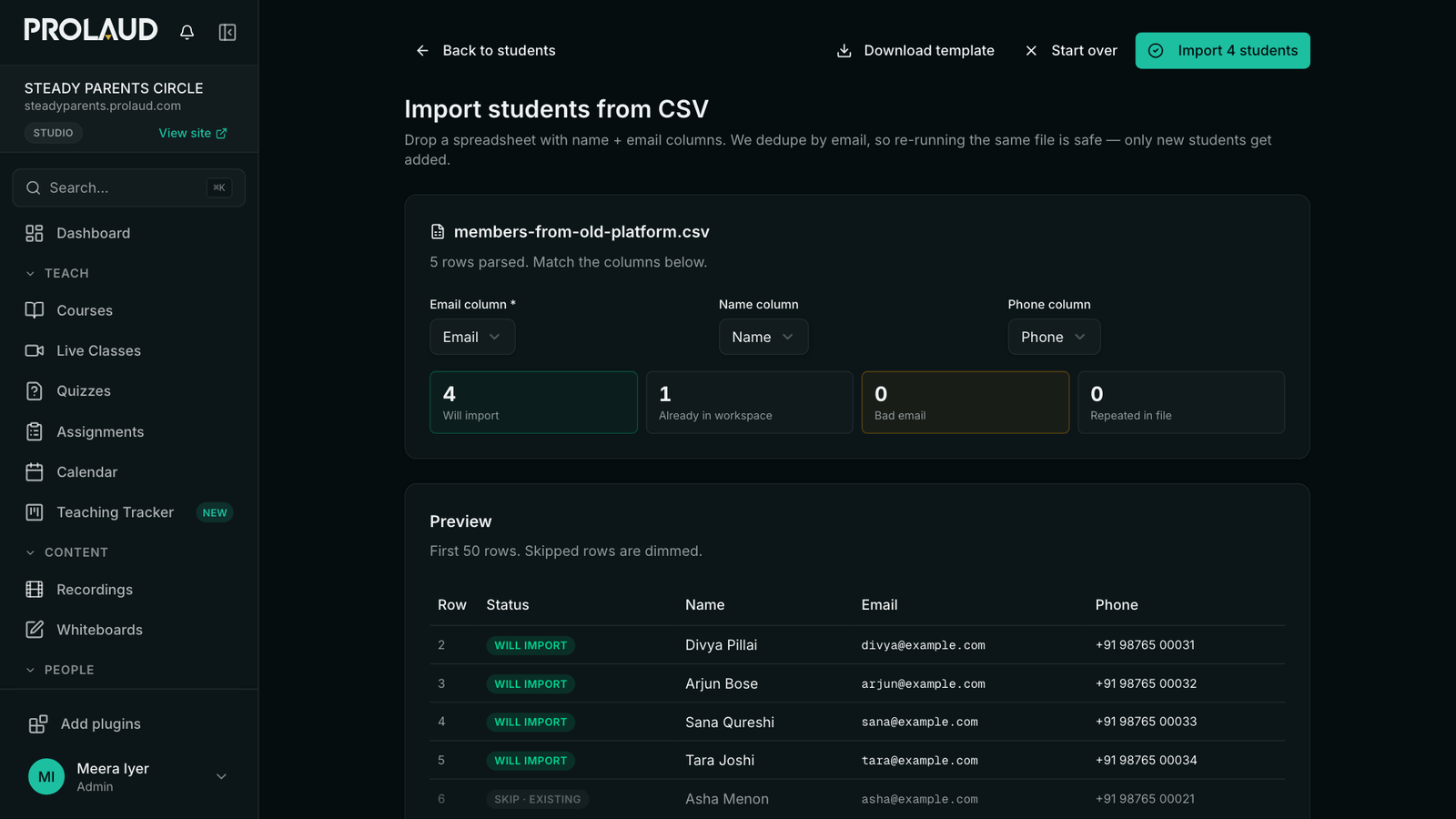
- Export your members from TagMango as a CSV file with an email column. Name and phone are optional.
- In Students, open the Add student menu and choose Import CSV. Drop the file in and check the preview: each row is marked will import, already in workspace, bad email or repeated.
- Press Import. Importing the same file twice is safe; members are matched by email.
- Download your recordings and course files from TagMango, then upload each one as a lesson here. There is no bulk upload for videos, so 40 recordings are 40 uploads.
- Tick the imported members and enroll them in a course, or let them subscribe to a level from your shop.
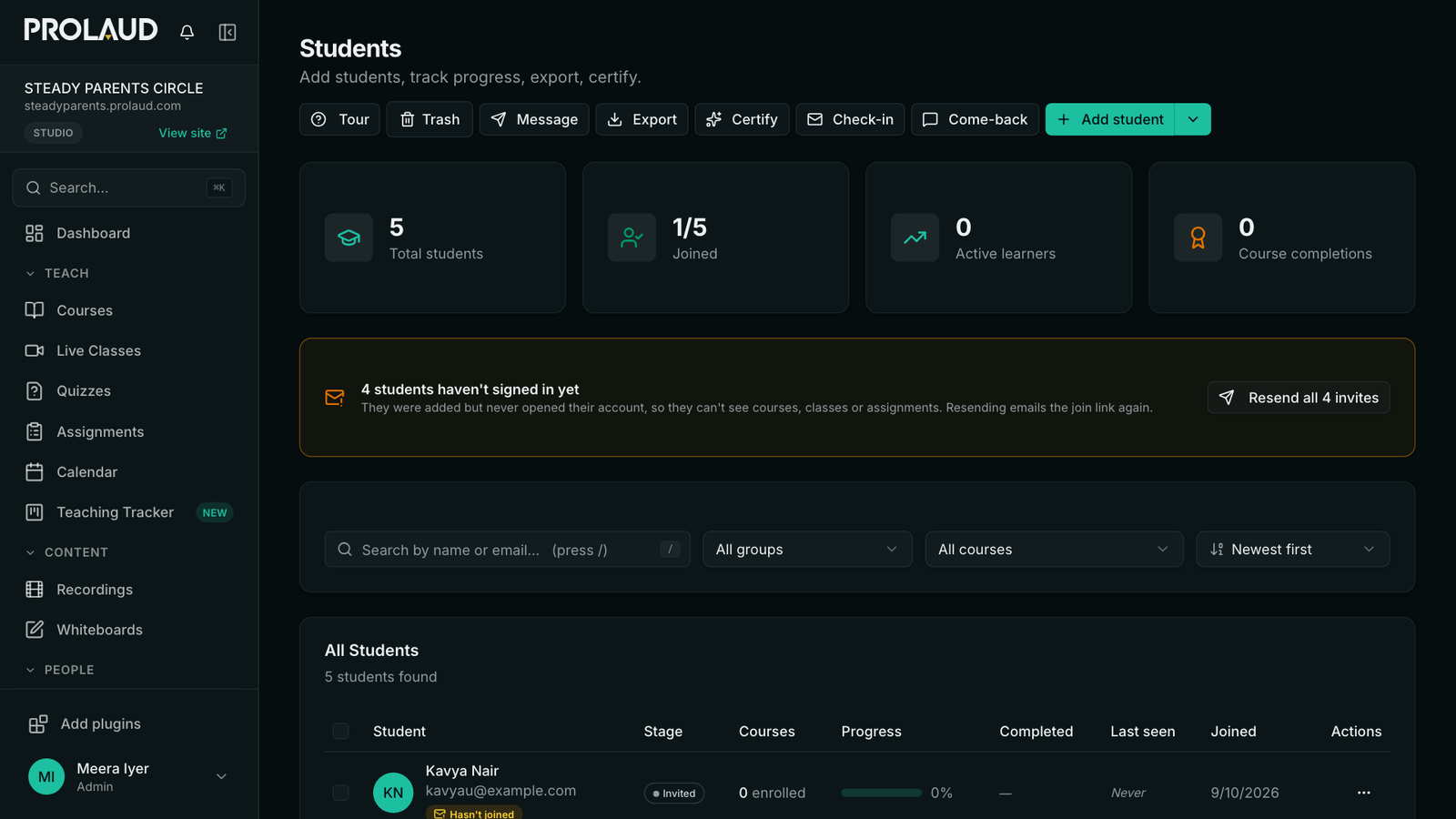
- Press Resend all invites on the Students page to email each of them the link to your academy.
- Does not come across: recordings and course videos. Importing members brings names, emails and phone numbers only. Before you plan the move, confirm with TagMango how you can download your own videos.
- Does not come across: course progress, payment history, certificates already issued, and passwords. Each member creates a new login with the same email.
- Does not come across: active subscriptions. A card or UPI mandate belongs to the payment account that created it, so members subscribe again on Prolaud.
- If your videos are already on YouTube or Vimeo, you can paste the link into a lesson instead of uploading. A pasted link plays in that service's own player, without Prolaud's watermark or download protection.
- The AI Course Builder can draft a course from a PDF, Word file or slide deck you already have.
- The easiest moment to move is between two billing cycles: let the old subscription run out and start the new one here.
What a member ends up with
One account on your academy, with their level's courses, the weekly call, and every recording you have added, including the ones from Zoom.
- Can I download the recording of a call?
- Yes. On Recordings press Details on the row, then Download. The class is saved as an MP4 video. Class recordings are kept for 90 days on Pro and 365 on Studio, so download the ones you want to keep.
- Can I download a transcript?
- Yes, on the Studio plan and above. Press Transcribe on the recording, and when it is ready download it as plain text or as timed captions from the player or from Details.
- Does a class record automatically?
- No. You press Start recording during the class, and everyone in the room is told.
- Can I use Zoom and still keep recordings on Prolaud?
- Yes. Paste the Zoom recording link into Recording link on the class, or upload the downloaded file as a video lesson in a course. A Zoom recording cannot be transcribed here.
- Can I sell different membership levels?
- Yes. Each level is a Membership product listing the courses it includes, with its own price and billing interval. A weekly call is tied to a level by scheduling it on one of that level's courses.
- Why does my membership say it cannot be bought?
- A membership in rupees needs your Razorpay Key ID and Key Secret saved under Payouts. The one-click Razorpay connection, or no connection at all, cannot take recurring payments.
- I can only see my Razorpay Key ID. Where is the secret?
- Razorpay shows the Key Secret only once, when the key is created. Regenerate the key in Razorpay under Account & Settings → API Keys and copy both values straight away.
- Can lessons be released one week at a time?
- Yes, on Pro and above. Set the number of days on each module, counted from the day a member joins, or choose a date.
- Can one course hold a whole year of weekly call recordings?
- Yes. A course has no limit on lessons, so 52 weekly recordings fit in one course. Upload each recording as a video lesson: one file can be up to 2 GB on Pro and 10 GB on Studio, with 100 GB of storage on Pro and 1 TB on Studio.
- Is Prolaud an alternative to TagMango for coaches?
- Yes. Prolaud covers what a coaching membership needs: paid levels with recurring billing, a weekly live call per level, courses with weekly lessons, communities and one-on-one sessions. It charges a flat plan fee and takes 0% of your sales, and members pay into your own Razorpay or Stripe account.
- Will my recordings move when I import my members from TagMango?
- No. The import brings names, emails and phone numbers only. Recordings and course videos are downloaded from the old platform and uploaded here one lesson at a time; there is no bulk upload for videos.
- Does Prolaud take a commission on memberships?
- No. Prolaud takes 0% of your sales on every plan. You pay a flat plan fee, and your payment processor charges its own standard fee.
- Can I record and transcribe a one-on-one coaching call?
- Yes. Schedule the call as a class with one member picked as the audience, press Start recording during the call, and use Transcribe afterwards. Transcripts are on the Studio plan and above.
- Will my members' subscriptions move from my old platform?
- No. Subscriptions belong to the payment account that created them, so members subscribe again on Prolaud. Their names, emails and phone numbers come across from a CSV file.
Related