For creators
Moving your students and courses to Prolaud
What comes across when you move from another platform, what stays behind, and the four steps to get your students into a course here. The honest version first: your student list moves easily, but their progress and payment history do not, so the smoothest switch is at the start of a new cohort.
Last updated Sep 21, 2026
The short version
Your student list comes across in a few minutes from a spreadsheet. Your courses, your site's look and your domain can all be set up here. What cannot come across is anything your old platform recorded about each student over time — their progress, their completions, their payment history. Prolaud has no way to import those, even where your old platform lets you download them.
What you can bring over
- Your student list — names, emails and phone numbers, from a CSV file. Up to 10,000 rows at a time.
- Your courses — built from a PDF, Word file or slide deck you already have, or drafted from a course title.
- Your website's look — paste your current site's address and Prolaud reads your name, colors, logo and pages.
- Your own domain — on the Pro plan and above, your academy can live at your own web address.
What does not come over
- Course progress and completions. Every student starts each course here at zero.
- Payment and order history. It stays with your old platform and your payment gateway.
- Active subscriptions and auto-pay. Students approve payments again on Prolaud, because card mandates (and UPI mandates in India) belong to the processor that created them.
- Passwords. Each student creates a new login on your academy using the same email address.
- Certificates already issued elsewhere. Prolaud cannot import them, so they stay with the platform that issued them.
Step 1 — Import your student list
- Export your students from your old platform as a CSV file. It needs an email column; name and phone are optional. Keep the header row.
- In Prolaud, go to Students, open the Add student menu, and choose Import CSV.
- Drop the file in. Prolaud guesses which column is which — check the email, name and phone columns and change them if the guess is wrong.
- Read the preview. Every row is marked: will import, already in your workspace, bad email, or repeated in the file. Only the rows marked will import are added.
- Press Import.
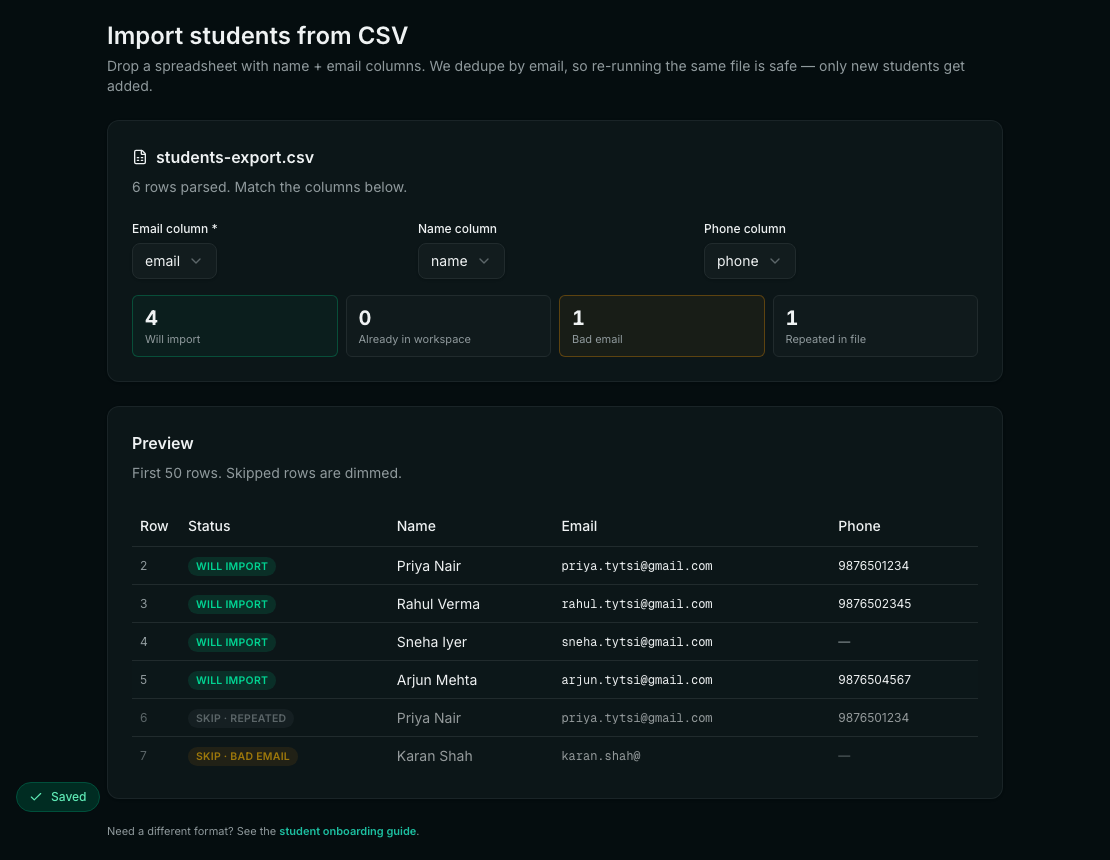
Importing the same file twice is safe. Prolaud matches students by email, so anyone already in your workspace is skipped rather than added again.
Step 2 — Enroll them in a course
- On the Students page, tick the students you just imported. The box at the top of the list selects everyone.
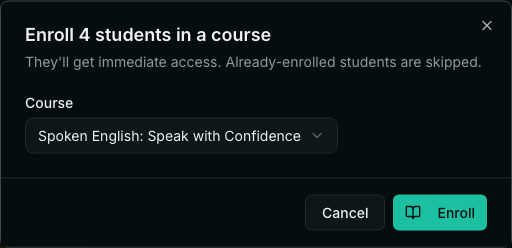
- Press Enroll in course.
- Choose the course and press Enroll. Students already in that course are skipped.
Step 3 — Tell your students where to go
There are two ways. Use whichever reaches your students.
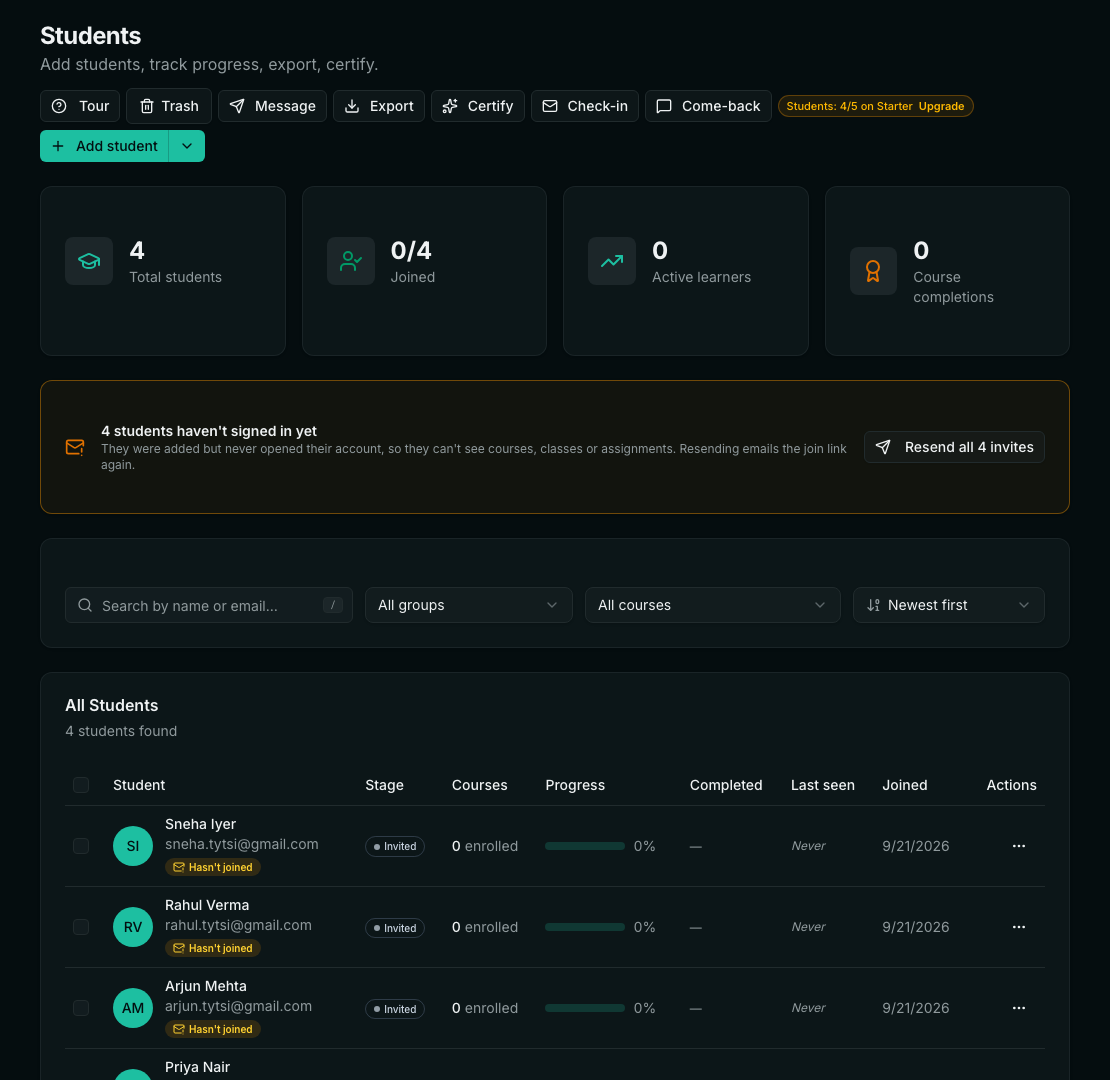
Email them from Prolaud. Imported students are listed as not yet joined, and the Students page shows a banner with a Resend all invites button. It emails each student a link to your academy. You can also send it to one student at a time from the menu on their row.
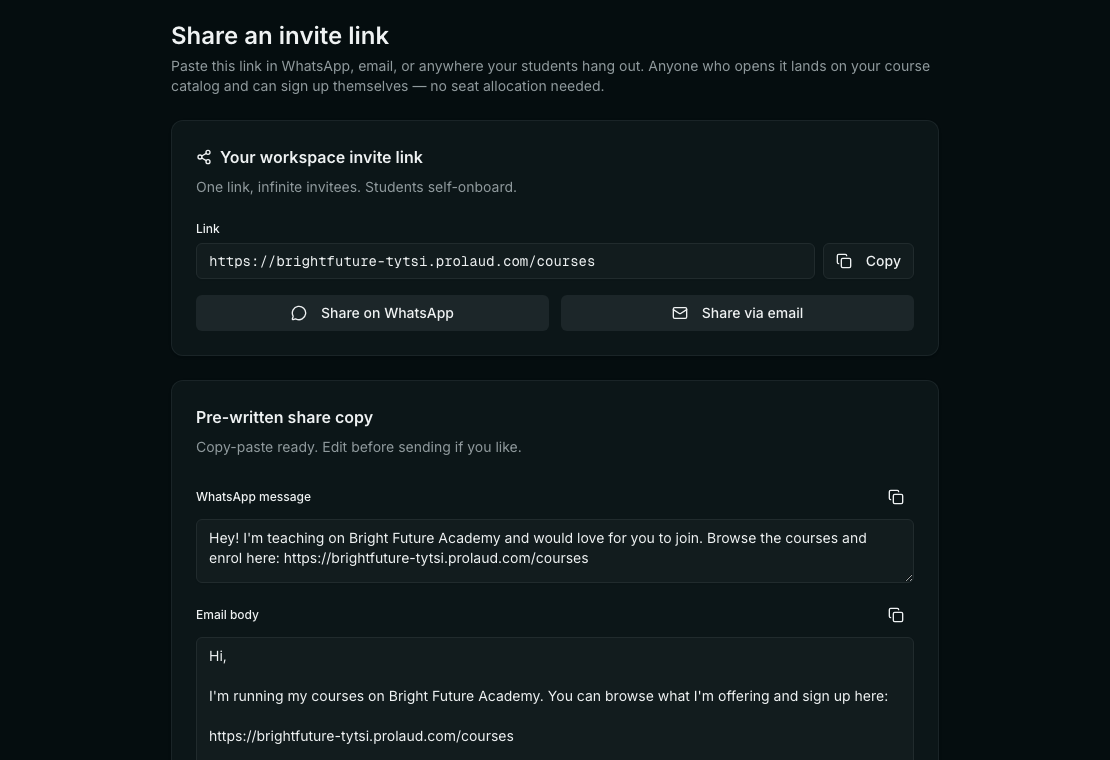
Or share the link yourself. Open the Add student menu and choose Share invite link. You get your academy's link with one-click copy, and ready-written messages for WhatsApp and email.
Step 4 — Each student signs up with the same email
- The student opens your academy and chooses Create an account.
- They enter the same email address you imported them with, their name, a phone number and a password of at least 8 characters. The phone number is required.
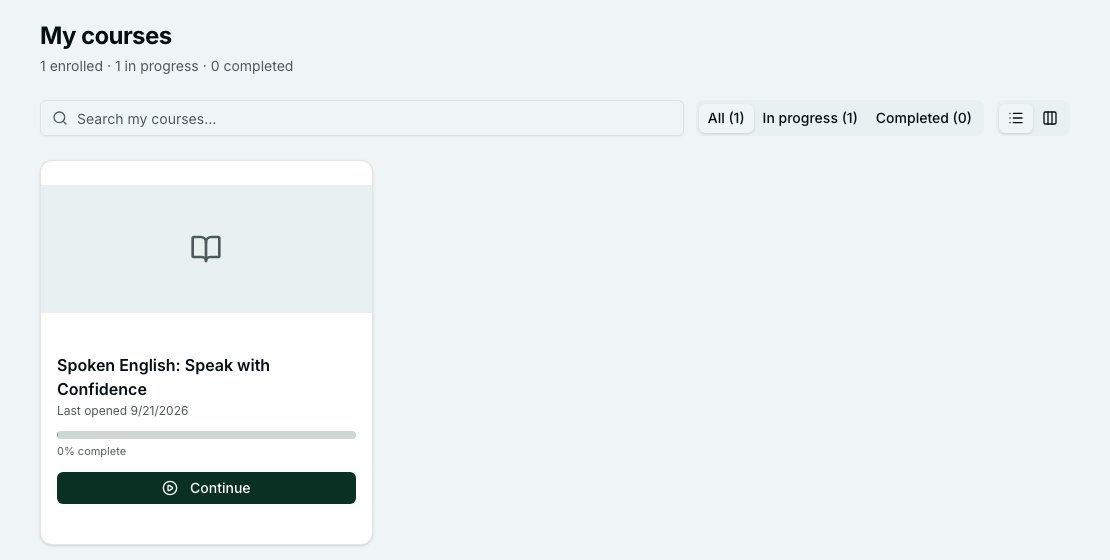
- They go to My courses. The courses you enrolled them in are already there.
- Can I move my students' progress from my old platform?
- No. Progress and completions stay on the platform that recorded them, and every student starts each course here at zero. That is why switching between cohorts is easiest.
- Do students get an email as soon as I import them?
- No. Importing only adds them to your roster. Send them to your academy with the Resend all invites button on the Students page, or share your invite link yourself.
- What if I import the same file twice?
- Nothing is duplicated. Students are matched by email, so anyone already in your workspace is skipped.
- How many students can I import?
- Up to 10,000 rows per file, within your plan's student limit: 5 on Starter, 1,000 on Pro, and no limit on Studio and above.
- Can my students keep paying the way they did before?
- Not automatically. Subscriptions and auto-pay mandates belong to the payment gateway that created them, so students approve their payments again on Prolaud.
- Can I use my own domain?
- Yes, on the Pro plan and above.
Related