How to run live classes without Zoom, with students joining from your academy instead of a meeting link
What it takes to teach live without a separate Zoom or Meet account: a room built into your academy, students who join with one button instead of a forwarded link, and attendance that lands on the record of the student who paid. Real screenshots, a 12-minute video and the cases where Zoom still wins.
The short answer
The platforms that let you teach live without paying for a separate meeting tool are the ones that host the video room themselves, and the cleanest version puts that room inside your own academy. Prolaud, which publishes this guide, works that way: you schedule a class, your enrolled students see it under Live classes in their account and press Join now, and they are in the room in the browser, with no Zoom account, no app and no meeting link to forward. The room has a whiteboard, slides, polls, raised hands, chat, screen share and recording, and the roster records who joined and when. Course sales carry 0% commission and are paid into your own Stripe or Razorpay account, after a 14-day trial with no card. Where it loses: breakout rooms are basic, so Zoom is better for small-group work, and one weekly class for people you already know runs fine on free Google Meet.
Most teachers who sell live classes run them on two products that don't know about each other. The course, the payment and the student list live on one platform; the class itself happens on Zoom or Google Meet. So every week someone copies a meeting link into a WhatsApp group, a student who paid can't find it, a student who didn't pay gets it forwarded by a friend, and after the class the teacher downloads a participant list and tries to match screen names to the people who bought the course.
There is another way to set it up: a platform that runs the video room itself, inside the same academy where students bought the course. This guide explains what that means in practice, how students join without a meeting link, what the room can and can't do, what it costs, and when a plain Zoom or Meet call is still the better answer. The screenshots are from a demo academy we built to show the product, Brush & Clay Studio, a small watercolour school with a teacher called Meera Kapoor and a handful of fictional students. It isn't a customer; every screen is the product as it ships today.
What does "live classes without a separate meeting tool" actually mean?
Course platforms describe live classes in two very different ways, and the difference only shows up after you've paid.
- An integration. The platform has a "Live" or "Events" page, but the class itself opens in Zoom, Google Meet, Webex or Teams. You still need an account with that tool, and its limits still apply to you. The platform stores the link and may show a Join button, but the room, the recording and the participant list belong to the other product.
- A built-in room. The platform runs the video itself. Students join from their account on your academy, in the browser, and the room knows who they are because they joined from that account. There is no second subscription and no Zoom link to forward.
Both are honest products. The question to ask a platform is a narrow one: when a student clicks Join, whose software do they land in? If the answer is Zoom, you are still paying for Zoom (or living with its free-tier limit), and the attendance you get afterwards is Zoom's participant list, not your student list.
The free tiers, for reference
On their own pricing pages as of October 2026, Zoom's free plan caps group meetings at 40 minutes, and Google Meet is free with a Google account but caps calls of three or more people at 60 minutes. Fine for a short check-in; tight for a 90-minute class.
Do you even need a platform? The honest test
We sell one of these products, so take this section as the one we had least reason to write. Plenty of teachers don't need a built-in room at all.
- You run one weekly session for a group you already know, and nobody pays you through a link. Free Google Meet and a calendar invite cover it.
- Your classes are mostly small-group breakout work. Zoom's breakout rooms are still the benchmark.
- You teach inside a school or university that already runs Google Workspace or Microsoft 365. Meet with Classroom, or Teams, is the path of least resistance and your students already have accounts.
A built-in room starts to pay for itself when the class is the thing you sell: when strangers buy seats, when you run more than one batch, when you need to know which paying student stopped turning up before they ask for a refund, and when you're tired of being the person who resends the link every Monday. That's the case the rest of this guide is about.
How do students join a live class from an academy portal instead of a meeting link?
Here is the whole journey in the demo academy, from the student's side first, because that's the part that removes the meeting link.
1. The class is already in the student's account
When Meera schedules a class for her Watercolour Basics course, every enrolled student sees it under Live classes in their account on the academy site, with the date, time and length. Times are shown in each student's own time zone. When the class is open, the card says Live now and the button says Join now. Nobody has to send anything.
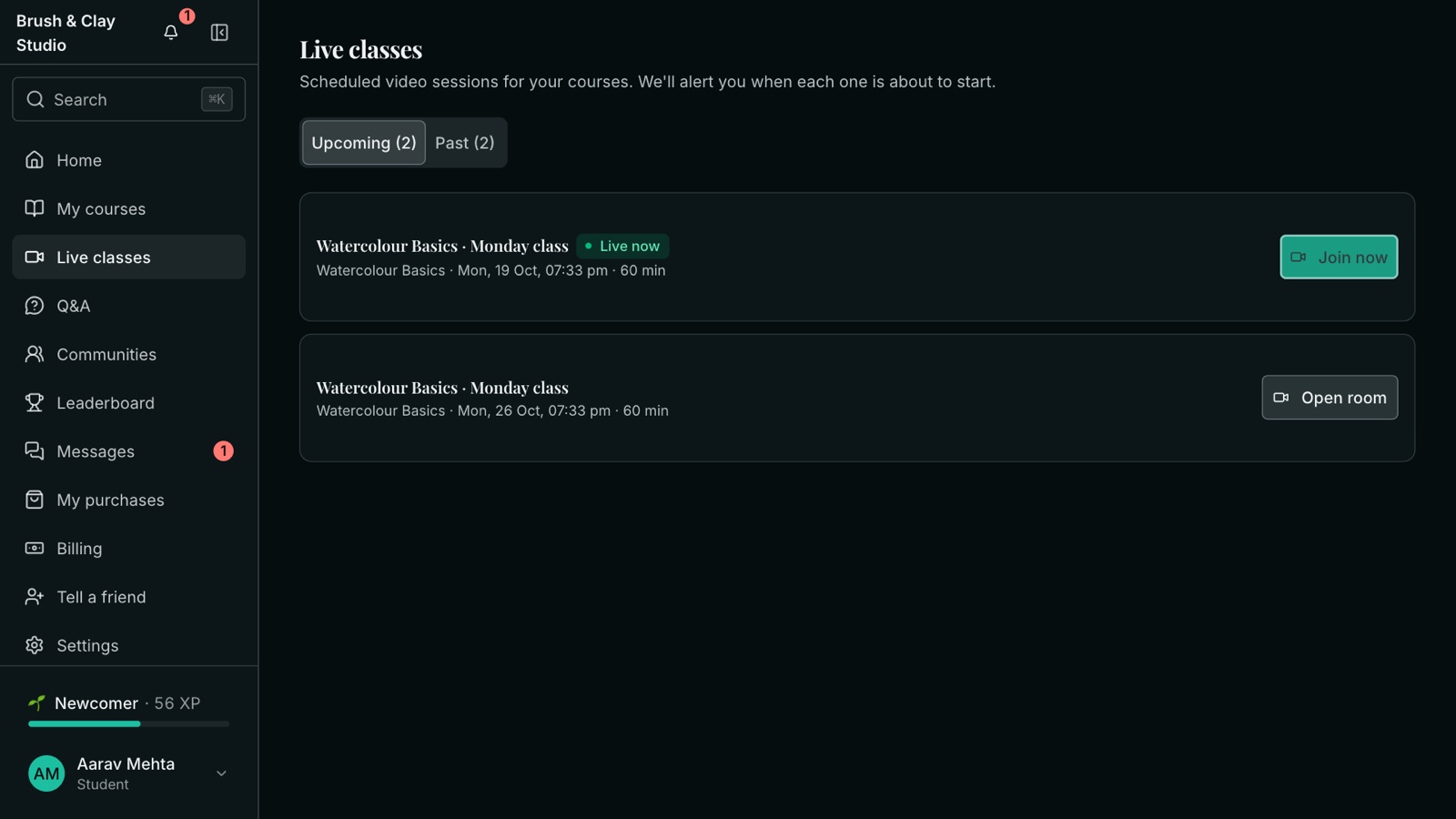
Students are also reminded before each class, in the app and by email, and on WhatsApp on the Studio plan. A student who lost the reminder doesn't need it; the class is in their account either way.
2. There is still a link, and it's on your academy's address
Every class also gets a join link, but it's an address on your own academy (in the demo, brushandclay.prolaud.com/live/…), not a Zoom URL. You can paste it into a WhatsApp group or a newsletter if you want to, for example for an open demo class. When the teacher creates the class, the form says plainly where students join by default: straight from the portal, with no external link and no Zoom account.
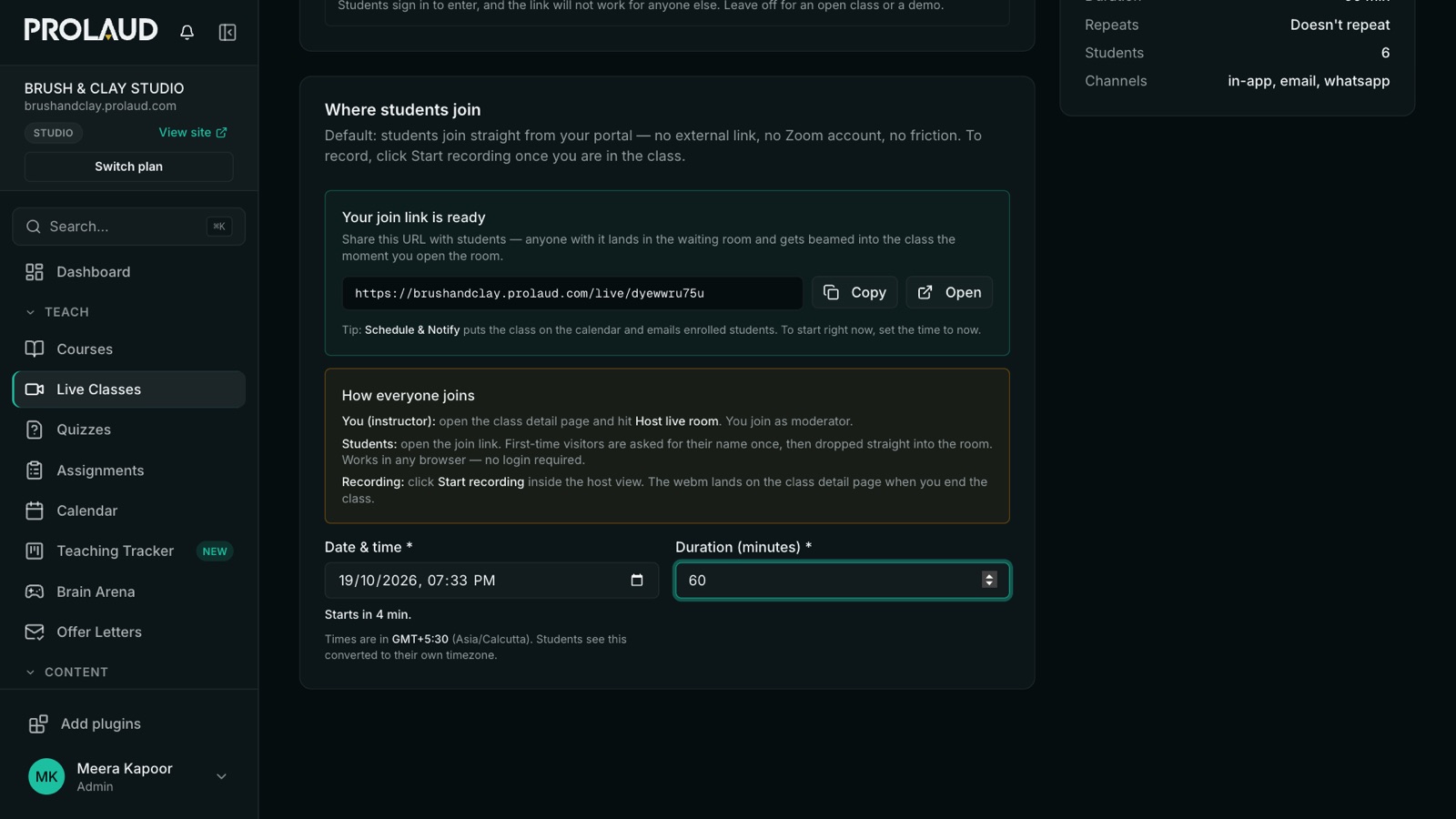
3. A waiting room that checks the student's camera and microphone
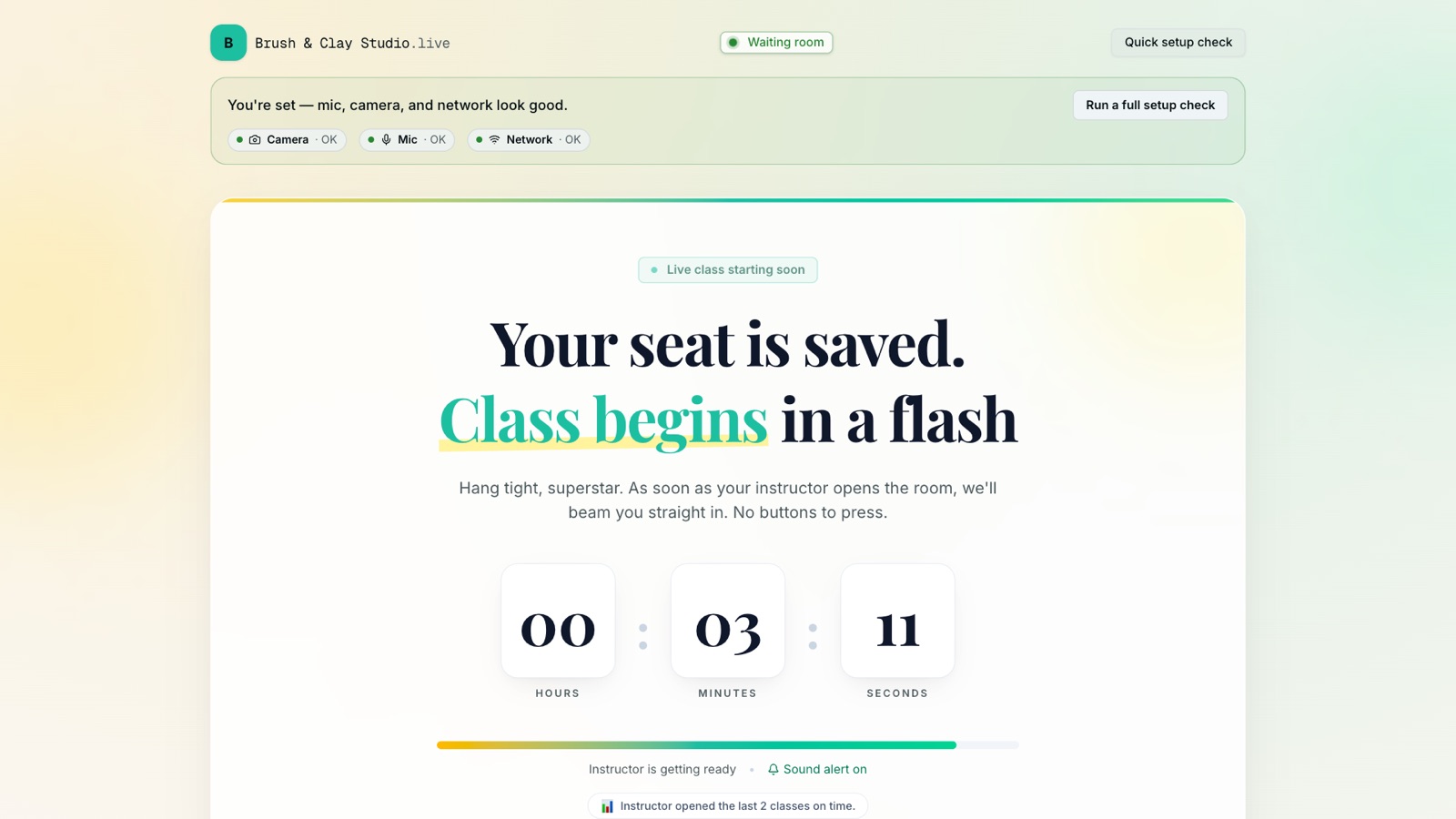
A student who arrives early lands in a waiting room on the academy's site. It checks their camera, microphone and network, counts down to the start, and moves them into the class automatically when the teacher opens the room. There is nothing to install and no button to press at the right moment, which matters more than it sounds for younger students and for parents setting up a laptop for a child.
4. In the class, the student is a name, not a screen name
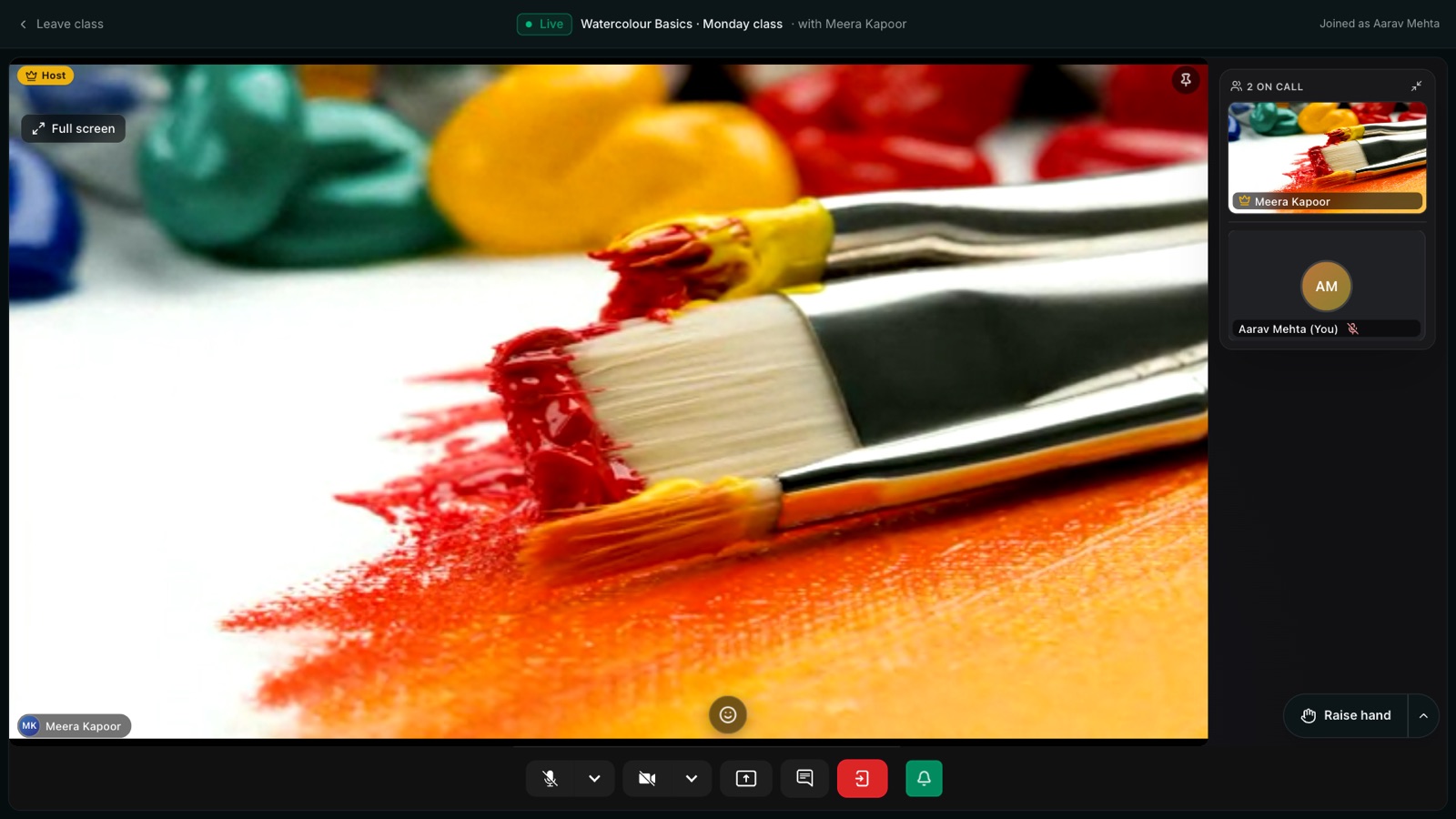
Inside the room the student sees the teacher, the people on the call, and controls for microphone, camera, screen share, chat and raising a hand. The header says who they joined as. That small line is the reason attendance works later: the room knows this is Aarav Mehta from the Watercolour Basics batch, not "iPhone (2)".
Who gets in: an open link, or enrolled students only?
There are two ways to run the door, and you choose per class.
- Open. Anyone with the join link can come in. First-time visitors are asked for their name once, then dropped into the room, in any browser, without creating an account. This is right for a free demo class or a public workshop where you want as few steps as possible.
- Only these students can join. Switch this on and students sign in to enter; the link stops working for anyone who isn't on the class. This is right for a paid batch, because a link forwarded to a friend no longer gives the friend a free seat, and because every person in the room is a known student.
If you're selling live classes, use the second. It's the setting that makes the attendance record exact and the seat you sold actually yours to sell.
What can the teacher do inside the room?
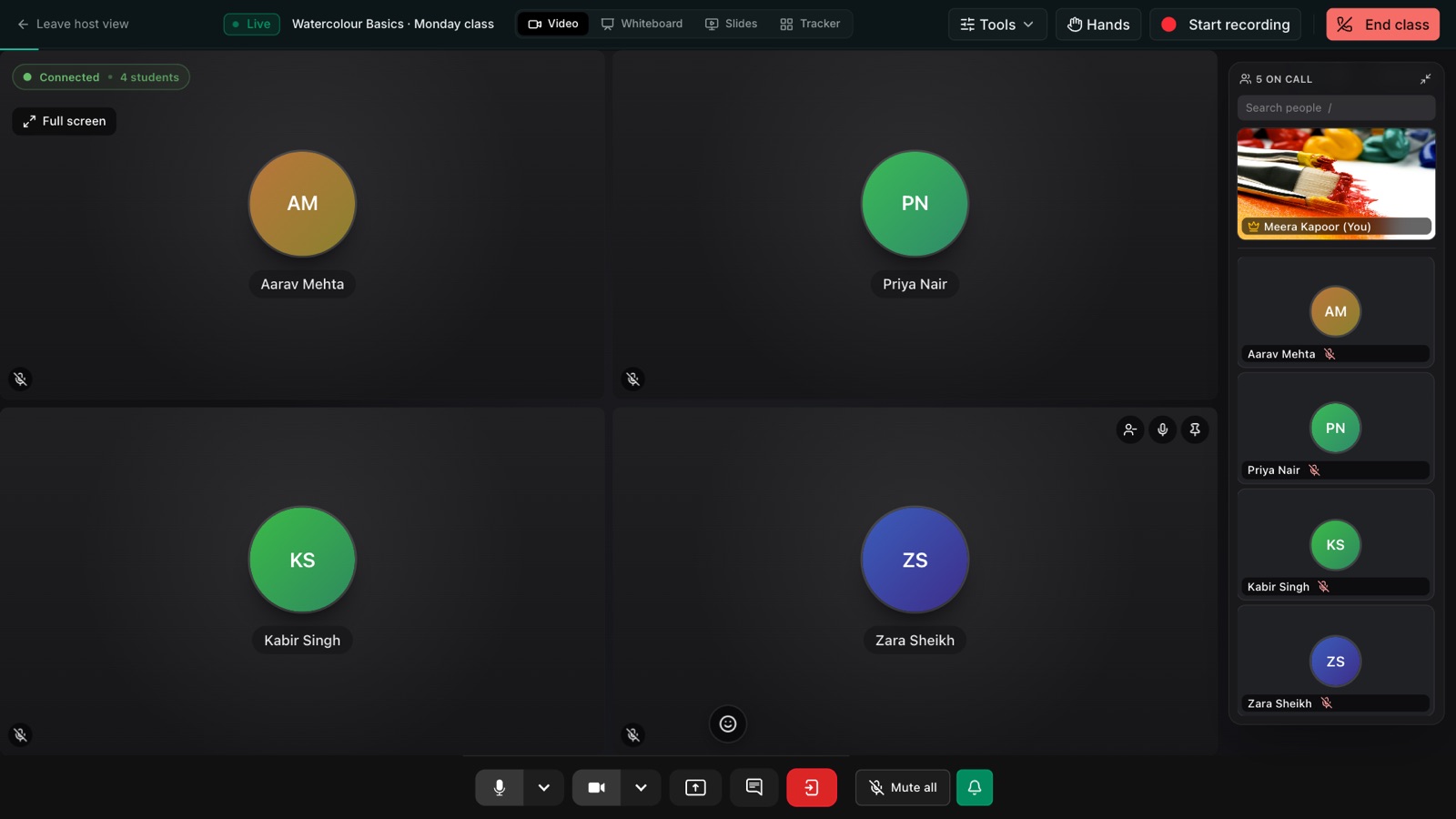
The teacher hosts from the dashboard. The host view has tabs along the top for Video, Whiteboard, Slides and Tracker, and buttons for tools, raised hands, recording and ending the class. The people on the call sit in a rail on the right.
Whiteboard
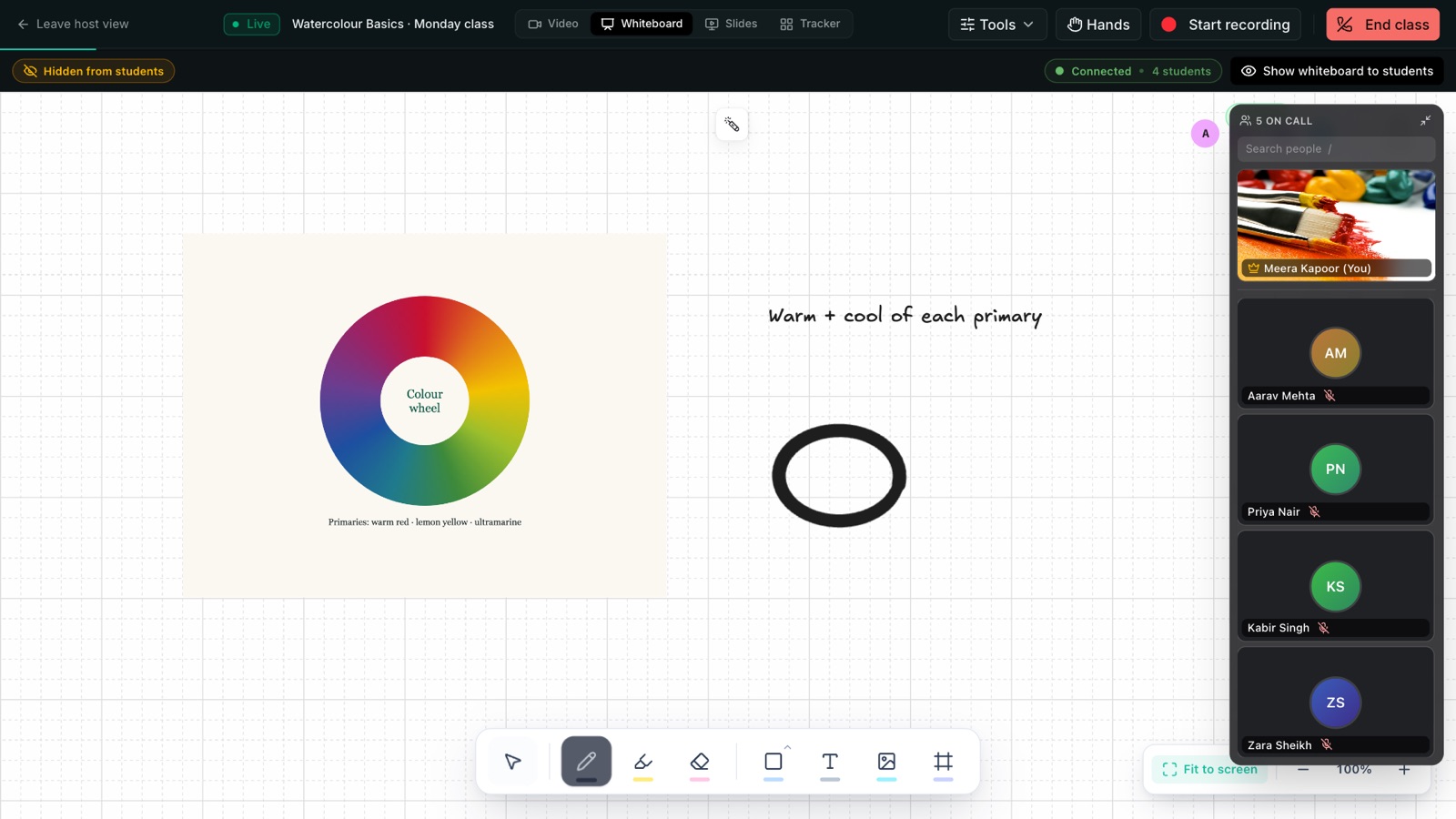
A shared whiteboard with a pen, highlighter, shapes, text and images. You can prepare on it while it's hidden from students, then show it when you're ready, which is how Meera sets up a colour-wheel diagram before the class sees it.
Polls
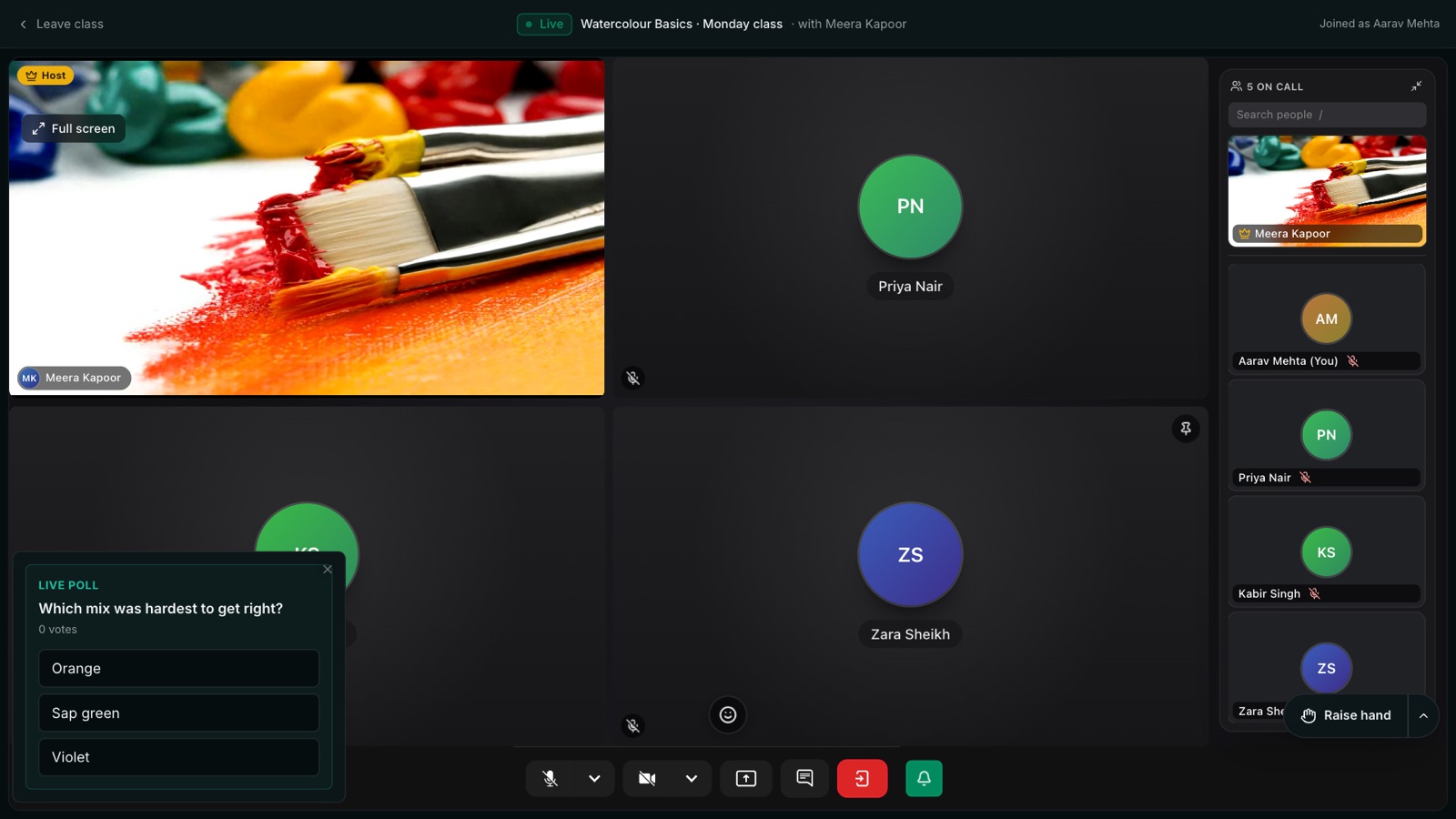
Ask a question mid-class and students answer on their own screen. The results come back to the teacher in the room. A poll every fifteen minutes is the cheapest way to find out who is following and who has quietly switched tabs.
Raised hands and a class timer
Students raise a hand instead of talking over each other. The teacher sees a queue, oldest first, and answers or lowers each one. A visible timer keeps an exercise to its slot, in the demo, two minutes to mix three greens.
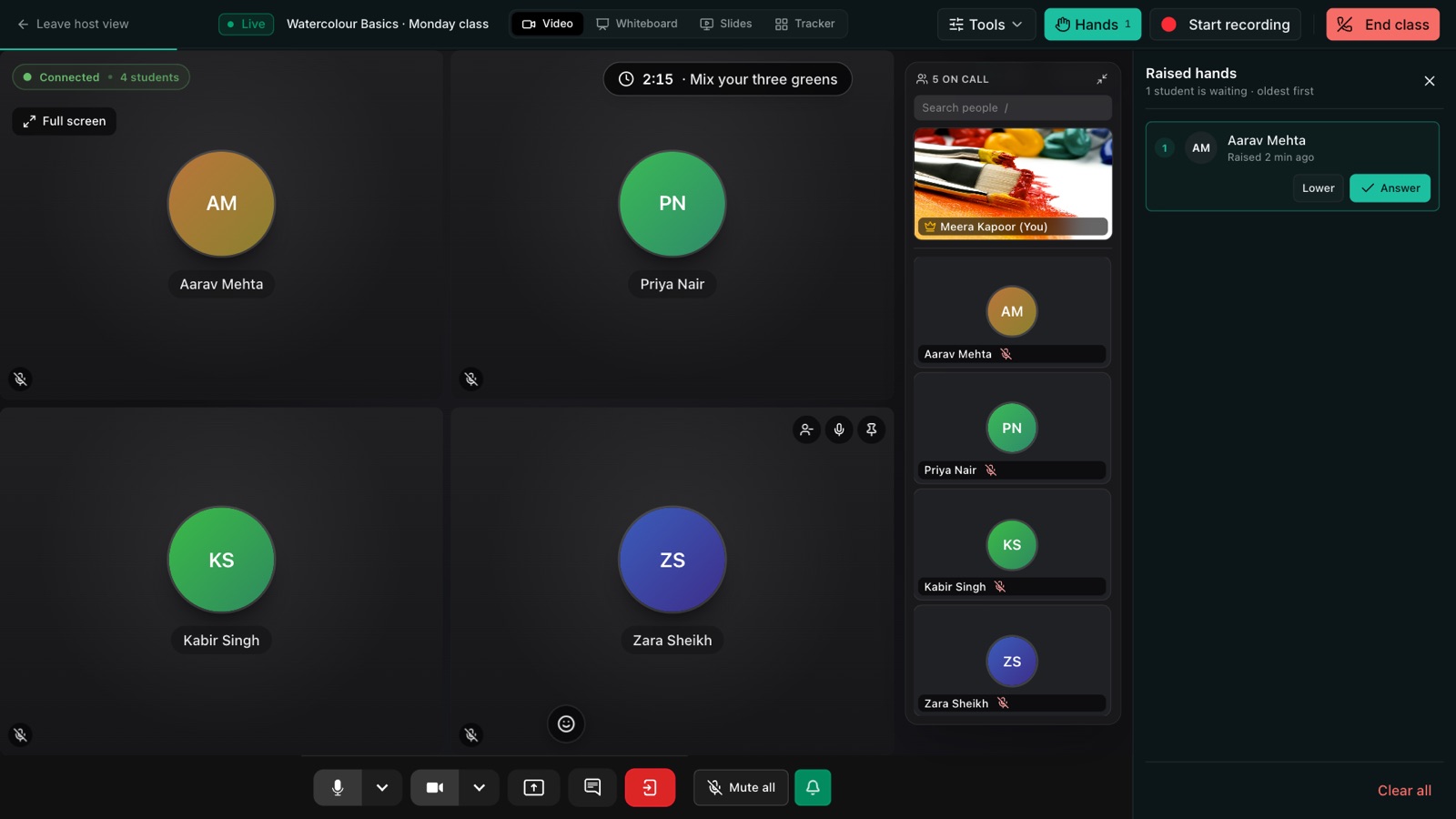
Slides, screen share, chat and recording
Present slides in the room so students follow along, share your screen, and keep a chat open for questions you'll answer at the end. To record, the teacher clicks Start recording in the host view; when the class ends, the recording is attached to the class so absent students can catch up. Recording is something you tell students about at the start of class, and if you teach children, something you ask a parent about first.
The Tracker tab opens the teaching tracker inside the room, so you can tick off what you actually taught today against your syllabus without switching windows. The video above shows it in detail.
Where does attendance go after the class?
This is the part a meeting tool can't do, and the main reason to keep the room and the course in one place. When the class ends, the class page shows an attendance roster: every enrolled student, whether they joined, and the time they joined. The teacher can mark someone present or absent by hand when, say, a student joined from a parent's phone.
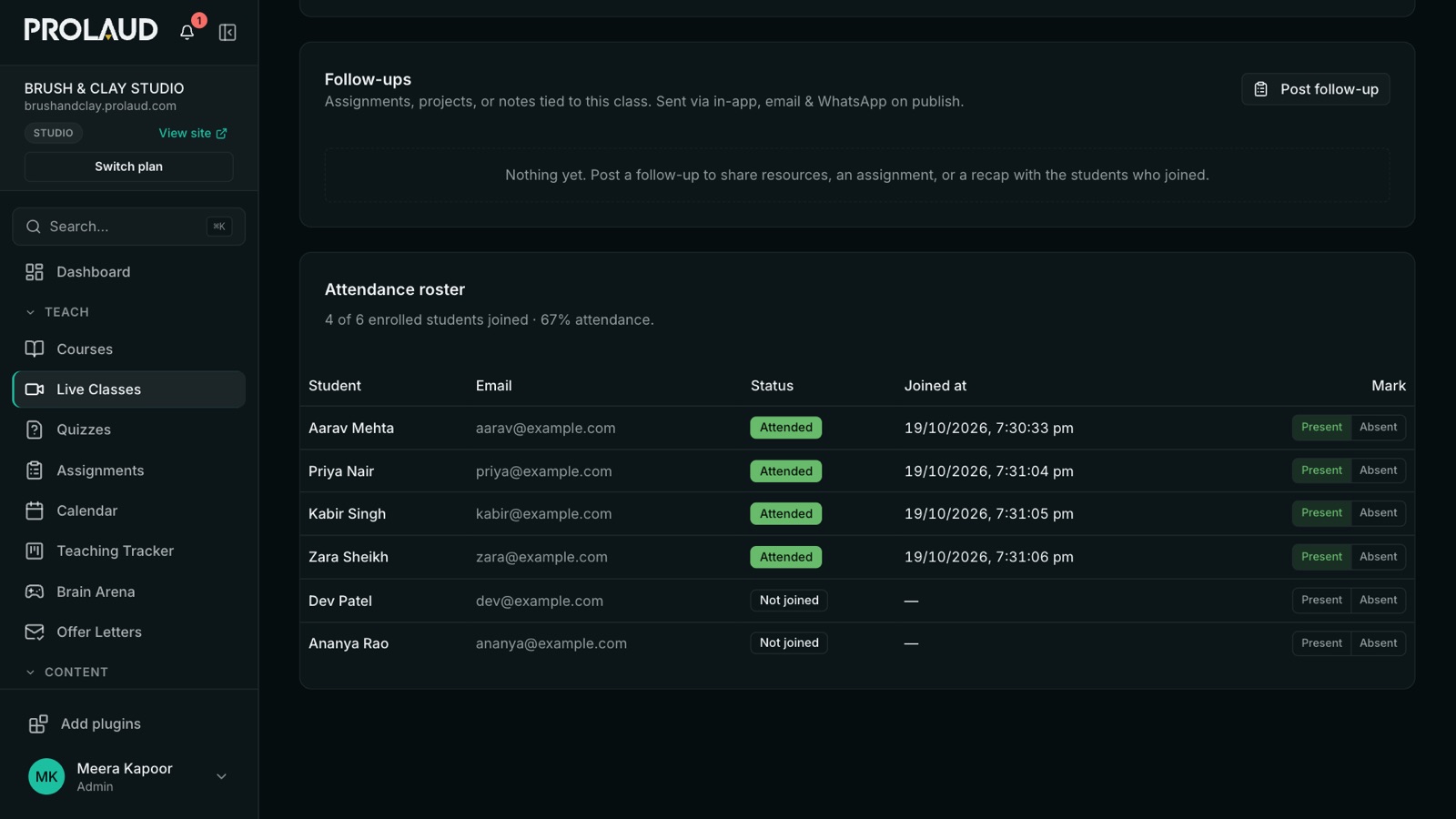
Because the roster is built from the course's enrolled students, it shows who didn't come as well as who did. In the demo, four of six joined. The two who didn't are the two students to message this week, long before they fall far enough behind to ask for a refund. From the same page you can post a follow-up (an assignment, notes or a recap) that goes to the students who joined, in the app and by email. Our longer piece on measuring live attendance honestly explains why a list of names that joined and left is not the same thing as attendance, and what we record instead.
How do you sell and deliver live classes from your own website?
The same setup answers this question, because selling and teaching happen on one academy. Here is the order we'd do it in, starting from nothing.
- Start the academy. Every Prolaud academy gets its own address on prolaud.com (connecting your own domain is coming soon). That address is your storefront, your students' login and the place classes happen.
- Connect your own payment account. Connect Stripe or Razorpay. Money goes from your payment provider to your bank; Prolaud takes 0% of course sales.
- Create the course and price it. A live batch is a course with live classes on its calendar. Add recorded lessons, notes, quizzes and a certificate if you want them; many live courses are better for having a few short recordings between classes.
- Schedule the classes. Set a weekly series once (the demo runs eight Monday sessions) and switch on Only these students can join. Enrolled students see every session in their account and get reminders.
- Teach, then follow up. Teach in the room, check the roster afterwards, and post the follow-up to the students who came. Message the ones who didn't.
Teaching in India? That guide covers the local side: payment methods, tax invoices, pricing and teaching over patchy connections. If you're coming from a Zoom + Google Sheets + payment-link + WhatsApp setup, our guide to replacing the four-app coaching stack goes through the move job by job, including when you should keep the stack. For the teaching itself (equipment, a 60-minute structure, engagement), see how to teach live classes online.
What does a built-in room cost, and what are its limits?
Here is ours, stated plainly. There are two flat monthly plans, Pro and Studio; the pricing page shows them in your currency. Both start with a 14-day trial that needs no card, and there is no free plan. On either plan there is no cap on the number of live classes and no live-hour packs to buy.
| Pro | Studio | |
|---|---|---|
| People in one live room | Up to 49 | Up to 99 |
| Longest single class | 90 minutes | 180 minutes |
| Number of live classes | No cap | No cap |
| WhatsApp class reminders | No (in-app and email) | Yes |
| Commission on course sales | 0% | 0% |
There is also a monthly fair-use allowance on total participant time (people multiplied by minutes). It exists because live video costs money to serve for every person watching, and we'd rather tell you than call anything unlimited. Passing it never cuts off a class that's running; you're told, and it applies to the next session.
For comparison, here are the meters on two community platforms that also host live sessions, taken from their own pricing pages as of October 2026. Circle's entry plan includes 10 live hours a month and caps an interactive room at 15 participants, and sells extra hours as an add-on; two 90-minute classes a week go past 10 hours before the month ends. Skool's live calls aren't metered, but Skool processes the payments and keeps a share of every sale on every plan, with no way to connect your own payment account. Both are good products. They're built for communities with occasional live events, and the meter is where that shows.
When is Zoom or Meet still the better choice?
There are real cases, and you should know them before you move.
- Breakout rooms. Ours are basic: they work in the browser on desktop, but they aren't yet full separate rooms with their own audio and video. If your teaching is mostly small-group breakout work, Zoom is the better room today.
- Very large audiences. A Pro room holds up to 49 people and a Studio room 99. A webinar for several hundred people needs a webinar tool.
- An institution that already pays for Workspace or Microsoft 365. Your students already have accounts there, and adding another login is a cost of its own.
- A one-off class for people you already know. Free Meet is enough.
You also don't have to choose all at once. In Prolaud's Advanced mode you can paste a Zoom, Meet or Teams link into a class instead of using the built-in room, and keep the schedule, the reminders and the student list in one place while you move over. Some teachers keep Zoom for one breakout-heavy workshop and run their weekly batches in the built-in room.
A checklist for choosing a live class platform
Whichever product you look at, ask these in a demo or a trial, and try each one yourself rather than reading the feature page.
- When a student clicks Join, does the class open on the platform, or in Zoom, Meet or Teams?
- Can a student join from their account without a link being sent to them?
- Can you restrict a class to enrolled, signed-in students, so a forwarded link doesn't work?
- Is there a waiting room that checks the camera and microphone before class?
- Are the whiteboard, polls and raised hands in the same room, or in other apps?
- After class, is attendance a list of enrolled students with who came, or a download of screen names?
- Is live time metered by hours, attendees or room size, and what happens when you go over?
- Is the money paid into your own Stripe or Razorpay account, or held by the platform first?
- What does the platform take from each sale, on top of the payment gateway's fee?
Run a live class on your own academy
Schedule a class, open the room, and see the attendance land on the record. 14-day trial, no card.
Start your trial
Renu Rawat
Founder of prolaud.com. Helping teachers and creators build profitable, independent learning businesses without losing a cut of every sale to platform fees.
About the founderFrequently asked questions
- Can I teach live classes online without Zoom?
- Yes. Use a platform that hosts the video room itself rather than linking out to Zoom. On Prolaud, the live room is built into your academy: students join in the browser from their account, with a whiteboard, slides, polls, raised hands, chat, screen share and recording in the same room, and no Zoom or Meet account needed by you or them.
- How do students join a live class without a meeting link?
- Each scheduled class appears under Live classes in the student's account on your academy site, and shows Join now when it's open. Students press it and land in a waiting room, which checks their camera and microphone and moves them in when you open the room. A join link also exists, on your academy's own address, if you want to share it for an open class.
- Do students need to install an app to join?
- No. The room runs in the browser on a laptop or phone. The waiting room checks the camera, microphone and network before the class so problems show up before the start, not in the middle of it.
- Can I stop people joining with a forwarded link?
- Yes. Turn on Only these students can join for the class. Students then sign in to enter, and the link stops working for anyone who isn't on the class. Leave it off for a free demo class, where first-time visitors only type their name.
- Is live teaching unlimited on Prolaud?
- Not without limits, and here they are. Paid plans put no cap on the number of live classes and sell no hour packs. A class runs up to 90 minutes on Pro and 180 on Studio, and a room holds up to 49 people on Pro and 99 on Studio. There is also a monthly fair-use allowance on total participant time; passing it never cuts off a class that's running.
- Can I still use Zoom or Google Meet for some classes?
- Yes. In Advanced mode you can paste a Zoom, Meet or Teams link into a class instead of using the built-in room. The class still sits on your calendar and students still get reminders, but the video, recording and participant list then belong to that tool, so attendance won't land on the student record automatically.
- Where does live class attendance show up?
- On the class page after it ends: an attendance roster of the course's enrolled students, showing who joined and at what time, with Present and Absent buttons to correct it. It covers who didn't come, not just who did, which is the list you need for a follow-up message.
- Is a free Google Meet call enough for my classes?
- Often, yes. If you run one weekly session for a group you already know, and nobody pays you through a link, free Meet and a calendar invite cover it, within its 60-minute limit for group calls. A built-in room earns its keep once you're selling seats to strangers, running more than one batch, or need to know which paying students stopped turning up.
- How much does a platform with built-in live classes cost?
- Prolaud has two flat monthly plans, Pro and Studio, priced in your currency on its pricing page, after a 14-day trial with no card; there is no free plan. Neither sells live-hour packs, and both take 0% commission on course sales, which are paid into your own Stripe or Razorpay account. Your payment provider charges its own processing fee as usual.
Keep reading
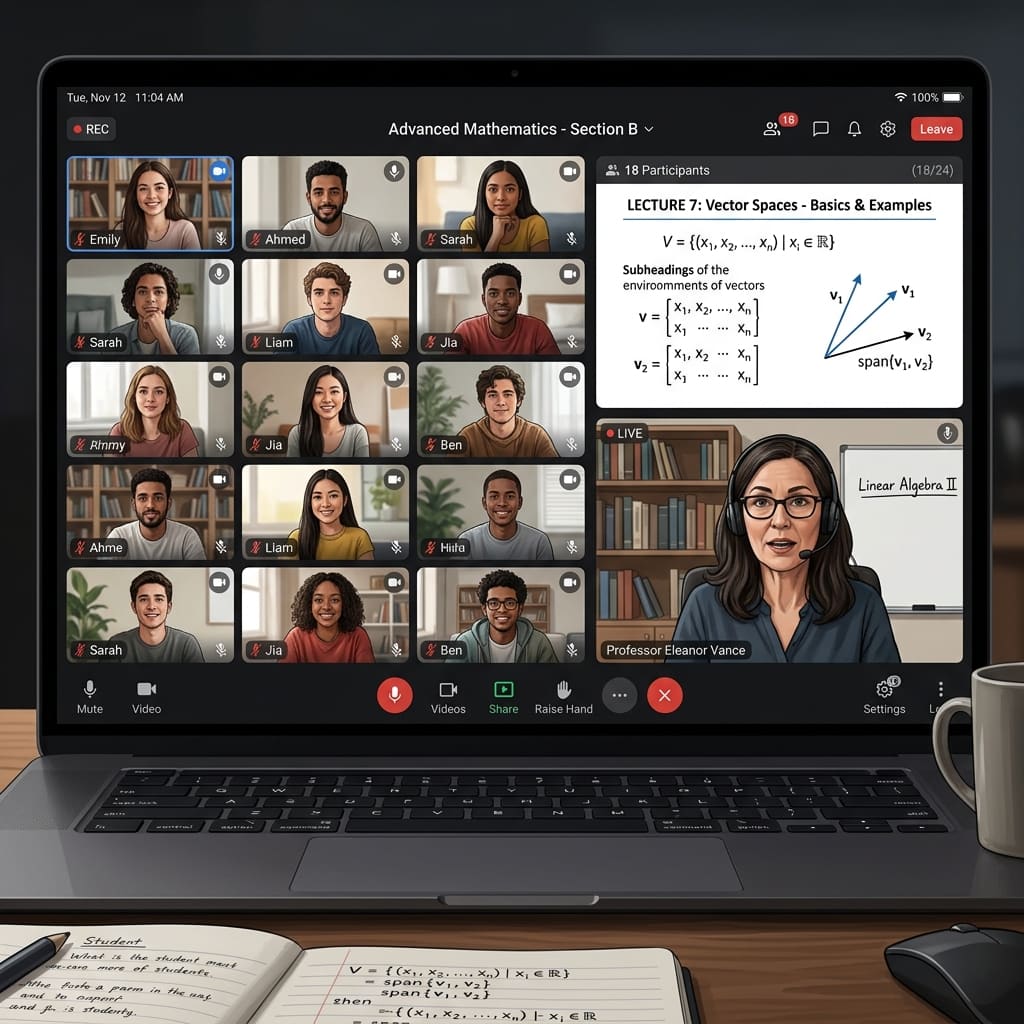
How to teach live classes online: setup, structure and keeping students engaged
Clear sound, a session plan that keeps students doing something, a way for them to respond, and a record of who came. The practical setup for teaching live online, with a pre-class checklist.
Read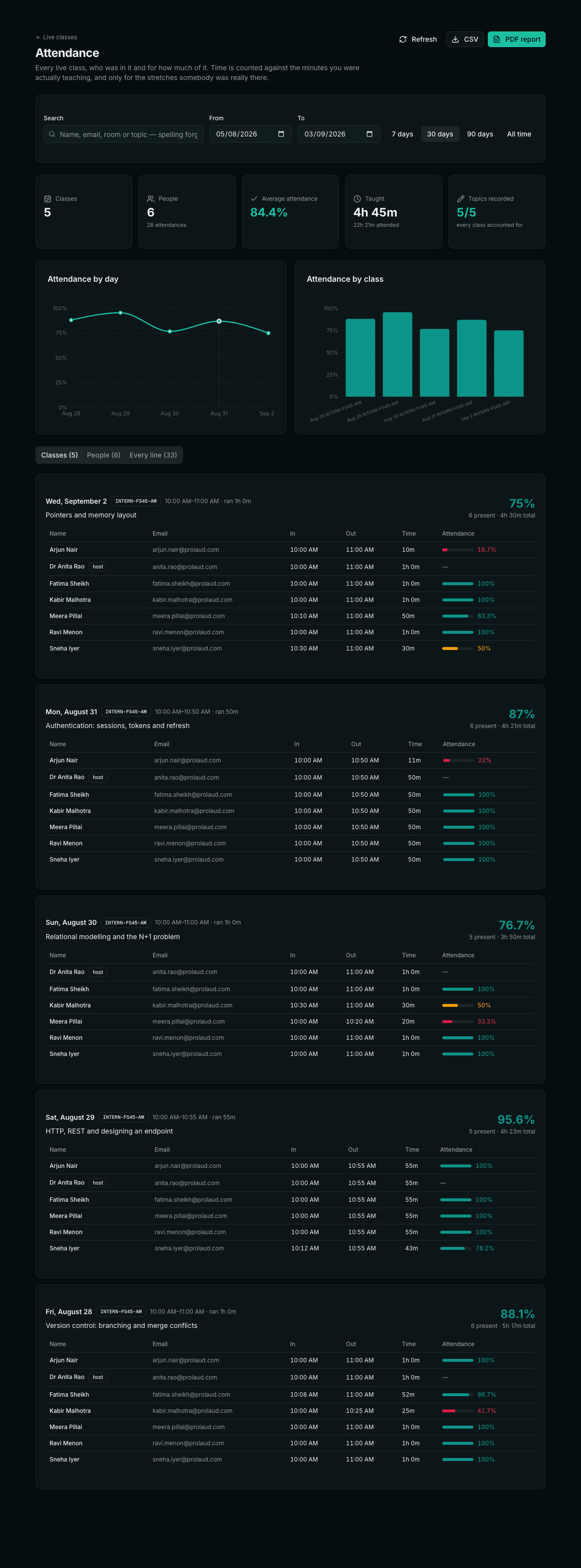
Live class attendance, measured honestly
A join-to-leave span is not attendance, and the scheduled hour is not the denominator. What an honest live-class register actually measures — and why what you taught belongs on the same row.
Read
Zoom, Sheets, UPI and WhatsApp: how to do all four jobs in one place
The four-app stack works right up until you have four lists of the same students that disagree. A job-by-job look at what to replace, what to keep, and what actually changes when it is one record.
Read
How to Run Engaging Live Online Classes in India
Live classes are where online teaching comes alive — energy, accountability, real Q&A. Here's how to set up and run engaging live online classes in India, and keep attendance high.
Read