For learners
The candidate's guide: signing in, sitting an exam, getting your marksheet
Written for the person sitting the examination. It covers what happens before it starts, what is being recorded while you write, what happens if your connection drops, and how to get a marksheet an employer can check. It also says plainly what is watched, because being surprised by that mid-examination is worse than knowing beforehand.
Last updated Aug 28, 2026
Your dashboard, screen by screen
Everything you need lives under one menu. This is what each part is for, in the order you will meet them.
- Home — the one screen worth checking daily. It shows the next class, anything due, quizzes waiting on you, and recent grades. If nothing needs you, it says so rather than making you hunt.
- My courses — the courses you are enrolled on, each showing how far through you are. Opening one takes you to the lessons in order.
- Classes — your live sessions. The Join button appears when the class is about to start; before that it shows the time and who is teaching. Recordings appear here afterwards.
- Quizzes — every quiz and examination, with what is not started, what can be retried, and what is awaiting review.
- Assignments — what has been set, when it is due, and what you have submitted. Feedback lands here too.
- Doubts — ask your teacher a question against a specific course or lesson, rather than losing it in a chat thread.
- Certificates — anything you have earned, with the link an employer uses to check it.
- Communities — the discussion space for your batch, if your institution has one.
The order things happen in
- You are admitted, or you sign up and enrol. Either way you land on your dashboard.
- Your courses appear under My courses. Work through the lessons in order — your progress is saved as you go, on the server, so switching devices loses nothing.
- Live classes show up under Classes with their times. Join from there.
- Quizzes and assignments appear as your teacher sets them, with deadlines.
- Examinations appear when the window opens. Check your eligibility days ahead, not on the morning.
- Results are published by your department. Your marksheet becomes available in Certificates.
- Your degree is awarded once the programme is complete — a separate step from finishing a term.
Signing in
If your institution has connected its directory, use the institutional sign-in button on the login page and your usual university credentials. There is no second password to remember, and when your university closes your account, your access here closes with it.
Before the examination opens
Check the paper is available to you: eligibility depends on attendance, dues and any hold on your candidature, and the screen tells you which of those is in the way rather than just refusing. Do that days before, not on the morning.
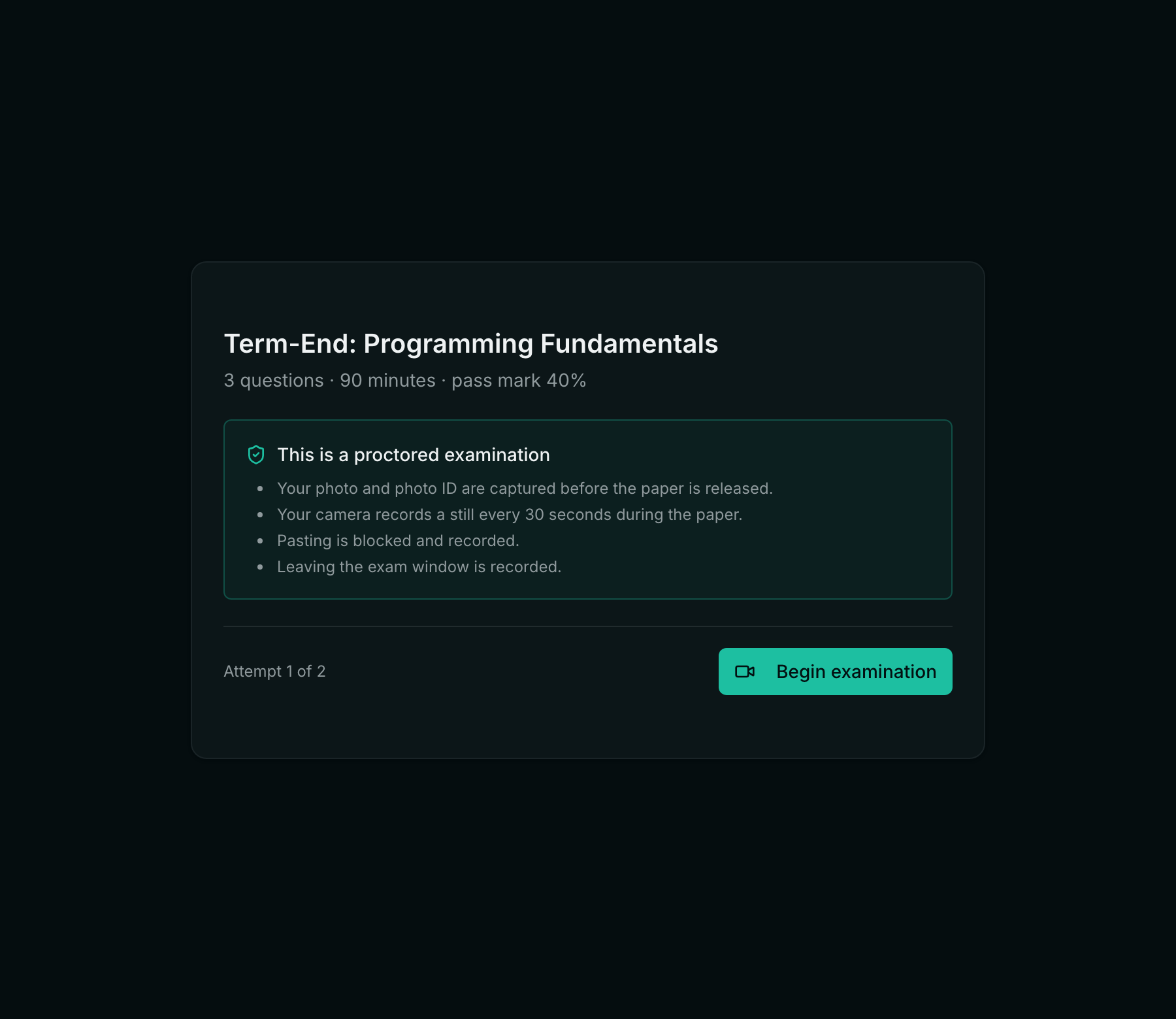
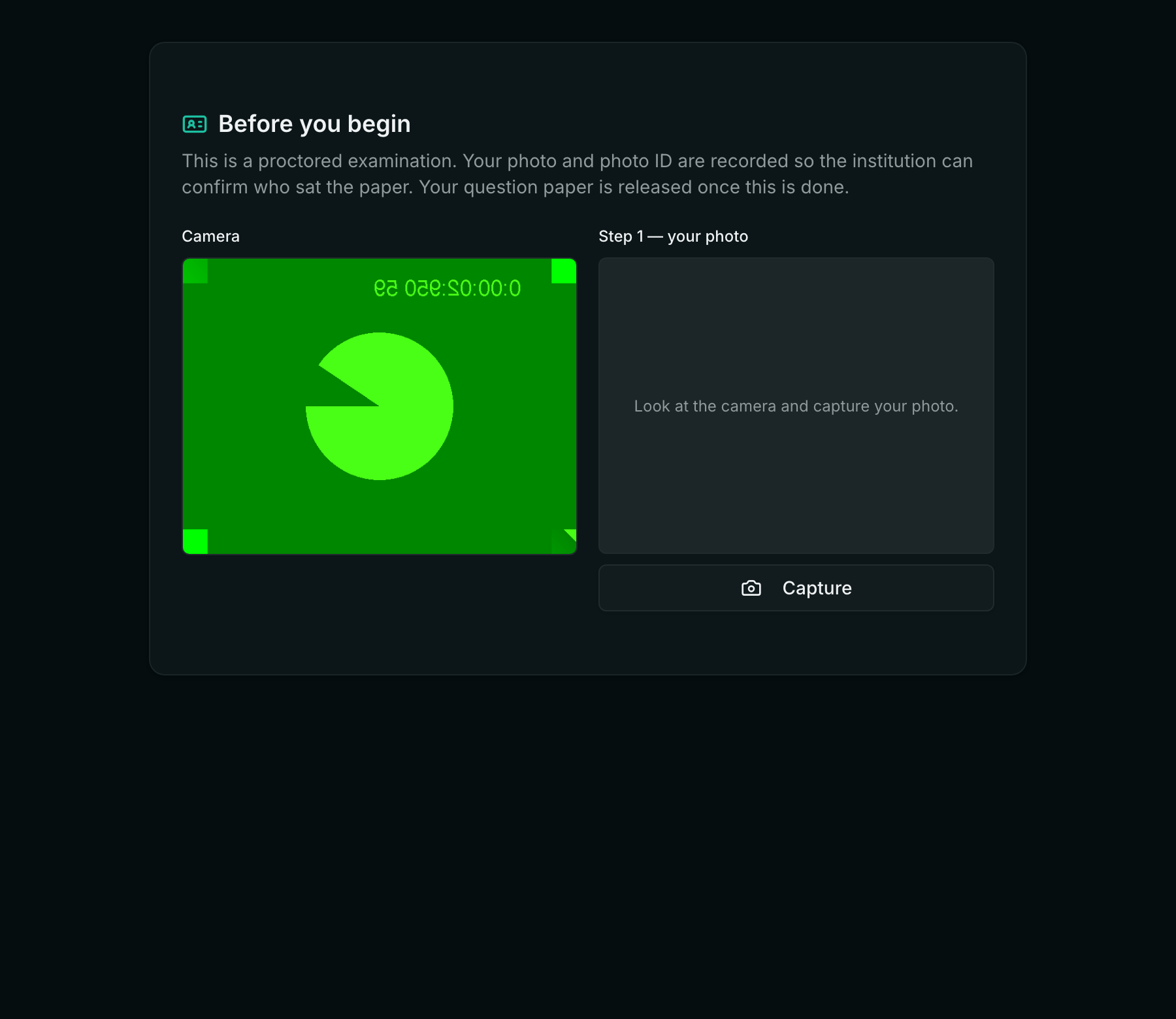
If the examination is proctored you will be asked for a photo and a photo ID before the paper is released. This is one capture, taken by you, at the start.
What is recorded while you write
You should know exactly what this is, and it is less than people assume.
- When the window loses focus — that you switched away, not what you switched to. The software cannot see your other tabs or your desktop.
- That you pasted — the length of what was pasted, never the text itself.
- Periodic snapshots from your camera, if your institution has enabled them.
- Gaps in the connection — if your browser stops reporting for a while, that gap is recorded.
- Your registration number, on the paper — as a moving watermark, so a photograph or screen recording of the paper can be traced back.
None of it fails you automatically. Every one of these has an innocent explanation, a person reviews anything flagged, and the academic board decides. A notification stealing focus and a candidate looking up an answer produce the same signal, and the software is not entitled to tell them apart.
If something goes wrong mid-examination
Your answers are saved to the server as you go, not held in the browser, and the clock runs on the server too — so closing the laptop does not buy you time, and neither does a crash cost you your work.
- Your connection drops — reconnect and continue. The gap is recorded and reviewed; a dropped connection is a normal event, not an accusation.
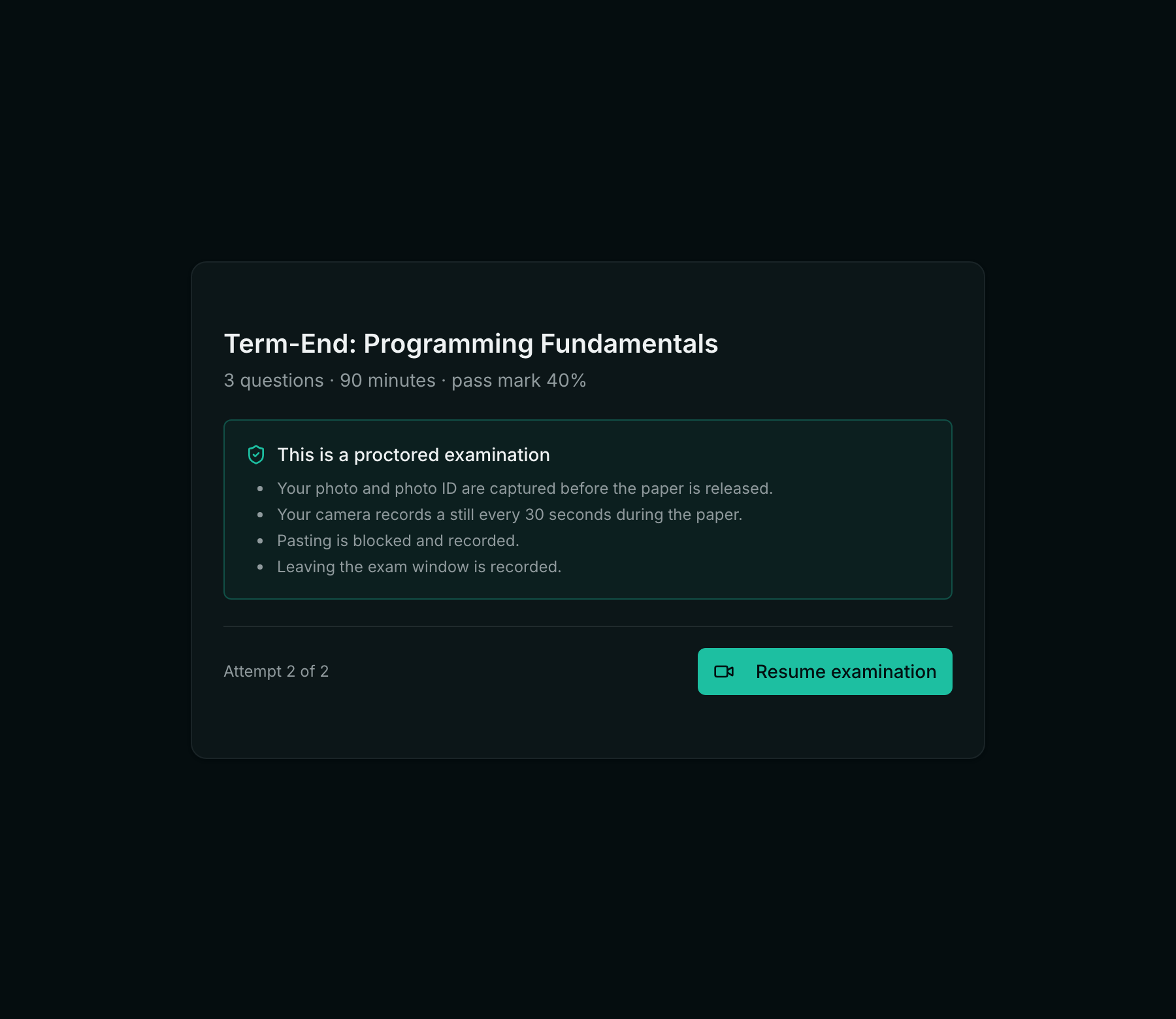
- Your browser crashes — sign back in and resume the same sitting. Everything saved before the crash is there.
- The time runs out — the paper submits itself with whatever is saved.
Results, marksheets and verification
Results appear once your department publishes them. Your marksheet shows the internal and external marks per course, the grade, the credits, your SGPA for the term and your running CGPA — computed by credit weight, not as a simple average.
Every marksheet and transcript carries a verification code. An employer or another university can check it at a public link without an account and without seeing your full academic history: they get a confirmation that the document is genuine and says what it claims, and nothing more.
- Can the software see my other browser tabs?
- No. It can tell that the examination window lost focus. It cannot see what you switched to, read other tabs, or see your desktop.
- Will I be failed automatically if something is flagged?
- No. Flags set a review priority, a person looks at the evidence, and your academic board decides. Every signal recorded has an innocent explanation that is more common than the guilty one.
- My internet dropped during the exam. Have I lost my answers?
- No. Answers are saved to the server as you write. Reconnect and continue in the same sitting. The gap is recorded and reviewed as a normal event.
- Why is my registration number moving across the paper?
- It is a forensic watermark. If the paper is photographed or recorded and shared, the copy can be traced back. Only your registration number is shown — never your phone number, email or address, because those would be exposed to anyone who sees your screen and identify exactly the same one person.
- How does an employer check my marksheet?
- The verification code printed on the document goes into a public link. They get a confirmation that the document is genuine — not your full record.
Related