For creators
Sell a recorded video course: big lesson videos with PDFs, a week at a time, from your own landing page
A recorded course on Prolaud is a set of lessons, each with one video and any number of files under it, released all at once or a week at a time. This guide follows a 13-week programme from the first upload to a buyer's first lesson: how big a video can be, what students see under it, how to replace a video later, how to sell from a landing page you built somewhere else, exactly what a first-time buyer sees, and how to add questions that tell students whether they got the answer right.
Last updated Nov 8, 2026
In short: on the Studio plan each lesson video can be up to 10 GB, and Prolaud plays the file exactly as you upload it. Put the workbook or slides under the video as attachments, and set each week to open seven days after the one before. Then link the Buy button on your own landing page to the course's checkout: buyers create an account, pay, and land in Week 1. A welcome email goes out only if you switch one on, once, under Marketing → Automations.
How big can a lesson video be?
Up to 10 GB per video on Studio, 2 GB on Pro and 20 GB on Institute. A new academy starts on a 14-day free trial of Studio, with no card needed, so you can upload a full-size lesson before you pay.
- Pro: up to 2 GB per video. 100 GB of storage.
- Studio: up to 10 GB per video. 1,024 GB (1 TB) of storage.
- Institute: up to 20 GB per video. No storage limit.
The limit is per file. 10 GB here means 10,240 MB, so a file your computer shows as 10 GB fits. Thirteen 10 GB lessons use about 130 GB of Studio's 1,024 GB. Video files can be MP4, WebM, MOV or MKV.
How do I upload a 7–10 GB lesson video?
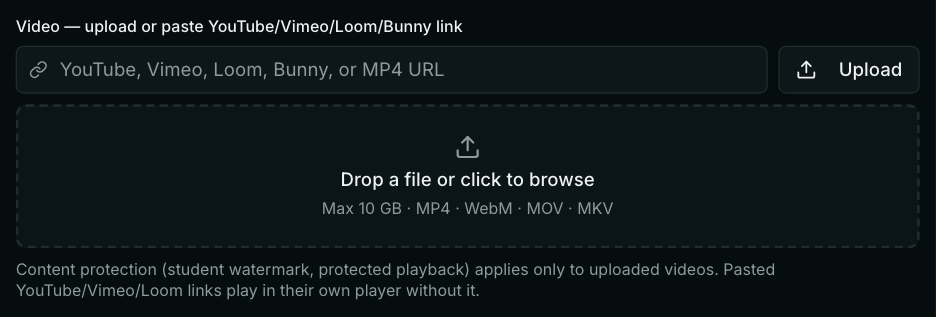
Open the lesson in the course editor, choose Video as its type, and drop the file on the video box. It goes from your browser straight to storage, in parts, and the box shows how much has been sent.
- Go to Courses, open your course and press Edit, then open the Curriculum tab.
- Open the week (module), then the lesson. Set Type to Video.
- Drop the video file on the box, or press Upload and pick it.
- Keep the tab open until the box says Uploaded. The line under it reads, for example, “Uploading 102.0 MB of 343.2 MB · 30%”.
- Press Publish changes. Students see the video from then on.
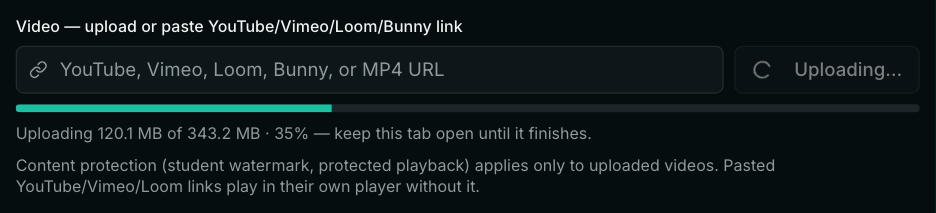
What makes a big upload safe: the file is sent in parts of at least 16 MB, four at a time, and each part is retried on its own if it fails. If your internet drops, the upload waits and carries on when you are back online. If the tab is closed, pick the same file again within five days and it continues from the parts already saved instead of starting again.
How long it takes depends only on your upload speed. As a guide: 10 GB at a steady 100 Mbps takes about 14 minutes, at 50 Mbps about 27 minutes, and at 20 Mbps a little over an hour. Your internet provider's speed test shows your upload speed.
Will a 4K video play in 4K?
Yes. Prolaud does not convert, compress or resize lesson videos, so students are sent the file you uploaded, at the resolution you uploaded.
- There is no lower-quality copy to fall back to. A student on a slow connection sees the video pause to load rather than drop to a lower quality.
- A big file needs a fast connection. A 10 GB video an hour long averages about 22 Mbps, which many phones on mobile data and many home connections cannot sustain.
- The format is played as it is. MP4 with H.264 video plays in every current browser. HEVC (H.265), which many iPhones and cameras record by default, does not play in Firefox or in Chrome on many Windows computers. MKV does not play in Safari.
Can each lesson have a PDF or slide deck under the video?
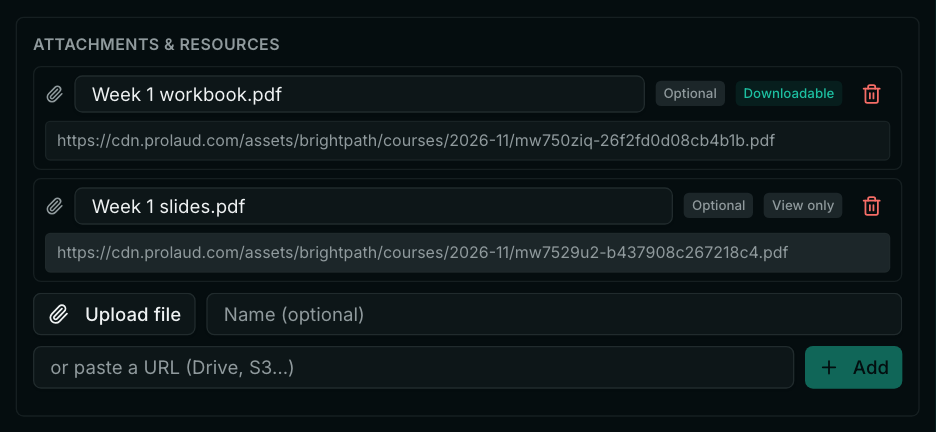
Yes. A lesson has one main video and any number of files under it: PDFs, slides (PowerPoint or PDF), Word and Excel files, images, audio or a zip. Students see them listed right under the video, open them on the page, and download them unless you mark a file view only.
- In the lesson, find Attachments & resources.
- Press Upload file and pick the PDF or slides. Or paste a link (Google Drive, Dropbox) and press Add.
- Rename the file if you like: the name is what students see.
- Press Downloadable to switch a file to View only, so students can open it on the page but get no download button. Press Optional to mark a file Required.
- Press Publish changes.
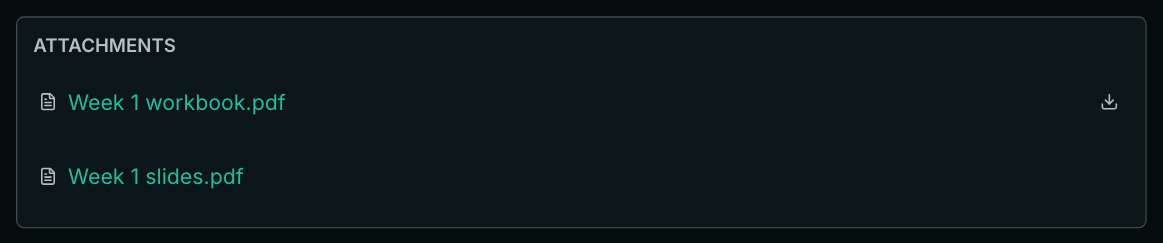
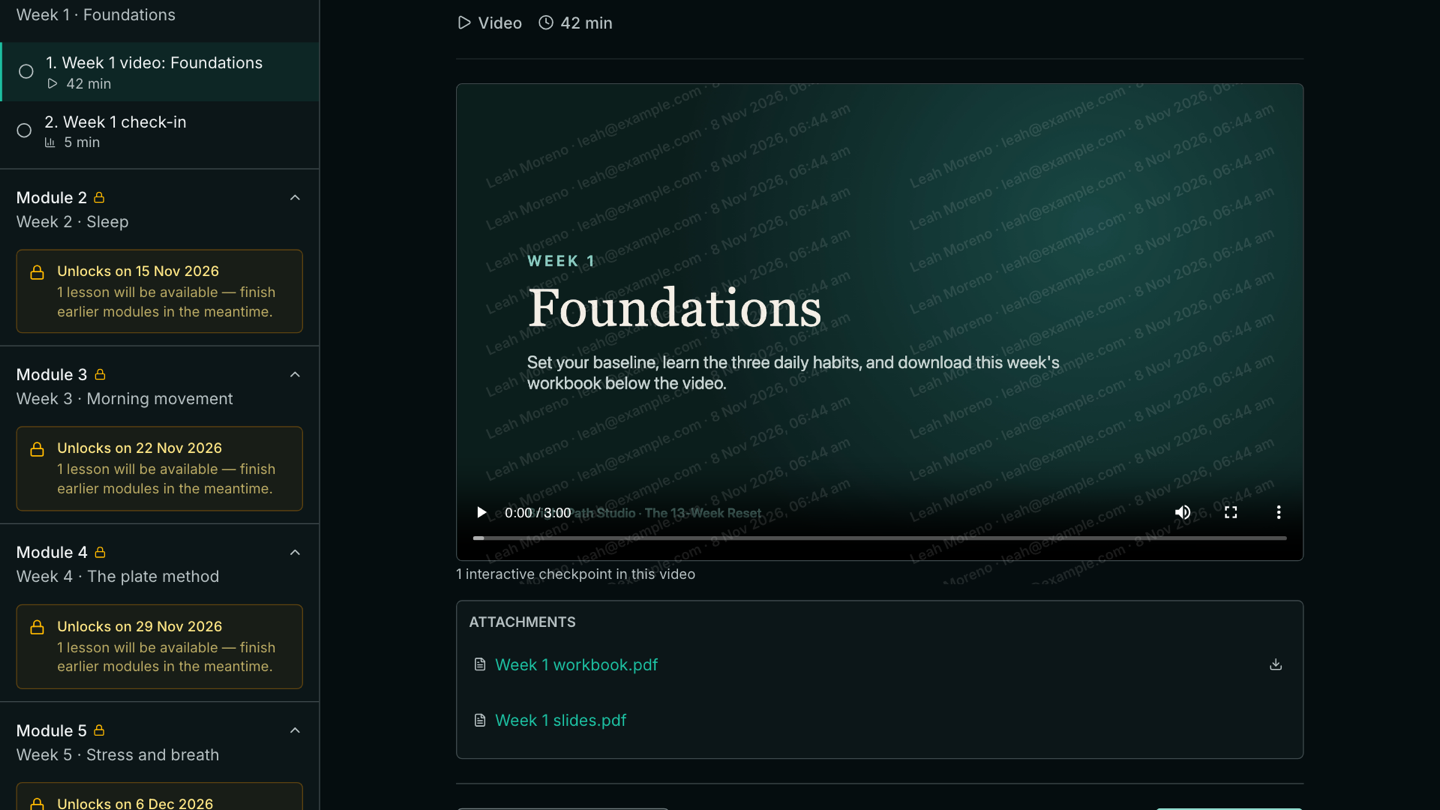
When your video says “download this week's workbook below”, this is where students find it: on the same page, directly under the player.
If the slides are the whole lesson rather than a handout, use a lesson of type Document (PDF, PowerPoint, Word or Excel, up to 25 MB) or Embed (Google Slides, Canva, Gamma, Notion, Figma or Loom) instead.
What does a student see in a lesson?
The video at the top, its files underneath, and the list of weeks down the side. Watching the video to the end marks the lesson finished; so does Mark as Complete.
Can I release one week at a time?
Yes, on Pro and above. Each week (module) has “Drip — unlock days after enrollment”: set Week 2 to 7, Week 3 to 14, and so on up to Week 13 at 84. Each student's weeks count from the day they joined.
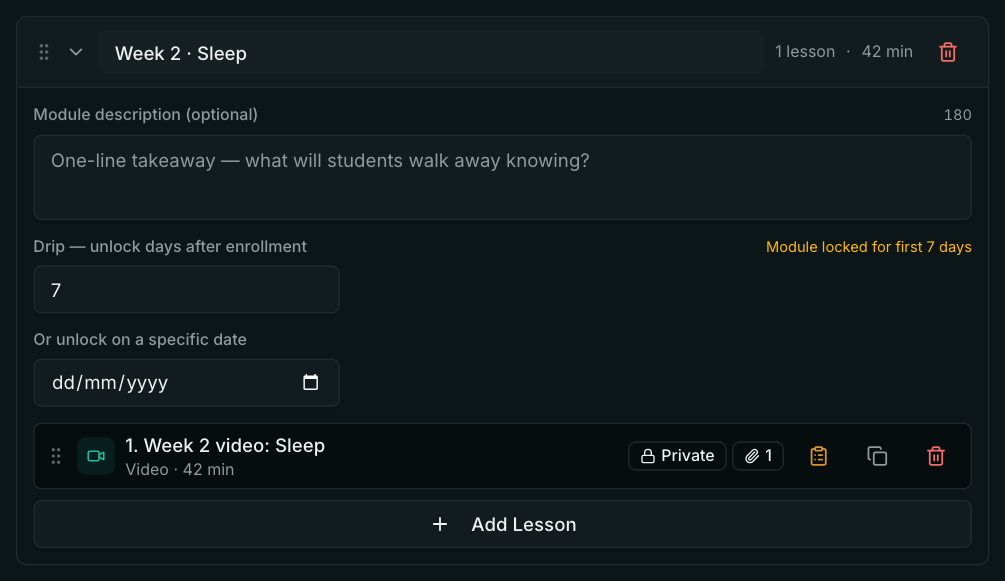
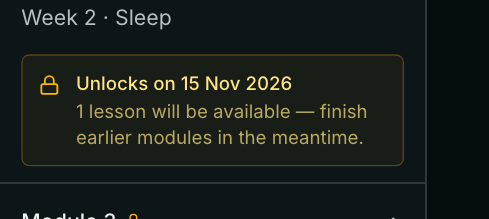
To open a week for everyone on the same day instead, as in a cohort that starts together, use “Or unlock on a specific date”. If a week has both, the later of the two applies. Until a week opens, students see its title and the date it opens, but not its videos or files.
How do I replace or update a video later?
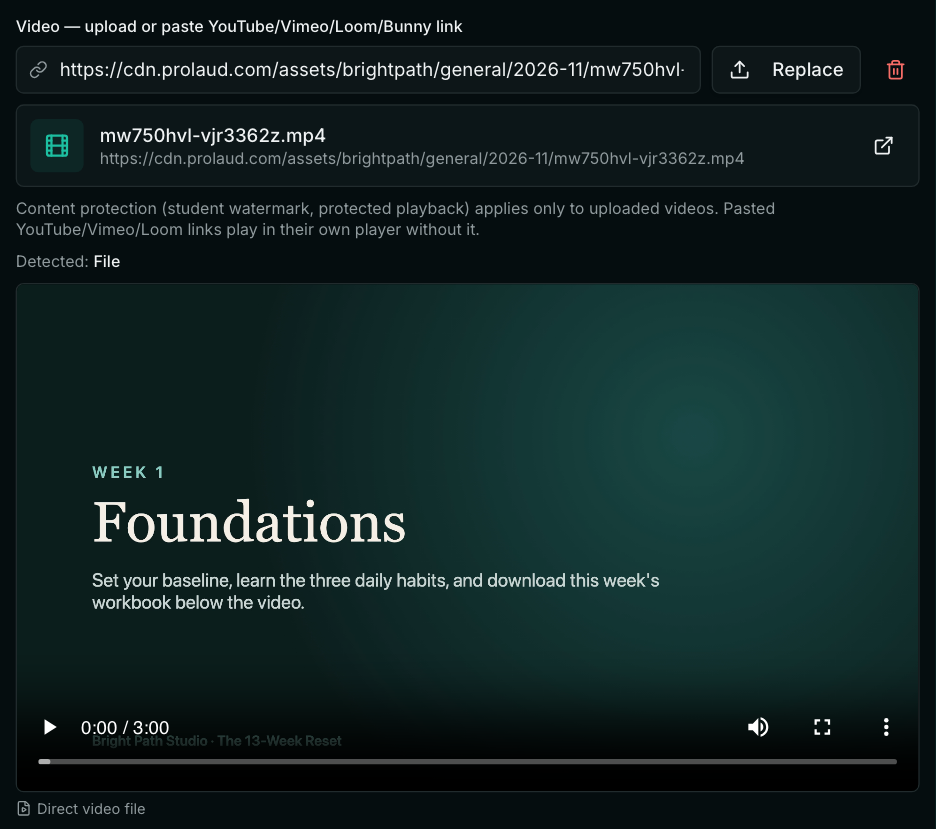
Open the lesson, press Replace on its video, pick the new file, and press Publish changes. Students keep their place in the course: the lesson stays where it was, and anyone who had finished it stays marked as finished.
- Courses → your course → Edit → Curriculum, then open the week and the lesson.
- Press Replace next to the video and pick the new file. Wait for Uploaded.
- Press Publish changes. Until you do, students keep seeing the version that was live.
- What stays: the lesson's place, title, files and in-video questions; every student's access; who has finished the lesson.
- What changes: the video. A student who was halfway through the old video starts the new one from the beginning.
- You can add new weeks, lessons and files at any time the same way, and press Publish changes.
- Every Publish saves a version of the course. On Pro and above, Versions on the course's page lets you look at an earlier version and restore it.
Can students download or share my videos?
Uploaded lesson videos play in Prolaud's own player, which has no download button, from a short-lived address made for a signed-in member of your academy. Nothing can stop someone filming their screen, so the video also carries a faint watermark, which you control.
- The watermark's words, strength and position are yours to set, or switch off: Settings → Security & Content Protection.
- Files under the video follow their own Downloadable or View only setting, and the academy-wide protections on that same Settings card.
- A video added as a YouTube or Vimeo link plays in that site's player, without Prolaud's protection.
Can I sell from my own landing page, such as GoHighLevel?
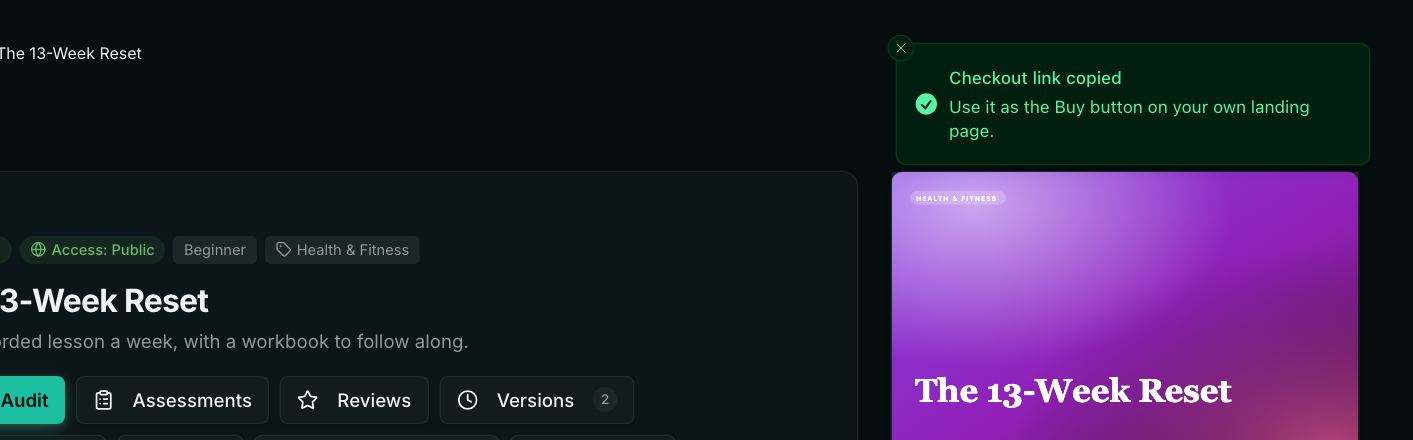
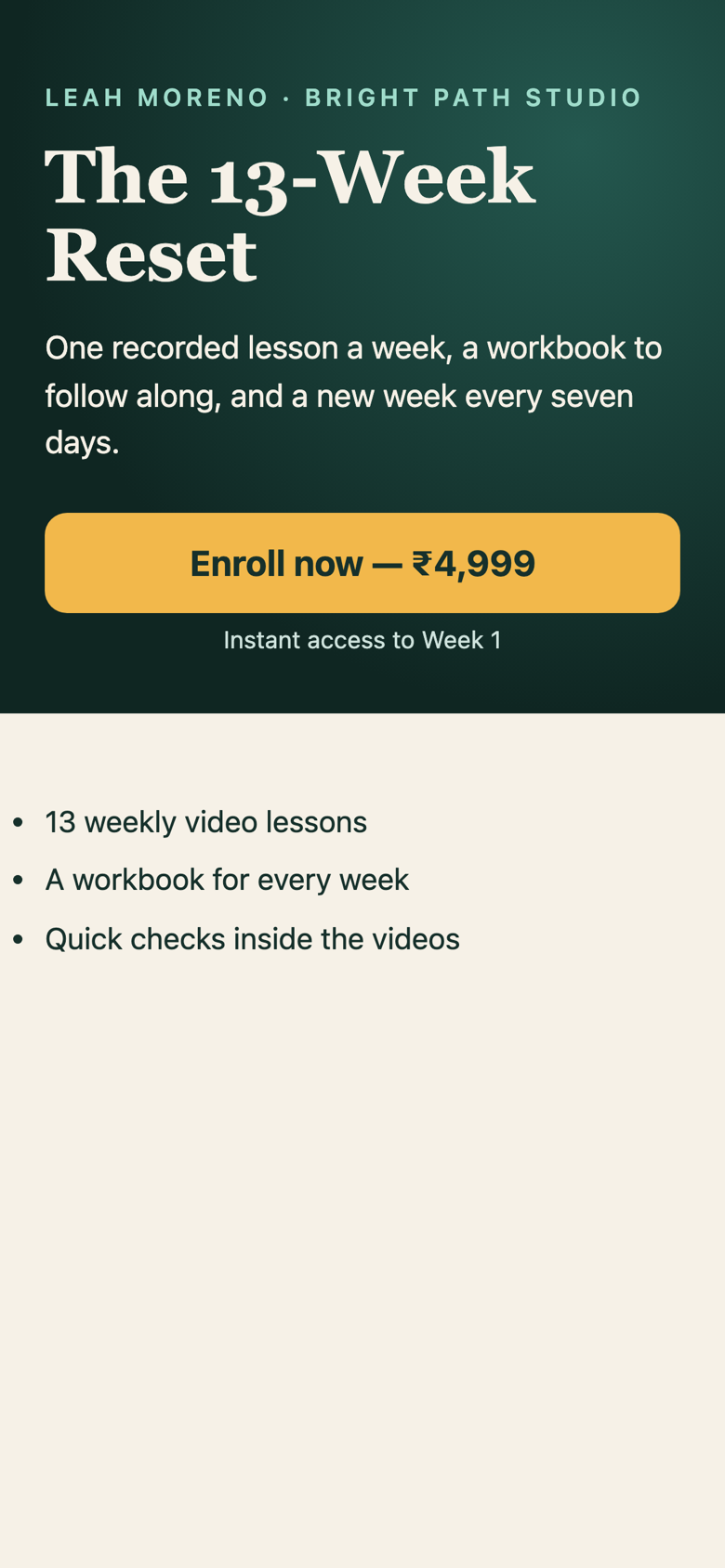
Yes. Build the page wherever you like and link its Buy or Enroll button to your course's checkout. Payment, the buyer's account and their access to the course then all happen in Prolaud, with nothing to connect between the two.
- Publish the course.
- On the course's page in your dashboard (Courses → your course), press Copy checkout link.
- In GoHighLevel, WordPress, Webflow, Carrd or any page builder, set your button's link to what you copied. It looks like https://youracademy.prolaud.com/checkout/your-course.
What does a first-time buyer see, from payment to first login?
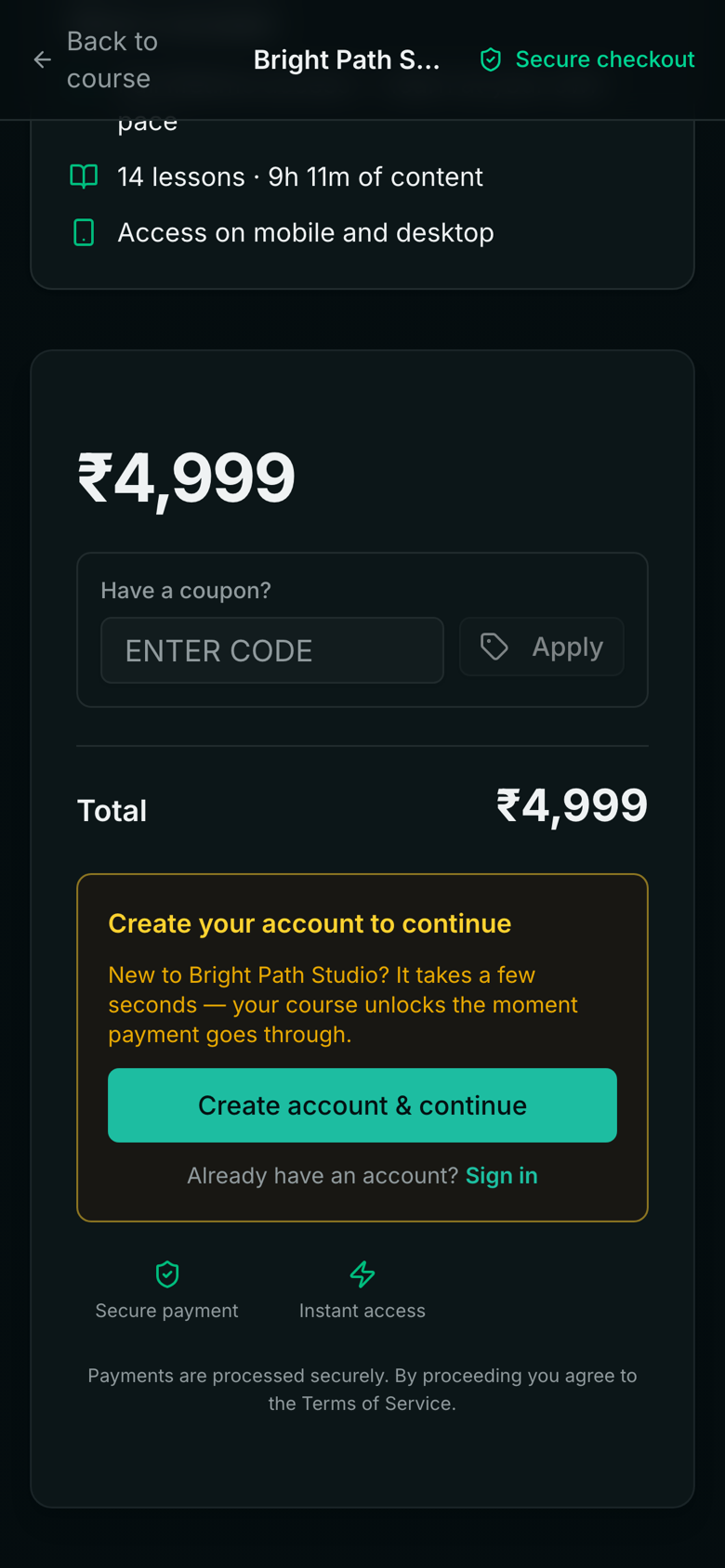
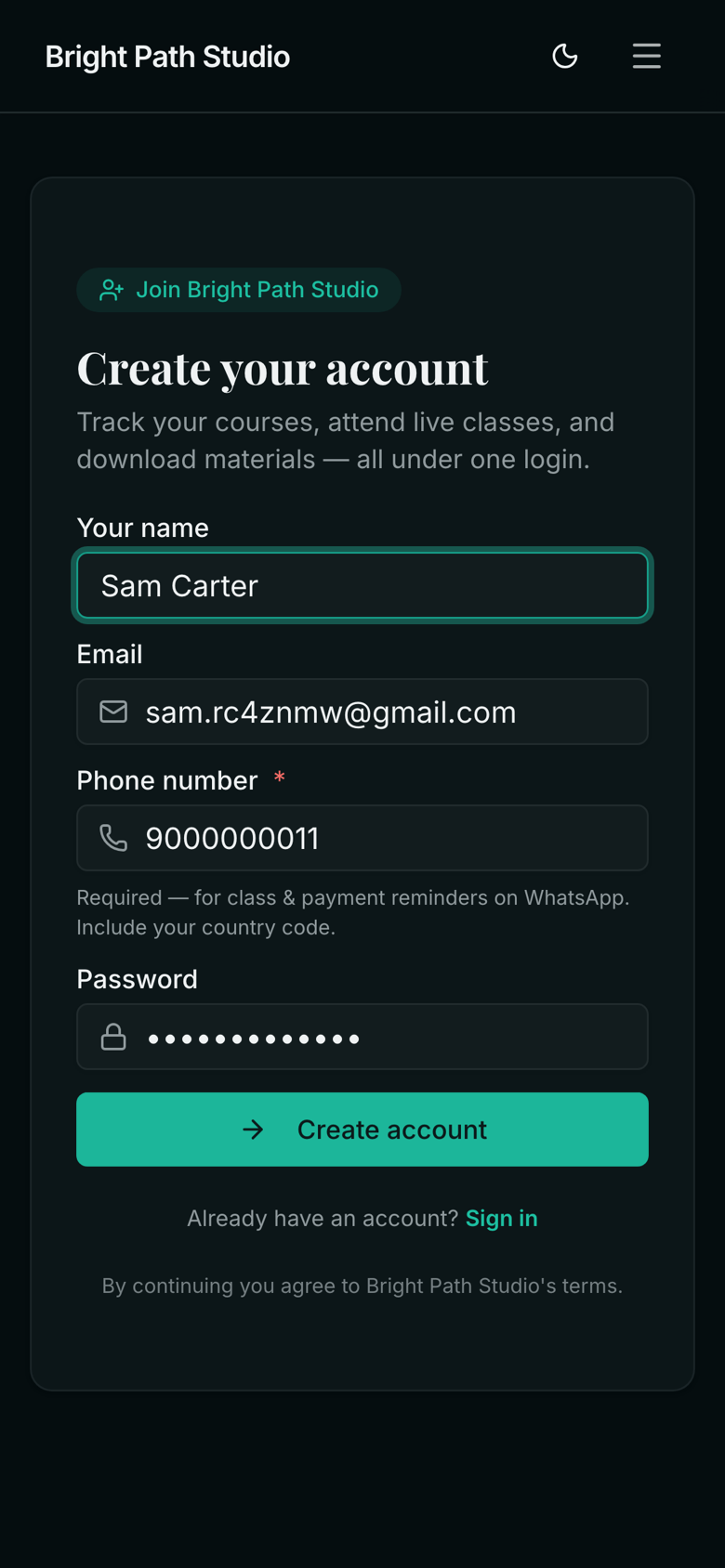
They make an account, pay, and land in the course: about five screens, with no step for you. Nothing is emailed to them by Prolaud along the way; the account and password they choose at checkout are their login.
- They press Enroll on your landing page. Your checkout opens with the course, the price and a coupon box.
- Checkout says “Create your account to continue”. They press Create account & continue.
- They type their name, email, phone number and a password, and press Create account. (The phone number is required at academies in India, for class and payment reminders on WhatsApp, and optional elsewhere.)
- They are back at checkout, signed in, and press Pay & enroll. Razorpay (in rupees: cards, UPI and more) or Stripe (in US dollars, by card) takes the payment, depending on which you connected.
- “Thank you” and Start the course. One tap opens Week 1.
- Later visits: they sign in at youracademy.prolaud.com/login with the same email and password, or ask for a sign-in link by email.
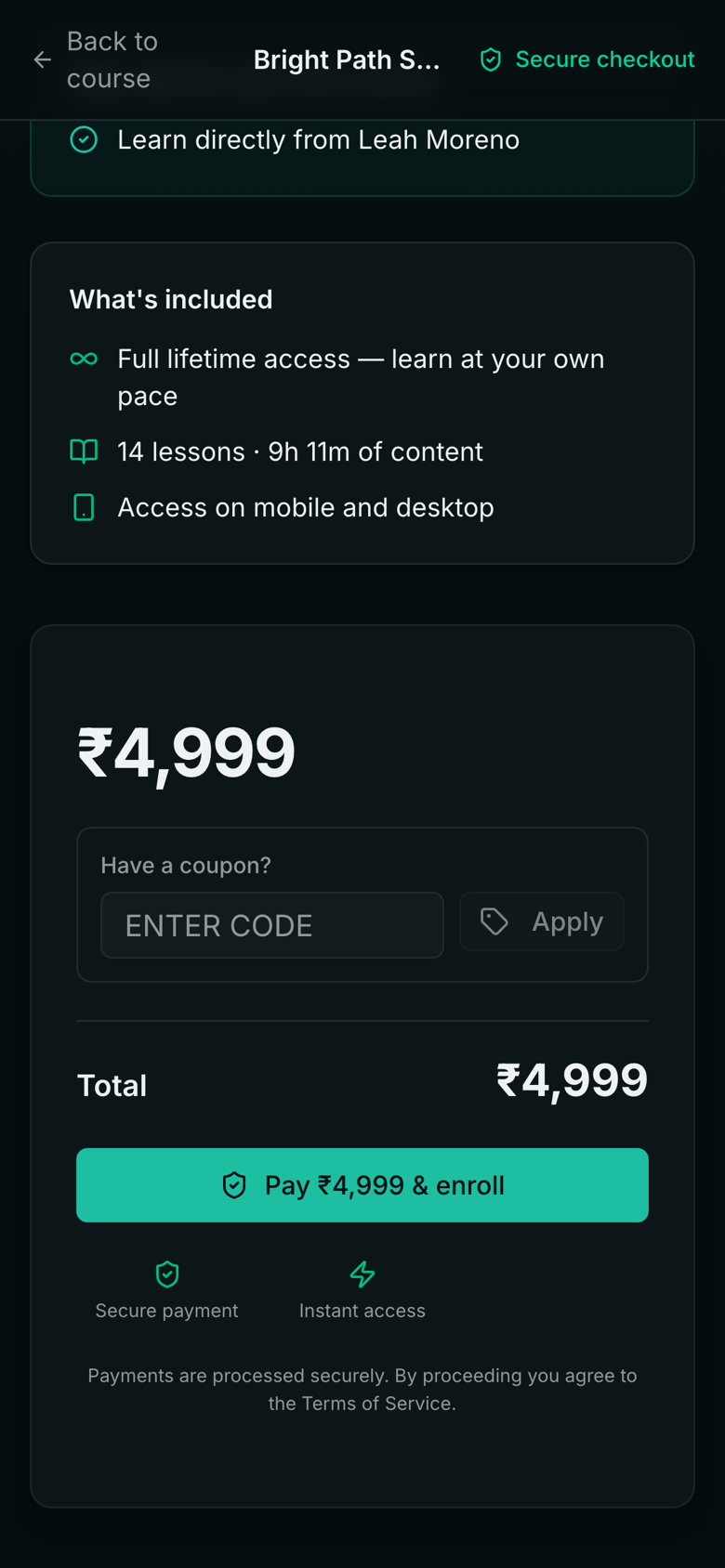
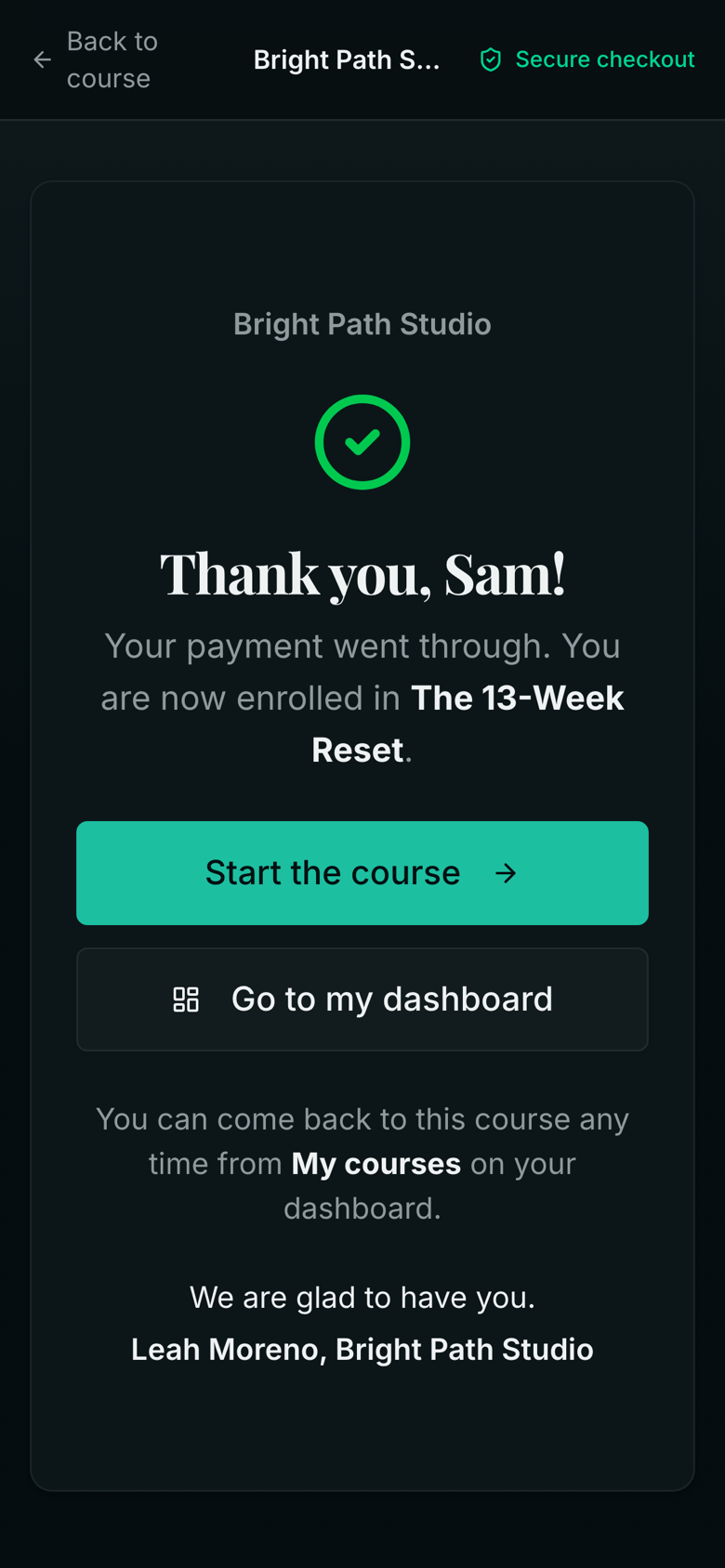
Because the account is made before the payment, there is never a paid buyer without an account, and nobody on your team has to create accounts or enrol anyone.
Does the buyer get a welcome email?
Only if you switch one on, which you do once. Prolaud does not send a welcome email or a receipt of its own after a course purchase. Set up the “Welcome new buyers” automation and every buyer gets your email the moment their payment is confirmed.
- Go to Marketing → Automations.
- Under “Start from a proven playbook”, press Welcome new buyers. The form fills in: When someone makes a purchase → Send an email.
- Edit the subject and message. Add your academy's sign-in address (youracademy.prolaud.com/login): the ready-made text does not include it.
- Press Create automation.
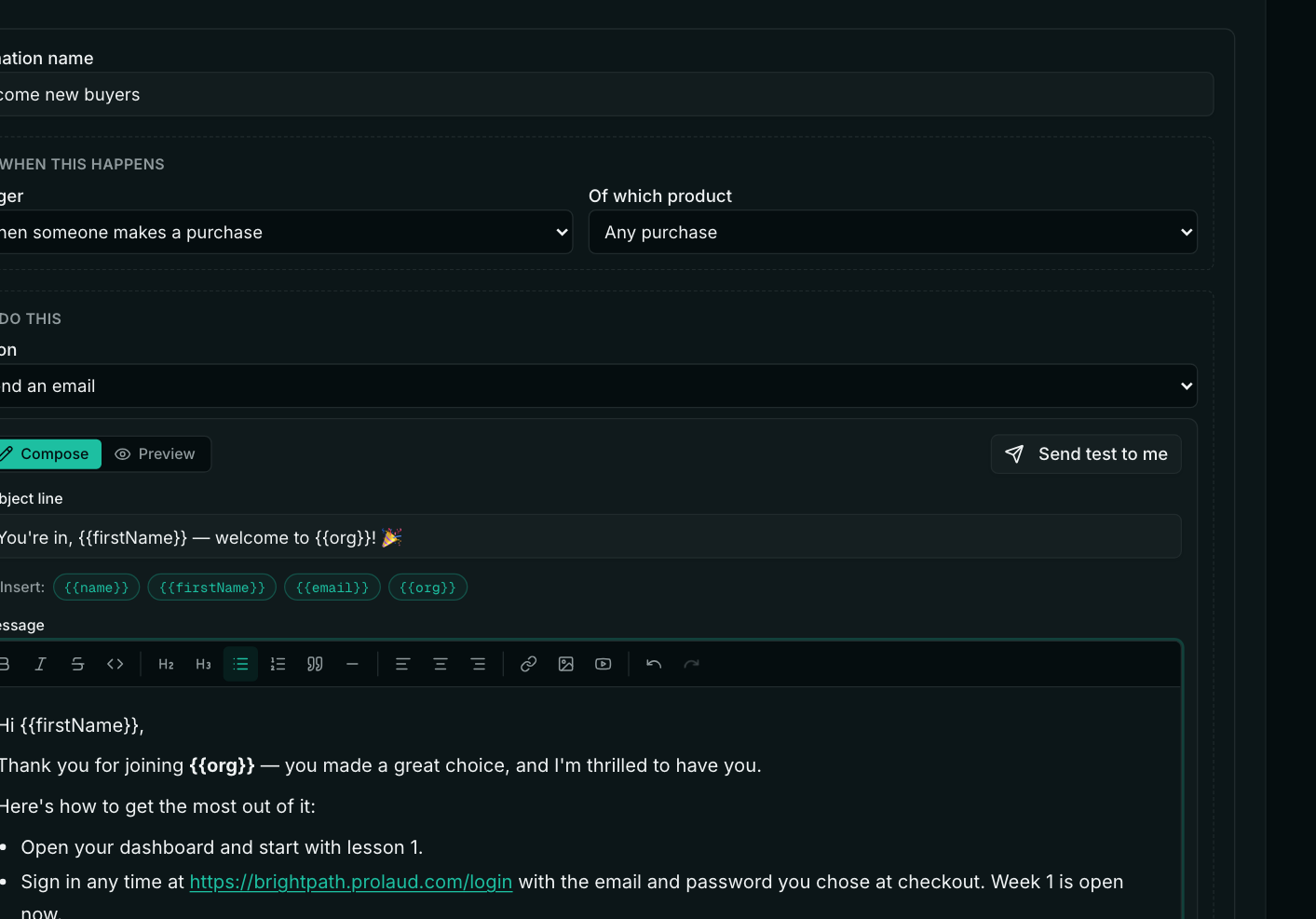
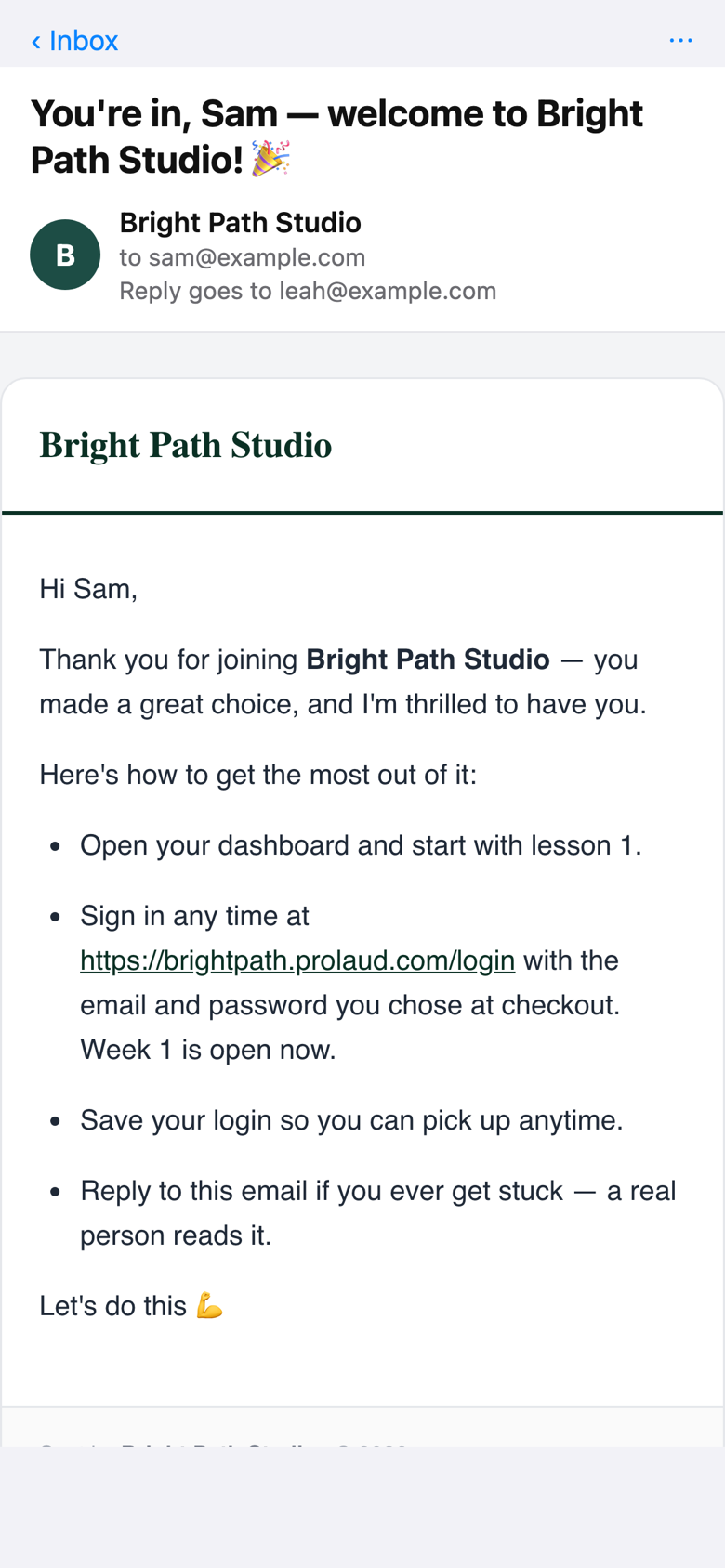
The email is sent in your academy's name and a reply goes to your own address. Razorpay or Stripe may also send the buyer a payment receipt, depending on your settings with them.
Can I add quizzes that tell students if they got it right?
Yes, in two ways: a question that pops up inside the video, and a quiz lesson with a full answer review. Both show the right answer and your explanation.
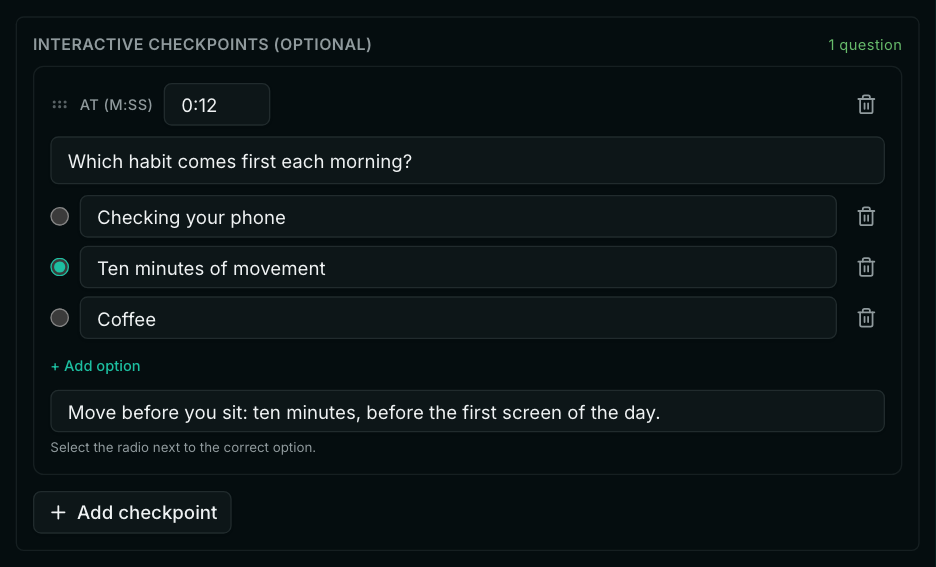
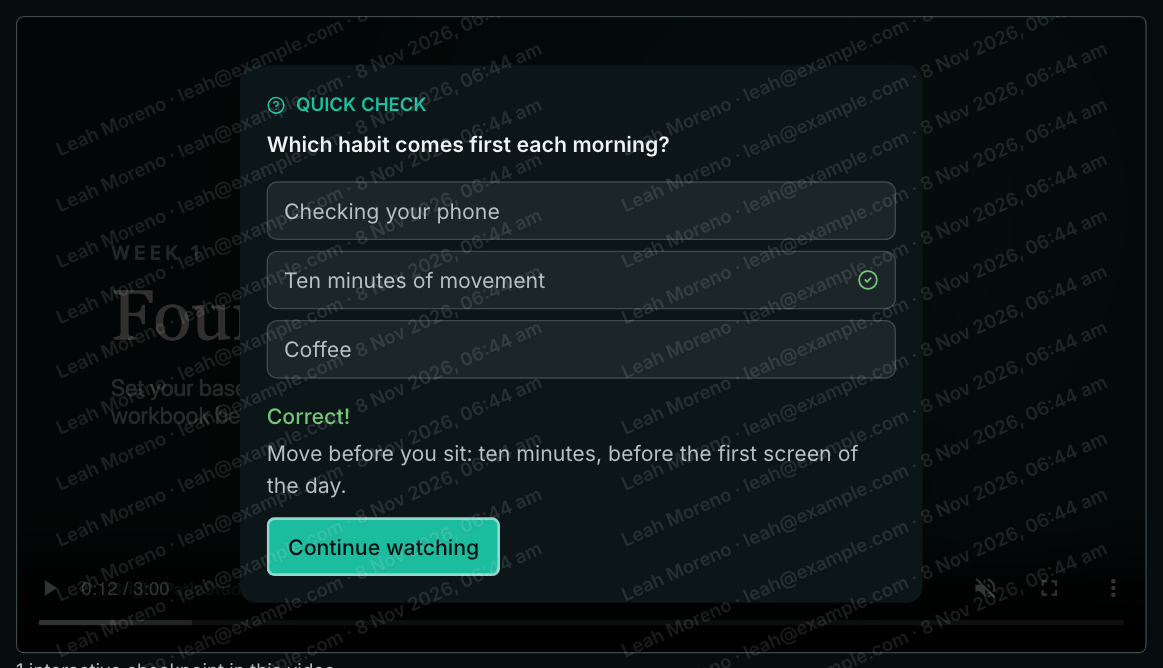
A question inside the video. In a video lesson, open Interactive checkpoints, press Add checkpoint, and set the time (minutes:seconds), the question, two to four options, the correct one and an optional explanation. At that moment the video pauses and asks; the student picks an answer, sees “Correct!” or “Not quite.” with your explanation, and presses Continue watching. These work on uploaded videos and YouTube links. They are for practice: the answers are not saved or scored.
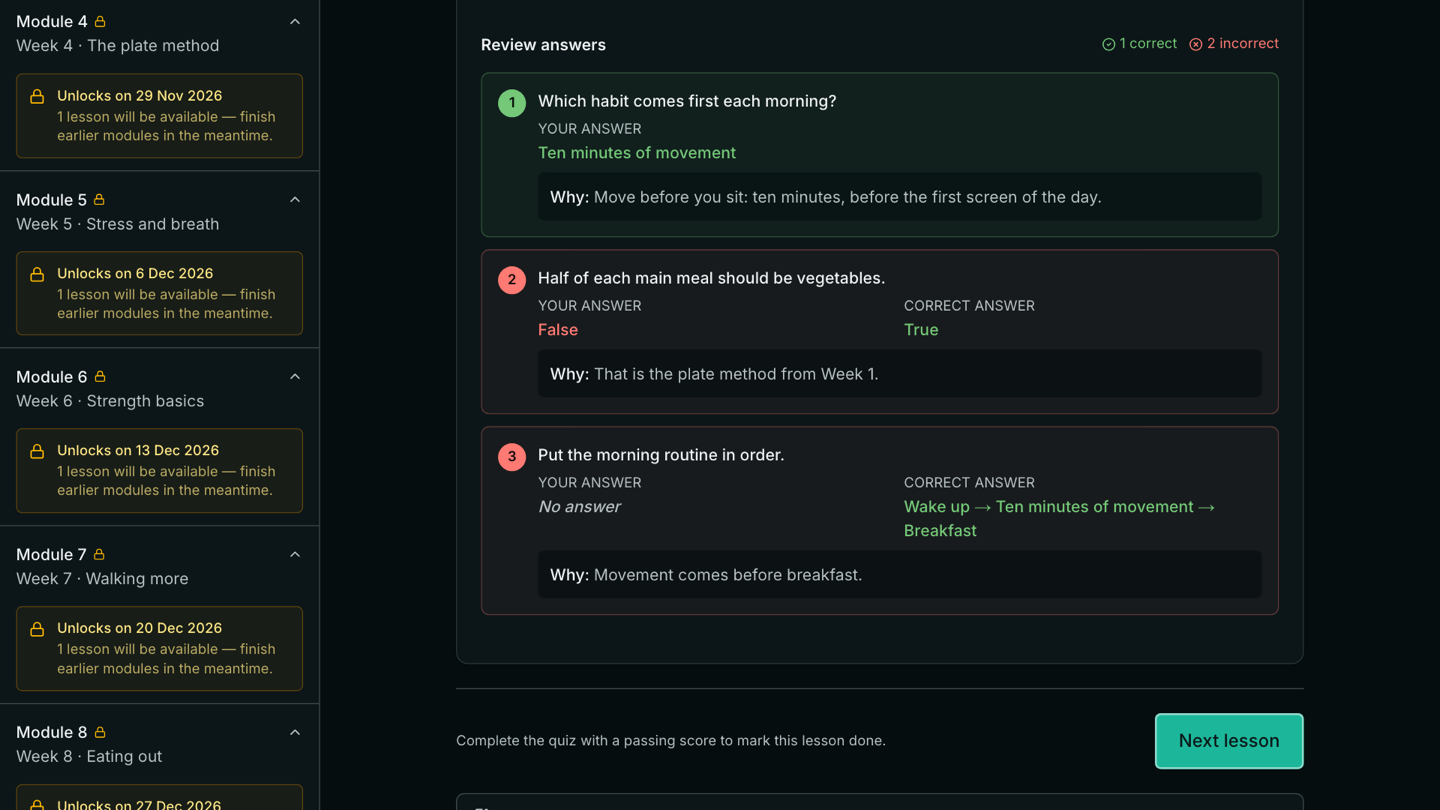
A quiz lesson. Create a quiz under Quizzes and add it to the week as a lesson of type Quiz. Questions can be multiple choice, multi-select, true or false, short answer, long answer (you mark it), fill in the blanks, matching or ordering, each with an explanation. For instant feedback, set Grading to Auto-grade and keep “Reveal correct answers after submit” on: after submitting, the student sees their score, each of their answers marked right or wrong, the correct answer and your explanation. New quizzes start on Instructor reviews, where results wait for you to mark them.
Quizzes are on Pro and above. Lessons can also be reading (text and images), audio, a document, an embed (Canva, Gamma, Google Slides, Notion, Figma, Loom), a live class or a class recording, and an assignment can follow any lesson.
Can the course page and checkout carry my brand?
Your academy's name, logo and colours appear on your course pages and checkout, at youracademy.prolaud.com. Using your own domain is not available yet. On Pro and above you can remove the “Powered by Prolaud” line from your site.
Which plan does a 13-week course with 10 GB videos need?
Studio: it is the plan whose videos can be up to 10 GB, and its 1 TB of storage holds thirteen such lessons with room to spare. If every lesson video is 2 GB or less, Pro is enough. Weekly release and quizzes are on both. Prolaud takes no commission on your sales; Razorpay or Stripe charge their usual payment fees.
- Can I upload a 10 GB video to one lesson?
- Yes, on the Studio plan, where each lesson video can be up to 10 GB (10,240 MB). Pro allows 2 GB per video and Institute 20 GB. New academies start on a 14-day Studio trial.
- Does Prolaud compress or convert my videos?
- No. Students are sent the exact file you uploaded, at its resolution. There is no lower-quality copy, so very large files need students with fast connections.
- Will students see my video in 4K?
- If you upload 4K, students are sent 4K. Whether it plays smoothly depends on their connection; a 1080p H.264 MP4 at about 8 Mbps plays well for most people.
- What happens if my internet drops during a big upload?
- The upload pauses and carries on when you are back online. If the tab closed, pick the same file again within five days and it continues from the parts already sent.
- Can I attach more than one PDF to a lesson?
- Yes. A lesson can have any number of files under its video: PDFs, slides, Word and Excel files, images, audio or zip files.
- Can I stop students downloading a PDF?
- Yes. Switch the file from Downloadable to View only. Students can still open it on the page.
- Can students download my lesson videos?
- Uploaded videos play in a player with no download button, from a short-lived address, with a watermark you control. No website can prevent screen recording.
- Can I release one lesson per week?
- Yes, on Pro and above. Set each week's “Drip — unlock days after enrollment” (7, 14, 21…) or a fixed date. Students see the date each week opens.
- If I replace a video, do students lose their progress?
- No. The lesson keeps its place and anyone who finished it stays marked finished. Students who were partway through the old video start the new one from the beginning.
- Can I use GoHighLevel for my sales page?
- Yes. Link your page's Buy button to the course's checkout link (Copy checkout link on the course's page). Payment, the account and course access then all happen in Prolaud.
- Can I take the payment in GoHighLevel and have Prolaud enrol the buyer?
- Not automatically. There is no GoHighLevel integration or public enrolment API today, so a buyer who paid elsewhere has to be added by hand. Send buyers to Prolaud's checkout instead.
- Does a buyer get an email to set up their account?
- No email is needed: buyers create their account, with their own password, at checkout before they pay. To send a welcome email, turn on the Welcome new buyers automation under Marketing → Automations.
- What will a buyer type at checkout?
- Their name, email, a password and a phone number (required at academies in India, optional elsewhere), then their payment details on Razorpay or Stripe.
- What if the buyer already has a Prolaud account at another academy?
- One email address can belong to one Prolaud account, so they will be asked to use a different email address for your academy.
- Can quizzes show students whether each answer was right?
- Yes. Set Grading to Auto-grade and keep “Reveal correct answers after submit” on. Questions inside the video show Correct! or Not quite. at once, with your explanation.
- Can I use my own domain for the course and checkout?
- Not yet. Your academy runs at youracademy.prolaud.com.
- Does Prolaud take a cut of each sale?
- No. Prolaud takes no commission. Your payment provider, Razorpay or Stripe, charges its usual fee.
Related