For creators
Change the watermark on your lesson videos: lighter, in a corner, in your own words, or off
Your lesson videos carry a faint watermark so that a screen recording shows where it came from. You decide what it says, how visible it is and where it sits, or you can turn it off. It is one setting for your whole academy, and it takes a minute to change.
Last updated Nov 7, 2026
In short: open Settings → Security & Content Protection, find Show dynamic watermark, change the options under it, and press Save security policy. Your members see the new watermark the next time they open a lesson.
What the watermark shows to begin with
Until you change it, the watermark shows the academy owner's name and email and the date and time, faintly, across the whole video. It shows the academy's details, not the details of the member who is watching, so every member sees the same words.
How to change it
- Open Settings and scroll to Security & Content Protection.
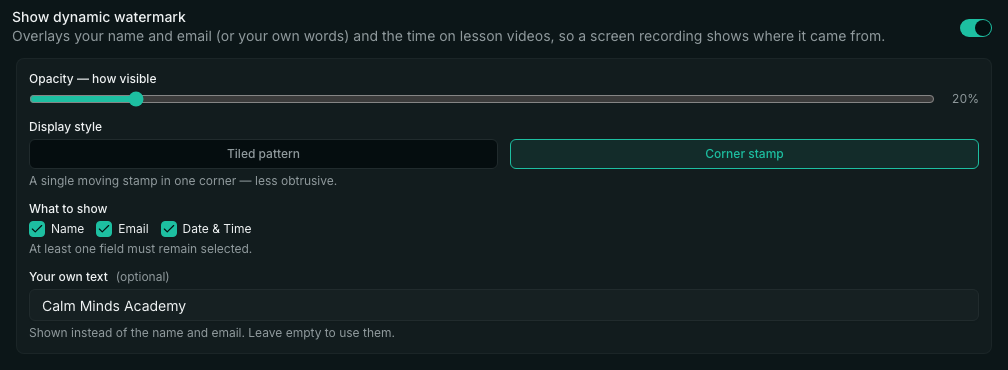
- Find Show dynamic watermark. The options for it are in the box underneath.
- Opacity — how visible: drag the slider left to make it lighter. The lowest is 10%.
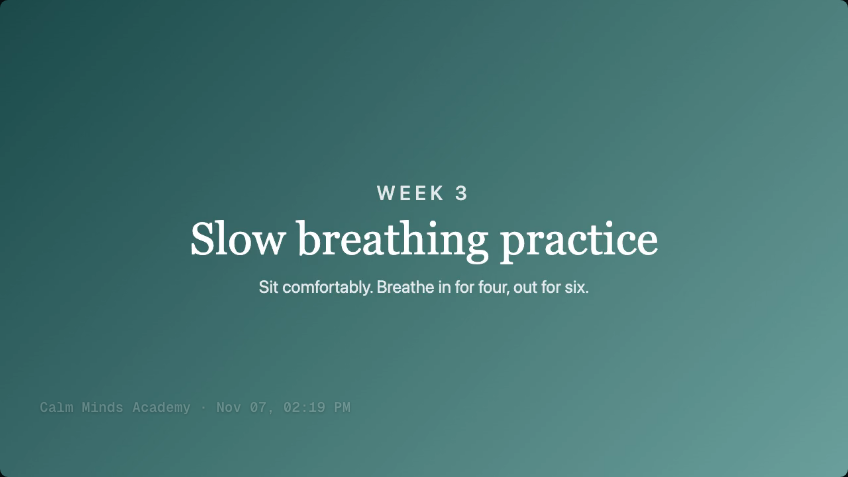
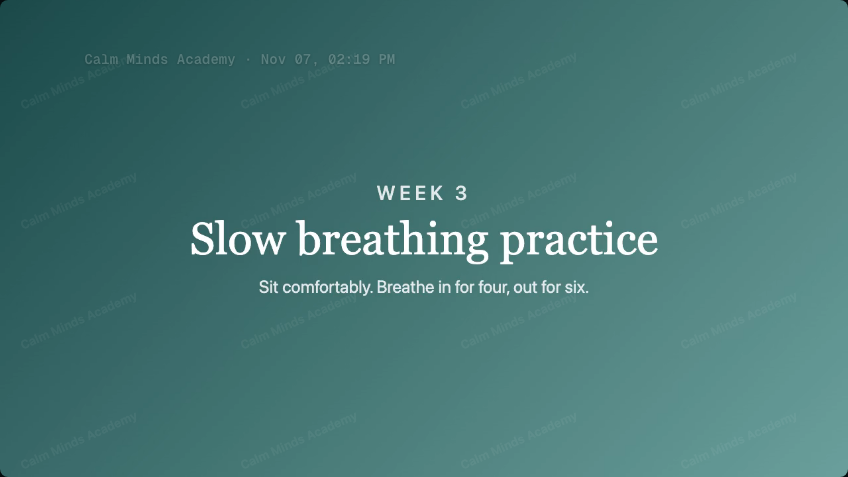
- Display style: Tiled pattern repeats faint words across the whole picture and is the hardest to crop out. Corner stamp shows a single line, in one place at a time, and is the least in the way.
- What to show: tick Name, Email and Date & Time as you like. At least one stays ticked.
- Your own text: type up to 60 characters, such as your academy's name. It is shown instead of the name and email.
- Press Save security policy at the bottom of the card.
What your members see
How to turn the watermark off
- Open Settings → Security & Content Protection.
- Switch off Show dynamic watermark.
- Press Save security policy.
The other protections on that card, such as blocking right-click and copy, stay as you set them. Switch them off one by one if you want those gone too.
- Can I put my academy's name in the watermark instead of my email?
- Yes. Type it under Your own text and press Save security policy. It replaces the name and email on every lesson video.
- Can I make the watermark lighter?
- Yes. Drag Opacity — how visible to the left. The lowest setting is 10%.
- Can I keep the watermark to one corner?
- Yes. Choose Corner stamp under Display style. It shows one line instead of a pattern across the whole picture.
- Can I turn the watermark off?
- Yes. Switch off Show dynamic watermark and press Save security policy.
- Does each member see their own name?
- No. The watermark shows the academy's details, or your own words, to everyone.
- Can I set a different watermark for each course?
- No. The watermark is one setting for the whole academy.
Related