Slides in a live class
Share a lesson deck and it runs on every child's own device. The room follows your slide, nobody answers until you open the question, and what they answered becomes a note you can send home.
Every screenshot below was taken automatically from a real class — two browsers, one teacher, one pupil who joined with a name and an email. Nothing here is a mockup, which is also why the last section can be honest about the part that is not finished.
1. Your decks are inside the class
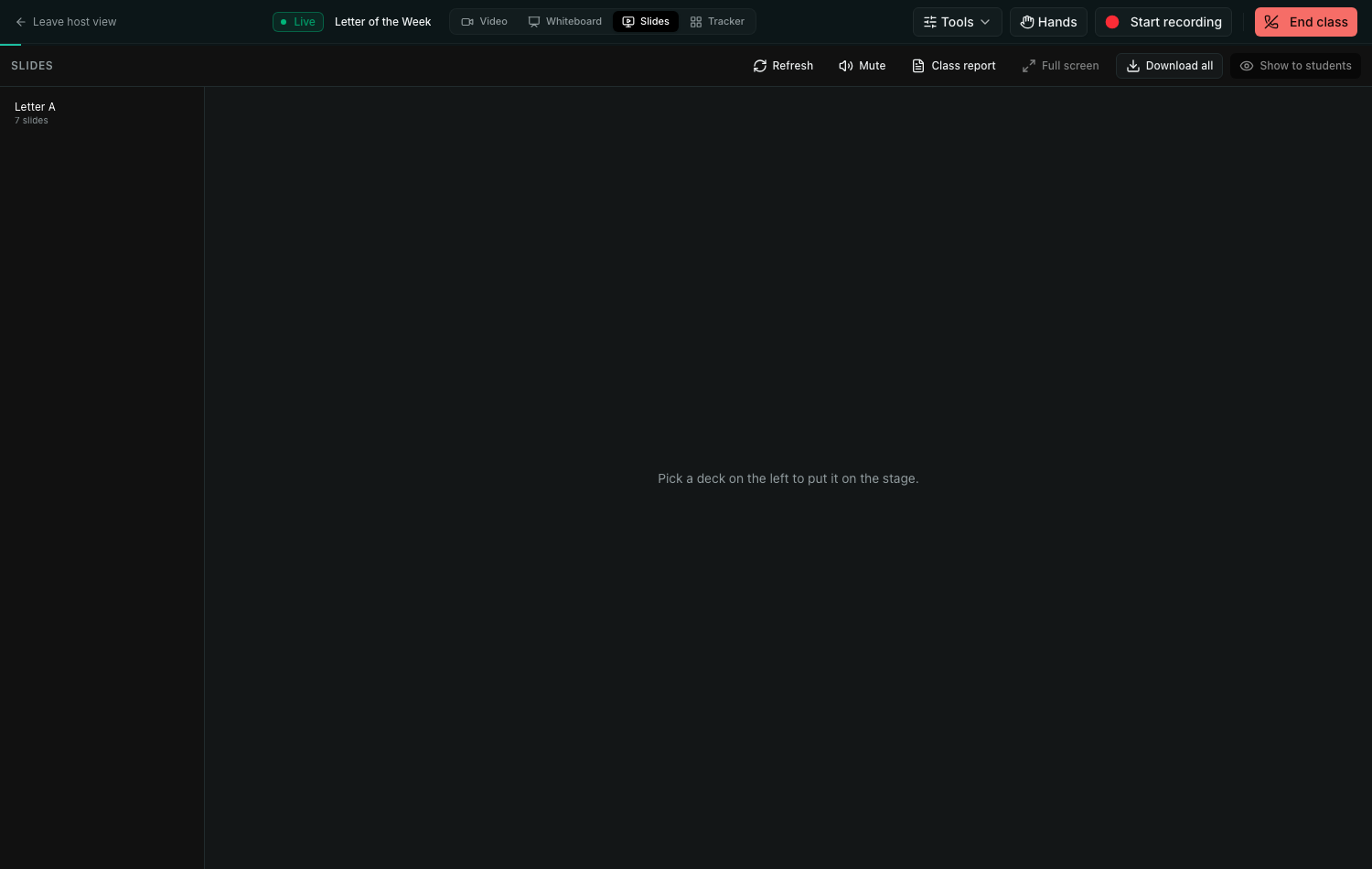
The Slides tab sits beside Video and Whiteboard on the stage. Every finished deck you have is listed there, so you never leave the room to open one.
2. Two controls, and what they mean
The deck is live on every child's own device — the games really run there. That is the point, and it is also why there are two separate controls rather than one.

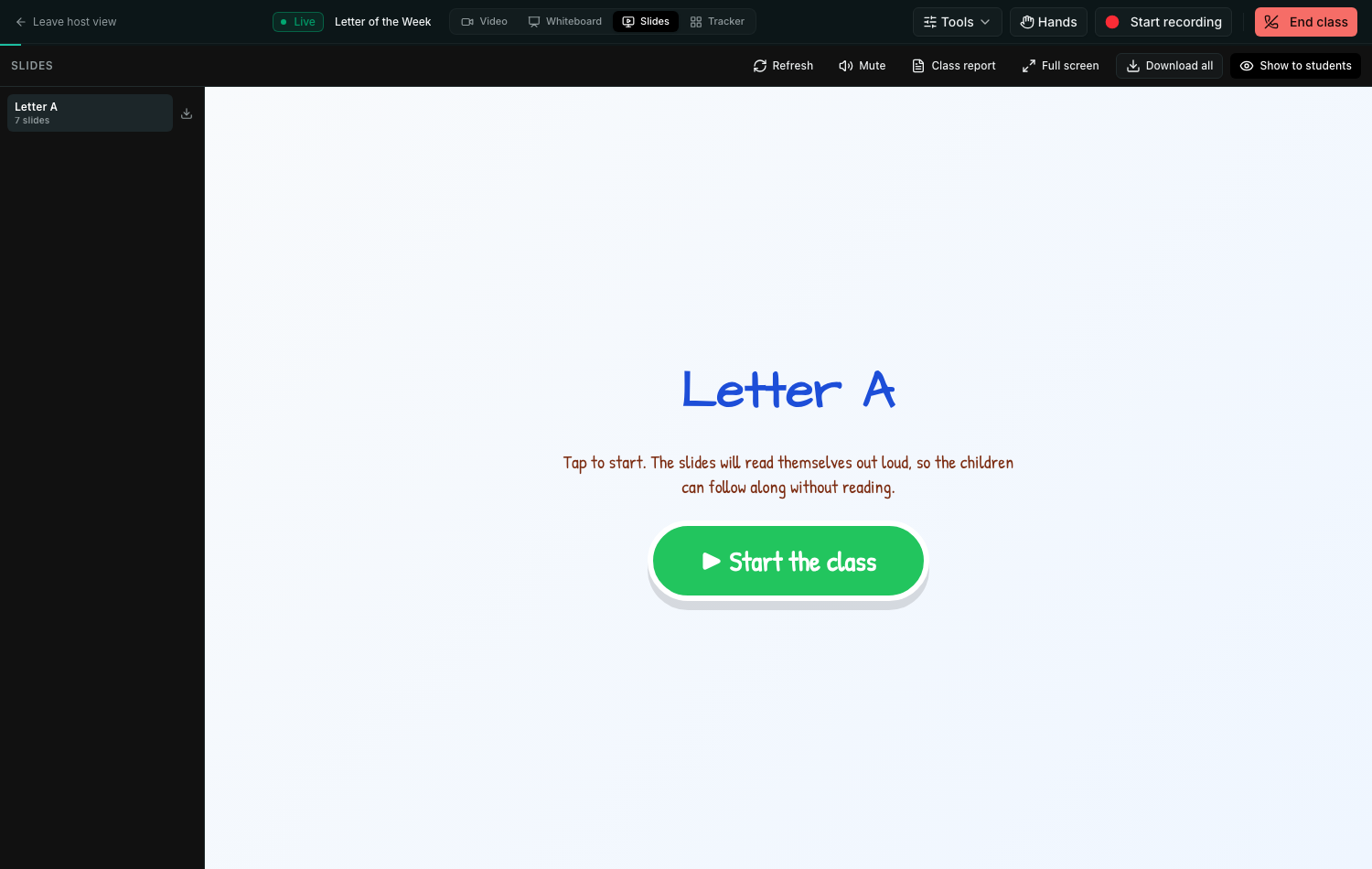
Show to students
Puts the deck on every child's screen and gives them a Slides tab. Hide it again and the tab disappears; nobody is left on an empty stage.
Let students answer
Closed by default. Without it, thirty children start tapping the moment you share — through a lesson you have not started. Open it when the class reaches the question, and close it again after.
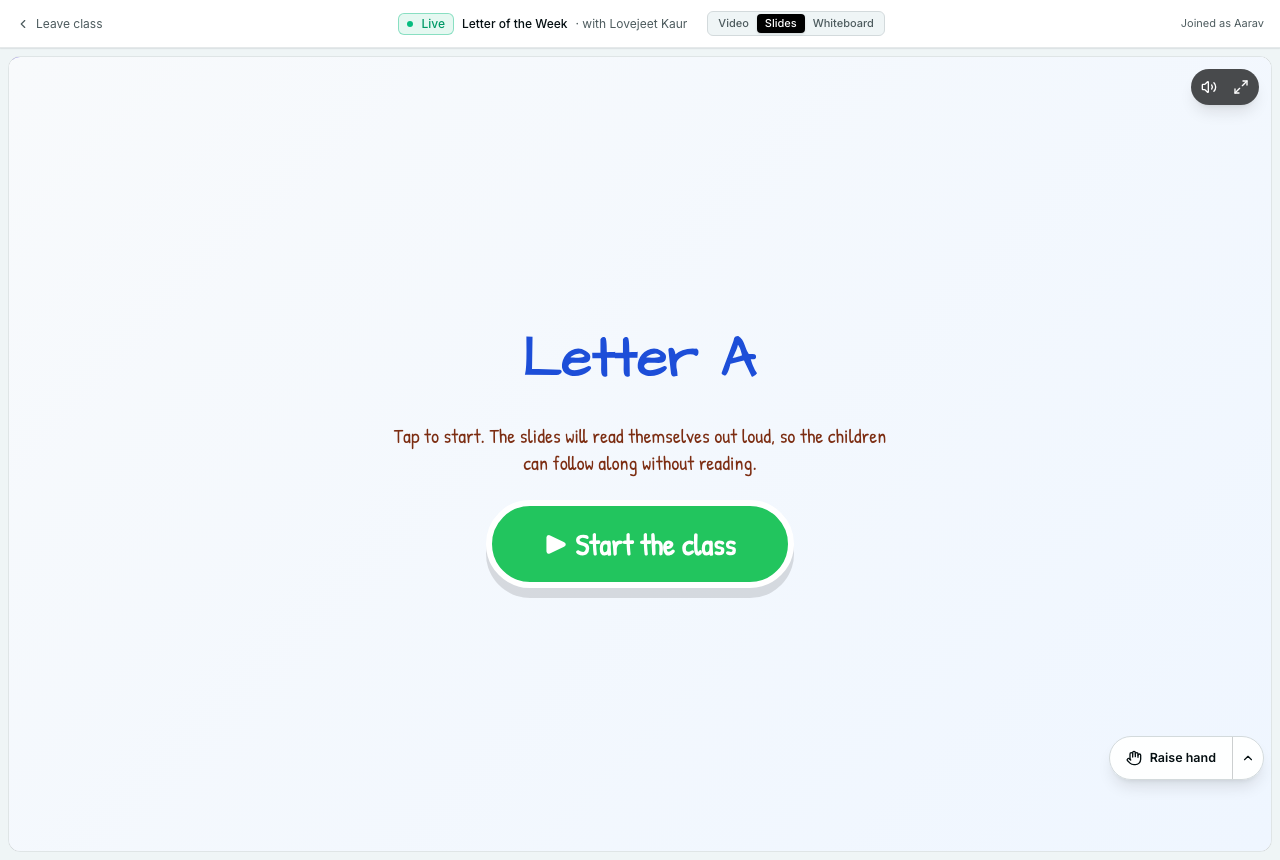
The class also follows the slide you are on. Move forward and every screen moves with you, so no child is answering a question three slides ahead of the room.
3. What a child does
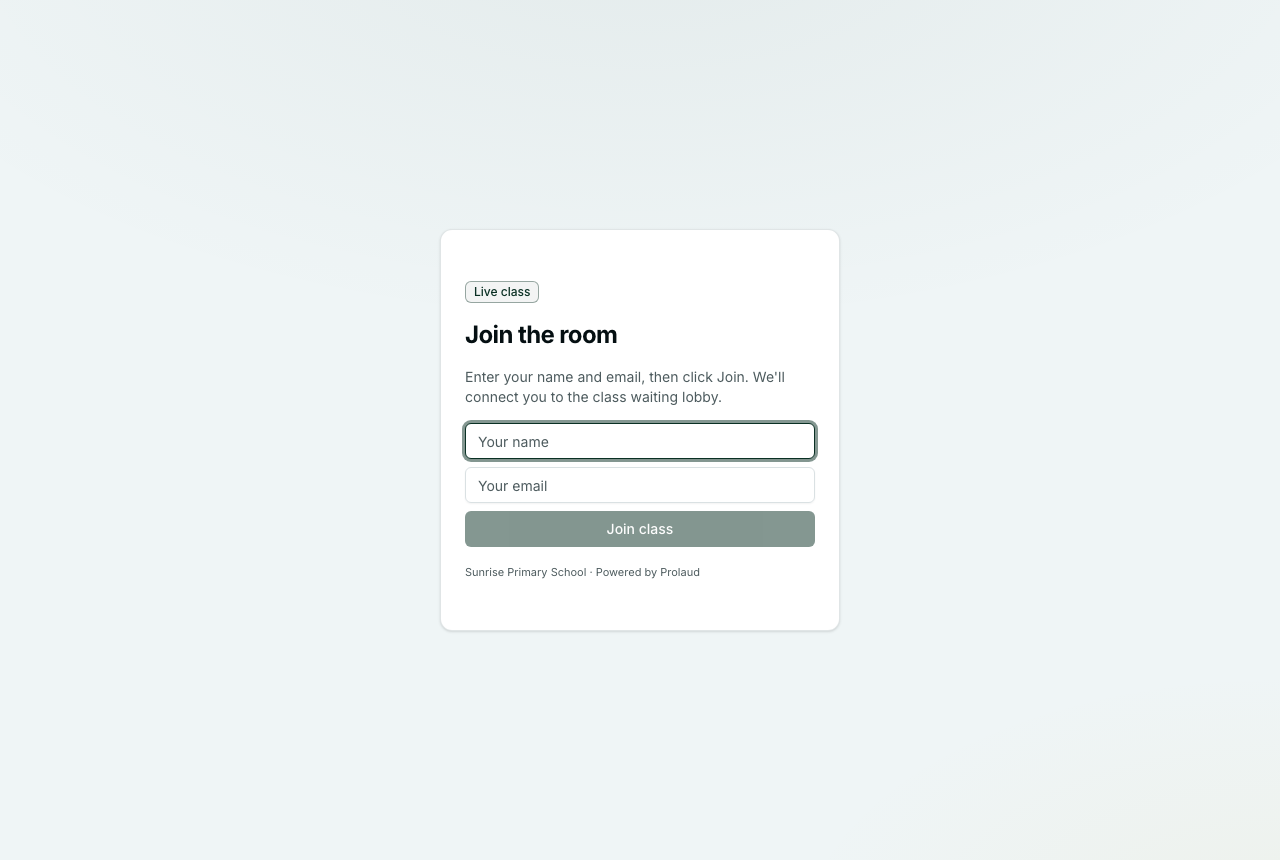
No app, no account. She opens the class link, types her name, and she is in.
4. A question, closed and open
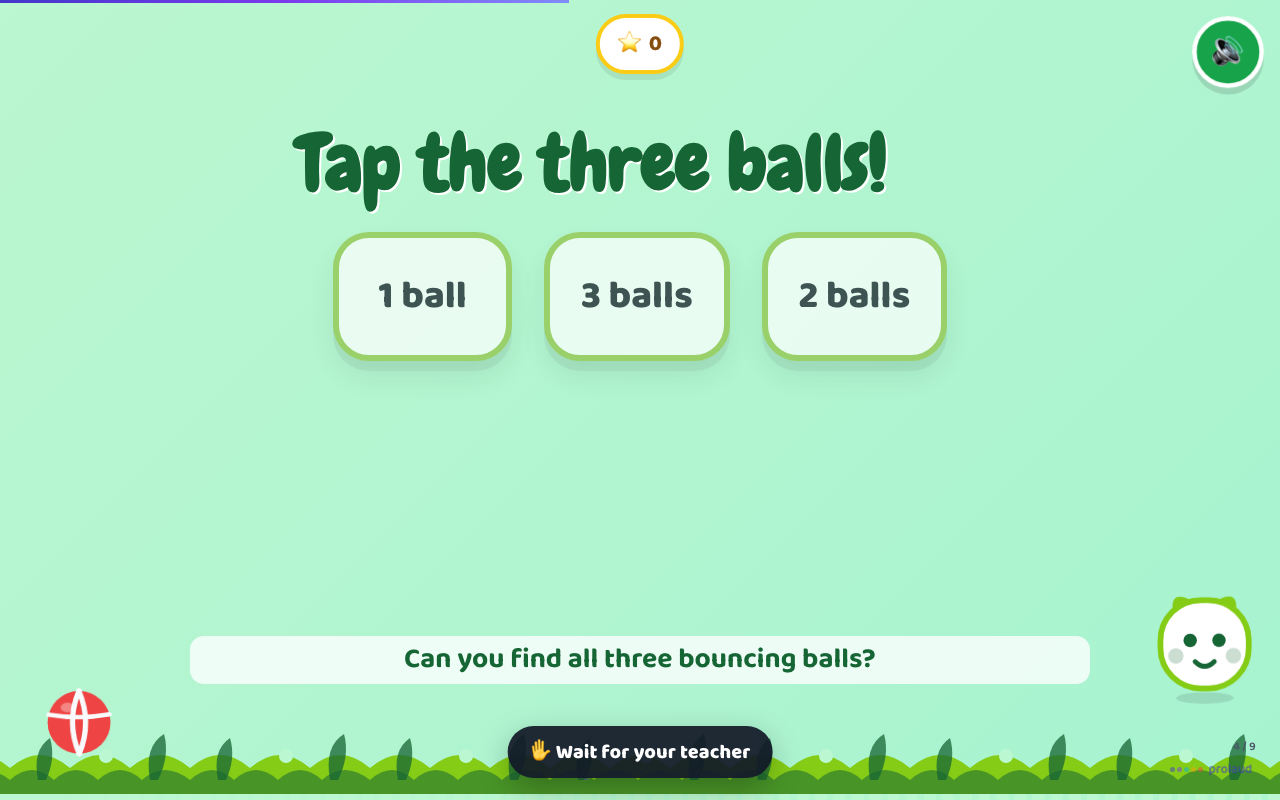
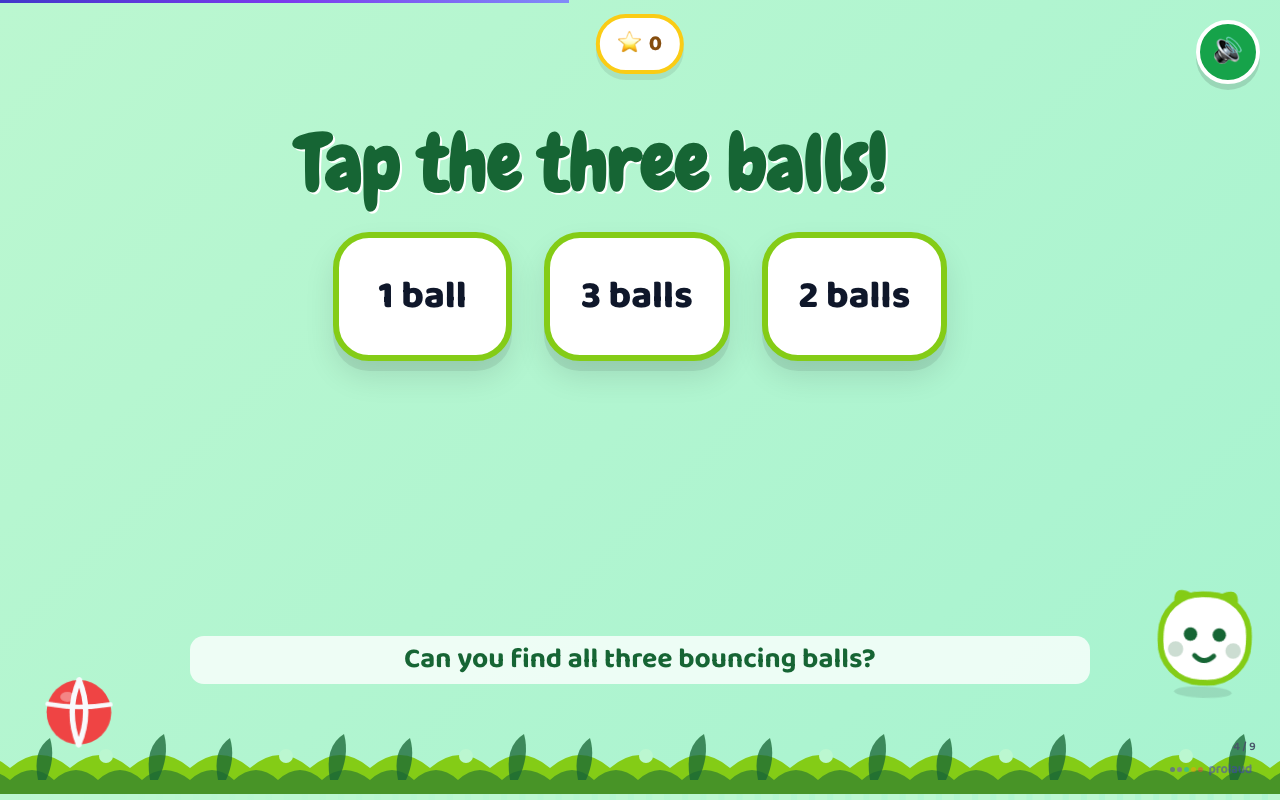
The two states of the same slide. Closed, the answers are dimmed and will not respond — but they are still readable, so the class can think about them while you talk.
5. You see what the class did
A tap used to score a star in a child's own browser and vanish. It now comes back: who answered, what they picked, and who has not moved yet — on the slide you are standing on.

Beside it sits the only thing it will ever tell you to do: most of the class missed this — worth saying again, or everyone has it — safe to move on. It is counting, not a language model, so it is there in the second you glance down. It never advances a slide by itself. You are in the room and it is not.
6. And it becomes something to send home
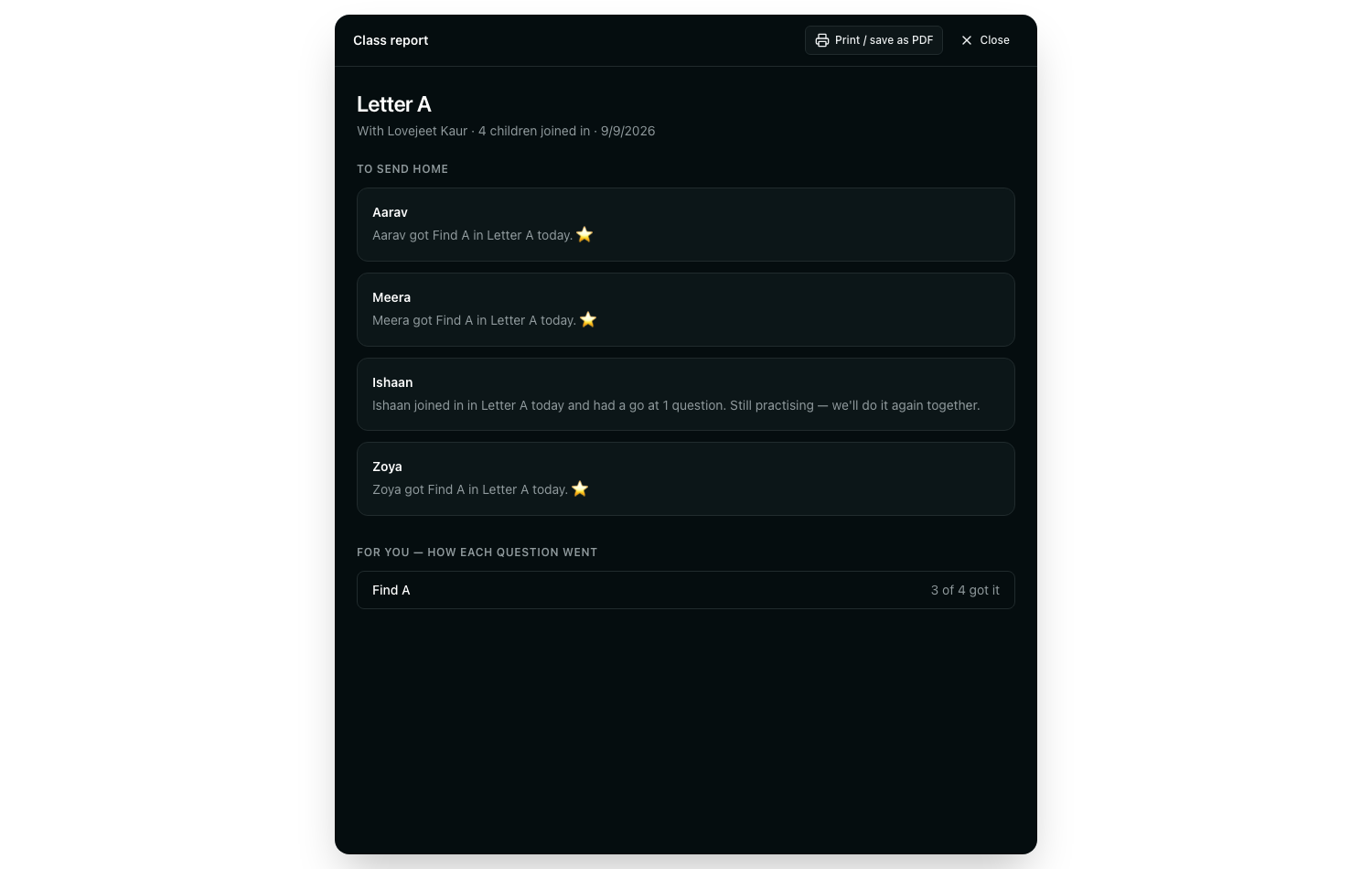
One line per child, in the words a parent wants — what their child did, never a score against their name. Print it, or save it as a PDF for the bag.
Two things it will not do
No percentages and no ranking between children — a score against a three-year-old's name tells a parent nothing they can act on. And nothing a child got wrong is named as a failure: “still practicing” is the whole vocabulary, because at this age that is simply the truth.
7. Grade 6 and up get this too
Middle school, high school and college decks used to be a slideshow — the only interactivity in the product was wrapped in preschool chrome, so three of the six audiences had nothing to answer. They now get checkpoints: the same mechanism, without the stars, the confetti or the mascot. A question mid-lecture, answered on phones, gated by you, counted the same way.
Two per deck, minimum, placed after the material that answers them — and that is enforced when the deck is built rather than asked for in a prompt, because a model asked nicely for three checkpoints returned none.
8. Getting a class in the door
Write the code on the board. A child opens the join page, types it, types her name, and she is in. No account, no app, nothing to install — and capitals or stray spaces off a whiteboard do not matter.
Three faults this uncovered
Sharing a deck with a class had never worked. None of it failed loudly, which is why it survived: the teacher saw a confirmation, and the class saw nothing.
- 1
The tab was hidden behind the whiteboard
A pupil's stage switcher only appeared once the teacher showed the whiteboard. The Slides tab was added inside that strip later, so sharing a deck without touching the whiteboard gave the class no way to reach it.
- 2
Pupils were subscribed to nothing
The page read the share state above the live-room provider, so it had no room to listen on and returned “not shared” for the life of every class. The teacher was publishing to an empty channel.
- 3
A guest had no way to load the deck
The panel fetched it from an endpoint needing a signed-in account, so a child who typed her name at the door got a Slides tab and an empty stage. She now reads it from the ROOM instead — only the one deck her teacher is showing, only while it is being shown.