For creators
Custom SMTP settings: send your academy's emails from your own domain
Custom SMTP lets your academy send every email to its students and members from your own address, through your own mail server, instead of Prolaud's. Connect Gmail, Google Workspace, Microsoft 365, Zoho Mail, Amazon SES, Brevo or any SMTP server in about two minutes. Nothing changes in your DNS from Prolaud's side, and nothing is saved until a test email gets through.
Last updated Oct 25, 2026
What is custom SMTP?
SMTP is how email is sent. Every mail service, from Gmail to Microsoft 365, has an SMTP server that accepts emails from an app and delivers them. With custom SMTP, Prolaud hands your academy's emails to your mail server instead of its own, so they leave from your address and your domain, and count towards your own sender reputation.
- Your address, your brand: students see [email protected], not a platform's address.
- Better trust and inbox placement: email from a domain your students already know is less likely to look like spam.
- Replies come straight to you, in the mailbox you already use.
- Every email, not just newsletters. Some platforms change only the sender of marketing emails and keep receipts and account emails on their own server. With Prolaud, every email your academy sends to its people goes through your server.
Which emails go through your SMTP server
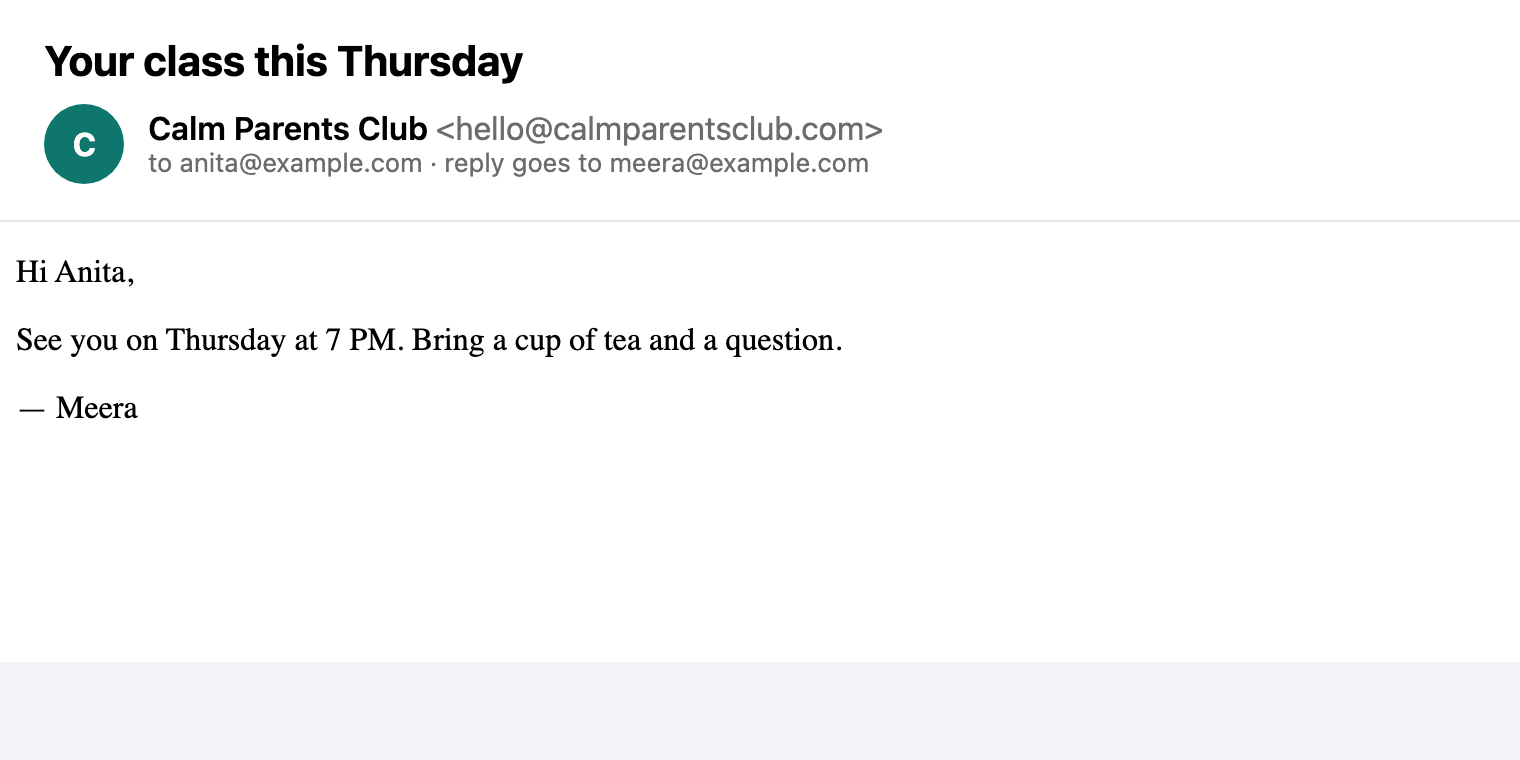
- Through your server: invitations to students and teachers, your members' sign-in links and codes, password resets, class and quiz reminders, notices and community digests, messages you write in Members → Message, receipts and instalment reminders, certificates and offer letters, broadcasts, and automations.
- Still from Prolaud: Prolaud's own emails to you (billing, plan and trial notices, alerts about new leads and class problems), and sign-in emails for you and your teachers. A mail server that stops working can then never lock you out of the dashboard where you would fix it.
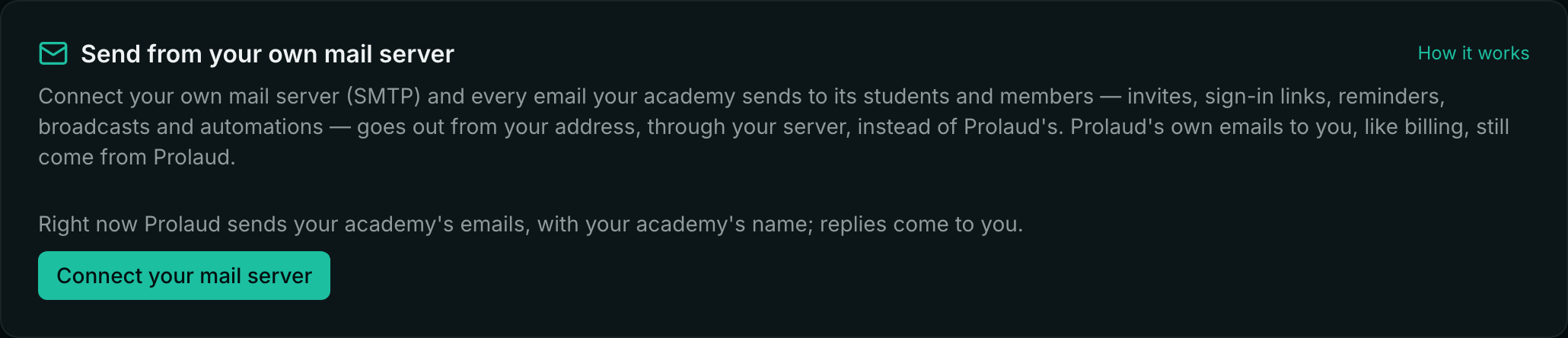
- Without a custom SMTP server: Prolaud sends your academy's emails with your academy's name as the sender, and replies come to you.
What you need before you start
- SMTP host — the mail server's address, like smtp.gmail.com.
- Port and security — usually port 587 with STARTTLS, or port 465 with SSL/TLS. Prolaud accepts ports 25, 465, 587 and 2525.
- Username and password — usually your email address and an app password (Gmail, Yahoo, and Zoho with two-step sign-in), or an SMTP key from a sending service.
- From address and name — the address your emails come from. It must be one your mail service lets you send as (the account's own address, a verified alias, or an address on a domain you've verified with it).
- You must be the academy owner to connect it. It's included on every plan; your mail provider may have its own limits or charges.
How to set up custom SMTP in Prolaud
- Open Integrations in your dashboard (Workspace → Integrations) and choose Email sending.
- Choose Connect your mail server.
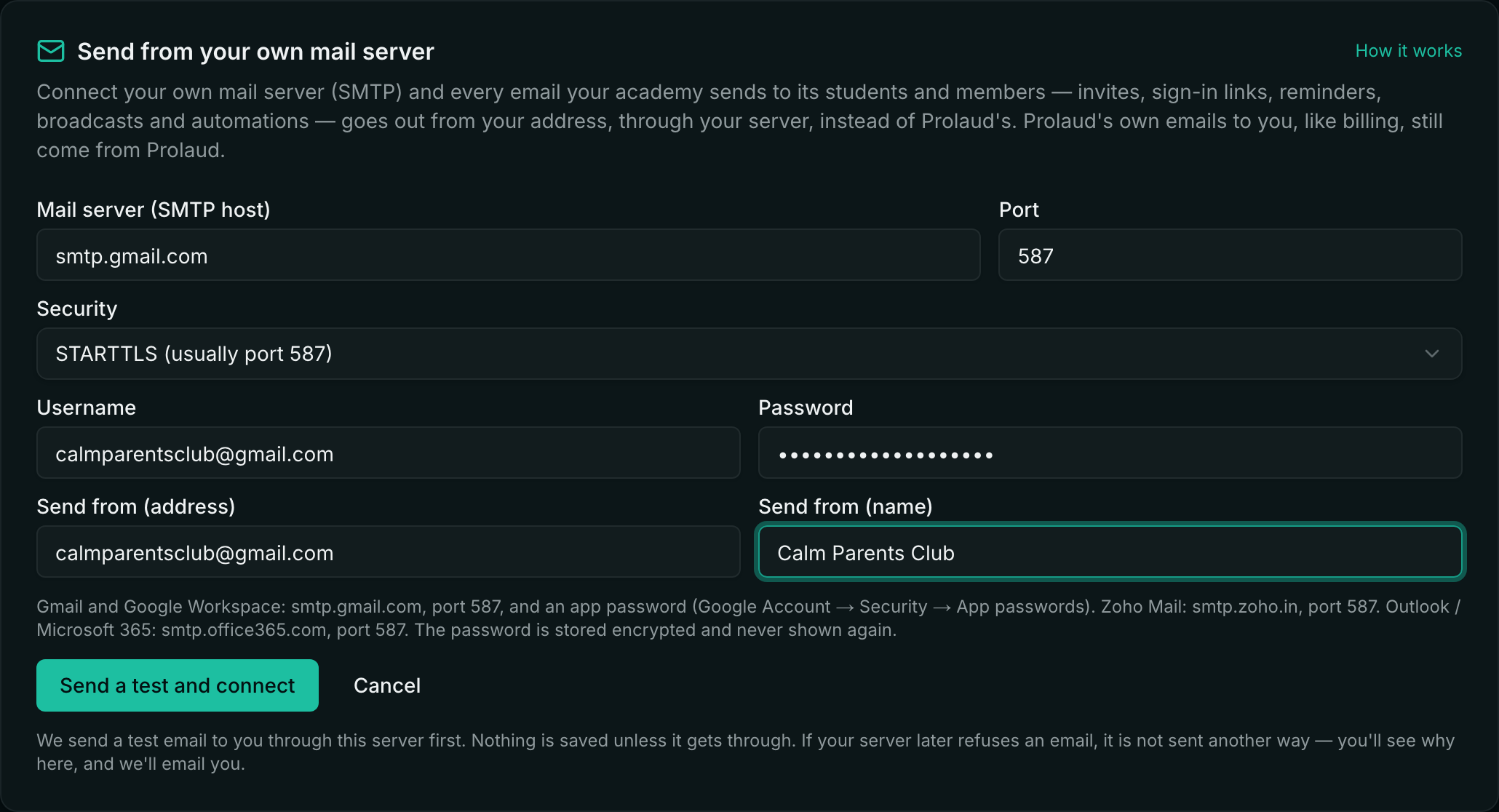
- Enter the SMTP host and port, and pick the security (STARTTLS for 587, SSL/TLS for 465). The settings for popular providers are below.
- Enter the username and password (an app password, not your normal sign-in password, for Gmail and similar).
- Enter the address and name your emails should come from, like [email protected] and your academy's name.
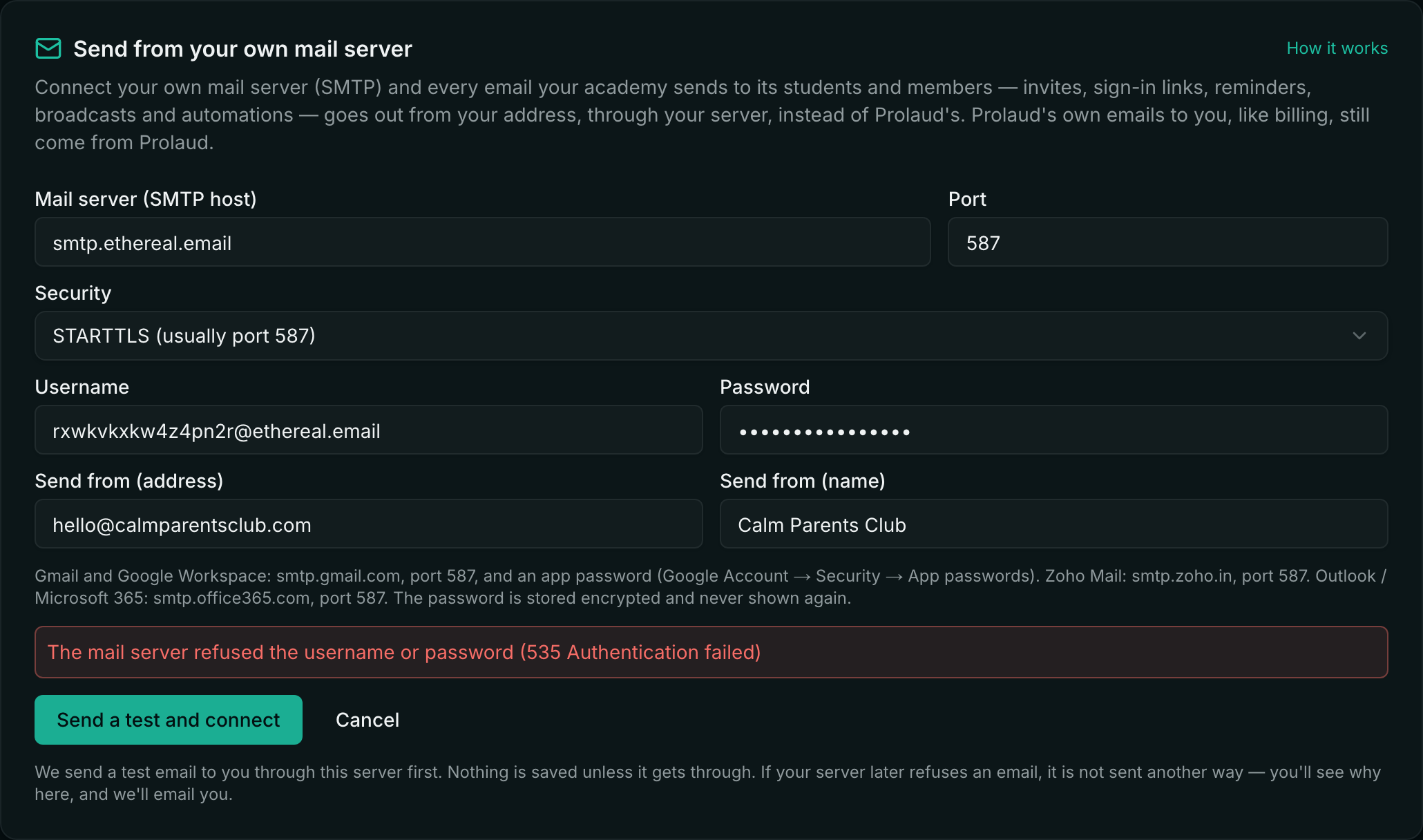
- Choose Send a test and connect. Prolaud sends a test email to you through your server. If it gets through, the server is saved; if not, you see exactly what the server said, and nothing is saved.
SMTP settings for popular email providers
Use these values in the form. Providers change their settings now and then, so if one doesn't connect, check the provider's own help page.
- Gmail — host smtp.gmail.com · port 587 (STARTTLS) or 465 (SSL/TLS) · username: your Gmail address · password: a 16-character app password · From: your Gmail address. Gmail sends about 500 emails a day.
- Google Workspace — host smtp.gmail.com · port 587 (STARTTLS) · username: your Workspace address · password: an app password · From: your address or an alias on your domain. About 2,000 emails a day.
- Microsoft 365 / Outlook for business — host smtp.office365.com · port 587 (STARTTLS) · username: your mailbox address · password: your password, with Authenticated SMTP turned on for the mailbox in the Microsoft 365 admin centre. Note: Microsoft is turning off password sign-in for sending ("Basic authentication for SMTP AUTH") by default at the end of December 2026, after which it answers 550 5.7.30. Prolaud connects with a username and password, so for a Microsoft 365 domain we recommend a sending service instead — Zoho ZeptoMail, Brevo or Amazon SES — sending from your same address.
- Outlook.com / Hotmail — host smtp-mail.outlook.com · port 587 (STARTTLS) · your Outlook address and an app password (with two-step verification). Microsoft is retiring password sign-in for sending here too; if it's refused, use one of the sending services below.
- Zoho Mail — host smtp.zoho.com (smtp.zoho.in for India accounts, smtp.zoho.eu for Europe) · port 587 (STARTTLS) or 465 (SSL/TLS) · your Zoho address · an app-specific password if two-factor sign-in is on.
- Amazon SES — host email-smtp.<your-region>.amazonaws.com · port 587 (STARTTLS) · the SMTP username and password you create in the SES console (not your AWS keys) · From: an address or domain you've verified in SES.
- Brevo — host smtp-relay.brevo.com · port 587 (STARTTLS) · the SMTP login and SMTP key from Brevo's SMTP & API page · From: a sender you've verified in Brevo. The free plan sends 300 emails a day.
- SendGrid — host smtp.sendgrid.net · port 587 (STARTTLS) · username: apikey (that word) · password: your SendGrid API key · From: a verified sender.
- Zoho ZeptoMail — host smtp.zeptomail.com (smtp.zeptomail.in for India) · port 587 (STARTTLS) · username: emailapikey · password: your Send Mail token.
- Your web host's email (cPanel, Hostinger and similar) — host usually mail.yourdomain.com · port 465 (SSL/TLS) or 587 · your full email address and its password.
Gmail: how to create an app password
- Turn on 2-Step Verification for your Google account (myaccount.google.com → Security).
- Go to myaccount.google.com/apppasswords, type a name like "Prolaud", and choose Create.
- Copy the 16-character password Google shows and paste it into Prolaud's Password box. Google shows it only once.
Test your SMTP settings for free
To check the whole flow without emailing real people, connect a free test inbox. Ethereal (ethereal.email — Create Ethereal Account, no sign-up) and Mailtrap (Email Testing, a free monthly allowance) give you an SMTP host, port, username and password, and catch every email your academy sends so you can read it on their website. Use a test academy for this: once connected, all of that academy's emails go to the test inbox, not to your students. Disconnect when you're done.
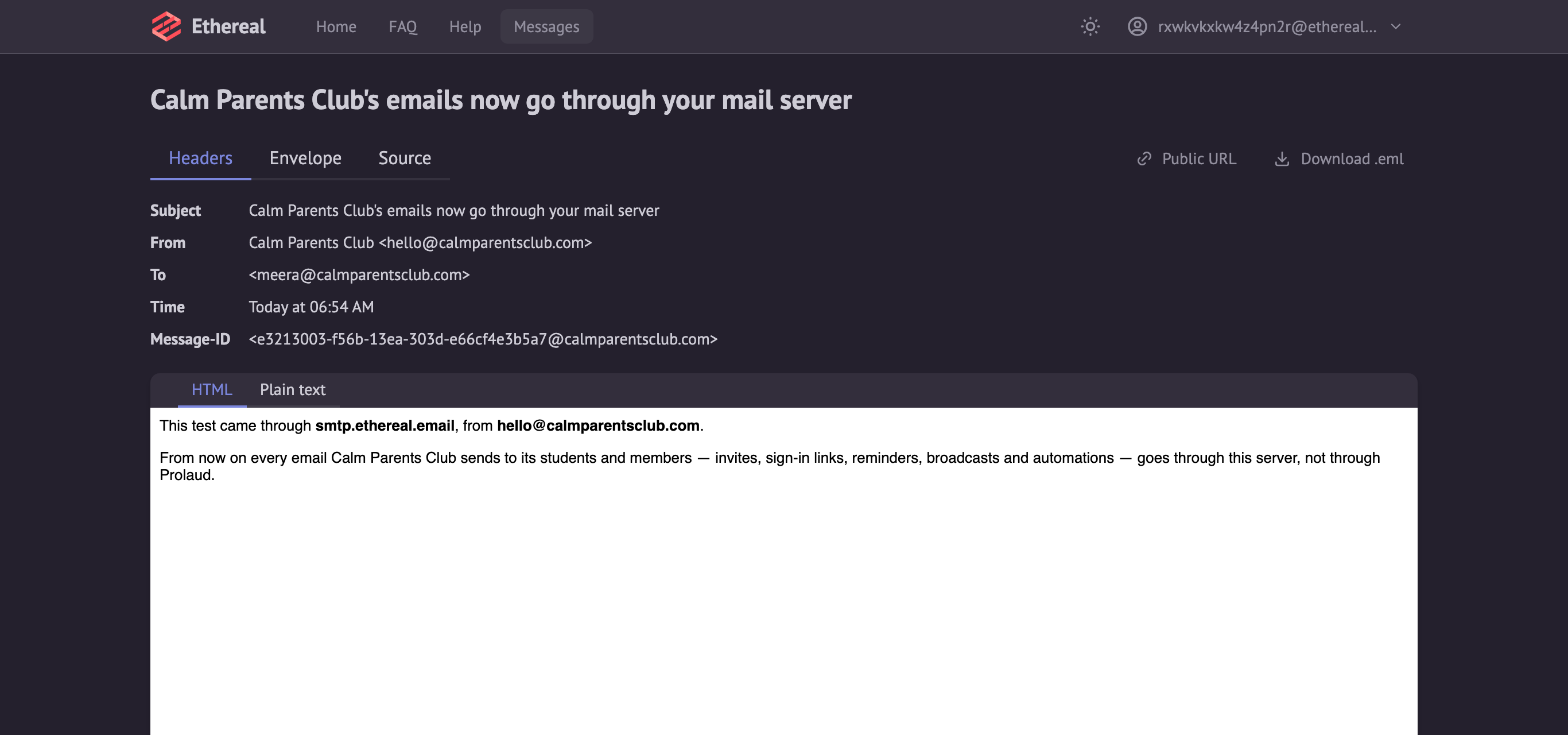
If your SMTP server refuses an email
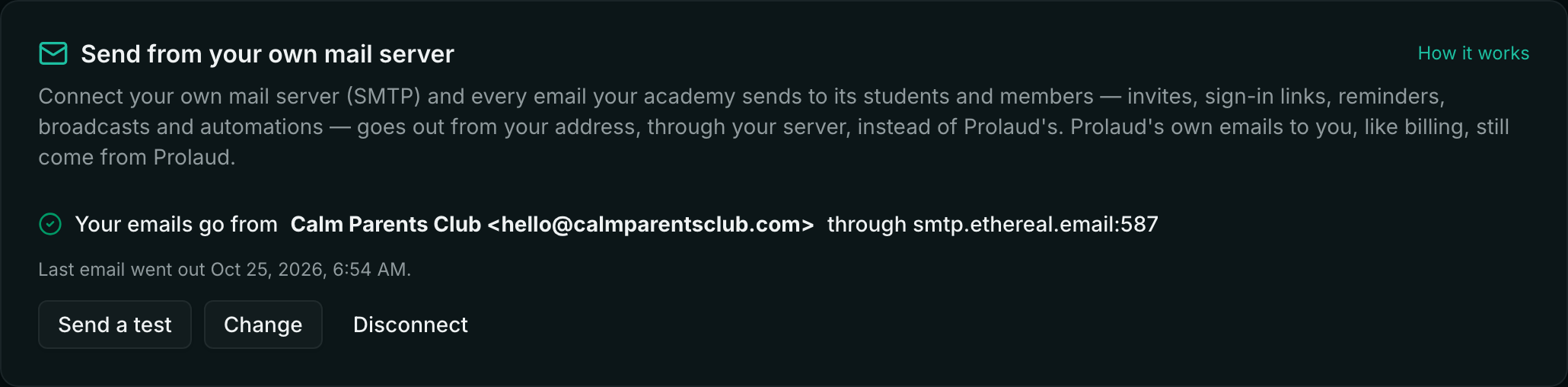
Prolaud does not quietly send it another way: with custom SMTP, your academy's emails go only through your server. The card in Settings shows what your server said and how many emails it refused, and Prolaud emails you about it (at most twice a day). Fix the problem and choose Send a test, or Disconnect to have Prolaud send your emails again.
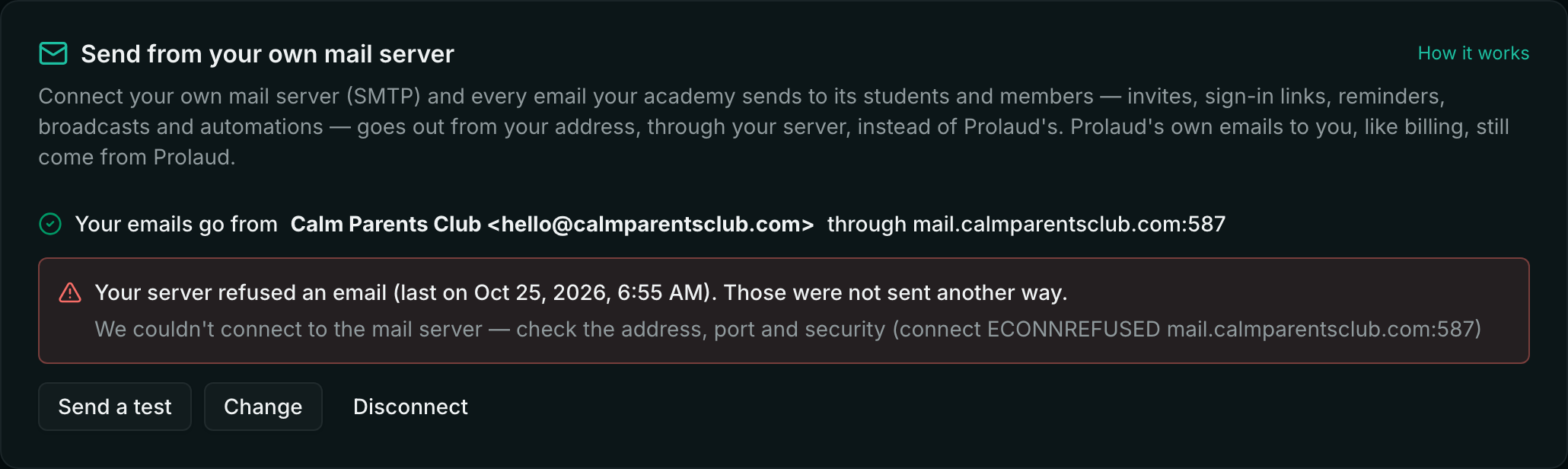
Common SMTP errors and how to fix them
- "The mail server refused the username or password" (535) — the password is wrong or not allowed. Gmail, Yahoo and Zoho need an app password; Microsoft 365 needs Authenticated SMTP turned on for the mailbox.
- 550 5.7.30, "Basic authentication is not supported" — Microsoft 365 no longer accepts a password for sending on this account. Use a sending service (Zoho ZeptoMail, Brevo, Amazon SES) with your same From address.
- "We couldn't connect to the mail server" (connection refused or timed out) — the host or port is wrong, or the provider blocks that port. Try port 587 with STARTTLS, or 465 with SSL/TLS.
- "The secure connection failed" — the security doesn't match the port: 465 needs SSL/TLS, 587 needs STARTTLS.
- 550 or 553, "sender address rejected" — your account isn't allowed to send as that From address. Use the account's own address, or verify the alias or domain with your provider.
- 421, 452 or "daily limit exceeded" — you've reached your provider's sending limit. Wait for it to reset, or move to a sending service such as Amazon SES, Brevo or ZeptoMail for larger lists.
Sending limits and deliverability
- Know your limit. Gmail allows about 500 emails a day and Google Workspace about 2,000; free plans of sending services are smaller. A broadcast to a large list can use a day's allowance, so for big lists use a sending service built for volume.
- Authenticate your domain. If you send from your own domain, add the SPF and DKIM records your provider gives you, and a DMARC record. Gmail and Yahoo expect this from anyone sending regularly. A Gmail address sending as itself is already authenticated by Google.
- Send from an address people recognise, and keep the same one: a changing From address looks like spam.
Change or disconnect your SMTP server
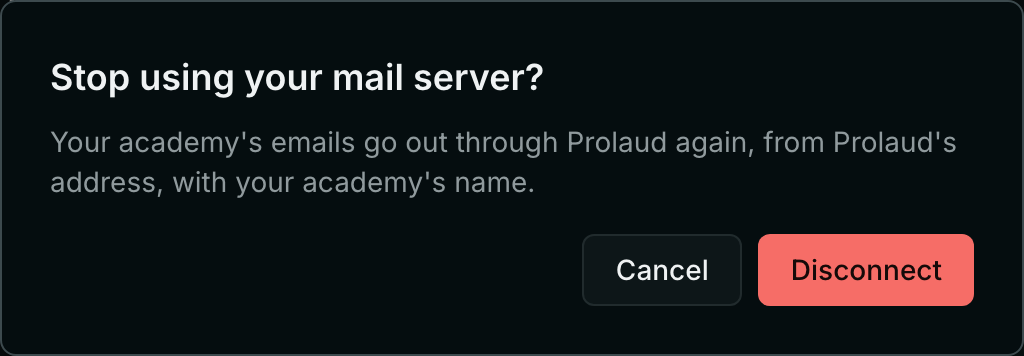
Choose Change to edit the settings; leave the password box empty to keep the saved password. The new settings are checked with a test email too. Choose Disconnect to stop using your server: from the next email, Prolaud sends your academy's emails again, with your academy's name.
- What is custom SMTP?
- It means your academy's emails are sent through your own mail server (like Gmail, Google Workspace, Microsoft 365 or Zoho) instead of Prolaud's, so they come from your own address and domain.
- Is custom SMTP free on Prolaud?
- Yes. It's included on every plan at no extra charge. Your mail provider may have its own limits or prices — Gmail is free for about 500 emails a day.
- Can I use my Gmail account as my SMTP server?
- Yes. Use smtp.gmail.com, port 587, STARTTLS, your Gmail address as the username, and an app password from myaccount.google.com/apppasswords. Send from your Gmail address.
- Which emails use my SMTP server?
- Every email your academy sends to its students and members: invitations, members' sign-in links, password resets, reminders, notices, messages, receipts, certificates, broadcasts and automations. Prolaud's own emails to you, and sign-in emails for you and your teachers, still come from Prolaud.
- What happens if my SMTP server stops working?
- The email is not sent another way. Settings shows what your server said, Prolaud emails you about it, and you can fix the settings or disconnect to have Prolaud send your emails again.
- Do I need to change my DNS records?
- Not for Prolaud. Your mail provider may ask you to add SPF and DKIM records for your domain so your emails are trusted; a Gmail address sending as itself needs nothing.
- Should I use port 587 or 465?
- Either works if the security matches: 587 with STARTTLS, or 465 with SSL/TLS. Most providers recommend 587.
- Can I use Microsoft 365 or Outlook?
- For now, with Authenticated SMTP turned on for the mailbox. Microsoft is turning off password sign-in for sending by default at the end of December 2026, so for a Microsoft 365 domain we recommend a sending service such as Zoho ZeptoMail, Brevo or Amazon SES, sending from your same address.
- Is my SMTP password safe?
- It's stored encrypted, it is never shown again after you save it, and only the academy owner can change or remove the server.
- Can I go back to Prolaud sending my emails?
- Yes. Choose Disconnect in Settings. From the next email, Prolaud sends them again with your academy's name.
Related