For creators
Take webinar registrations on your site
Add a registration form to a page on your Prolaud site and every sign-up is saved to your CRM as a contact, tagged with the webinar's name, and sent a confirmation email with the joining link. It takes one page, one form section and one automation.
Last updated Oct 20, 2026
The short version
- The form is the Email opt-in section in the page builder. It asks for an email (required) and a name, phone number and message (all optional).
- Each sign-up is saved on the server as a contact in Marketing, tagged lead plus any tag you choose, and also appears in your Lead inbox with a notification to you.
- An automation on that tag emails each person the joining link the moment they register.
- The form, the CRM and automations are on every plan.
- Have a website built somewhere else? You can put the sign-up form on it too: Lead inbox → Embed a form gives you the code to paste.
1. Create a page for the webinar
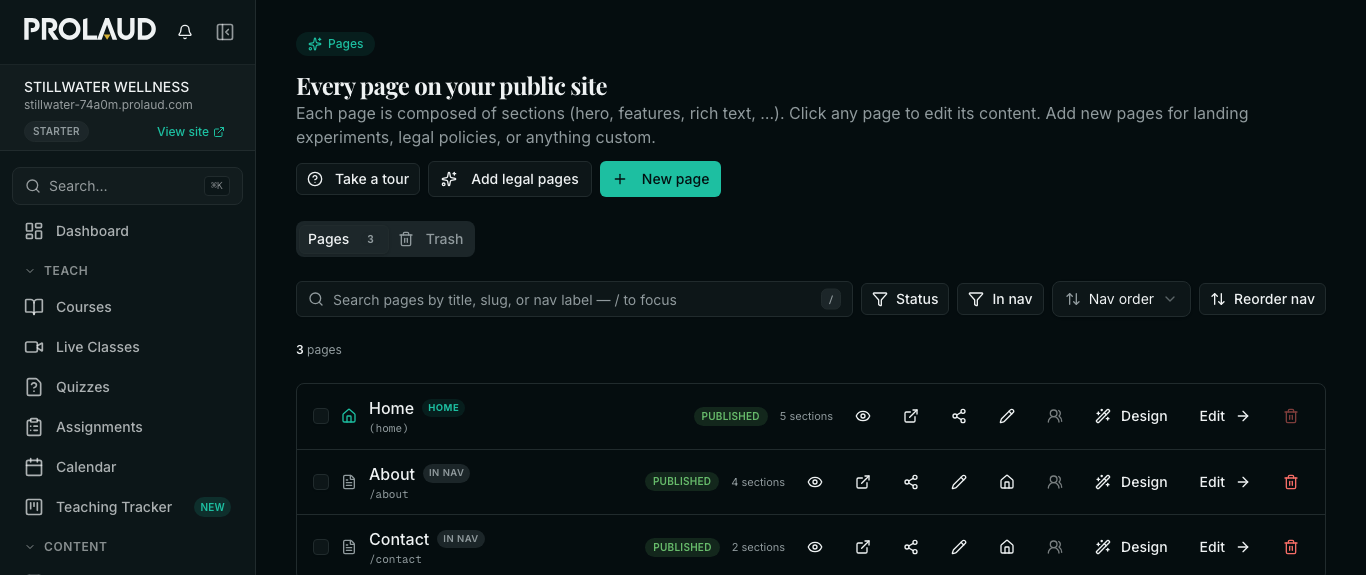
- In the sidebar, open Public Site → Pages and click New page.
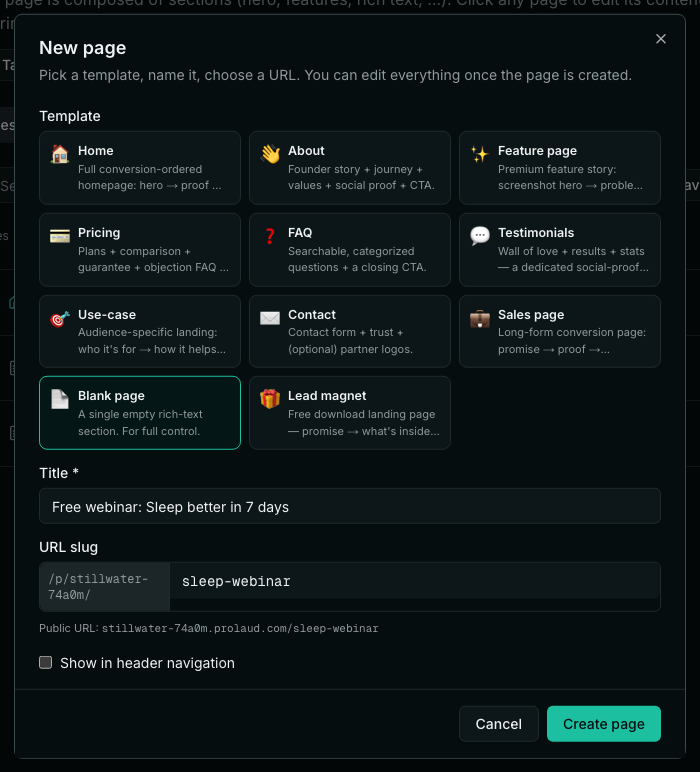
- Pick the Blank page template (or Lead magnet if you want a fuller layout to start from).
- Give it a title and a short URL slug, for example sleep-webinar. The slug becomes the page's address.
- Untick Show in header navigation if this is a page you will link to from elsewhere and don't want in your site menu.
- Click Create page. The page opens in the editor.
2. Add the registration form
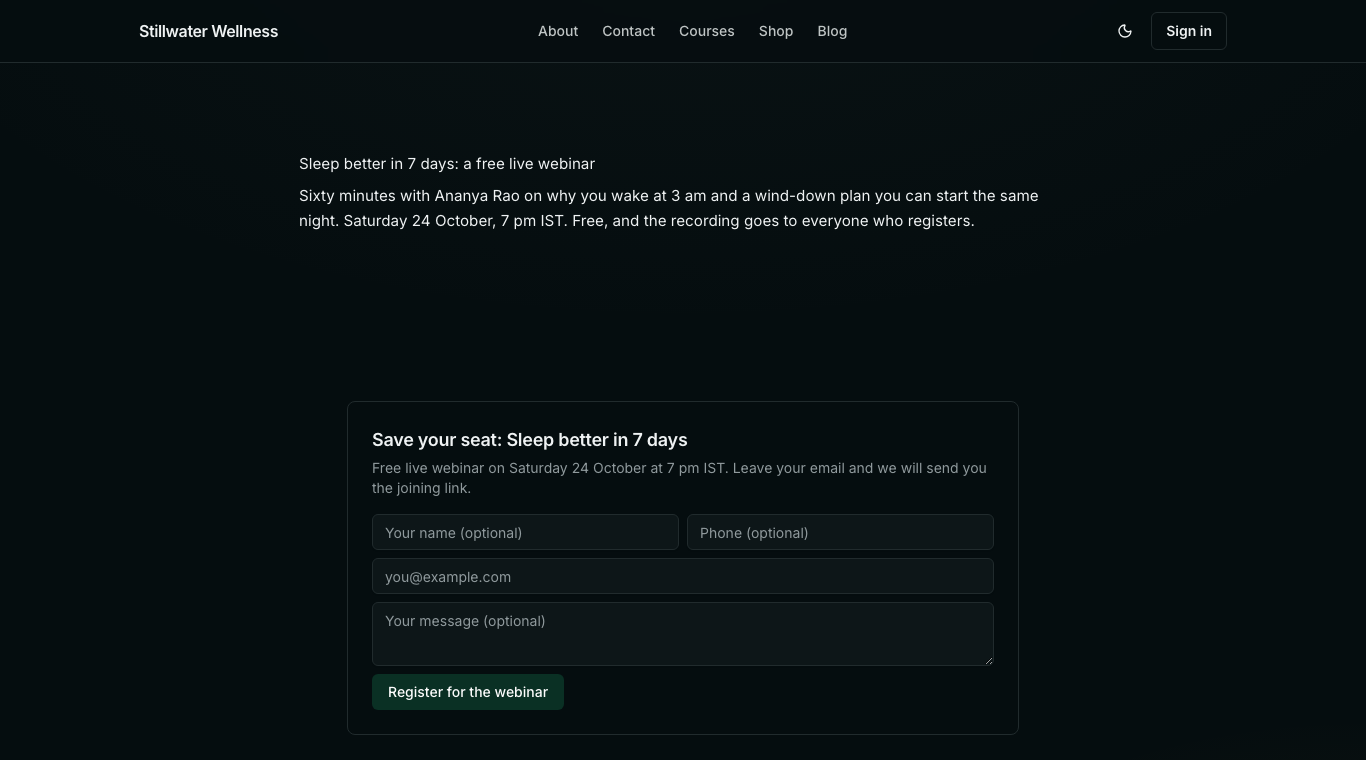
- A blank page starts with one Rich text block. Click it and replace the placeholder with what the webinar is, who is running it, and the date and time.
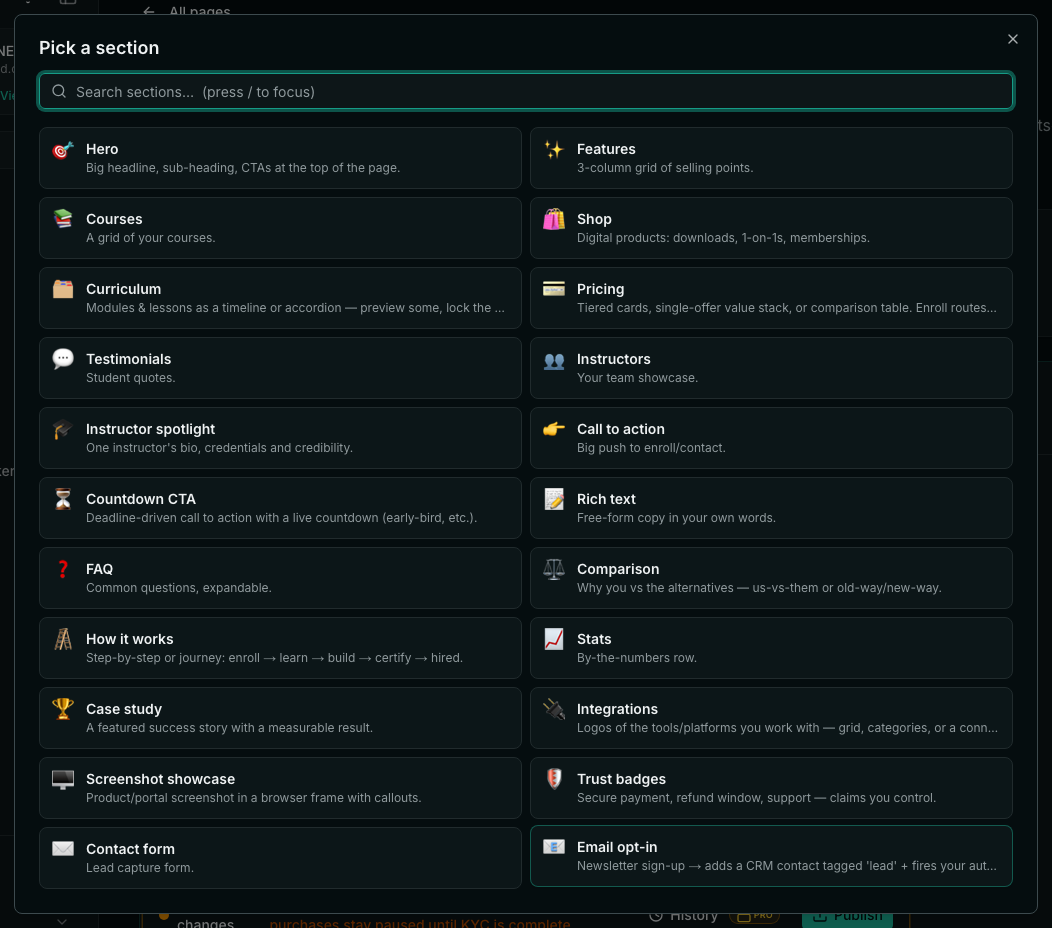
- Click Add section and choose Email opt-in.
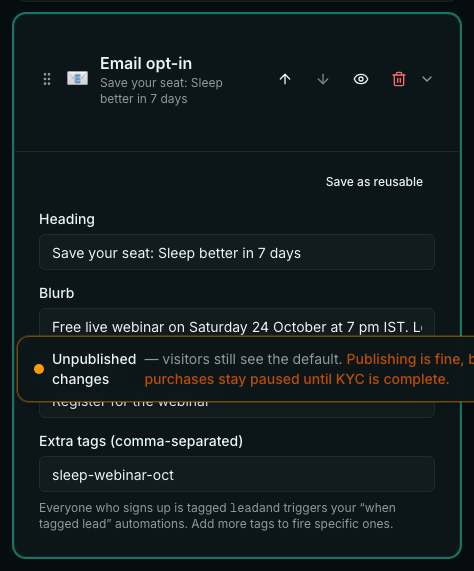
- Heading and Blurb: say what they are signing up for and when it happens.
- Button label: change Subscribe to something like Register for the webinar.
- Extra tags: type one tag for this webinar, for example sleep-webinar-oct. This is what lets you find exactly these people later, and what the confirmation email is triggered by.
- Click anywhere outside the last field you typed in. Each field saves when you leave it.
3. Publish the page, then the site
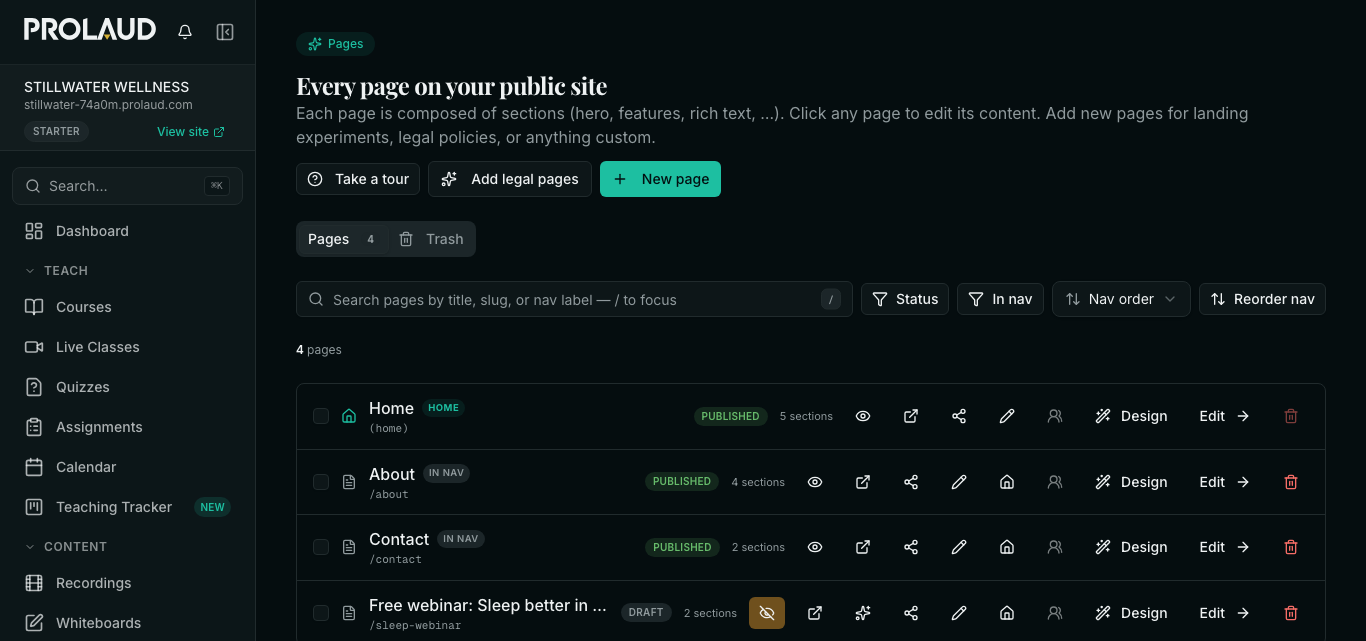
A new page starts as a draft, and a draft answers “Page not found” to visitors. Publishing takes two clicks, in this order.
- Go back to Public Site → Pages. The new page shows a Draft badge. Click the crossed-eye icon in its row to publish the page.
- If a bar reading Unpublished changes is showing at the bottom of the screen, click Publish on it. That pushes your changes to the live site.
- Open the page's address in a private browser window to check it as a visitor would.

The page's address is your site's address followed by the slug: yourname.prolaud.com/sleep-webinar, or the same path on your own domain if you have connected one.
4. Send the joining link automatically
After registering, the visitor sees “You're on the list”. Nothing is emailed to them until you create an automation, so do this before you share the page.

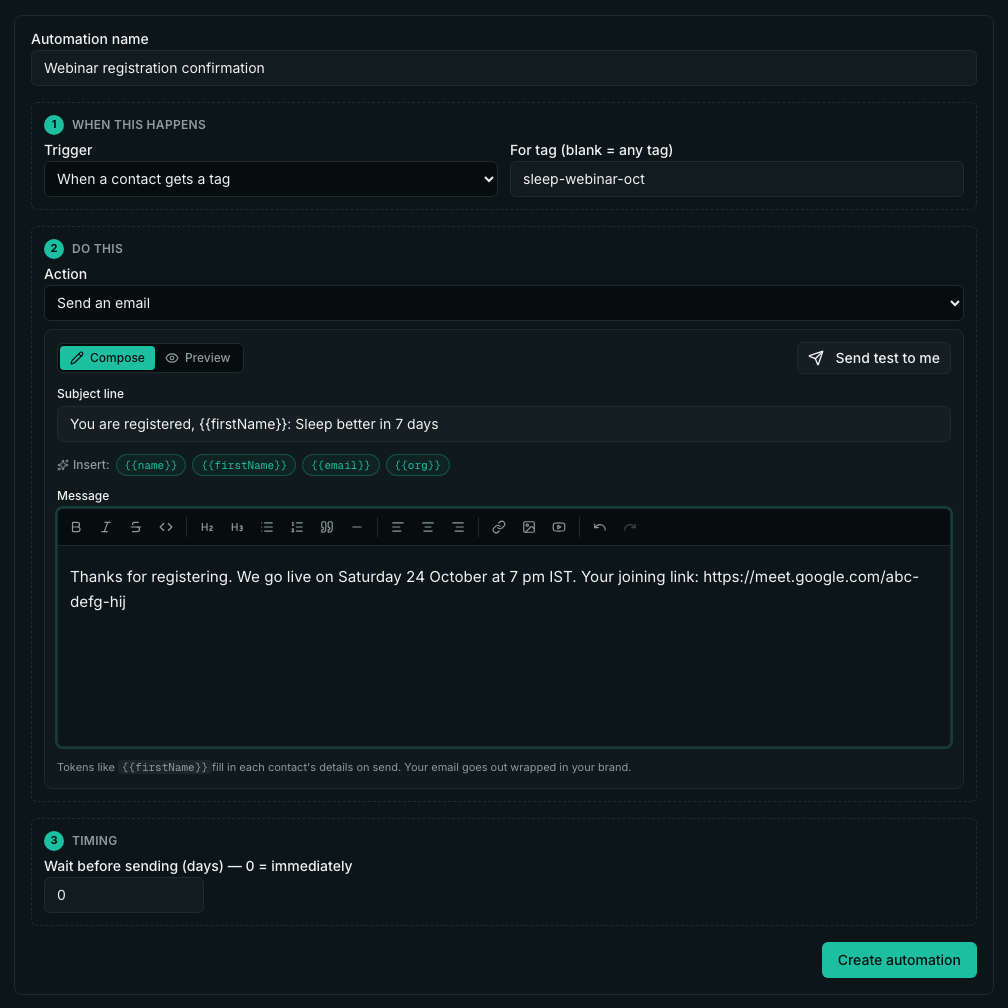
- Open Marketing in the sidebar (under Grow) and go to the Automations card.
- Trigger: When a contact gets a tag. For tag: the tag you typed on the form, for example sleep-webinar-oct.
- Action: Send an email. Write the subject and the message, and paste your Zoom, Meet or Teams link into the message. {{firstName}} fills in each person's name.
- Leave Wait before sending at 0 so it goes out immediately, then click Create automation.
- Use Send test to me to see the email in your own inbox first.
5. See who registered, and remind them
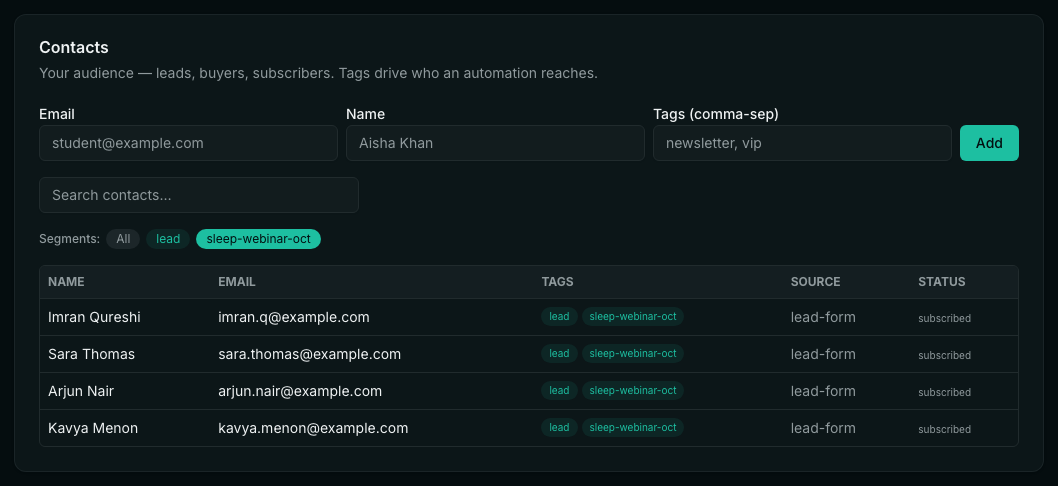
- Marketing → Contacts lists every registrant with name, email, tags and source. Click the webinar's tag next to Segments to show only that webinar's sign-ups.
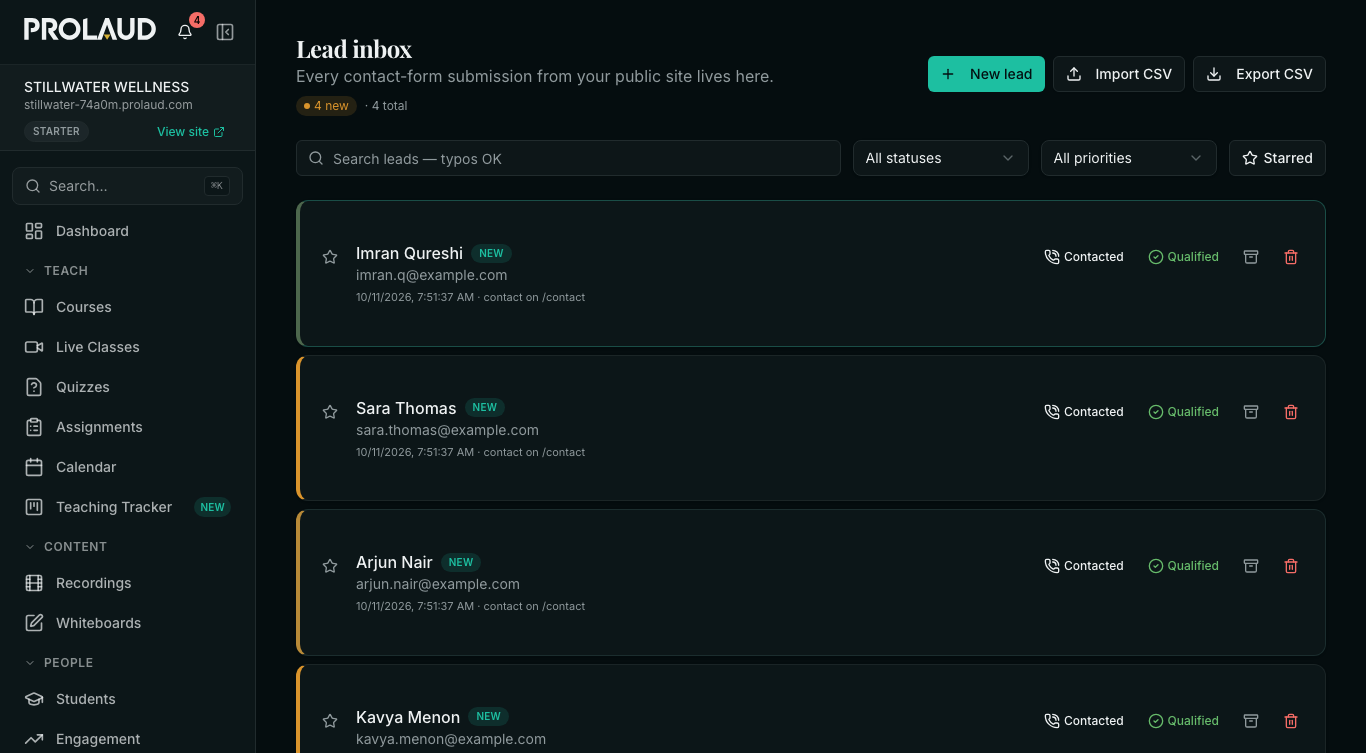
- Public Site → Lead inbox shows the same people as an inbox, newest first, with any message they wrote. You also get a notification and an email for each new sign-up.
- To send a reminder the day before, use Broadcast on the Marketing page: choose Email or WhatsApp, set Send to to the webinar's segment, write the message and send it now or schedule it.
Using it from another website
If your main website is built somewhere else, keep it. There are two ways to take sign-ups from it.
- Put the form on your own page. Open Public Site → Lead inbox and click Embed a form. Set the heading, the button and a tag for this webinar, then click Copy code and paste it into your website where the form should appear. In an AI page builder, ask it to add the code as an HTML embed.
- Or link to your Prolaud page. Put a Register button on your site and point it at the address of the webinar page you made above.
Either way the visitor lands in your Lead inbox and in Marketing contacts with the tag you set, and the automation on that tag sends the joining link. A sign-up from the embedded form is marked with the website it came from.
Charging for the webinar
For a paid event, sell it as a product. The buyer pays at checkout and the webinar is added to their library.
- Open Storefront in the sidebar. A new workspace is asked to add the Storefront plugin first; it is free.
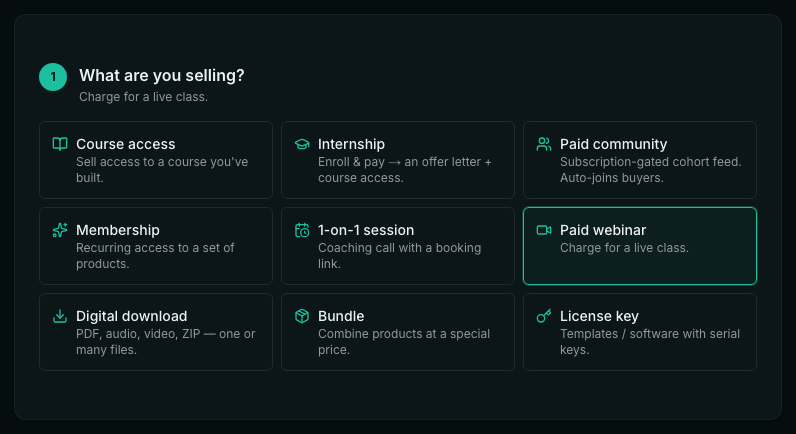
- Click New product and choose Paid webinar under What are you selling?
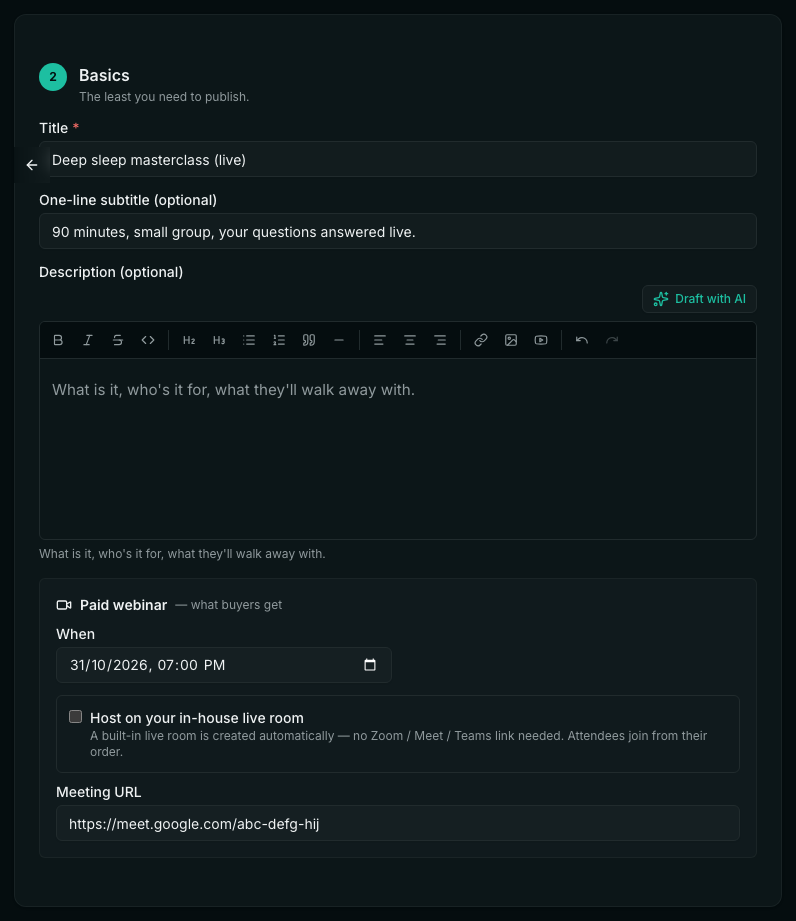
- Fill in the title, then When (date and time). Either tick Host on your in-house live room, or paste your Meet, Zoom or Teams link into Meeting URL.
- Under Price, choose One-Time and enter the amount.
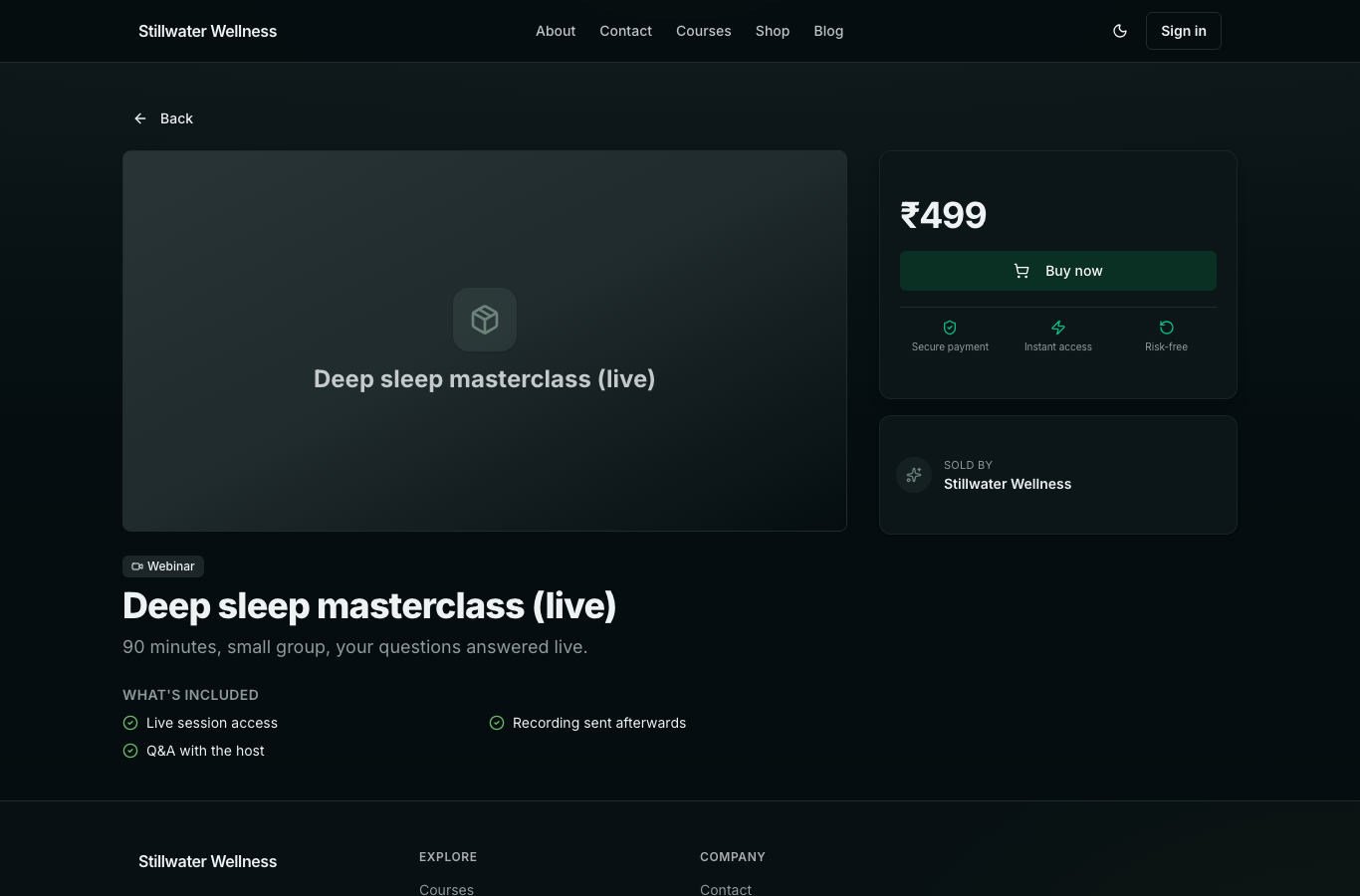
- Click Publish. The product gets its own page in your shop with a Buy now button; link to that page from anywhere.
Common questions
- Can I embed the Prolaud registration form on my own website?
- Yes. Open Public Site → Lead inbox, click Embed a form, set the wording and a tag, and copy the code into your website. Sign-ups from it are saved to your Lead inbox and Marketing contacts, tagged with the tag you set.
- Where do webinar registrations go?
- Each one is saved as a contact under Marketing → Contacts, tagged lead and the tag you set on the form, and it also appears in Public Site → Lead inbox. You get a notification and an email for every new sign-up.
- Does the person who registers get a confirmation email?
- Only if you create an automation for it. In Marketing, set the trigger to When a contact gets a tag with your webinar's tag, and the action to Send an email containing the joining link. It is sent as soon as they register.
- What details does the form collect?
- Email is required. Name, phone number and a message are optional. These four fields are fixed; you can change the heading, the blurb and the button label.
- My webinar page says “Page not found”. Why?
- A new page starts as a draft. Publish the page from its row in Public Site → Pages, then click Publish on the Unpublished changes bar if it is showing.
- How do I keep one webinar's sign-ups separate from another's?
- Give each form its own tag in Extra tags, such as sleep-webinar-oct. In Contacts, click that tag to see only those people, and choose it under Send to when you send a Broadcast.
- Can I run a paid webinar?
- Yes. Create a Paid webinar product in Storefront with a date, a meeting link or the in-house live room, and a price. Buyers pay at checkout through your own Stripe or Razorpay account.
Related