How do I protect course videos with watermarks and device limits?
A watermark makes a leak traceable; a device limit makes a shared login stop working. Neither blocks a screen recorder. Here is what each control stops, how to set them up, and what to tell your students.
The short answer
Turn on a per-student watermark and a per-student device limit, and serve video through a player that offers no download button and links that expire. A watermark that shows each viewer's own name and email doesn't stop anyone recording the screen, but it makes every leaked copy name the account it came from, which is what deters most students. A device limit of two or three stops one paid login being shared around a study group, and every shared login is a lost sale. Neither control, and no browser-based platform, can block screenshots or screen recording. In Prolaud, both controls live on one academy-wide card, Settings → Security & Content Protection. The watermark is on for new academies, but it shows the owner's details until you switch it to each student's own, and the device limit stays at unlimited until you set a number. Both are on every plan, and Prolaud takes 0% of your course sales.
Short answer. A watermark doesn't prevent copying. It makes a copy traceable, and when it shows the viewer's own name and email, students know any recording they make will identify them. A device limit doesn't stop a student recording their screen either. It stops one paid account being used on ten phones, a common way paid courses spread without anyone copying a file.
Use both, with a player that has no download button and video links that expire, and accept that nothing in a web browser blocks screen recording. In Prolaud, both are settings on one academy-wide card, and the rest of this guide shows how to set them up on any platform.
I'm Renu Rawat, and we build Prolaud, so I have a stake in this topic. The guidance below is written to work on whatever platform you use. Where I describe Prolaud, I describe exactly what the product does today, including what it can't do.
What are you actually protecting against?
"Piracy" is four different problems, and each control solves at most one or two of them. Before you switch anything on, decide which of these you're seeing or worried about:
- Link sharing. A student copies the video's address out of the page and posts it. If that address is permanent and public, anyone can watch it forever without paying or signing in.
- Account sharing. A student gives their email and password to three friends, or splits one purchase across a WhatsApp group. Nobody copies a file. They all just sign in. For coaching institutes and test-prep courses it can be the most expensive leak, because every shared login is a lost sale.
- File download. A student saves the actual video file, either from the browser's built-in "Save video as" menu or a download-manager extension, and then has a clean copy to re-upload or sell.
- Screen and camera capture. A student plays the lesson and records it with screen-recording software, or films the monitor with a phone. The copy is worse quality, but it's a copy.
Notice what's missing from that list: a determined professional pirate with technical skill. You can't stop that person, and nor can anyone selling you a course platform. The realistic goal is to stop the casual, high-volume leaks (shared logins, forwarded links, saved files) and to make the rest traceable, so that the student who records a lesson knows it can be traced back to them.
What does a watermark actually do?
A watermark is text drawn over the video while it plays. It doesn't change the file and it doesn't block anything. Its whole job is to make sure any recording carries information about where it came from. There are two very different kinds, and the difference matters more than any other setting:
- A brand watermark shows the same thing to everyone, such as your academy's name, your logo or your email. A leaked recording shows that it came from your course, which helps when you file a takedown request. But it can't tell you which of your 400 students leaked it.
- A per-viewer (dynamic) watermark shows each signed-in student their own name, email or ID, often with the date and time. Two students opening the same lesson see two different watermarks. A leaked recording identifies the account it came from, and, more usefully, the student sees their own name on screen while they watch.
The deterrent is that second effect. A student who would happily share a clean file has a reason to think twice about sharing a video with their own email tiled across it. A per-viewer watermark works best when it is:
- Taken from the server, not the browser. If the name comes from something the student can edit on their side, they can change it before recording. Ask your platform where the watermark identity comes from.
- Moving or tiled. A single fixed stamp in one corner can be cropped or blurred out. A pattern across the whole frame, or a stamp that changes position every few seconds, is much harder to remove.
- Still there in fullscreen. Some players draw the watermark on the page, outside the video, so it disappears the moment the student goes fullscreen, which is exactly when they'd record.
- Faint enough to watch through. Students have to learn from the video. Somewhere around 20–30% opacity is usually visible on a recording without getting in the way of the lesson.
- On PDFs and recordings too. A watermarked video next to a clean, downloadable workbook protects the less valuable half of your course.
What does a device limit actually do?
A device limit caps how many devices one student account can be signed in on. Set it to two, and a student can use a phone and a laptop. When a third device tries to sign in, it's refused. The point isn't to stop copying. It's to make a shared password stop working, which turns account sharing from free into inconvenient.
There are two common designs, and it's worth knowing which one your platform uses:
- Registered devices. The platform remembers each device a student signs in on, up to the cap. A new device beyond the cap is refused until a slot is freed. This stops a login being passed around, even if the sharers take turns.
- Concurrent sessions. The platform only limits how many devices can be signed in at the same moment ("parallel login restriction"). Sharers who take turns get through, but two people can't watch at once.
Neither design is unforgeable in a web browser. A website recognizes a device by something stored in that browser, so a student who clears their browser data or opens a private window can look like a new device. That's fine.
The study group that shares one login isn't going to coordinate clearing site data and taking turns. A device limit is a strong deterrent against casual sharing, not a lock against a determined individual. Anything stronger needs a native app that can check the hardware itself.
A device limit also pairs well with a two-step sign-in code sent to the student's email. A friend who has the password still needs the code from the student's inbox, which makes casual sharing awkward without involving any hardware checks.
Which control stops which threat?
| Control | Link sharing | Account sharing | File download | Screen or camera capture |
|---|---|---|---|---|
| Per-viewer watermark | No | No | No | Doesn't block it, but names the account in the copy |
| Brand watermark | No | No | No | Doesn't block it; shows the source, not the student |
| Device limit per student | No | Yes, for casual sharing | No | No |
| Two-step sign-in code by email | No | Partly (the friend also needs the inbox) | No | No |
| Signed, expiring video links | Yes | No | Partly (no permanent address to grab) | No |
| Player with no download menu | No | No | Stops the easy routes | No |
| Copy, right-click and print blocking | No | No | Stops casual saving of text and images | No |
| DRM (Widevine, FairPlay, PlayReady) | Yes | No | Yes, the file won't play elsewhere | Not on its own in a browser |
| Screenshot blocking in an installed app | No | No | No | Blocks the device's own recorder; not a camera |
Two things stand out. First, account sharing is only handled by sign-in controls, never by anything you do to the video file, so a platform with heavy video encryption and no device limit leaves the most common leak wide open. Second, nothing in the right-hand column is fully solved. The watermark is what's left to do there, because it's the only control that still works after the recording has been made.
What can't any platform stop?
Be suspicious of any product that promises "piracy-proof" or "100% secure" video. Here's what no setup can guarantee:
- A camera pointed at a screen. No software on the student's device can see it. A watermark is the only thing that survives into that copy.
- Screen recording in a desktop web browser. An ordinary web page can't stop the operating system from recording the screen; only hardware-backed DRM playback (such as FairPlay in Safari or Widevine L1) can black out the video in a capture. On phones, Android lets an installed app block screenshots and recording, while iOS only lets an app detect a capture and hide its content. If a platform says it blocks screen recording, check whether that's only in its own app.
- Developer tools. Right-click, copy and text-selection blocking are friction for ordinary users. Anyone who opens the browser's developer tools can get around them.
- A student who reads the course aloud to a friend. Some leaks are just people. Your terms of use and your relationship with your students cover these, not your software.
Platforms built around a native app can go further on capture. As of November 2026, TrainerCentral's own blog says screenshot and screen-recording restrictions are on by default in its learner apps, and that its device restrictions can make protected content open only in those apps, blocking desktop browsers. It also says, fairly, that watermarking "cannot prevent every attempt to share content."
Learnyst's homepage lists DRM security, preventing screenshots and screen recording, a multi-device limit and parallel login restriction. If blocking capture on phones is a hard requirement, for example a national test-prep series that's worth reselling, look at app-based platforms like these and test them on a real phone. If your students mostly watch on laptops, remember that the app requirement is also a barrier for your honest buyers.
How do I set this up, step by step?
This order works on most platforms. It starts with what costs nothing and helps most, and leaves the optional extras for last.
- Upload your videos to the platform rather than linking an unlisted YouTube or Vimeo video. An unlisted video is public to anyone who has its address, and that address can be found and shared. Files your platform stores and serves can be protected; files on someone else's service follow that service's rules.
- Check that playback uses expiring links. Open a lesson, copy the video's address if you can find it, and try it the next day in a private window. A permanent address is a permanent leak.
- Turn on a per-viewer watermark. Pick the viewer's name and email, plus the date and time. Choose a tiled or moving style. Set opacity low enough to watch through.
- Set a device limit. Two suits most adult learners (phone and laptop). Three suits families sharing a tablet, or students who switch between home, college and a phone. One is very strict: it means one device at a time.
- Turn on copy, right-click, print and drag-save blocking if your platform has them, especially for PDFs and worksheets. They're friction, not walls, but they stop the casual "select all, copy" from a notes PDF.
- Protect PDFs, recordings and attachments with the same policy. A locked video next to a downloadable workbook leaks the workbook.
- Consider an emailed sign-in code for courses where account sharing is common.
- Test as a student. Make a test student account, enroll it, and open a lesson on your phone and laptop. Check the watermark shows the student's details in fullscreen, then try a third device to see the refusal message your students will get.
- Write it into your terms and your welcome message. More on that below.
What happens when a student changes phones?
This is the part most guides skip, and it's where device limits cause the most support messages. Students lose phones, get new laptops, reinstall browsers and use a library computer once. With a cap in place, each of those can look like a new device and get refused. Plan for it before you switch the limit on:
- Know where the reset button is. Your platform should let you clear a student's registered devices without deleting their account or progress. Find it before the first message arrives.
- Check whether signing out frees a slot. On a good implementation, a student who signs out of an old device can move to a new one without contacting you. If signing out doesn't free the slot, every phone upgrade becomes a support ticket.
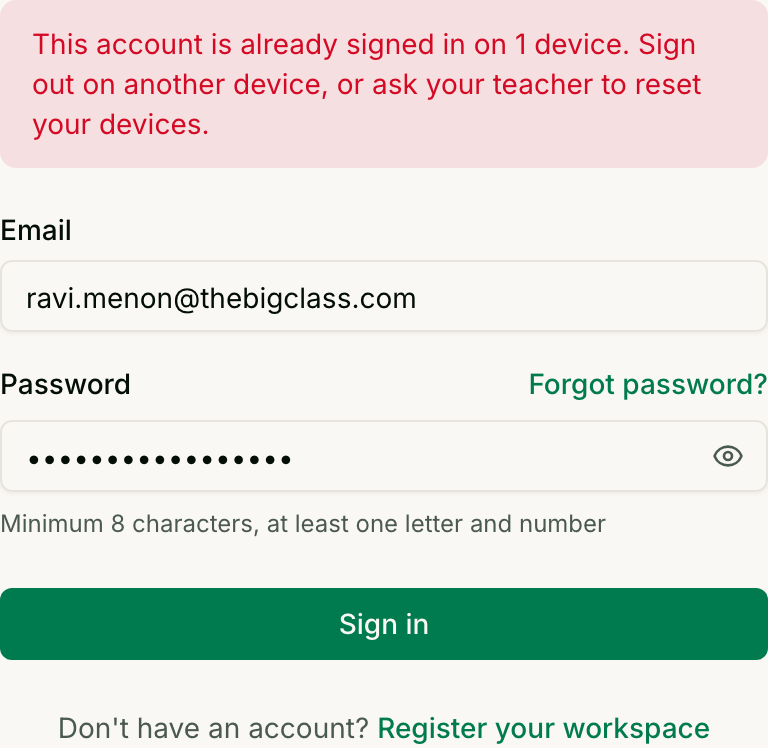
- Make the refusal message say what to do. A student refused with "login failed" thinks the course is broken. A message that says "sign out on another device, or ask your teacher to reset your devices" turns a complaint into a 30-second fix.
- Don't set the cap at one unless you mean it. A limit of one works for strict exam-prep, but a student watching on a laptop who opens the course on their phone to check something will hit it immediately.
- Watch out for existing sessions. If you add a limit after launch, ask whether students already signed in on many devices are re-checked, or whether the limit only applies to new sign-ins. Otherwise the shared logins you want to stop keep working.
What should I tell my students?
Protection that students don't know about only works after a leak. Protection they do know about works before one. Tell them plainly, once, when they join, for example in your welcome email or the first lesson:
Your account works on up to two devices. If you get a new phone, sign out on the old one first, or message me and I'll reset your devices. Every lesson shows your name and email, so please don't share recordings or your login. If you need access for a family member, ask me and we'll sort it out.
That message does three things. It tells honest students how to avoid getting locked out. It tells would-be sharers that a recording would identify them, without accusing anyone. And it offers a legitimate route for the family-member case, which is behind more account sharing than people expect.
Back it up with a line in your terms of use saying the account is for one person and that shared or redistributed content can lead to access being removed, so you have something to point to when you need it.
When a leak does turn up, a per-viewer watermark tells you whose account it was. The calm response usually works: message the student, show them the screenshot, and reset or suspend the account depending on your terms. For copies posted publicly, the watermark and your course name support a takedown request to the site hosting it.
How do I set this up in Prolaud?
In Prolaud, content protection is one academy-wide policy, not a per-course switch. Every setting below is on one card. A new academy starts with content protection on and the watermark showing the owner's details. Right-click, text selection, copy, print and drag-save blocking are all off, and the device limit is 0, which means unlimited. So two of the most useful settings need you to change them.
- Open Settings and scroll to Security & Content Protection. You need to be an admin of the academy to see it.
- Check Enable content protection is on. It turns on the copy, print and drag controls you pick below it.
- Switch on Show dynamic watermark. Under Whose details it shows, choose Each student's own. The default, Yours, shows the academy owner's name and email to everyone, which marks a recording as yours but can't tell you who made it.
- Under What to show, keep Name, Email and Date & time ticked. Set Opacity — how visible (the lowest is 10%) and pick a Display style: Tiled pattern across the whole frame, or Corner stamp, a single line that moves every few seconds. Your own text isn't used while the watermark shows each student's details, because it would cover their name.
- Switch on Disable right-click, Disable text selection, Disable copy, Disable print and Disable drag-save.
- In Devices per student, type a number, such as 2. Leave it at 0 for unlimited.
- Optionally, switch on Require Email OTP for everyone, which asks every member for an emailed 6-digit code at sign-in.
- Click Save security policy. It applies to students the next time they load a page. There's nothing to re-upload.

Once it's on, the watermark is taken from the signed-in session on Prolaud's server, not from anything the student can edit in the browser, and it stays over the video in fullscreen. Visitors who aren't signed in, such as someone watching a free preview lesson, see the academy owner's details instead. Uploaded videos and class recordings play in Prolaud's own player, which has no download menu, no right-click, no drag-out, no picture-in-picture and no casting.
They play from short-lived signed links (six hours by default), which Prolaud's server creates for each viewer only after checking they belong to your academy. With protection on, PDFs are shown as page images with no text layer and no viewer toolbar, so there's nothing to select, copy, download or print, and the watermark sits on top.
PowerPoint and Word files aren't displayed while protection is on, because showing them would mean sending them to Microsoft's online viewer, so export decks to PDF.
The device limit applies to students only. Teachers and admins are never capped. A device a student has used before is always allowed. A new device beyond the cap is refused with a message telling the student to sign out on another device or ask their teacher to reset their devices, and the refused attempt doesn't use up a slot.
Signing out on a device gives its slot back, so a student can move to a new phone without you. If they've lost the old one, go to Students, open the ⋯ menu on their row, and choose Reset devices. Their progress and enrollments don't change. If you add a limit after students have already signed in on many devices, the extra sessions are refused once the slots are full, so the limit applies to existing sharers too.
One trap: in the lesson editor, the same field that takes an upload also accepts a YouTube, Vimeo, Loom or Bunny link. A pasted link plays inside Prolaud's player, but the video itself lives on that service, so it isn't stored privately or served through signed links, and anyone who finds the original address can watch it there with no watermark.
Upload the file if protection matters. For the full mechanism, setting by setting, see Content security: exactly what is protected, and where. To change how the watermark looks, see the lesson video watermark guide. If you're still choosing a platform, our plain-language guide to DRM and leak prevention explains when DRM is worth it.
What are the honest limits of this setup?
Here's what the Prolaud setup above doesn't do. Most of these are true of any browser-based platform.
- It isn't DRM. Prolaud doesn't use Widevine, FairPlay or PlayReady at any level. If a contract or content licence requires DRM, choose a platform built around it.
- It doesn't block screenshots or screen recording, on desktop or mobile. Prolaud is a web app students can add to their home screen. It has no Play Store or App Store app, so it can't ask the phone to block capture. The watermark is the answer to capture: the recording happens, but it names the account.
- Copy and right-click blocking can be bypassed with developer tools. They stop casual copying, not a technical user.
- The device limit is a deterrent, not a lock. A device is recognized by a value stored in the browser, so clearing browser data or using a private window looks like a new device.
- There's no offline download mode, so there's no encrypted offline copy for students who want to watch without internet.
- It's one policy for the whole academy. You can't protect one course strictly and leave another open.
A practical way to read that list: if most of your revenue comes from live classes, feedback and community, the part students value most can't be copied anyway, and a per-viewer watermark plus a device limit covers the recorded half well. If your business is one high-value recorded series that people would pay to resell, test an app-based platform with DRM and capture blocking on a real phone before deciding.
Checklist: is my course video protected?
- Videos are uploaded to the platform, not linked from public or unlisted YouTube or Vimeo.
- A copied video address stops working after a few hours, or can't be found at all.
- The player has no download option, and right-clicking the video doesn't offer "Save video as".
- The watermark shows each student's own name or email, not just your brand.
- The watermark is still visible in fullscreen, on a phone and on a laptop.
- The watermark is tiled or moves, so it can't easily be cropped out.
- A device limit is set (two or three for most courses), and you've tried signing in on one device too many.
- You know where the reset-devices button is, and whether signing out frees a slot.
- PDFs, worksheets and class recordings are covered by the same policy as videos.
- Your welcome message tells students the device limit and that lessons carry their name.
- Your terms of use say the account is for one person and what happens if content is shared.
- You've accepted that nothing in a browser blocks screen recording, and you aren't paying for a promise that it does.
Set up a watermark and device limit in a few minutes
Every Prolaud academy has the Security & Content Protection card. Try it with a test student before your next launch.
Start your trialSources
- How to protect your online course content · TrainerCentral · read 25 November 2026
- Learnyst homepage · Learnyst · read 25 November 2026

Renu Rawat
Founder of prolaud.com. Helping teachers and creators build profitable, independent learning businesses without losing a cut of every sale to platform fees.
About the founderFrequently asked questions
- Can a watermark stop students from recording my course videos?
- No. A watermark doesn't block recording, and nothing in a web browser can. What a per-viewer watermark does is put the student's own name, email and the time on every frame, so any recording identifies the account it came from. That traceability, and the student knowing about it while they watch, is what deters most leaks.
- How many devices should I allow per student?
- Two suits most adult learners: a phone and a laptop. Three suits families sharing a tablet or students who switch between home, college and a phone. One is strict, because a student checking a lesson on their phone while their laptop is signed in will be refused. Whatever you choose, know how to reset a student's devices before you switch it on.
- Can students get around a device limit?
- On a website, partly. A browser identifies a device by something stored in that browser, so a student who clears their browser data or uses a private window can look like a new device. That's rare in practice. A device limit reliably stops one login being shared around a study group, which is the common, expensive case. Anything stronger needs a native app that checks the hardware.
- Is a watermark with my academy's name enough?
- It shows a leaked recording came from your course, which helps with takedown requests. It can't tell you which student leaked it, and students know that. A per-viewer watermark showing each student's own name and email is a much stronger deterrent. In Prolaud, choose Each student's own under Whose details it shows; the default shows the academy owner's details.
- Do I need DRM to protect course videos?
- Usually not. DRM (Widevine, FairPlay, PlayReady) stops a downloaded file playing elsewhere, but it does nothing about shared logins, and in a browser it doesn't reliably stop screen recording. It's worth paying for when a licence requires it or when one recorded series is valuable enough to be resold at scale. Prolaud doesn't offer DRM.
- What happens when a student with a device limit gets a new phone?
- On Prolaud, they can sign out on the old device first, which frees its slot, and then sign in on the new one. If the old phone is lost, the teacher goes to Students, opens the ⋯ menu on the student's row and chooses Reset devices. The student's progress and enrollments don't change.
- Can I stop screenshots of my course videos?
- Only in an installed app, and only for the device's own screenshot and recording tools. A website can't block them on any desktop or mobile browser, and nothing stops a camera pointed at the screen. Prolaud is a web app, so it doesn't block screenshots. Its watermark puts the viewer's details into any capture instead.
- Does uploading to YouTube as unlisted protect my course videos?
- No. An unlisted YouTube video is public to anyone who has the link, and links get shared. Your platform's watermark, expiring links and device limit don't protect the copy on YouTube itself. Upload the video file to your course platform if protection matters.
Keep reading
The Best Learnyst Alternative for Indian Educators
Learnyst is known for secure, app-first course selling. Here's an honest comparison with Prolaud on the things that actually move your income — and who each suits.
ReadHow to Record an Online Course at Home (Without Fancy Gear)
You don't need a studio or a DSLR. A phone, a cheap mic and a window beat expensive gear in a bad room. Here's how to record a course at home that looks and sounds great.
Read
Self-Paced Online Courses: Best Practices That Actually Work
Self-paced courses scale like nothing else — but most are abandoned. Here's how to design one with the structure, community and nudges that actually get learners to finish.
Read
How to Get Students to Come Back and Finish an Online Course
Most people who buy an online course never finish it. Here's why they drop off, how to measure your completion rate honestly, and the features and habits that bring students back every week.
Read
How to sell online courses on your own website, and what "your own" really has to mean
Owning your course website means four things: the address, the payment account, the student list and an export. Here is how to get all four, what the three common setups cost, and when a marketplace is still the better start.
Read