For learners
Joining a class: allowing your camera and microphone
What to tap when your browser asks for permission, what to do if you tapped Block by mistake, and why opening the link from WhatsApp can stop your mic working.
Last updated Aug 24, 2026
You don't need to install anything to join a class — the link opens in your browser. The only thing that ever needs setting up is permission for your camera and microphone, and that takes one tap.
First: open the link in Chrome or Safari
If your teacher sends the link on WhatsApp and you tap it there, WhatsApp often opens it inside its own little browser — and that one usually cannot use your microphone at all. Nothing is wrong with your phone; it's the browser you landed in.
Look for the three-dot menu in the corner and choose Open in Chrome (on iPhone, Open in Safari). If you're already in the wrong browser we show a warning at the top of the join screen telling you the same thing.
Enter your name and join
Type your name and email, then tap Join class. Use your real name so your teacher knows who has arrived.
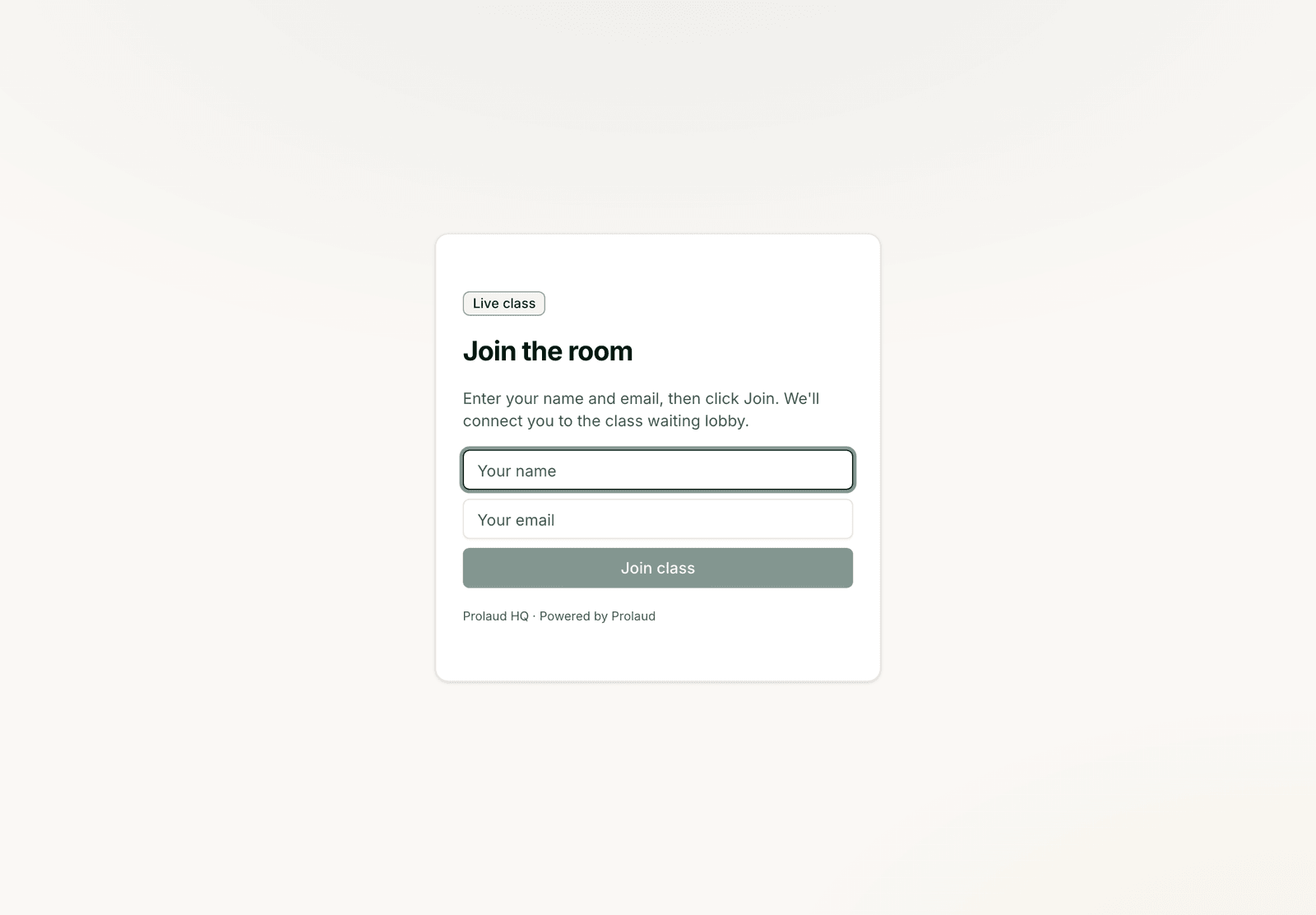
Check your camera and mic before you go in
Next you get a setup screen. You start with your camera and microphone OFF, which is deliberate — you're never live before you expect to be. Tap the microphone or camera button to turn either on, and that is the moment your browser asks permission. Tap Allow.
With the microphone on, say a few words and watch the little bars move. Moving bars mean your teacher will hear you.
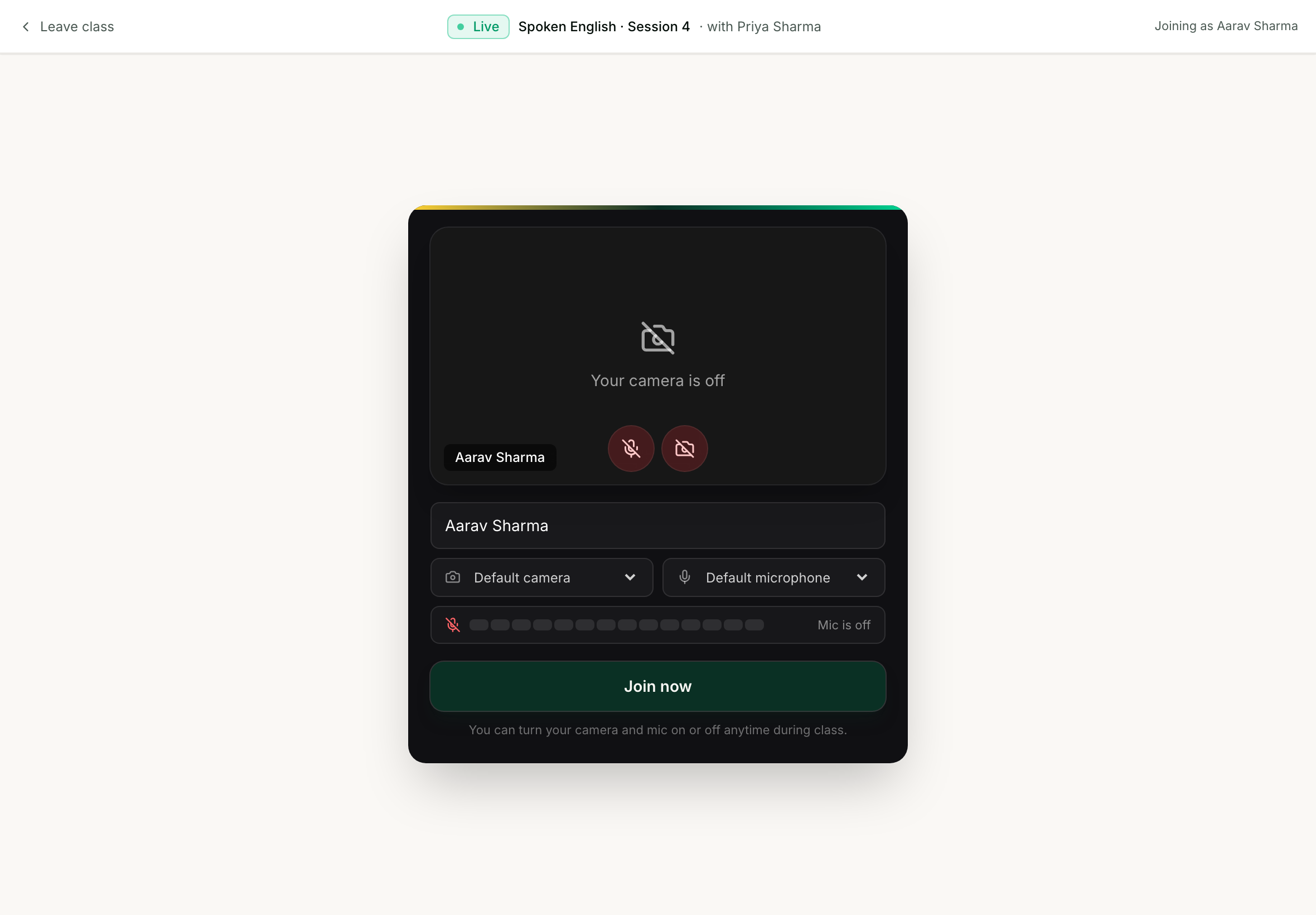
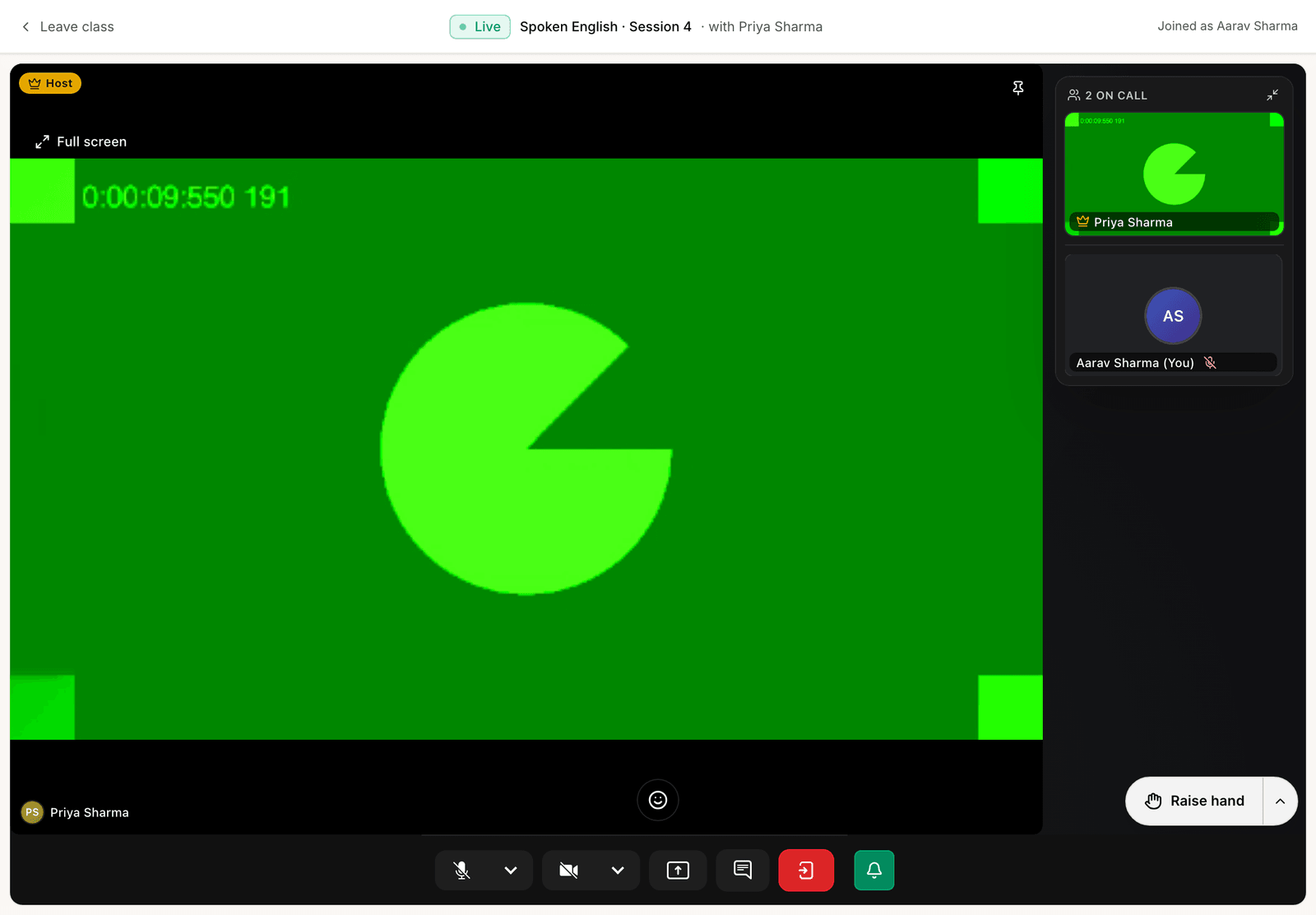
When you're happy, tap Join now and you're in the class.
If you tapped Block by mistake
This is the most common problem, and it is easy to undo. Once you have blocked permission, the browser stops asking — so nothing happens when you tap the microphone, which feels like the app is broken. It isn't.
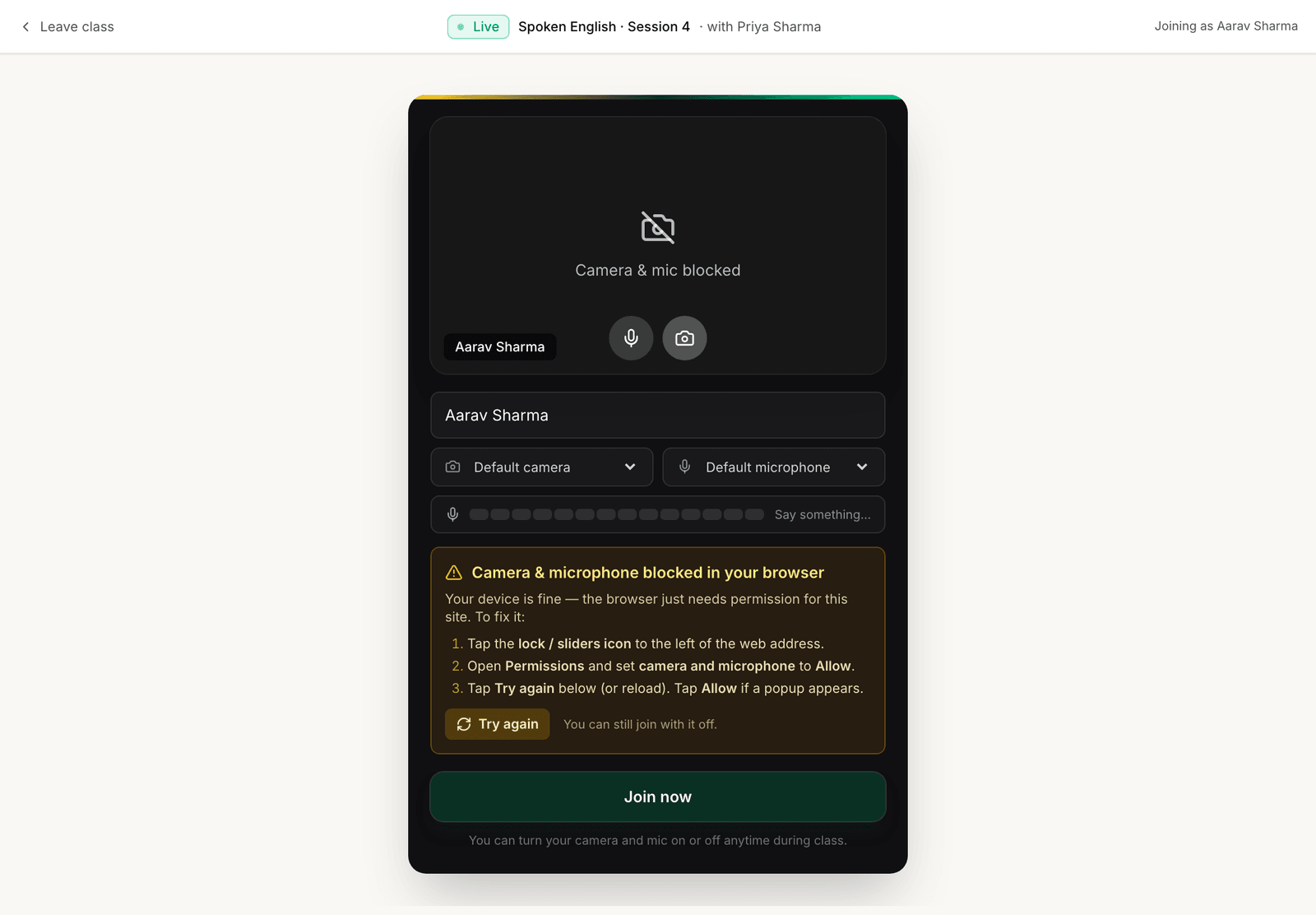
- Tap the lock or sliders icon just to the left of the web address at the top of the screen.
- Open Permissions and set camera and microphone to Allow.
- Tap Try again on the page (or reload). If a popup appears, tap Allow.
On an Android phone, if it is still blocked after that, the permission may be switched off for Chrome itself: open Settings → Apps → Chrome → Permissions → Microphone → Allow.
Do it once, before class
Open the link a few minutes early and go through the setup screen once. Your browser remembers the permission afterwards, so every future class just works and you're not sorting it out while everyone waits.
- Do I have to turn my camera on?
- No. You join with the camera off by default and can leave it off for the whole class. Most students keep the camera off and just use the microphone when they want to speak.
- I tapped the microphone button and nothing happened.
- Permission is almost certainly blocked. Look for the amber 'Camera and microphone blocked' message on the join screen and follow the three steps, or reopen the link in Chrome or Safari if you came from a chat app.
- The bars don't move when I speak.
- Check that the correct microphone is picked in the dropdown — a connected headset or Bluetooth earbud can grab the mic. Also make sure no other app, like a phone call or another meeting, is using the microphone.
- Do I need to download an app?
- No. The class runs in your browser. Chrome on Android and a laptop, or Safari on an iPhone or iPad, all work.
- Can I join from a phone?
- Yes, and most students do. Everything in this guide works the same on a phone.
Related