For creators
Your community's pulse, Ask about your community, Sparks and more
Tools for running a lively community: the pulse shows who has gone quiet and why, with their lessons and classes beside it; you can ask about your community in plain words; Sparks put short videos across the top; and a quiz of the day takes one click to answer.
Last updated Oct 16, 2026
The pulse, and Ask about your community
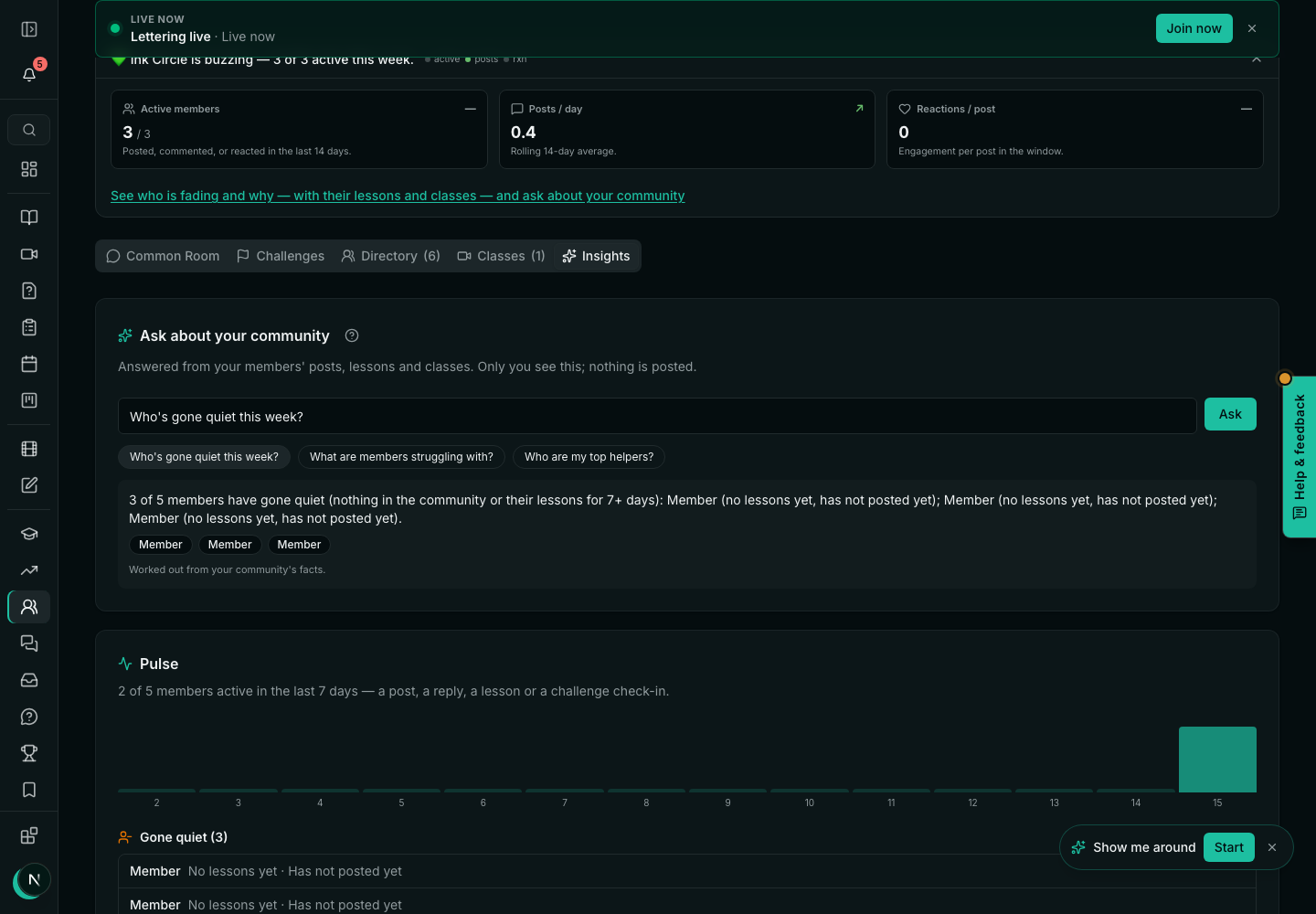
- Pulse: members active each day for two weeks — a post, a reply, a lesson or a check-in.
- Gone quiet: nothing for a week, with why — “No lesson in 9 days · Missed 2 of the last 3 classes · Stuck on Curves”.
- Waiting for an answer, and the most helpful members.
- Ask about your community: “Who's gone quiet this week?”, “What are members struggling with?” The answer names people and links to them. Only you see it; nothing is posted.
Sparks
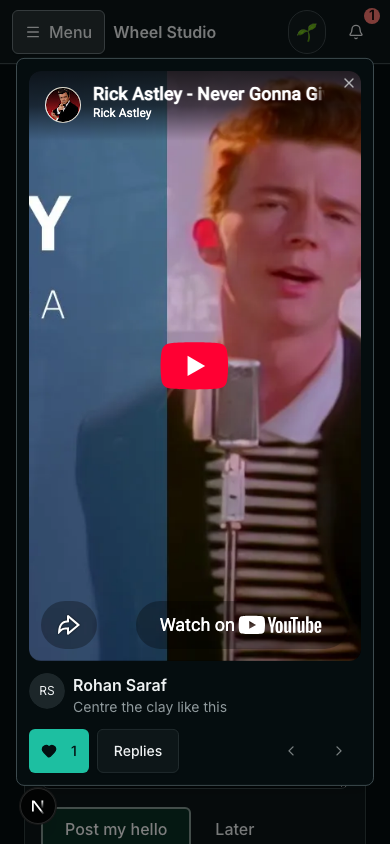
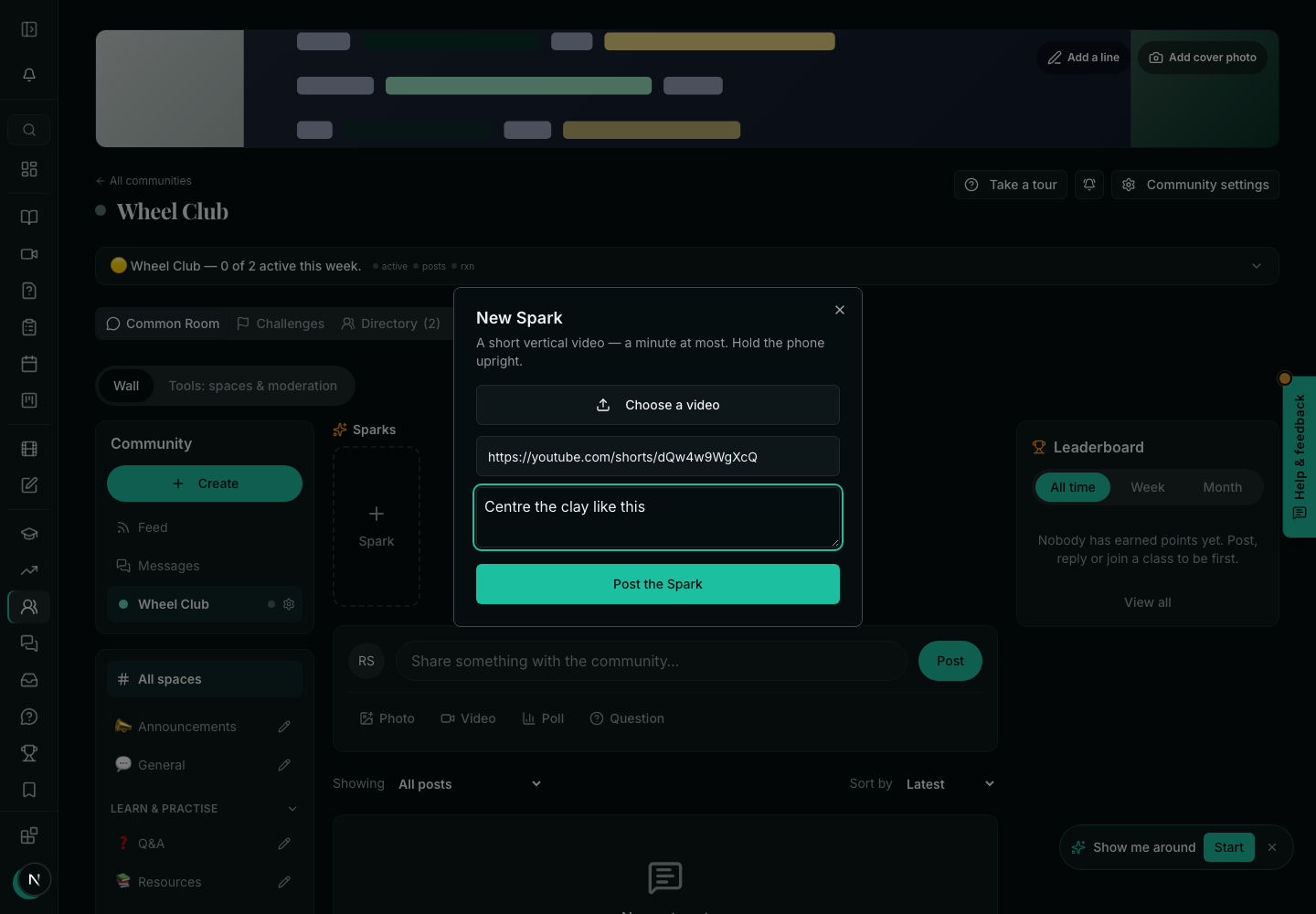
- Short vertical videos, a minute at most, across the top of the wall. Upload one (up to 50MB, on plans with video uploads) or paste a link, like a YouTube Short.
- You and your moderators always can. Members can when you turn on Members can post Sparks in the community's access settings.
- A member's Spark or win goes to your public Wall of Love from Add to Wall of Love.
Quiz of the day
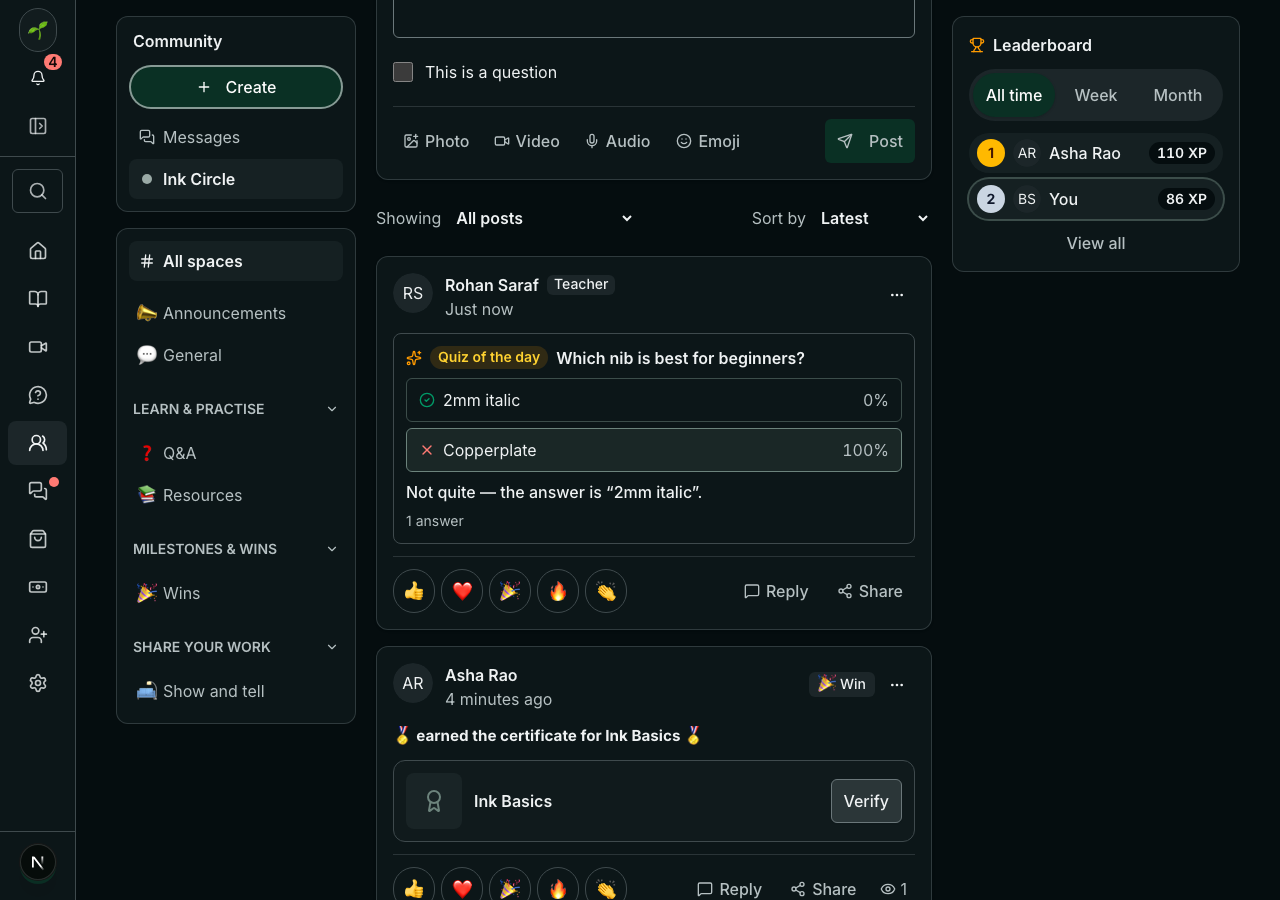
In the writing box, choose Poll, write the question and answers, tick Quiz of the day — tick the right answer, and mark it. Members answer once; the right answer is not sent to anyone until they have answered.
The top of the community
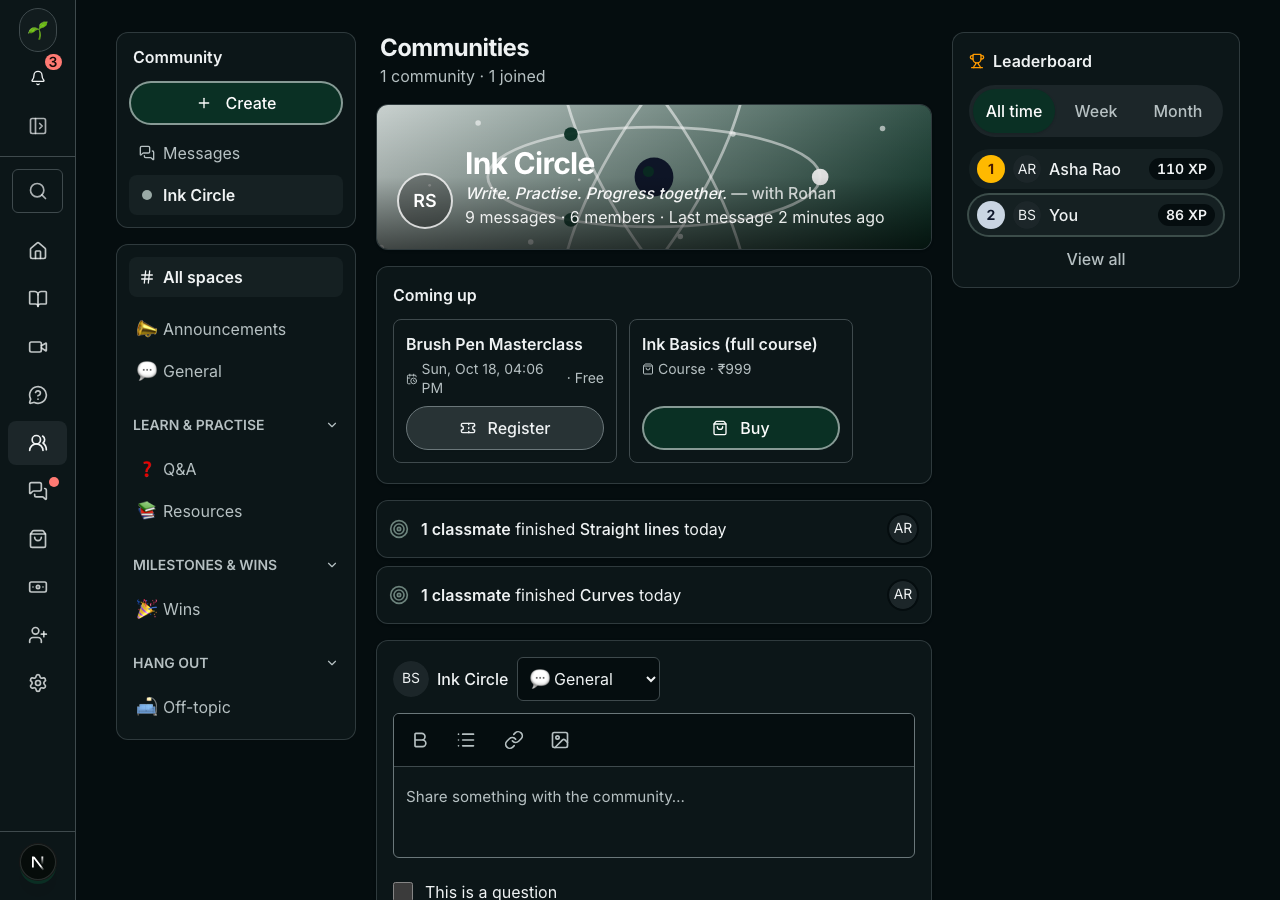
- Add a line on the cover: a few words of what the community promises. Suggest three offers ideas fitted to your subject.
- Coming up: your classes, your upcoming webinars (Register), and the community's courses a member does not have yet (Buy).
- Spaces sit under headings in the menu — Learn & practise, Milestones & wins, Hang out. Change a heading with the pencil beside a space.
- Each post shows how many people have seen it.
Related