For creators
Messages: community chats, direct messages and Activity
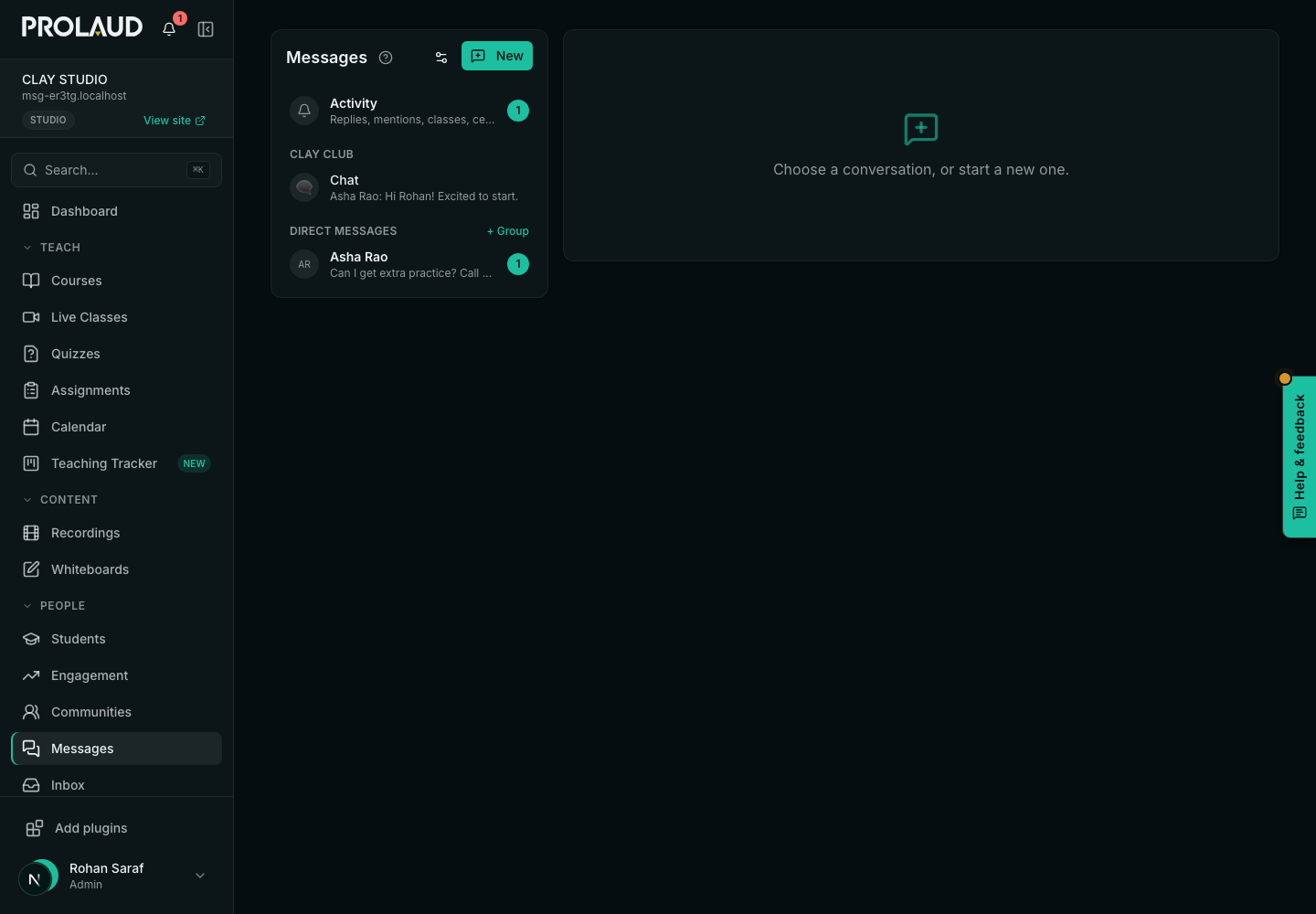
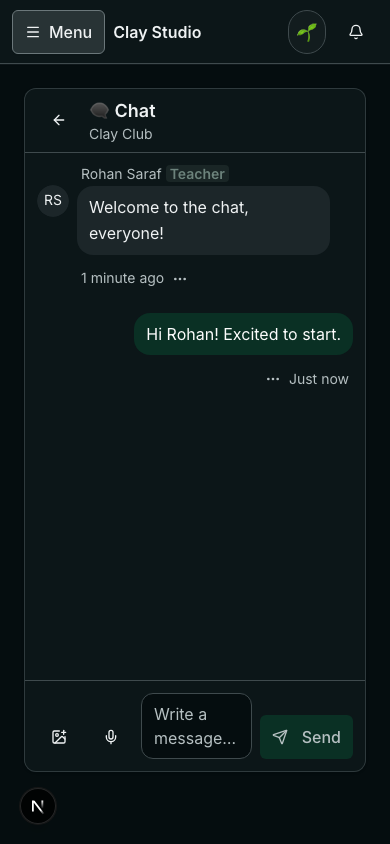
Messages is one screen for every conversation: each community's chat spaces, direct messages, and your group chats — with Activity, every notice, at the top. New messages arrive at once on every device.
Last updated Oct 16, 2026
Chat spaces
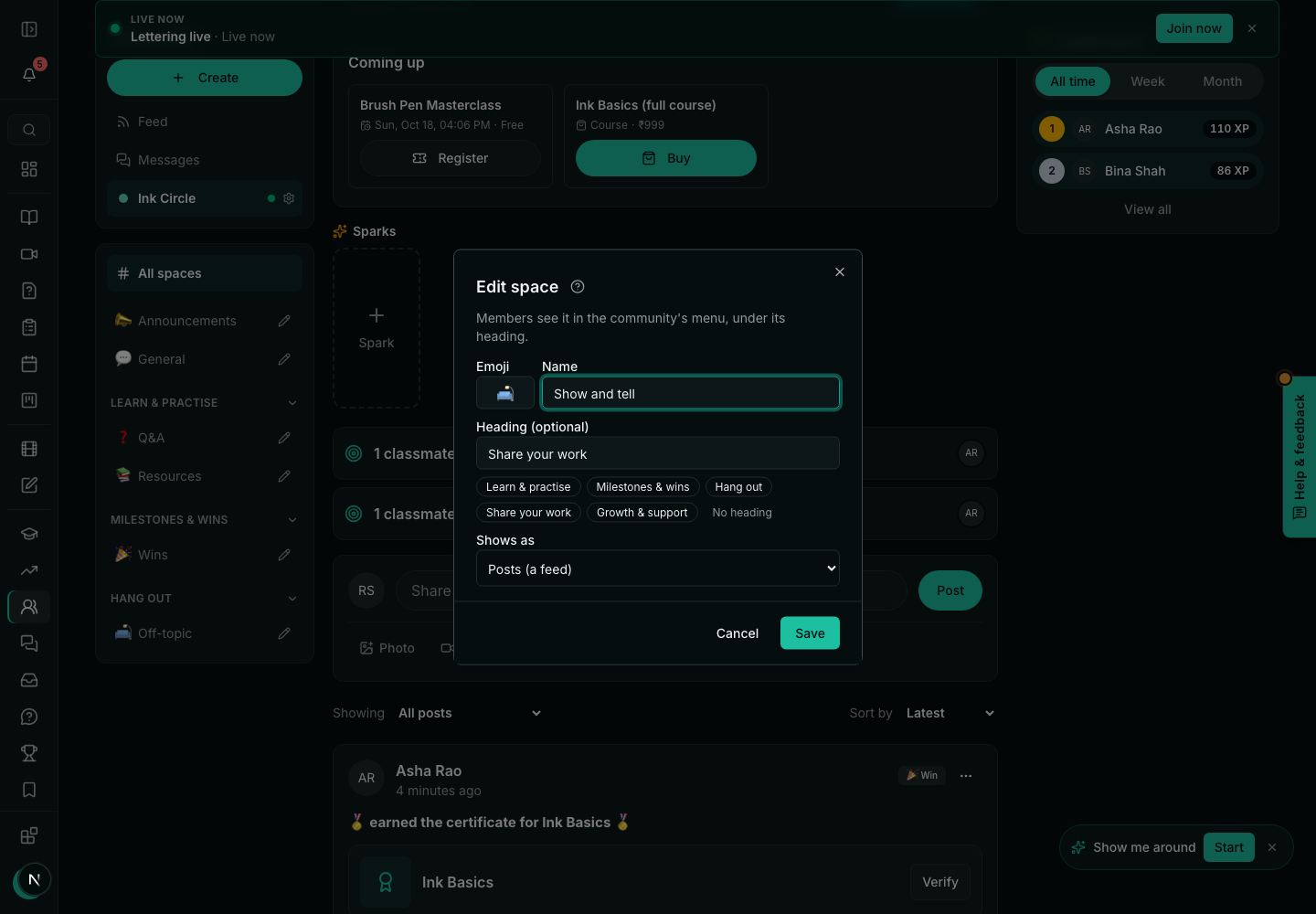
- On a community's wall, press the pencil beside a space in the menu (or add a space).
- Set Shows as to Chat (quick messages, in Messages).
- Choose whether Only teachers and moderators write here, and a Slow mode (a wait between a member's messages).
Direct messages
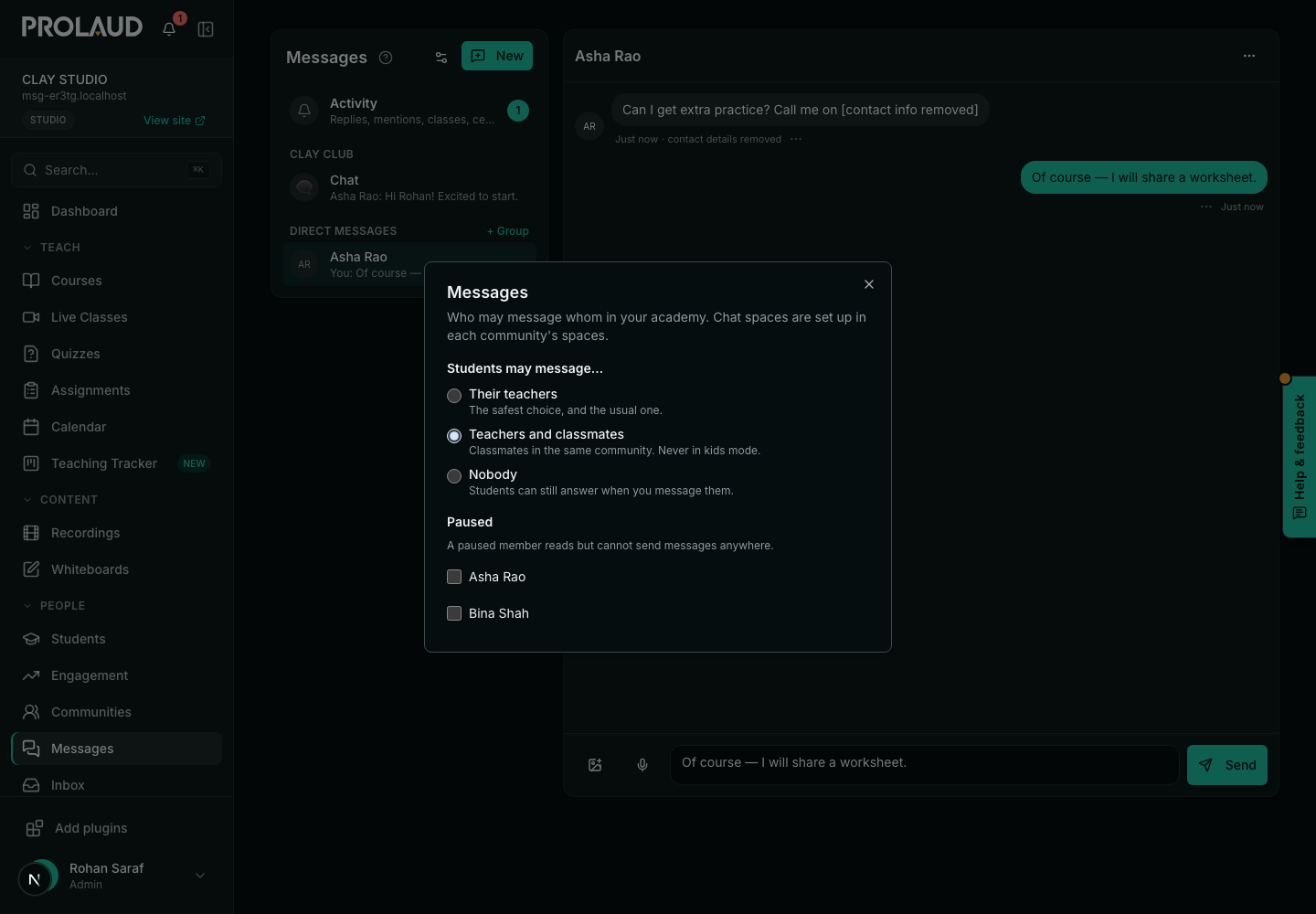
- Press the gear in Messages to choose: students may message Their teachers (the usual), Teachers and classmates (in the same community), or Nobody (they can still answer you). Kids mode never lets students message each other.
- Phone numbers, emails and links to other apps are taken out of conversations a student is in, and the message says so.
- Anyone can block someone from a conversation's ⋯ menu.
- Paused: a member who reads but cannot send messages anywhere.
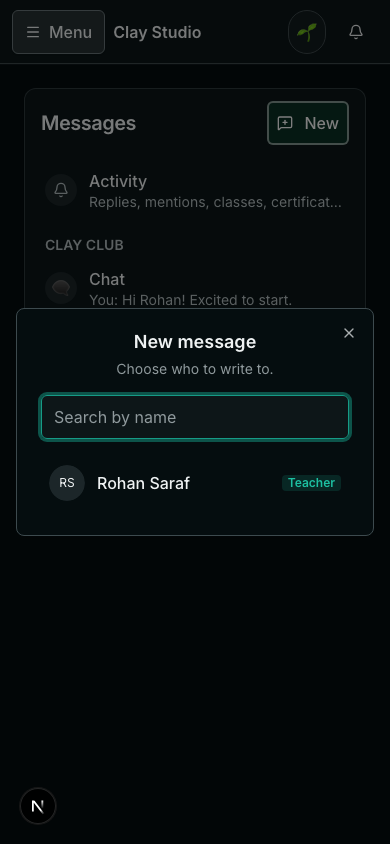
- You can start a group chat with chosen people (+ Group).
In a conversation
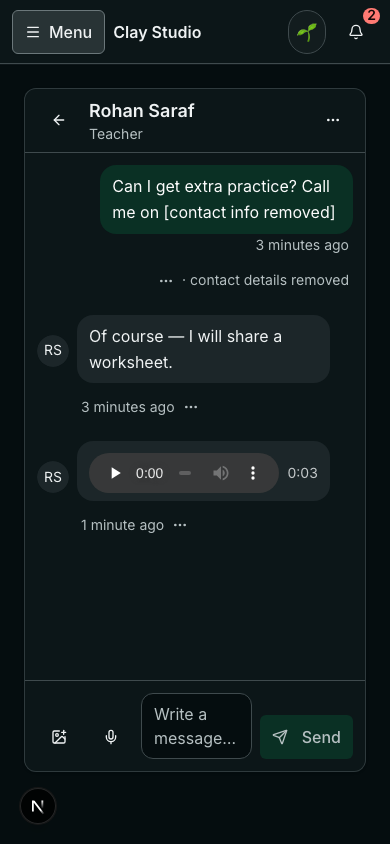
- Each message's ⋯: react, Reply, Edit your own, and for teachers and moderators Pin, Hold for review and Post to the feed (a great answer becomes a post, by its writer).
- Only teachers delete someone else's message. You never see conversations you are not in — and neither do moderators.
- Unread counts show in the list, on Messages in the menu, and on the community's menu.
The student menu's Inbox is now Messages. Old links to the inbox open Activity.
Related