For creators
Run your academy from Claude
Connect Claude to your Prolaud academy, then ask in plain words: “Schedule a community call every Friday at 7 PM”, “Tag everyone who has paid”, “Who came to yesterday's call?”. Claude does the work in Prolaud and asks you before it changes anything. Setup takes about two minutes.
Last updated Nov 25, 2026
Step 1 — Copy your connector address
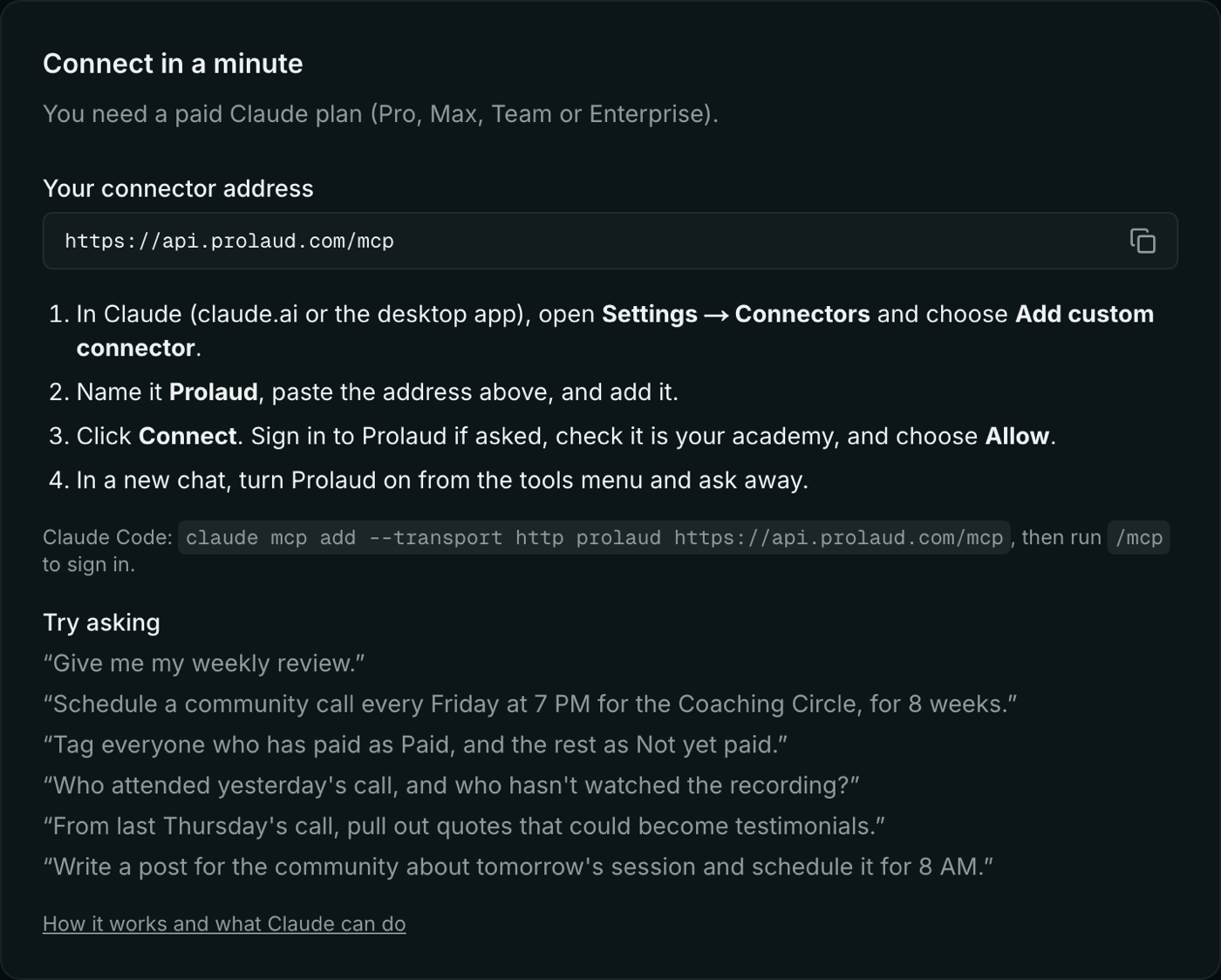
In Prolaud, open Dashboard → Claude (in the left menu, next to Integrations). Under Your connector address, click the copy button. The address is the same for every academy: https://api.prolaud.com/mcp — signing in is what tells Claude which academy is yours.
Step 2 — Add Prolaud to Claude
- Open Claude at claude.ai or in the Claude desktop app.
- Go to Settings → Connectors and choose Add custom connector.
- Name it Prolaud, paste the address you copied, and click Add.
- Click Connect next to Prolaud. A Prolaud page opens in your browser.
On Team and Enterprise plans, your Claude workspace owner may need to add the connector first; then everyone in the workspace can connect it to their own academy.
Using Claude Code? Add it from your terminal, then run /mcp inside Claude Code to sign in:
claude mcp add --transport http prolaud https://api.prolaud.com/mcp
Step 3 — Allow Claude on your academy
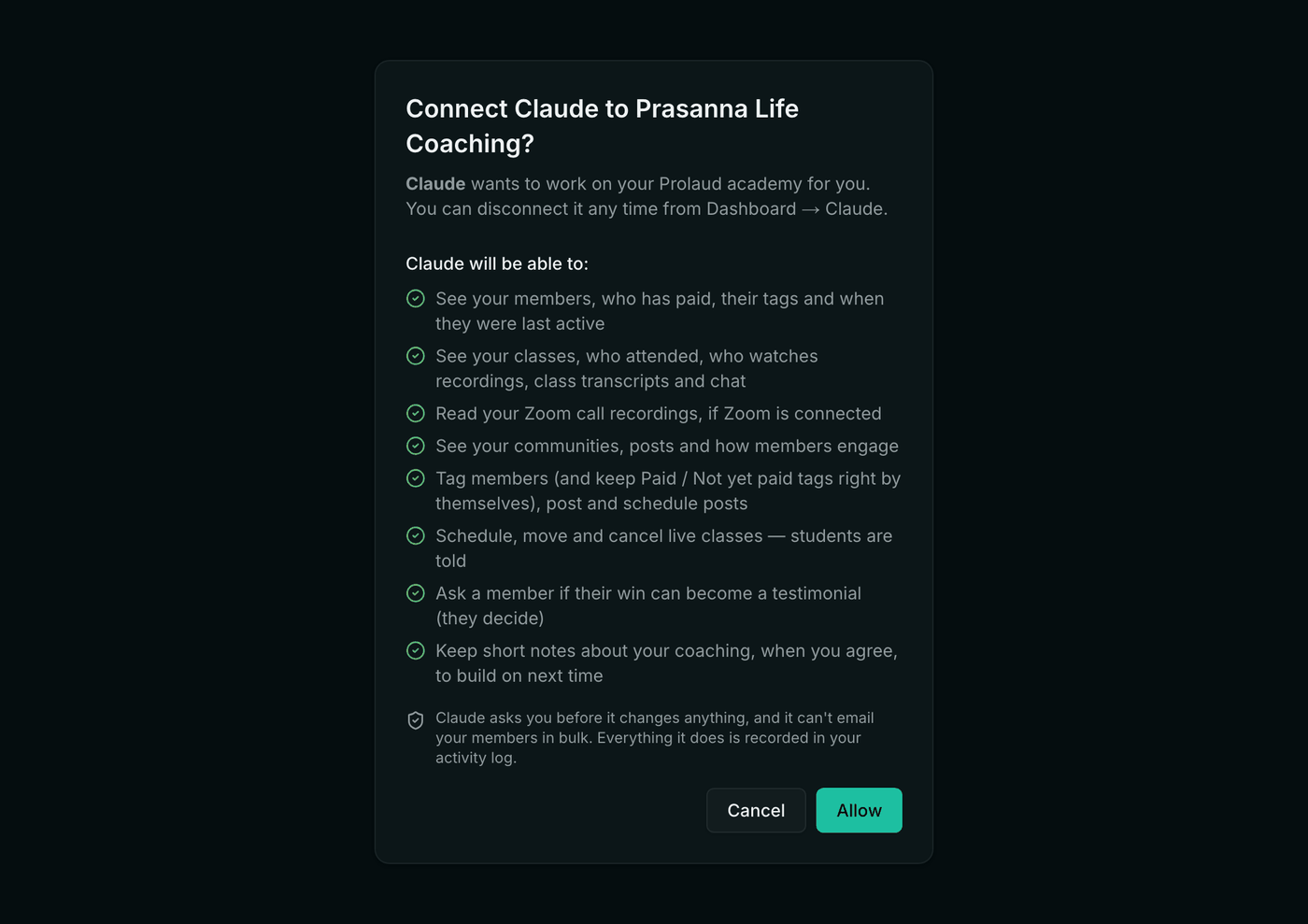
Sign in to Prolaud if you are asked. You'll see which academy Claude is asking for and exactly what it will be able to do. Check the academy name, then click Allow. You're taken back to Claude, and the connector shows as connected.
Step 4 — Start asking
Open a new chat in Claude, turn Prolaud on from the tools menu (the + or tools button under the message box), and ask. A good first question is “Give me my weekly review.” Claude reads your academy and replies with what's happening, who needs attention and what to do next.
What it looks like
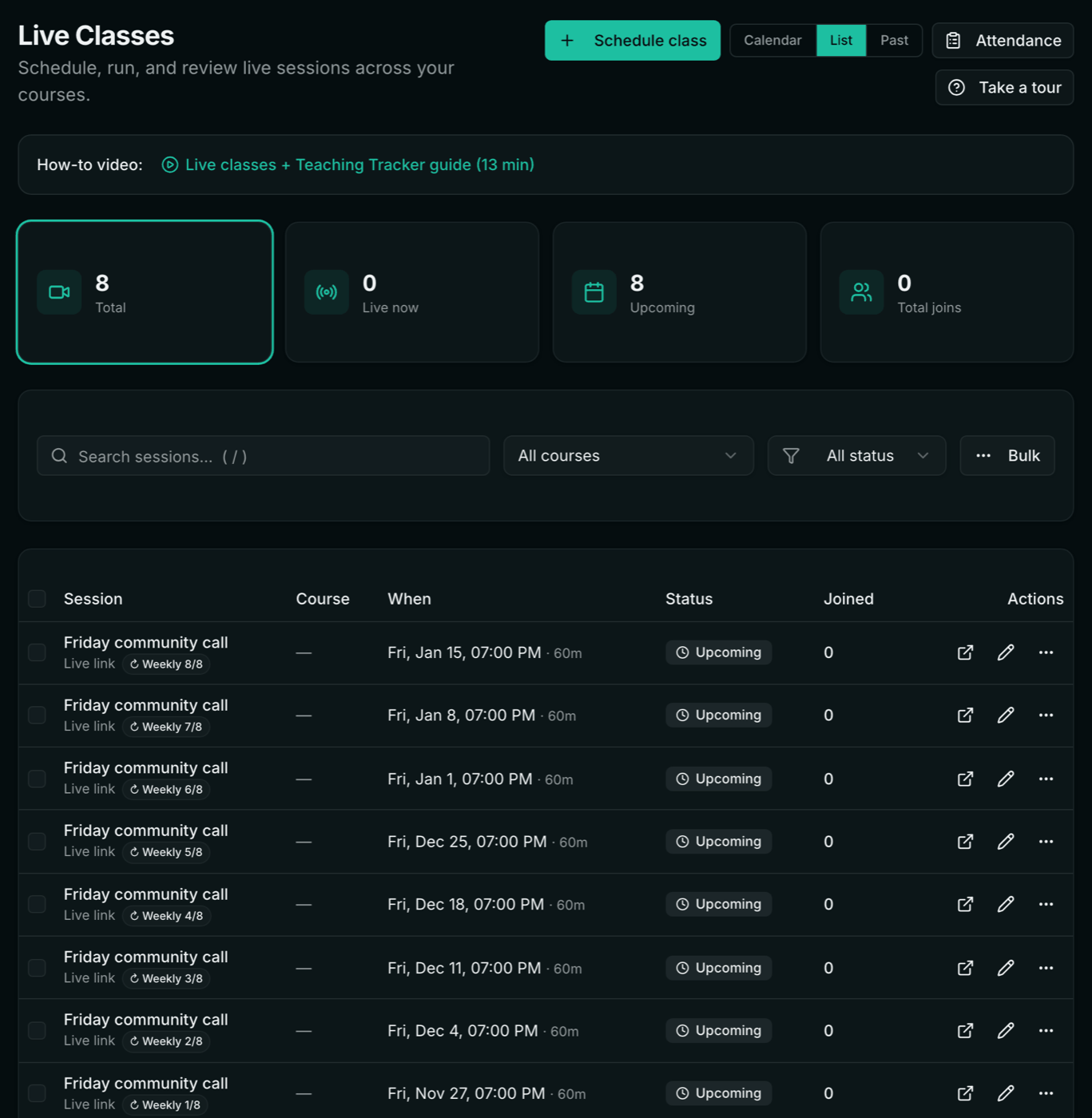
Prasanna asked Claude: “Schedule a community call every Friday at 7 PM for the Coaching Circle, for 8 weeks — wins of the week, Q&A and one focus for the next week.” Claude showed the plan, Prasanna said yes, and the 8 calls appeared in Live Classes — each at 7 PM, marked Weekly 1/8 to 8/8. Members of the Coaching Circle got a notice and an email straight away, and get the usual reminders before every call.
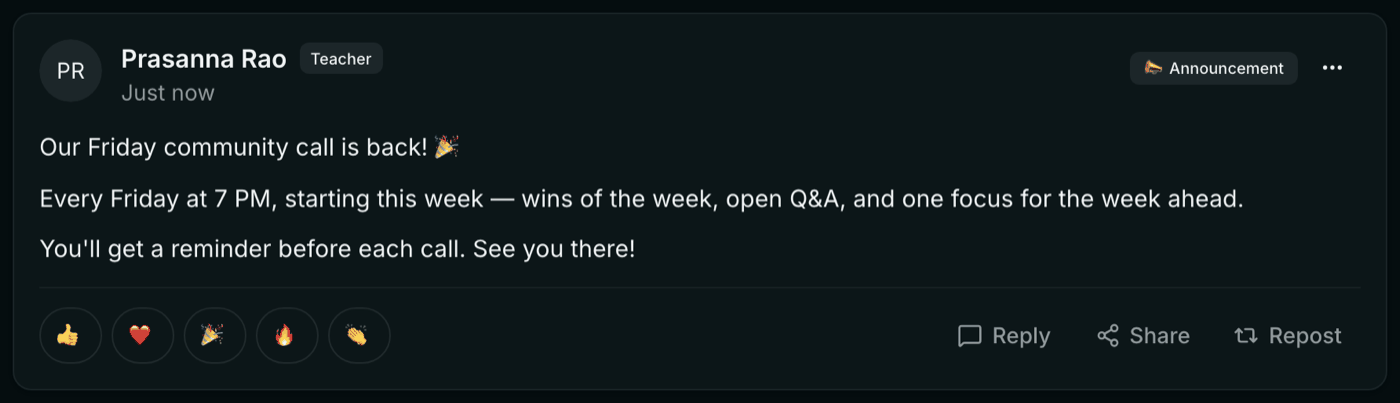
Then: “Post an announcement in the Coaching Circle about the Friday calls.” Claude wrote the post, showed it, and published it after Prasanna approved — in the owner's name, exactly as if it had been written in Prolaud.
Things you can ask
Classes
- “Schedule a 45-minute Q&A next Tuesday at 6 PM for everyone on my Public Speaking course.”
- “Move Friday's call to 8 PM.” · “Cancel the rest of the Friday series.”
- “What classes do I have this week?”
Members and payments
- “Tag everyone who has paid as Paid, and the rest as Not yet paid — and keep it that way.” Claude switches on automatic payment tags: from then on every member is kept in one of the two tags by themselves, checked every hour, including store purchases. Tag changes start any automations you set up (for example, a welcome email when someone becomes Paid).
- “Who joined this month but hasn't paid yet?”
- “Who has gone quiet in the last two weeks?”
Your community
- “Write a post for tomorrow's session and schedule it for 8 AM.”
- “Post a daily 6 AM check-in: log your water and steps.”
- “Which posts got the most replies this month?”
Attendance, recordings and calls
- “Who attended yesterday's call, and for how long?”
- “Who hasn't watched last week's recording?”
- “What did people say in the chat during Thursday's call?”
- “From Thursday's call, pull out quotes that could become testimonials, and tell me who shared their experience.” Claude reads the transcript as speaker turns together with who attended and the chat, works out who said what, and tells you when it isn't sure.
Your coaching and sales calls
- “Give me honest feedback on my coaching in last Monday's call.”
- “How did my sales call with Ravi go? What should I change in my pitch?” For calls held on Zoom, Claude reads the Zoom recording's transcript (see the question below).
- “Remember that I want to talk less and ask more questions.” Claude keeps short notes about your coaching style, sales pitch and goals — only when you agree — and reads them before giving feedback next time, so it builds on earlier calls instead of starting from scratch.
Testimonials
- “Which wins did members share this month?”
- “Ask Asha if her win can go on my website.” — she is asked in the app and by email, chooses how she's named, and nothing is shown unless she says yes.
Ready-made prompts
In Claude, open the + menu, choose Prolaud, and pick one of these:
- Weekly review — how the academy did this week, who needs attention, and the three most useful things to do next.
- After a community call — testimonial quotes, who spoke and who stayed quiet, questions members asked, and a follow-up post for you to approve.
- Tag who has paid — both lists with counts, then automatic tags that keep themselves right, once you confirm.
- Feedback on a call — your coaching style, or how a sales pitch went, from the transcript (Prolaud or Zoom), compared with what Claude noted about your earlier calls.
You stay in control
- Claude asks first. Before it schedules, posts, tags or cancels anything, Claude shows you what it is about to do and waits for your OK.
- Everything is logged. Every change appears in your activity log, marked as made via Claude.
- No bulk messages. Claude can't email or message your members in bulk. Class notices and reminders go only to the people a class is for, exactly as when you schedule it yourself.
- Only your academy. Claude works only on the academy you connected, and only through the owner's account.
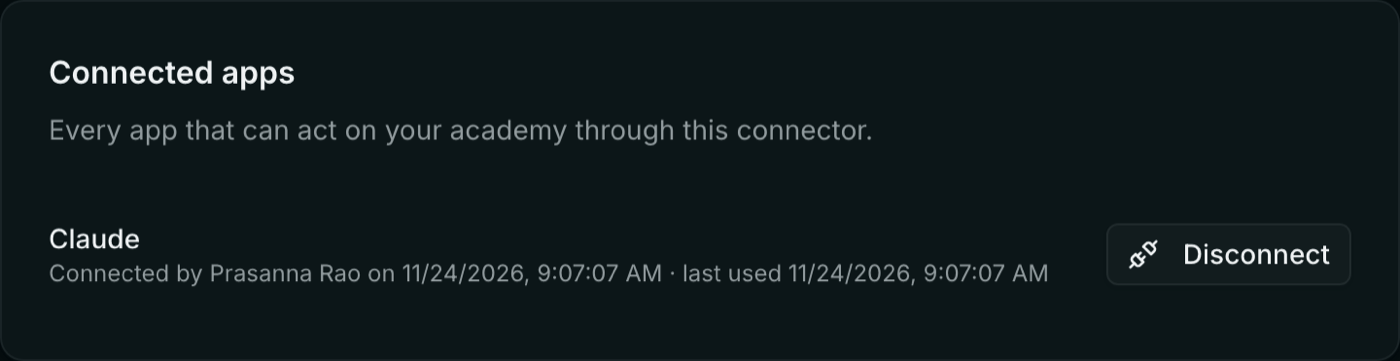
- Disconnect any time. Open Dashboard → Claude → Connected apps and click Disconnect. Access ends at once.
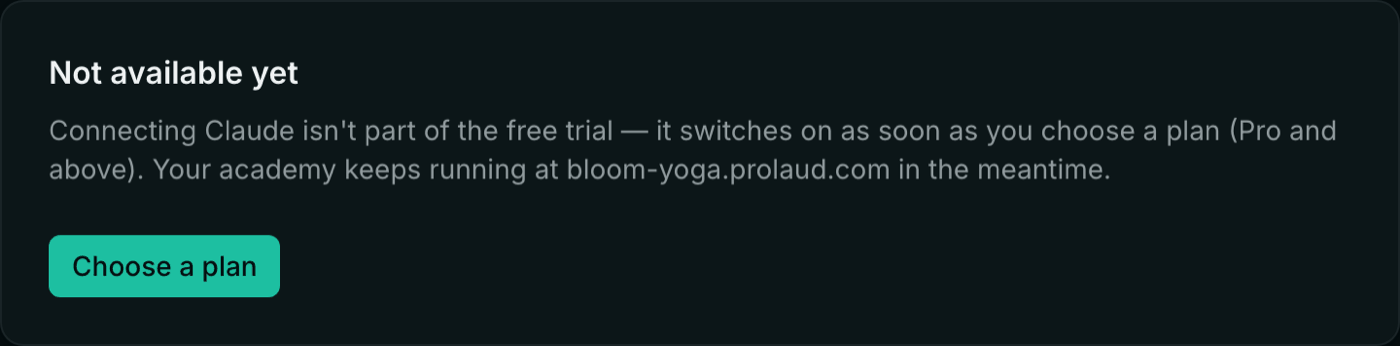
On the free trial?
Connecting Claude isn't part of the free trial. Dashboard → Claude tells you so and offers Choose a plan; it switches on as soon as you're on Pro or above. Your academy keeps running as normal in the meantime, and everything you build carries over.
Common questions
- Connect opened a browser where I'm not signed in to Prolaud, or I got “Error Starting Authentication”
- Claude opens your computer's default browser. Finish there: sign in to Prolaud when asked, and you come straight back to Allow. Don't copy the link into another browser — Claude only accepts the answer in the browser where Connect started, and shows “Error Starting Authentication” otherwise. If you'd rather use another browser, make it your default (or sign in to Prolaud in your default browser first), then choose Connect again in Claude.
- Does it cost extra?
- No. It's included in Prolaud Pro and above. You need your own paid Claude plan.
- Can my teachers connect it?
- Not yet — only the academy owner (an admin) can connect Claude.
- Claude says it can't reach my academy any more.
- Your plan may have ended or a payment may be due — check Billing. If you changed your Prolaud password or signed out everywhere, connect Claude again: Claude → Settings → Connectors → Prolaud → Connect.
- Do I need to transcribe my classes?
- No. Once Claude is connected (Studio and above), every recorded Prolaud class is transcribed by itself, usually within 15 minutes of the class ending, with speakers told apart (Speaker A, Speaker B…). You can still press Transcribe on any older recording.
- Can Claude read my Zoom calls?
- Yes, calls recorded to the Zoom cloud with an audio transcript. Connect Zoom in Dashboard → Integrations, and in Zoom turn on Settings → Recording → Cloud recording → Create audio transcript. Then ask “How did my Zoom call with Ravi go?”.
- Does Claude see the class chat?
- Yes. The live-class chat is kept from late November 2026 onwards; ask “What did people say in the chat on Thursday?”.
- What does Claude remember about me?
- Only the short notes you agree to keep — your coaching style, sales pitch, goals. Ask “What have you noted about me?” to see them, and “Forget that note” to remove one.
- Can Claude see who watches recordings from before I connected it?
- Recording views are counted from late November 2026 onwards. Older viewing was only stored on each viewer's device.
- Will my students know a class was scheduled by Claude?
- No. It looks exactly like a class you scheduled yourself; only your activity log notes that Claude did it.
- How do I remove it completely?
- Disconnect it in Dashboard → Claude, and remove the Prolaud connector in Claude → Settings → Connectors.
Related