Stop making nursery slides by hand: type a topic, get an animated, narrated lesson — and teach it live
A nursery teacher named seven things her slides needed — animation, characters, video, GIFs, sound, games and colour. This is what closing each one looks like, and how the lesson then runs on every child's own screen.
A nursery teacher I work with spends her Sunday evenings in Canva. She builds the week's slides by hand — finding a picture of an apple, resizing it, adding a letter, finding a bee, resizing it — and by Monday morning she has a lesson she will use once. When I asked what her slides were missing, she did not say “AI”. She listed seven things: animation, graphics and characters, video, GIFs, sound, games, and colour. This article is about what it looks like when all seven are handled for her, and the lesson then runs on every child's own device while she teaches it.
Everything below is a real, checkable feature. Every screenshot was taken automatically from the product by a browser test, not drawn. Where something is not finished, it says so.
What does a pre-primary teacher actually need from slides?
Not text. A nursery child cannot read, and an LKG child is only just starting. A slide for a three-year-old is a picture and a voice; anything written on it is for the teacher. So the first thing a lesson builder for this age has to get right is to stop producing bullet points — and most slide tools, including the AI ones, cannot stop.
The second thing is that the lesson must be played, not watched. A four-year-old's attention does not survive a twelve-slide presentation. It survives “tap the red apple”, a star when she gets it right, and a character who reacts. That is what she meant by gamification, and it is the thing that separates a lesson from a slideshow.
Here is how each of her seven gaps is closed, in her order.
Animation, characters, video, GIFs, sound, games, colour — one by one
| What she asked for | What the deck does | Where you see it |
|---|---|---|
| Animation | Slides ease in; stickers bob; the star counter bumps when a star is won; confetti on a right answer. All of it stops under “reduce motion”. | Any Nursery or LKG deck |
| Graphics and characters | A mascot on every kid deck that reacts — happy on a right tap, a gentle “oops” on a wrong one. Plus a library of drawings we own for feelings, shapes and routines, where stock photos answer badly. | The bottom-right corner of every slide |
| Video | A “watch together” slide per deck. With a YouTube key set it finds real nursery rhymes and counting songs; without one it falls back to safe stock clips. | The rhyme slide in Rhyme Time with Cat |
| GIFs | Animated stickers from Giphy, filtered for children and used only where a still would be flatter. | Sticker corners on kid slides |
| Sound and audio | Every slide has a spoken line, read aloud by the browser — no recording needed. Chimes for right, wrong and “all found”. One speaker button mutes the whole deck. | Press Start the class on any deck |
| Gamification | Tap-the-picture rounds, lift-the-flap “peekaboo” cards, a star counter, and praise. At least two game rounds in every kid deck — enforced when the deck is built, not asked for politely. | Counting to Ten with Teddy |
| Colour | Twelve looks — Candy, Jungle, Ocean, Space, Farm, Notebook, Party, Soft shapes, Storybook, Sticker book, Doodle, Sunny day. Each is a palette, a typeface, a paper texture and scenery along the foot. | /help/deck-looks |
The one rule underneath all seven
A prompt the model half-obeys is not a rule. So the things that matter — at least two games per kid deck, a spoken line on every slide, no reading asked of a nursery child — are checked and enforced when the deck is built, and the deck is regenerated if they are missing.
How do you go from a topic to a finished deck?
Eleven steps, and the first four take about a minute. The documentation page walks through every one with a screenshot; the short version is this.
- Sign in and open Presentations.
- Add the Nursery & kids deck module (a monthly add-on — play the sample deck first; pricing below).
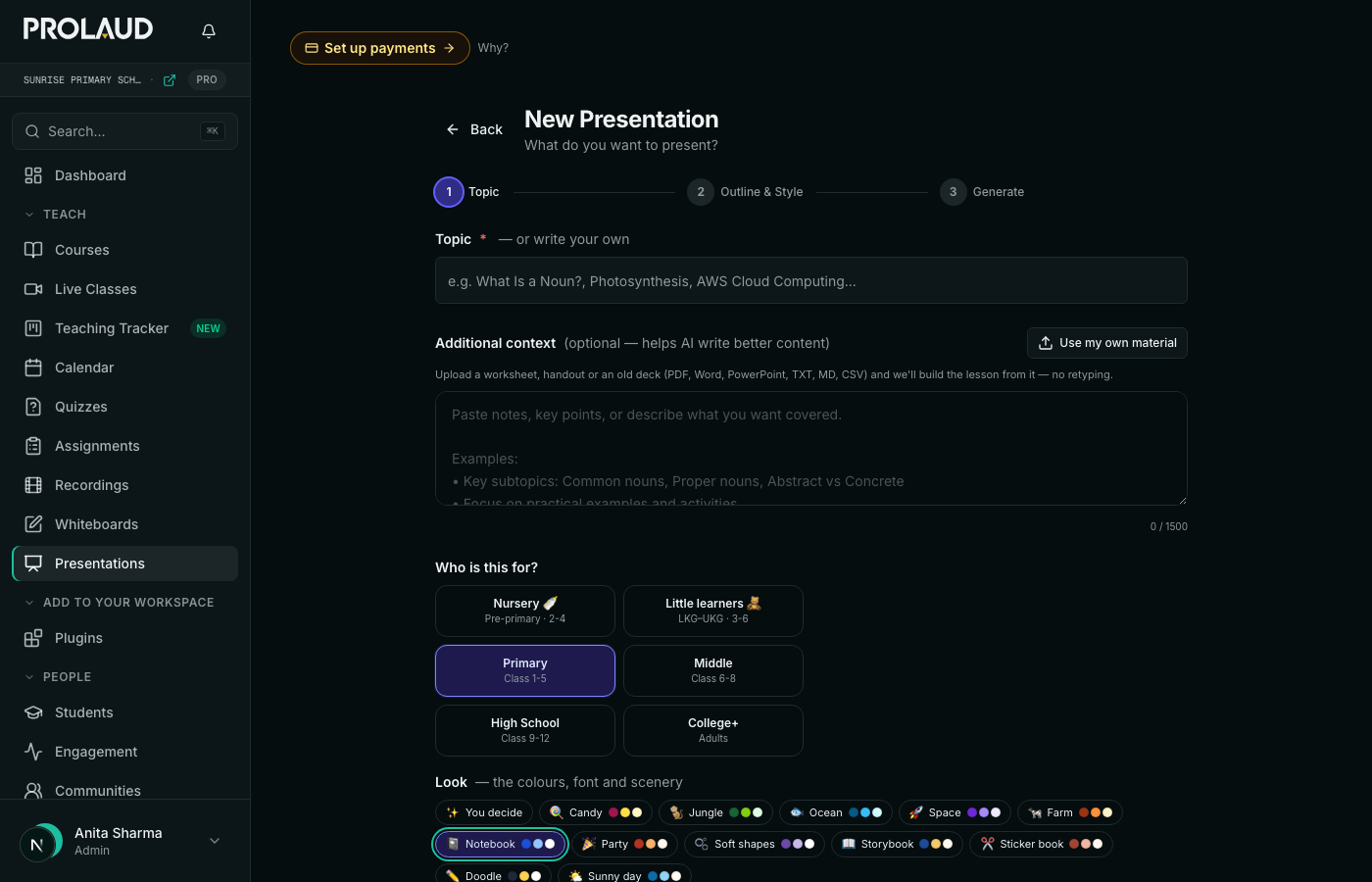
- Click Nursery & kids deck. The builder opens with a kid audience already chosen.
- Choose the audience: Nursery, LKG–UKG, or Class 1–5. This decides how much text a slide may carry.
- Choose a look, or leave it on “You decide” and each deck comes back in a different one of the twelve.
- Type the topic — “the letter A”, “washing hands”, “shapes around us” — and any notes. Or upload last year's worksheet, PDF or PowerPoint and the lesson is built from that.
- Two outlines come back: one story-led with a character, one plain and professional.
- Pick one. Edit, reorder or delete slides if you like.
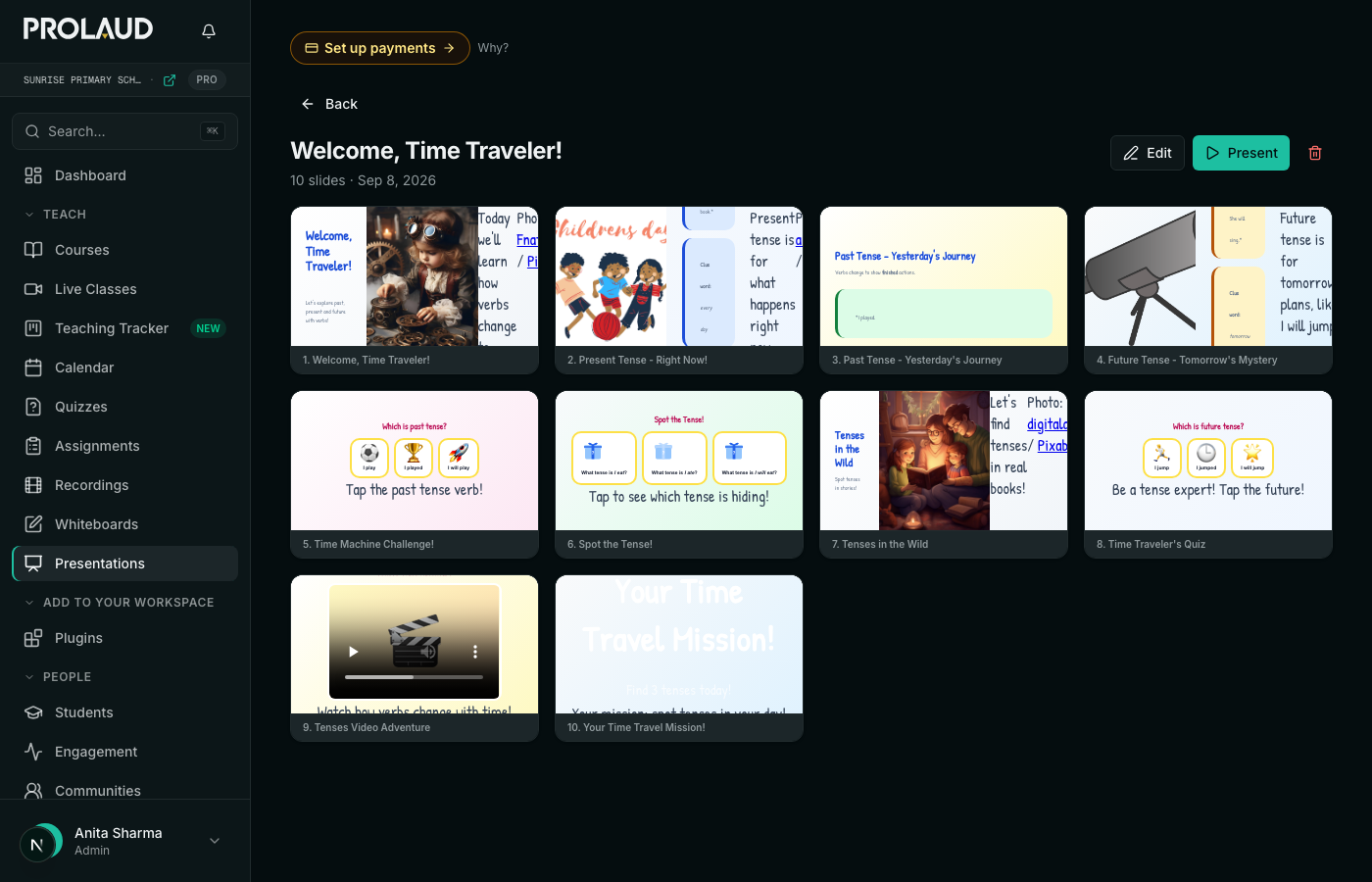
- Generate. The lesson is written, the art is found and credited, the games are built, the voice lines are added, and every slide is measured to fit any screen.
- The deck is in your workspace. Present it, edit any slide, download it, or open it full screen.
- Or skip the building entirely: ten ready-made lessons are in the catalogue — pick one, add a word where it asks, and it builds.
What does the finished lesson look like to a child?
Big. The type on a kid deck is roughly double the size of a normal presentation, because it is being read from the back of a room by someone who is only just learning to. A nursery slide is a picture, a mascot, and a spoken line; the words on it are the teacher's script, printed small underneath so she does not need a notes view.
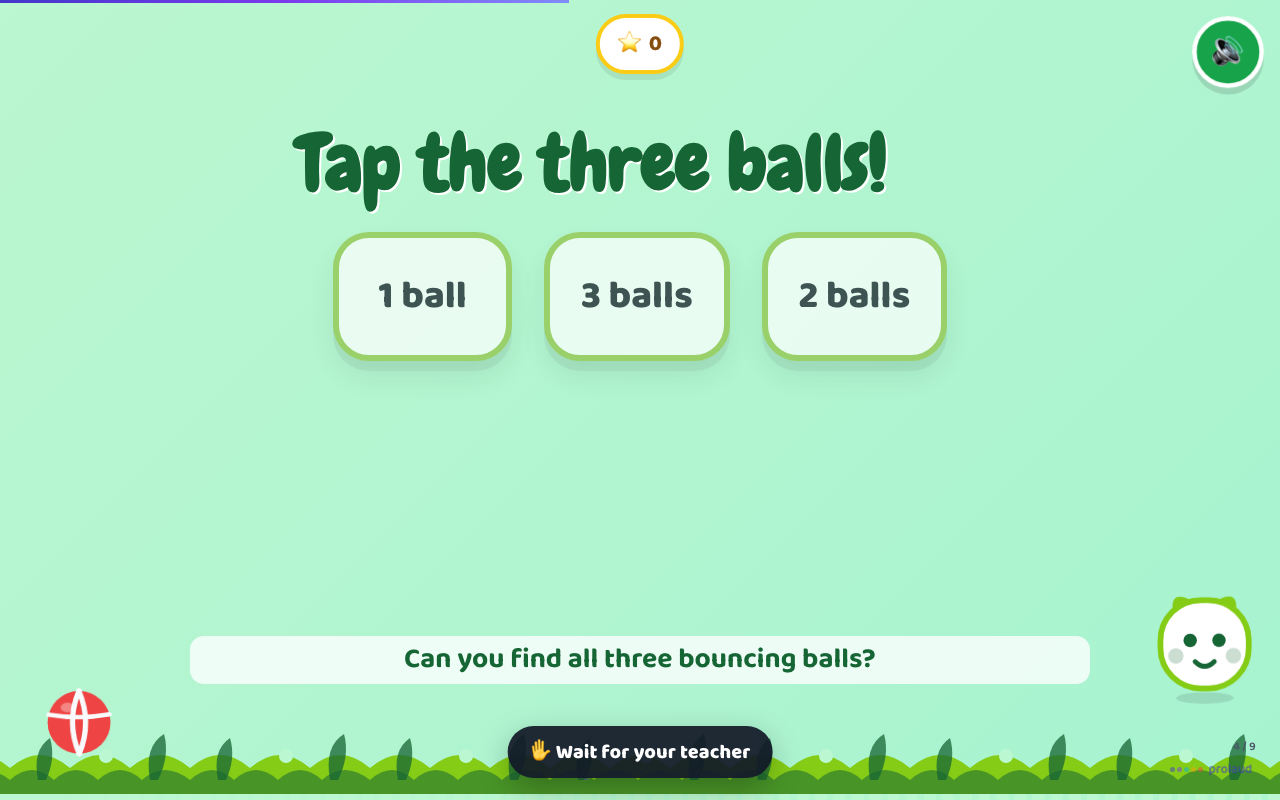
The games are the point. A tap-the-picture round shows a question and two to four tiles; a right tap earns a star, confetti and a “Well done!”, and a wrong tap gets a gentle “Try again!” and stays open — wrong is never punished at this age. A peekaboo round shows cards the class opens one by one, with a cheer when the last one is found.
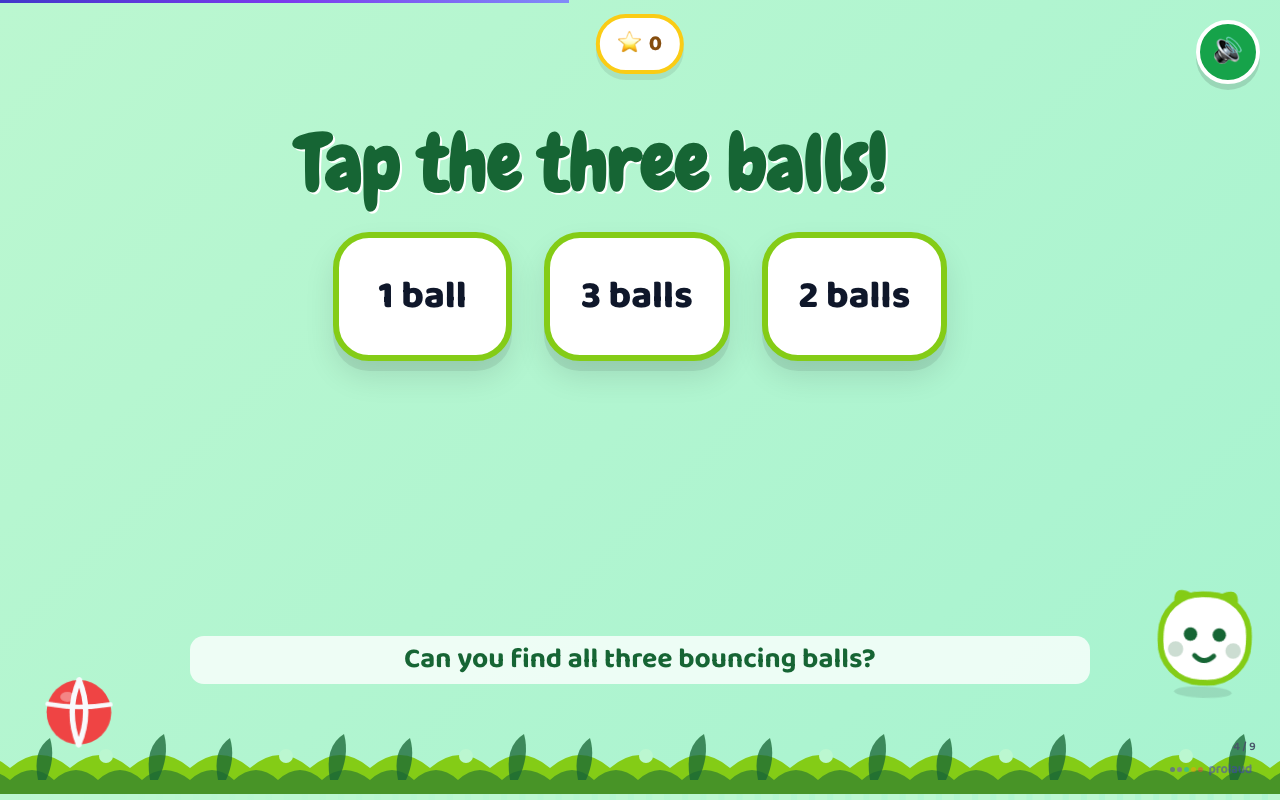
Every deck reads itself aloud. When the teacher presses Start the class, the browser's own voice reads each slide's line as it comes into view — no microphone, no recording, nothing to upload. The speaker button on every slide mutes the whole deck (narration and chimes together), because a teacher who wants the room quiet means all of it.
Why does it matter that the deck runs on the child's own device?
Because a projector at the front of a room is a screen twenty children look at from twenty distances, and the four at the back stop looking first. When the same deck is on every child's own phone or tablet, they are all at the front. This is the part that turns slides into a lesson.
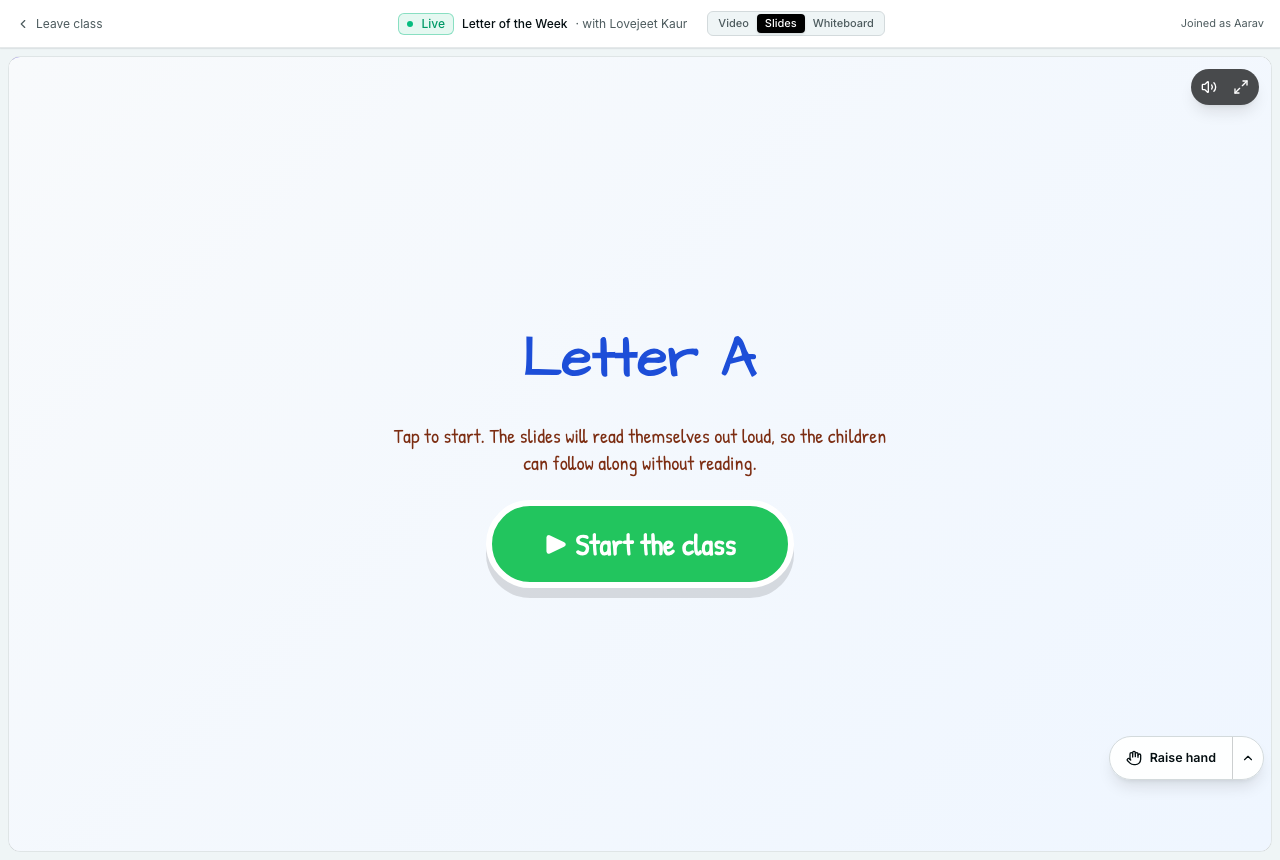
It works like this. In a live class, the teacher opens the Slides tab, picks a deck, and presses Show to students. Every child in the room gets a Slides tab on their own screen, showing the same deck — and their screen follows hers. When she moves to the next slide, so does the whole room. Nobody is three slides ahead answering a question the class has not reached.
Nobody answers until she says so
A deck live on twenty devices is only useful if the teacher still runs the lesson. So questions are closed by default. Children see the tiles dimmed with “Wait for your teacher” until she presses Let students answer — and she can close the question again afterwards. Without that gate, thirty children start tapping through a lesson she has not started; the whiteboard in the same product has exactly the same control for exactly the same reason.
And she finds out who got it
A tap used to score a star in the child's browser and vanish. It now comes back to the teacher: who answered, what they picked, and who has not moved yet — on the slide she is standing on. It is a count and the names still working, not a percentage, because she is looking up at the room, not reading a dashboard. Beside it sits the only advice it ever gives: “most of the class missed this — worth saying again”, or “everyone has it — safe to move on”. It never advances a slide by itself.
How the server decides who was right
The child's device says which tile was tapped. It does not get to say whether that was right — the server reads the deck it is already storing and decides. A device claiming its own star is not evidence of one.
What goes home to parents?
At the end of the lesson, one line per child, in the words a parent wants: “Aarav got Find A in Letter A today ⭐”, or “Ishaan joined in with Letter A and had a go — still practising, we'll do it again together.” Print it or save it as a PDF for the bag. Underneath, for the teacher only: which question the room found hard, which is the thing worth knowing before next week.
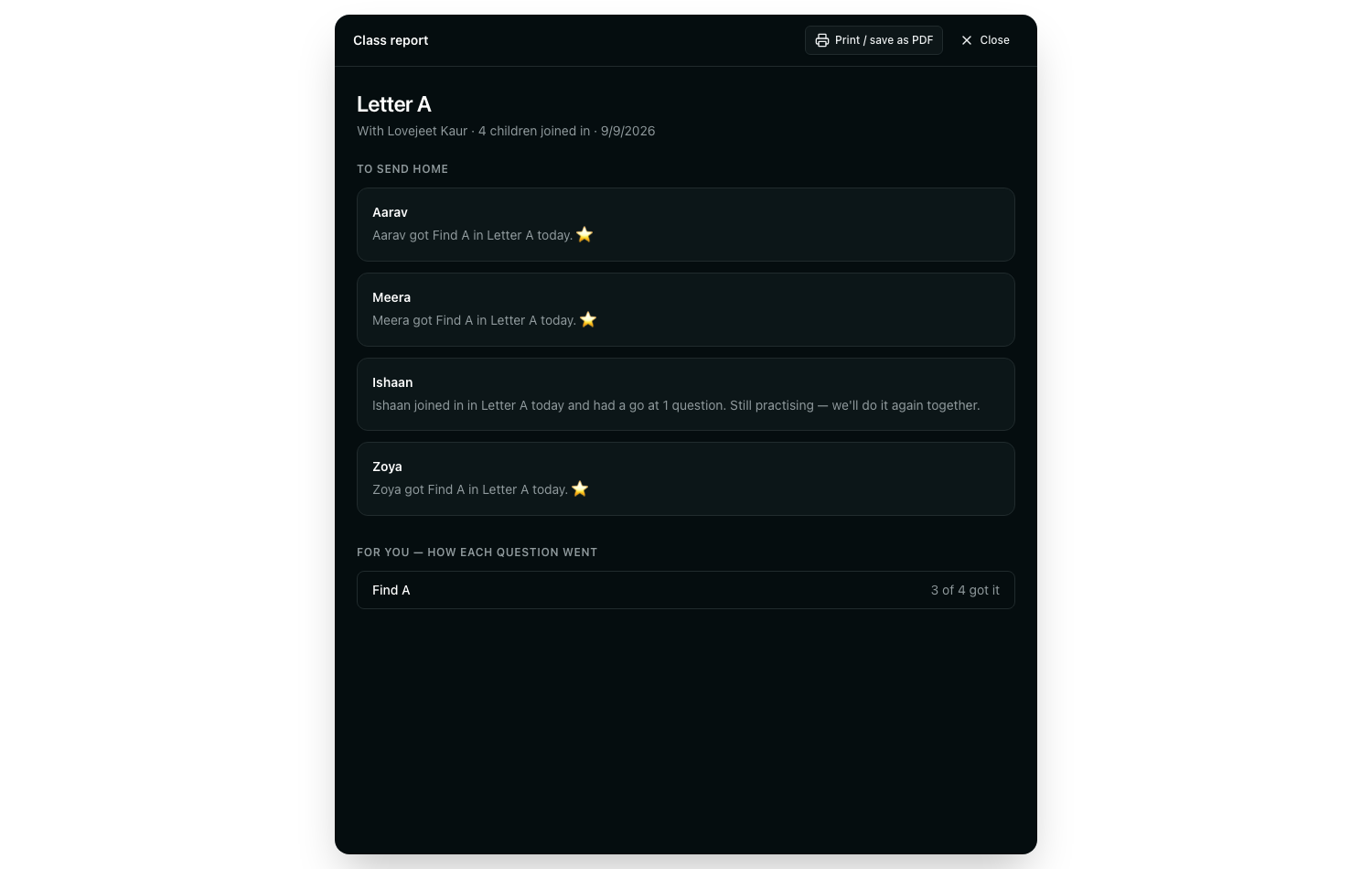
Two things the report will not do, by design. It carries no percentages and no ranking between children, because a score against a three-year-old's name tells a parent nothing they can act on. And nothing a child got wrong is named as a failure; “still practising” is the whole vocabulary, because at this age that is simply the truth.
Does it stop at nursery, or go through Class 5 — and beyond?
The kids-deck add-on covers Nursery, LKG–UKG and Class 1–5, and the three tiers are genuinely different, split by reading ability. Nursery decks are wordless and voice-first. LKG–UKG decks add short text and keep the games. Class 1–5 decks read like a normal lesson with the games alongside — a child who can read still likes to tap.
Older students are covered too, and it is included with every plan rather than the add-on. Class 6–8, 9–12 and college decks get checkpoints: a question mid-lecture that the class answers on their phones, gated by the teacher and counted the same way — the same mechanism as the nursery games without the stars, the confetti or the mascot. Two per deck minimum, placed after the material that answers them.
| Audience | What a slide is | What the class does | Included in |
|---|---|---|---|
| Nursery | A picture and a spoken line; no text to read | Taps pictures, opens flaps, collects stars | Kids-deck add-on |
| LKG–UKG | Short text, big emoji, a spoken line | The same games, with a little reading | Kids-deck add-on |
| Class 1–5 | A normal lesson, larger type | Games alongside the lesson | Kids-deck add-on |
| Class 6–8, 9–12, college | An ordinary deck | Answers checkpoints on their phones | Every plan |
How do the children get in?
The teacher writes a code on the board. Each child opens the join page, types the code and their first name, and they are in — no account, no app, nothing to install. Capitals and stray spaces off a whiteboard do not matter; a child types what she sees. The deck itself is one self-contained file, so it runs on old tablets and poor connections, and a downloaded copy keeps the games and the voice working even with the wifi off.
What does it cost?
The Nursery & kids deck module is ₹499 a month, charged from the day you add it. There is no free trial period; instead the module's page carries a real sample deck you can play before paying anything. For comparison, printed flashcard packs and worksheet subscriptions for one classroom's worth of material run roughly ₹500 to ₹1,500 a month — and they do not read themselves aloud, follow the teacher's slide, or tell her who got it. Decks for Class 6 and up, with checkpoints, are included in every plan at no extra cost.
Everything a teacher builds while she subscribes is hers to keep. Cancelling stops new kids decks being generated; nothing already made is deleted.
What is honestly not finished?
- A printable worksheet from the deck — the take-home page with the letter to trace and the picture to circle. The deck already holds everything it needs; the button is not built yet.
- Bilingual narration. The voice is English today. Hindi and Punjabi alongside it is planned, but browser voices for Punjabi are patchy on school laptops and it will not be promised until it is measured.
- Building a whole series at once — “the alphabet, A to Z” as 26 decks overnight.
- A fully offline download that also carries the photographs and the typeface. Today a downloaded deck keeps its structure, games and voice with no internet; the photos and the hand-lettered font need a connection.
Where to see all of it
- Ten finished lessons you can play in the browser right now — they read themselves aloud: prolaud.com/help/kids-decks
- The twelve looks, each one playable: prolaud.com/help/deck-looks
- Every live-class control, documented with screenshots from a real class: prolaud.com/help/live-slides
- The feature page, with the full picture: prolaud.com/features/live-lessons
- The join page a child uses: prolaud.com/join
Type one line. Teach it tomorrow.
Play a finished lesson first — no signup — then build your own.
See live lessons
Renu Rawat
Founder of prolaud.com. Helping teachers and creators build profitable, independent learning businesses without losing a cut of every sale to platform fees.
About the founderFrequently asked questions
- Do the children need an account or an app?
- No. The teacher writes a code on the board; a child opens the join page, types the code and her first name, and she is in. Nothing to install.
- Can a nursery child really use this on a phone?
- The nursery decks are built for exactly that: a picture, a voice, and two or three big tiles to tap. There is no text to read and no menu to find. If the class is too young to hold a device, the same deck runs on the projector alone.
- Does the teacher have to record her voice?
- No. Every slide has a spoken line that the browser reads aloud itself. She can mute the whole deck with the speaker button when she would rather talk.
- What if the model produces a deck with no games?
- It is regenerated. At least two game rounds per kid deck is checked when the deck is built, not asked for in a prompt — because a rule the model half-obeys is not a rule.
- Can I use my own worksheets?
- Yes. Upload a worksheet, handout or old deck (PDF, Word, PowerPoint, text) and the lesson is built from it instead of a typed topic.
- Is it only for nursery?
- The kids-deck add-on covers Nursery through Class 5. Decks for Class 6 and up, with checkpoints the class answers on their phones, are included in every plan.
Keep reading
Top 5 AI Chrome Extensions Every Online Teacher Needs Right Now
Five extensions worth the install — and the permissions question almost nobody asks before granting a browser add-on the right to read every page they open.
Read
How to Teach Online and Earn Money in India
If you're good at something people want to learn, you can earn from it online. Here's how to turn a skill into real income in India — honestly, without the get-rich-quick nonsense.
Read
Cohort-Based Learning, Explained — and When It Beats Self-Paced
Self-paced courses get finished by a tiny fraction of buyers. Cohorts — same start date, live, together — flip that. Here's how they work and when to run one.
Read