For creators
Where to add SEO and meta tags on your site
Every page on your public site has its own meta title, meta description and share image. They live in a panel called “SEO & social sharing” that starts collapsed — so it is easy to look straight past it. Here is where it is, what each field does, and what happens if you leave one blank.
Last updated Sep 25, 2026
Page-level SEO: where it is
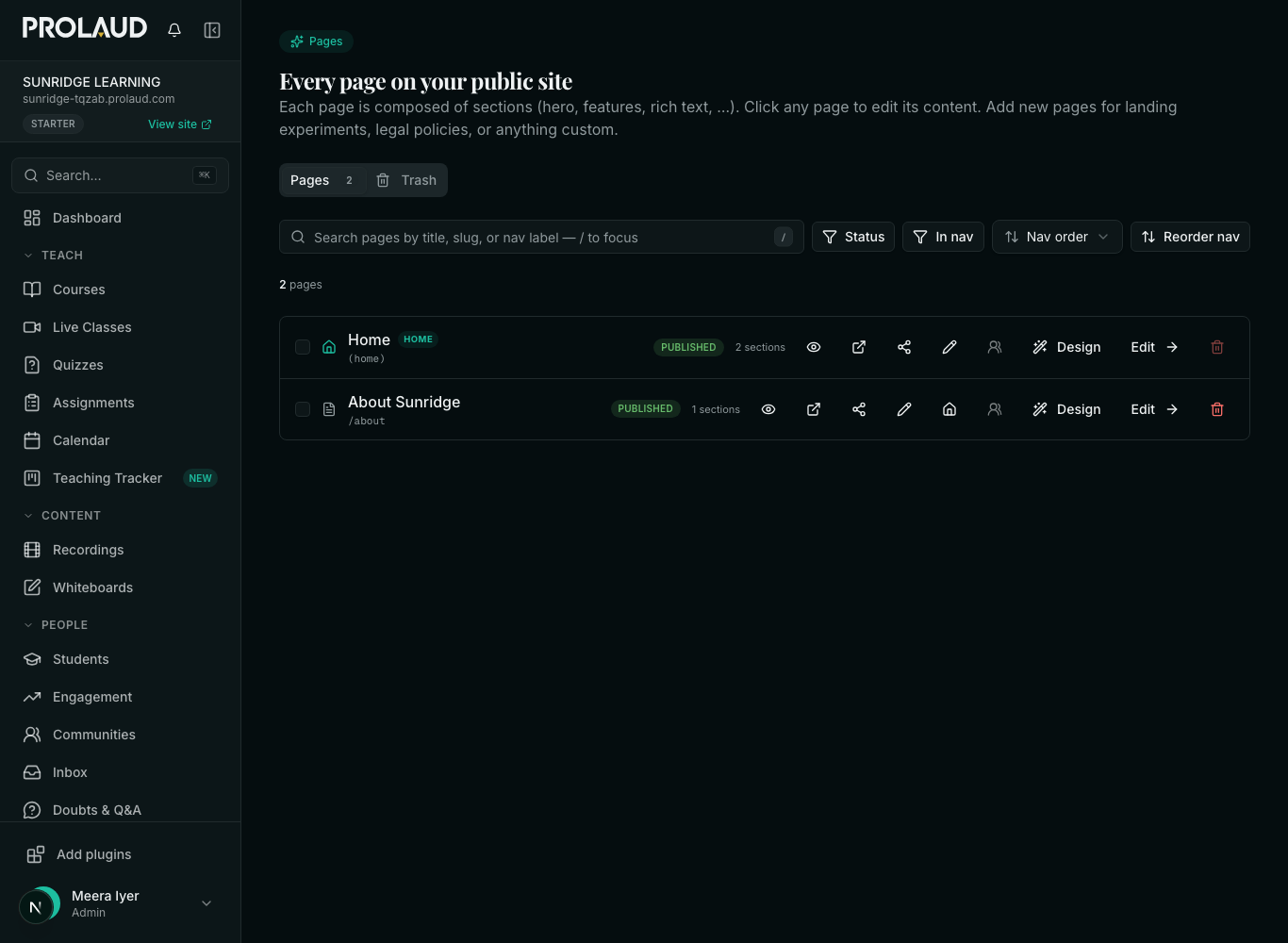
Open the page you want to edit, scroll past the sections, and you will see a card headed “SEO & social sharing”. Click the card and it opens. It is collapsed until you click it, which is why it reads as missing — the fields are not on a separate screen and there is no separate SEO menu.
- In the sidebar, open Public Site.
- For your front page choose Home page. For anything else choose Pages, then click the page you want.
- Scroll to the bottom of the editor.
- Click the card titled “SEO & social sharing”.
- Fill in what you want, then press Publish. Nothing you type here is live until you publish.

The four fields
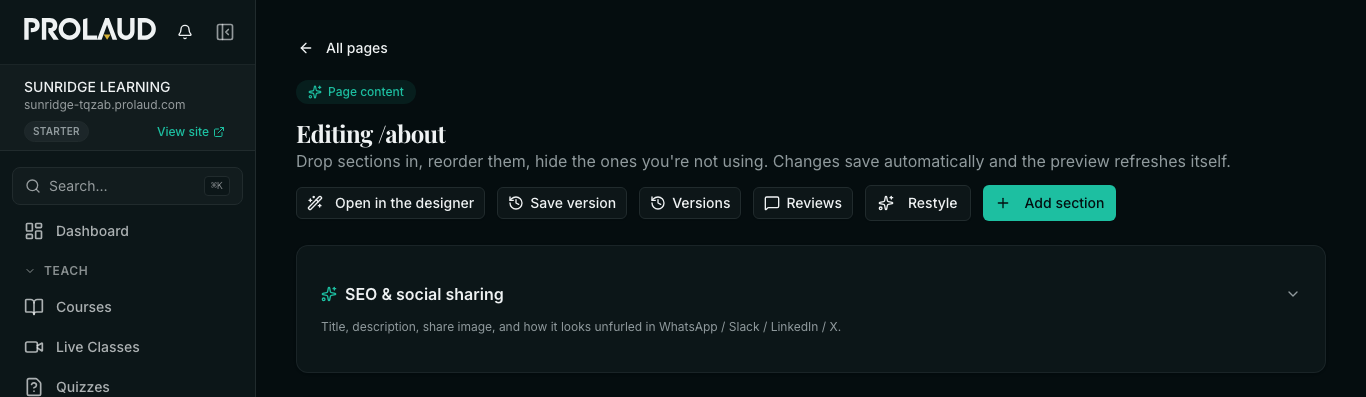
- Meta title — the blue line in a Google result and the bold line in a chat preview. Keep it under 70 characters; Google cuts it off around there and the editor shows you a live count.
- Meta description — the gray sentences underneath. Aim for about 160 characters. It rarely changes your ranking, but it is what decides whether somebody clicks.
- Share image (OG) — the picture that appears when the link is pasted into WhatsApp, Slack, LinkedIn or X. Best at 1200 × 630.
- Hide from search engines — a switch. Turn it on for a page you want reachable by link but not listed in Google: a thank-you page, an internal price list, a page you are still writing.
As you type, the panel draws the actual cards — a Google result, and the unfurl for WhatsApp, Slack, LinkedIn and X — so you can see the truncation happen rather than counting characters yourself.
What happens if you leave a field blank
Nothing breaks. Each field falls back to something sensible, and the panel shows you what a visitor currently sees:
- Meta title → the page’s own title → your site name.
- Meta description → your site-wide description → a generic line.
- Share image → the share card on Site settings → your logo.
So it is worth filling in the site-wide fallbacks once, even if you never touch an individual page: they cover every page you have not written meta for, including pages you add later.
Setting the site-wide fallbacks
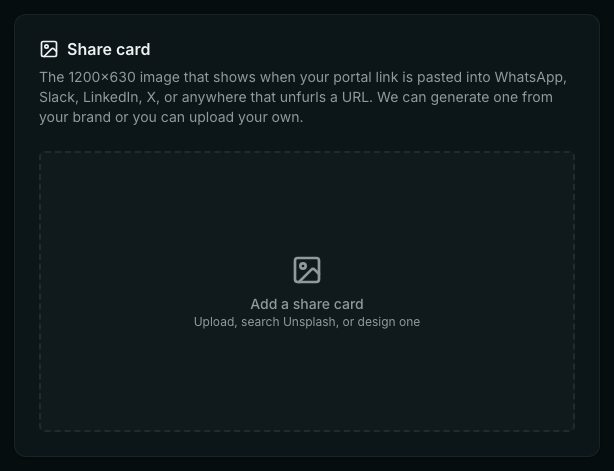
Public Site → Site settings → the Identity tab. Two things there affect every page: your site name and tagline, which feed the title and description fallbacks, and the Share card — the 1200 × 630 image used whenever a page has no share image of its own. You can upload one, search Unsplash, or have one designed from your brand.
Blog posts, courses and the storefront
Pages are not the only thing with meta. Each of these has its own, in the place you already edit the thing itself:
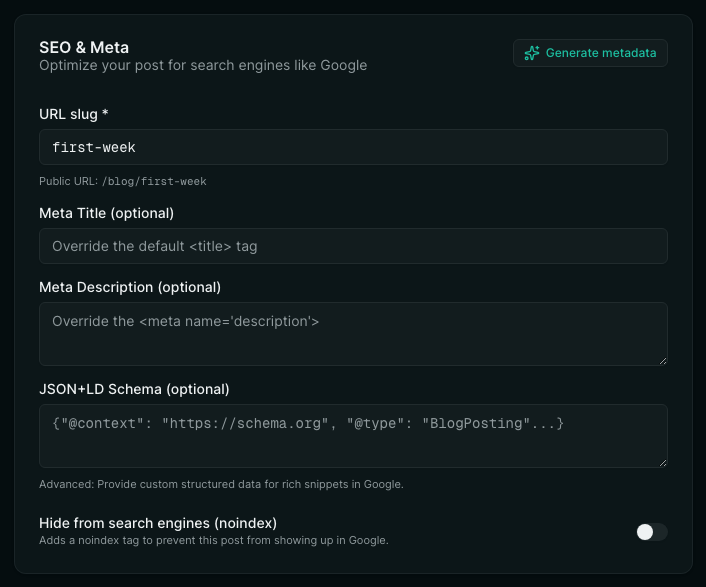
- Blog posts — Public Site → Blog → open a post → the “SEO & Meta” card. It carries the post’s URL slug, meta title, meta description, an optional JSON+LD schema block and its own noindex switch. The Generate metadata button fills the meta in one go from the body you have written; edit whatever it gets wrong.
- Courses — Courses → open a course → the SEO tab. As well as meta title, description and share image, this is where the course’s URL slug lives.
- Store products — a published product’s sales page takes its title, description and cover image from the product itself, so there is no separate meta to fill in.
Checking your work
Public Site → Site audit reviews the whole site at once — brand, catalog, SEO and conversion — and lists the pages that are missing a title, a description or a share image. It is the fastest way to find the pages you have not done yet, rather than opening them one at a time.
- Where is the SEO option in the portal?
- On the page itself. Public Site → Home page, or Public Site → Pages and open a page, then scroll down and click the card titled “SEO & social sharing”. It is collapsed by default. There is no separate SEO section in the menu.
- I set a meta title but Google still shows the old one.
- Check two things in order. First, did you press Publish? Edits are a draft until you do. Second, if you have published, Google simply has not re-crawled the page yet — that takes days, and there is nothing to fix on your side.
- Do I have to fill this in for every page?
- No. Anything you leave blank falls back to the page title, your site name and your share card. Filling in the site-wide fallbacks on Site settings once covers every page, including ones you add later.
- How do I keep a page out of Google but still send people the link?
- Turn on “Hide from search engines” in the same panel. The page stays reachable by anyone with the link; it just asks search engines not to list it. Do not also try to block the page in a robots file — a blocked page cannot be read, so the request not to list it is never seen, which is the opposite of what you wanted.
- What size should the share image be?
- 1200 × 630 pixels. Smaller works, but it will look soft in a preview card, and some platforms refuse very small images altogether.
Related