For creators
Add a cover photo to your public profile
Your cover photo is the wide banner at the top of your public teacher profile. Upload one, pick a free Unsplash photo, or design one in a few seconds. The picker shows the same crop your visitors will see.
Last updated Sep 22, 2026
Open the cover picker
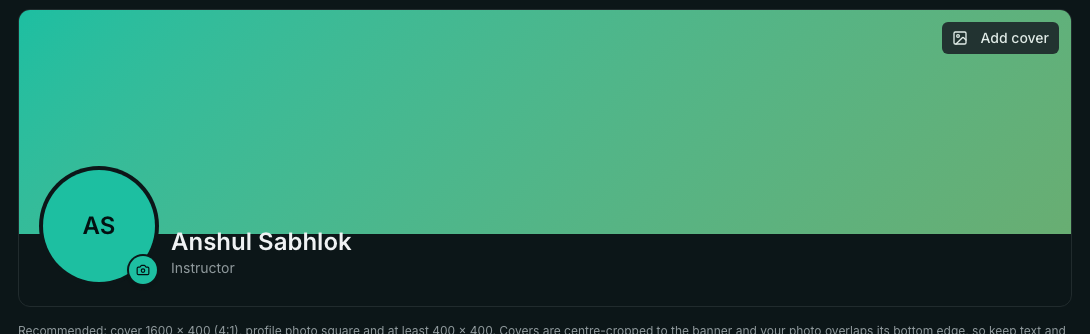
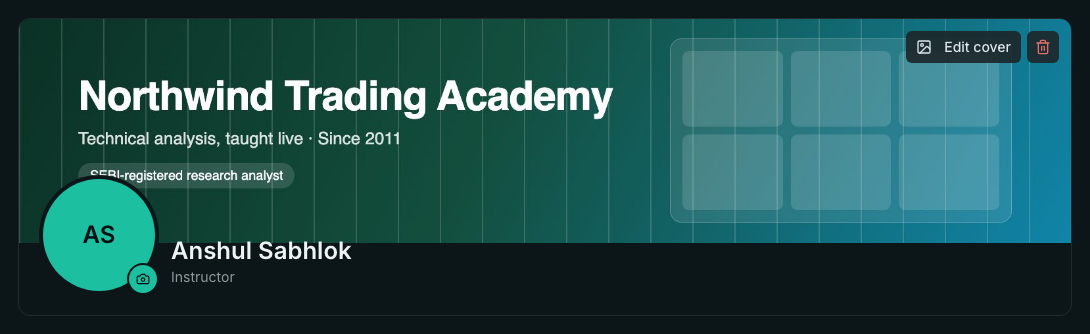
In your dashboard, open Public Site → Public profile. You can also search for Public profile in the command palette. The Photo & cover card shows your cover and photo together, the way visitors see them. Click Add cover in the top-right corner of the banner. Once you have a cover, the same button reads Edit cover, and the trash icon next to it removes the cover.
The picker is titled Profile cover photo. Its frame has the same wide 4:1 shape as the banner on your public profile, so anything you place in it is placed the same way on the live page.
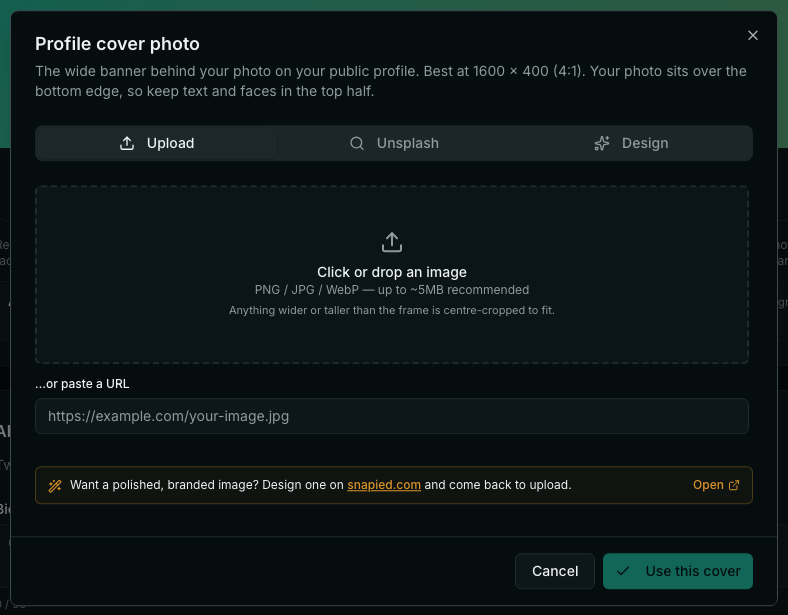
Pick the right size
- Best size: 1600 × 400 pixels (4:1). PNG, JPG or WebP. Under about 5 MB is best, but larger files are compressed for you before upload.
- A different shape still works. The image is scaled to fill the banner and trimmed evenly from the center. A 1600 × 500 banner loses a thin strip from the top and bottom, and a square photo loses a lot more.
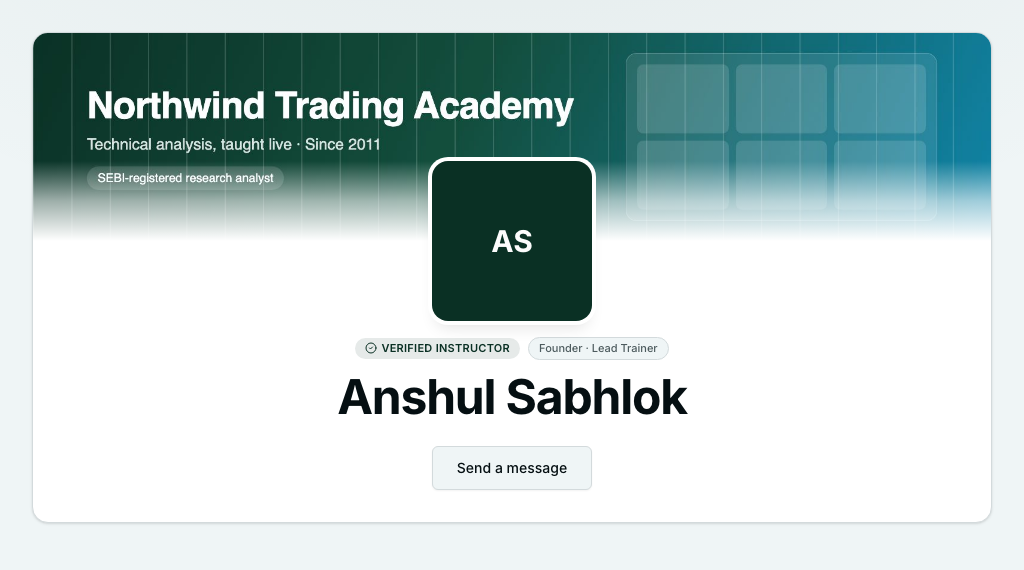
- Keep text and faces in the top half. On your public profile, your photo sits over the middle of the banner's bottom edge, and that edge fades into the page.
- On a phone the banner is shorter and narrower, so the left and right edges are trimmed more. Keep the important parts away from the far sides.
Three ways to get a cover
Upload: click the frame or drop a file on it. You can also paste a link to an image hosted elsewhere, and we copy it to our CDN when you save. Unsplash: search the free Unsplash library, and optionally put a title on the photo. Design: pick a gradient and type a title. Designs are drawn at the banner's 4:1 shape, so the text is never cropped off.
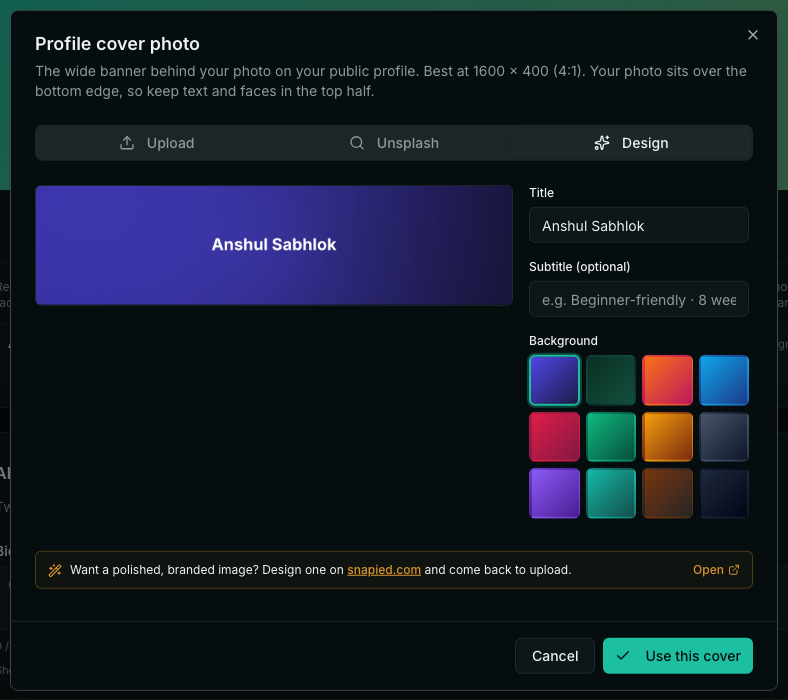
Check it, then save
After an upload, the frame shows your image in the exact crop the banner will use. If a headline or a face is cut off here, it is cut off on your profile too. Fix the image and upload it again before you save.
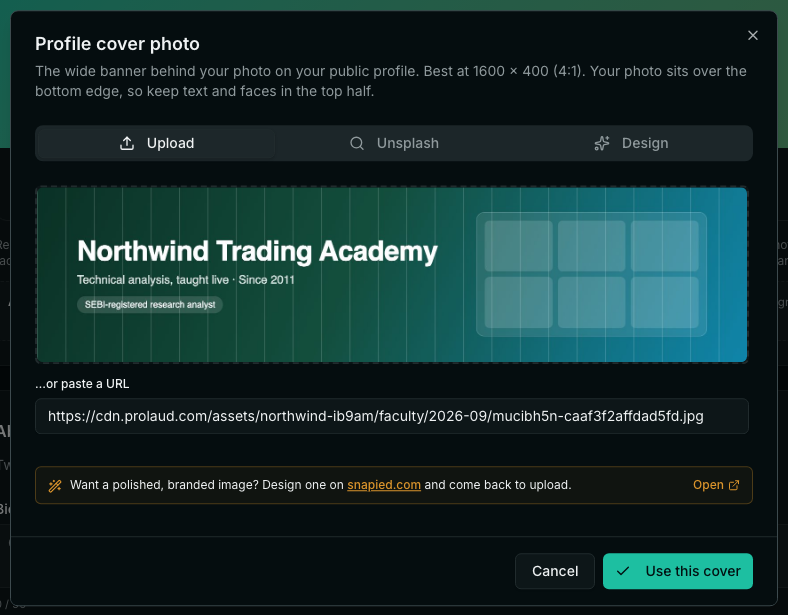
Click Use this cover. The banner appears on the Photo & cover card straight away, and your profile saves it a moment later. The bar at the bottom of the page says Saving, then disappears once the cover is stored.
What visitors see
Click View public profile at the top of the page to see the live version. Your photo is centered over the lower part of the banner, which is why text and faces should stay in the top half.
- What size should my profile cover photo be?
- 1600 × 400 pixels, which is a 4:1 ratio. Other sizes are scaled to fill the banner and trimmed from the center, so the closer you are to 4:1, the less is trimmed.
- Why is my cover photo cropped?
- The banner is much wider than it is tall. An image of any other shape has to be trimmed to fill it. The picker shows you that trim before you save, so you can pick or edit an image that fits.
- Can I use my YouTube or LinkedIn banner?
- Yes. Those banners are wide too, and they fit well. Upload the file as it is and check the preview before you save. Keep anything important out of the bottom half, because your photo covers that area.
Related